
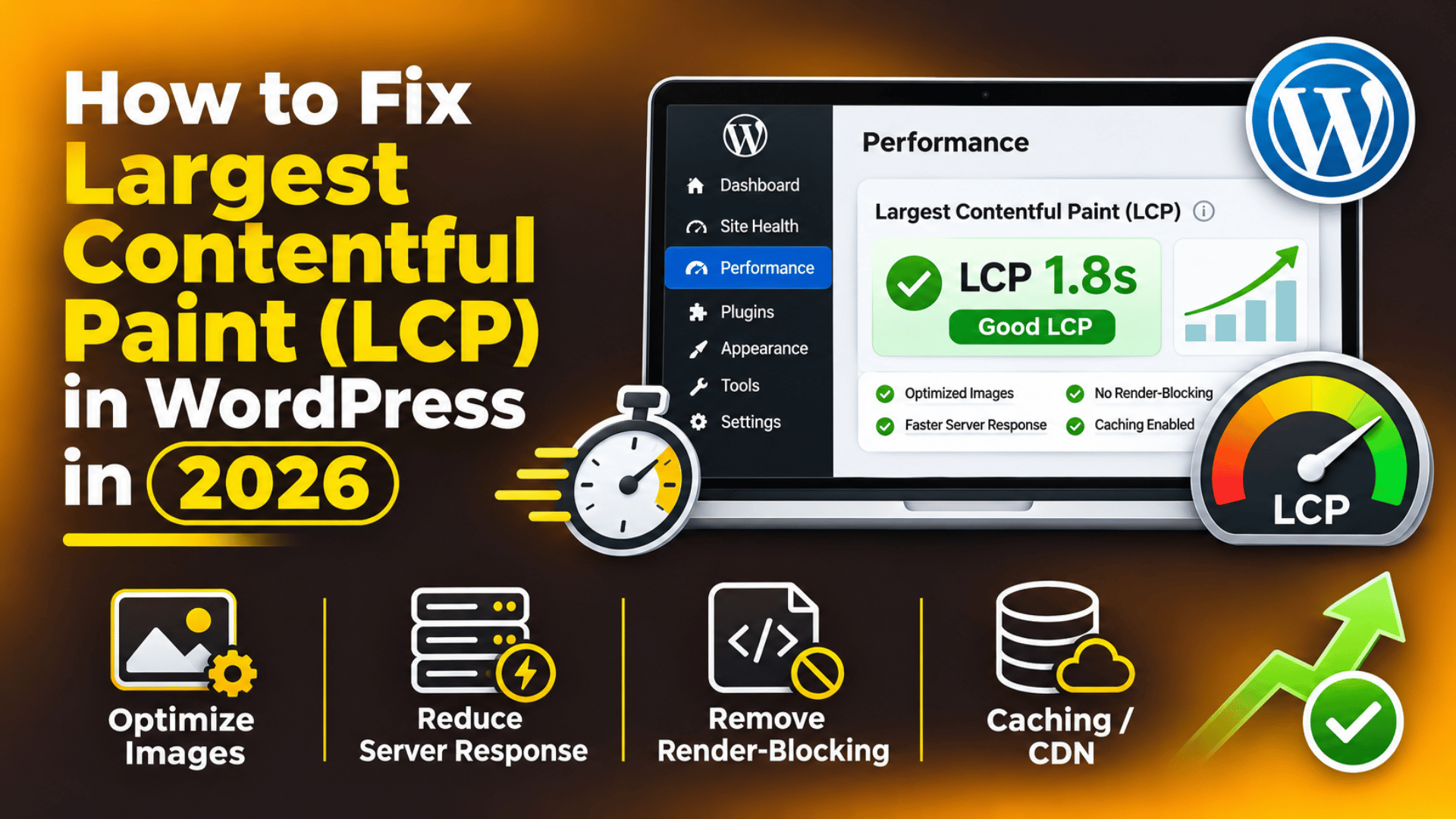
How to Fix Largest Contentful Paint (LCP) in WordPress in 2026
Introduction
You run a speed test on your WordPress site. The report comes back with a red warning: Largest Contentful Paint is too slow. It is one of the most common findings we see, and one of the most misread.
LCP is not a general speed score. It measures one specific thing. It asks how long a visitor waits before the biggest thing on the screen actually appears. On most WordPress sites that is a hero image or a large heading.
That distinction matters a great deal. Many site owners chase a higher overall score and see LCP barely move. The reason is simple. A change that does not touch the largest element cannot change the number. Fixing LCP means finding that one element, then removing whatever stands between the visitor and it.
This guide explains the whole problem in plain language. You will learn what LCP measures, what slows it down on a WordPress site, what a poor score costs you, how to find the real cause, and twelve steps to fix it. Every step names the exact screen, file or setting. If you are new to speed testing, start with our guide to Google PageSpeed Insights.
What Is a Slow Largest Contentful Paint?
Largest Contentful Paint is one of Google’s Core Web Vitals. It records the moment the largest visible element in the viewport finishes rendering. The browser watches the page load and keeps updating its guess. The last candidate before the user interacts becomes the final LCP.
The element is usually easy to spot. It is often a hero image, a background image, a video poster frame, or a large block of heading text. On a shop page it may be the main product photo.
Google uses three bands. Under 2.5 seconds is good. Between 2.5 and 4.0 seconds needs improvement. Over 4.0 seconds is poor. The score that matters is the 75th percentile of real visits over 28 days. So one in four visitors can be slower than your reported number.
It helps to split LCP into four parts. First comes the time to first byte, which is how long your server takes to reply. Then comes load delay, the gap before the browser even starts fetching the element. Then load time, the download itself. Last comes render delay, the wait before the browser paints it. A fix only works if it targets the right part.
What Causes a Poor LCP Score in WordPress?
There is rarely one cause. In real audits the score is usually dragged down by three or four things at once. Here are the ones we find most often.
A slow server response. If time to first byte is above about 800 milliseconds, nothing else can save your LCP. The clock starts before any image is requested. Shared hosting under load, heavy plugins and slow queries all add to this.
No page caching. Without caching, WordPress rebuilds every page from the database on every visit. That means PHP work and dozens of queries per request. Caching turns that into a ready-made file.
An oversized hero image. This is the single most common cause we see. A 3,000-pixel photo straight from a camera can weigh several megabytes. The visitor only needs a fraction of that.
The LCP image is lazy-loaded. Lazy loading delays images until they are near the viewport. That is good for images further down. On your hero image it is actively harmful, because the browser waits before fetching the one thing it should fetch first.
Render-blocking CSS and JavaScript. The browser will not paint anything until it has processed blocking stylesheets and scripts in the head. Every extra blocking file pushes your paint later.
Web fonts that block text. If your LCP element is text, a font loading slowly can hold the paint back. The browser may hide the text until the font arrives.
Heavy page-builder markup. Visual builders wrap content in many nested containers and load their own CSS and JavaScript on every page. The extra weight delays the first paint.
Too many plugins doing front-end work. Each plugin that queues its own script or stylesheet adds requests. Twenty small files still cost real time on a mobile connection.
An outdated PHP version. Older PHP branches run measurably slower and stop getting security fixes. That slowness lands directly in your time to first byte.
No CDN for a global audience. If your server sits in one country and your visitors are elsewhere, every request pays the distance. Distance becomes latency, and latency becomes LCP.
Redirect chains. Each redirect is a full extra round trip before the real page even starts. Two or three chained redirects can cost a second on mobile.
What Is the Impact of This Issue on the Website?
A poor LCP does not break your site. It quietly costs you visitors, and the cost compounds over time.
Search visibility suffers. Core Web Vitals are part of Google’s page experience signals. They rarely outrank strong content on their own. But when two pages are close, the faster one has the edge.
Visitors leave before the page appears. A blank hero area reads as a broken site. Many people hit back rather than wait, and you never see them again.
Mobile users feel it most. Phones have slower processors and weaker connections. A page that feels fine on your desk can be twice as slow on a phone.
Conversions drop. On shop pages, the LCP element is usually the product image. If it is slow, the buying decision starts late and some visitors never get that far.
Ad and campaign spend is wasted. Paid traffic lands on a slow page and bounces. You pay for the click and get nothing back.
Search Console flags whole URL groups. The Core Web Vitals report groups similar pages together. One slow template can put hundreds of URLs into the poor bucket at once.
How to Identify This Issue on the Website
Do not guess. Measure first, and find the exact element that is slow. These checks take about fifteen minutes and tell you where to spend your effort.
Sign 1: The hero area stays blank for a beat. Load your homepage on a phone over mobile data. If the top of the page is empty for a second or more, you have found the symptom.
Sign 2: Mobile scores are far worse than desktop. A large gap points at image weight or JavaScript cost, not at your server.
Sign 3: The whole site is slow, not one page. That points at the server, the theme or a plugin, rather than at one heavy image.
Sign 4: It got worse after a change. Note the date of your last theme update, plugin install or new homepage banner. Recent changes are the first suspects.
Run PageSpeed Insights. Test your key URLs one at a time. Read the field data at the top first, because that is real visitor data. Then open the Diagnostics section and find the line naming the LCP element. That single line tells you what to fix.
Read the LCP breakdown. The report splits LCP into the four phases described earlier. If time to first byte dominates, fix the server and caching. If load time dominates, fix the image. If render delay dominates, fix your CSS and scripts.


Check Search Console. Open the Core Web Vitals report under Experience. It shows how real visitors experienced your pages over 28 days, grouped by template. Lab tools cannot show you this.
Use the browser Network tab. Press F12, open Network, then reload with the cache disabled. Look at the first document request and note the waiting time. Then find your hero image and check its size in kilobytes. Here is how to open the browser console and network tools.
Check whether your hero image is lazy-loaded. Right-click the image and choose Inspect. If the tag carries loading="lazy", that is a direct hit on your LCP. Our guide on WordPress lazy loading explains how to control it.
Review Site Health and your PHP version. Go to Tools → Site Health → Info. The Server panel shows your PHP version and memory limit. The Site Health screen also flags outdated software.
Test with plugins off on a staging copy. Deactivate front-end plugins and retest. A large jump tells you a plugin is the weight. Never run this test on a live site during business hours.
How to Fix Largest Contentful Paint
Work through these steps in order. They move from measurement, to the server, to the image, to the code. Before any step that edits a file, take a full backup or work on a staging site first.
Step 1: Record a baseline. Test three URLs: your homepage, a key landing page, and a product or blog post. Save the mobile LCP number for each. Without a baseline you cannot tell whether a change helped. Our guide on checking your WordPress site performance covers a repeatable routine.
Step 2: Name the LCP element. In the PageSpeed Insights report, open Diagnostics and find the “Largest Contentful Paint element” entry. Write down what it is. An image and a block of text need completely different fixes, so do not skip this.
Step 3: Turn on page caching. Caching is the biggest single win for time to first byte. Many hosts offer it at the server level, and it is usually the fastest option. Otherwise use a caching plugin. Our roundup of WordPress cache plugins compares the main choices. After enabling it, clear the cache and retest. You should see time to first byte drop sharply.
Step 4: Move to a current PHP version. Check your version under Tools → Site Health → Info → Server. Newer branches run faster and stay supported. Test the upgrade on staging first, because an old plugin can break on a new branch. Our guide on checking your WordPress PHP version shows where to change it.
Step 5: Clean up the database. Post revisions, expired transients, spam comments and orphaned meta all slow queries down. A lighter database means a faster first byte. Back up before you run any cleanup. Our guide on optimising database performance walks through it safely.
Step 6: Resize the hero image properly. Find the real display width of the image on mobile and on desktop. Then export the file at roughly twice that width, and no more. A full-width hero rarely needs to be wider than 1,920 pixels. Aim for under 200 KB. This one step often cuts a full second.
Step 7: Serve modern image formats. WebP and AVIF are far smaller than JPEG at the same quality. WordPress supports WebP natively, and most image tools will convert in bulk. Our guide on using WebP images in WordPress covers the conversion. An image optimisation plugin can automate it for new uploads.
Step 8: Stop lazy-loading the hero image. WordPress adds loading="lazy" to images automatically. Since WordPress 5.9 it tries to skip the first image, but page builders and custom templates often defeat that. Check the rendered tag. If the hero still has loading="lazy", remove it. Many themes and image plugins now offer a setting for this, so look there before editing code.
Step 9: Give the hero image priority. Tell the browser which image matters most. Add fetchpriority="high" to the LCP image tag, and preload it in the head. Back up your theme first, and use a child theme so an update does not wipe your change.
<link rel="preload" as="image"
  href="/wp-content/uploads/2026/01/hero.webp"
  fetchpriority="high">
Step 10: Remove render-blocking CSS and JavaScript. Defer scripts that are not needed for the first paint. Inline the small amount of CSS used above the fold, and load the rest afterwards. Most speed plugins can do this from a settings screen. Test carefully, because deferring the wrong script breaks sliders and menus. Our comparison of speed optimisation plugins covers the options. You can also remove unused admin CSS such as Dashicons from the front end.
Step 11: Fix your web fonts. Self-host your fonts instead of calling a third-party origin. Load only the weights you actually use. Then add font-display: swap so text paints immediately in a fallback font.
@font-face {
  font-family: 'YourFont';
  src: url('/fonts/yourfont.woff2') format('woff2');
  font-display: swap;
}
Our guide on adding custom fonts in WordPress shows where these rules belong.
Step 12: Add a CDN and cut page weight. A content delivery network serves your images from a location near the visitor. That removes distance from the equation for a global audience. See our list of free CDN options for WordPress. At the same time, audit your plugins and remove anything unused. Fewer front-end files means less to download before the paint.
After the last step, retest all three baseline URLs. Lab scores move immediately. Field data in Search Console is a 28-day rolling window, so give it three to four weeks before you judge the real result. If your LCP is still poor after all twelve steps, the cause is usually the theme or the hosting plan, and deeper development work on Core Web Vitals is the next move.
How to Prevent This Issue
LCP drifts back up over time. New banners, new plugins and new campaigns all add weight. A few habits keep the score stable.
Set an image rule for your team. Agree a maximum width and file size for uploads, and write it down. Most slow heroes are simply files nobody resized.
Test every change on staging. Run a speed test before and after any theme update or new plugin. A staging site lets you catch a regression before visitors do.
Check Search Console monthly. Open the Core Web Vitals report on the first of each month. A slow slide is easy to fix early and painful to fix late.
Audit plugins twice a year. Deactivate and delete anything unused. Watch for plugins that load scripts on every page when they are only needed on one. Our guide to WordPress plugin conflicts explains how to test safely.
Keep PHP and WordPress current. Updates bring real speed gains as well as security fixes. Schedule them rather than leaving them.
Back up before performance work. Caching, minification and font changes all touch how pages render. Our guide on backing up and restoring a WordPress website covers a routine that works.
Design the hero for speed. A simple banner with one image beats a slider with five. Fewer moving parts means a faster paint and fewer things to maintain.
Watch the admin side too. A sluggish dashboard often shares its root cause with a slow front end. Our guide on fixing a slow admin dashboard covers that side.
Conclusion
Largest Contentful Paint measures one thing: how long a visitor waits for the biggest element on the screen. Google treats under 2.5 seconds as good, and judges you on the experience of real visitors over 28 days.
The causes cluster in four places. The server and caching set your time to first byte. The hero image sets your load time. Lazy loading and missing priority hints set your load delay. Blocking CSS, JavaScript and fonts set your render delay. Most WordPress sites have a problem in at least two of those.
The cost is real but quiet. Slower pages lose mobile visitors, weaken your position against close competitors, waste paid traffic and drag down conversions on product pages.
Diagnosis is straightforward. Run PageSpeed Insights, read the field data, name the LCP element, and read the four-phase breakdown. Then work the twelve steps in order: measure, name the element, cache, update PHP, clean the database, resize the image, convert the format, stop lazy-loading the hero, add priority hints, unblock CSS and JavaScript, fix fonts, and add a CDN. Prevention comes down to an upload rule, staging tests, a monthly Search Console check and regular plugin audits.
If you have worked through these steps and LCP is still poor, the limit is usually the theme or the hosting plan. That is where a proper audit saves time. Our team at 24×7 WP Support works on WordPress speed and Core Web Vitals every day, and we are happy to take a look at your site.
Related posts:

A guide to add a cost calculator for a WordPress website

WooCommerce Google Docs integration: #1 Sales Funnel Builder

WordPress Freelancer & Designer Pricing: Hourly Rates & Project Costs in 2026
How Much Does WordPress Training Cost in 2026? Free & Paid Options

How to Import a WordPress Site into GoDaddy

Brian is a WordPress support specialist and content contributor at 24×7 WP Support. He writes practical, easy-to-follow guides on WordPress troubleshooting, WooCommerce issues, plugin and theme errors, website security, migrations, performance optimization, and integrations. With a focus on solving real website problems, Brian helps business owners, bloggers, and online store managers keep their WordPress sites running smoothly.