
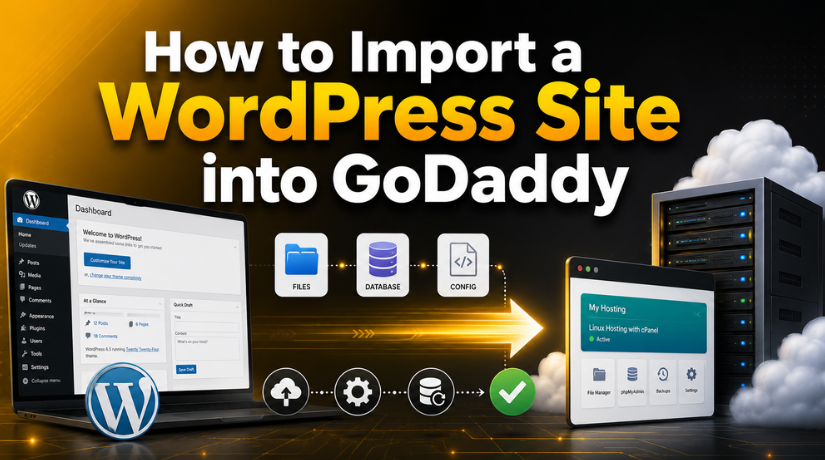
How to Import a WordPress Site into GoDaddy
Introduction
Moving your WordPress site to a new host is one of those tasks that sounds more complicated than it needs to be — but only if you go in without a plan. Whether you’re switching to GoDaddy because of better pricing, improved performance, or their Managed WordPress Hosting features, the good news is there are multiple ways to get your existing site over there. Some are almost fully automated; others give you more control. This guide walks you through all the main methods in plain language so you can pick the one that works best for your situation in 2026.
What You Need Before You Start
Before you touch a single file, a little preparation goes a long way. Rushing the migration without checking these boxes is the number one reason migrations go sideways.
First, make sure your GoDaddy hosting plan is active and your WordPress installation is ready on the destination server. If you haven’t set up WordPress on GoDaddy yet, you’ll want to do that first — our guide on how to install WordPress on GoDaddy walks you through the whole setup from scratch.
Second, take a complete backup of your current site. Even if the migration tool you use creates its own backup, it’s smart to have an independent copy. Use a plugin like UpdraftPlus or just export your database manually — more on that below. Third, note your current WordPress admin credentials, database name, database user, and database password. You’ll need these if you go the manual route. Finally, put your site in maintenance mode if possible so no new content is added while the migration is in progress.
Method 1: GoDaddy’s Automatic Migration Tool (Best for Managed WordPress Hosting)
If you’re moving to GoDaddy’s Managed Hosting for WordPress, this is the easiest path by a wide margin. GoDaddy built an automatic migration feature into their onboarding flow specifically for this.
How It Works
When you first set up your Managed WordPress Hosting plan, GoDaddy will ask how you want to start. Choose “Import an existing WordPress site.” You’ll enter your current website’s URL and GoDaddy’s system will handle the heavy lifting behind the scenes. Under the hood, it installs the ManageWP Worker plugin on both your source and destination sites to carry out the transfer.
What You’ll Need
Your source site must be publicly accessible throughout the process — it can’t be behind maintenance mode or password protection during the transfer. GoDaddy also recommends temporarily deactivating any security plugins or firewalls on your existing site that might block external connections, and switching to a default theme temporarily to rule out theme-related conflicts.
After the Transfer
Once GoDaddy’s tool finishes, log into your new WordPress dashboard and verify that your pages, posts, images, and settings all transferred correctly. Update your nameservers or DNS records to point your domain to GoDaddy’s servers — and only do this after you’ve confirmed everything looks right, not before.
Method 2: Migrate Using a Plugin (Recommended for Shared Hosting)
If you’re on GoDaddy’s standard shared or cPanel-based hosting rather than their Managed WordPress Hosting, the automatic tool above may not be available. A migration plugin is the next best thing and is still well within reach for non-technical users.
Using All-in-One WP Migration
All-in-One WP Migration is one of the most popular free migration plugins available. On your source site, install and activate the plugin, then go to All-in-One WP Migration → Export. Choose “Export to File” and wait for it to generate a .wpress file containing your entire site — files, database, themes, and plugins all in one package.
Download that file to your computer. Then log into your destination WordPress install on GoDaddy, install the same plugin, and go to All-in-One WP Migration → Import. Upload your .wpress file and let the plugin restore everything. Note that the free version of this plugin has an upload size limit (around 512MB). For larger sites, you may need to purchase the premium version or use the workaround of temporarily increasing your PHP upload limit via GoDaddy’s cPanel.
Using Duplicator
Duplicator is another strong option, particularly for developers who want more control. It creates two files: an archive (your site data) and an installer.php script. You upload both to your GoDaddy server via FTP, then run the installer by visiting yoursite.com/installer.php in a browser. The installer walks you through a step-by-step wizard to restore your site and configure database settings on GoDaddy. It’s slightly more technical than All-in-One WP Migration but gives you more flexibility.
Method 3: Manual Migration via FTP and phpMyAdmin
The manual method takes the most time and technical know-how, but it’s the most reliable option for large or complex sites, and it gives you complete control over every part of the process. Here’s how it breaks down into three stages.
Stage 1: Export Your Files
Connect to your current hosting account using an FTP client like FileZilla. Navigate to your site’s root directory (usually public_html) and download the entire wp-content folder, which contains your themes, plugins, and uploaded media. You technically don’t need to transfer core WordPress files since you’ll reinstall those fresh on GoDaddy — the wp-content folder is what makes your site yours.
Stage 2: Export Your Database
Log into your current host’s control panel and open phpMyAdmin. Select your WordPress database from the left column, click Export from the top menu, choose “Quick” as the export method, and make sure the format is set to SQL. Click Go and save the .sql file to your computer. This file contains all your posts, pages, comments, user accounts, settings, and everything else stored in your database.
Stage 3: Import Everything into GoDaddy
On GoDaddy’s cPanel, create a new MySQL database and user, and assign the user full privileges to the database. Note the database name, username, password, and host (usually localhost). Open phpMyAdmin on GoDaddy, select your new database, click Import, and upload your .sql file.
Next, connect to GoDaddy via FTP and upload your wp-content folder to the WordPress root directory on GoDaddy’s server. Finally, open your wp-config.php file on GoDaddy and update the database credentials to match the new database you just created. Save the file, refresh your site, and you should see your content.
Method 4: Importing Content from WordPress.com to GoDaddy
If your original site is hosted on WordPress.com (not a self-hosted WordPress.org install), the migration process is a little different because WordPress.com restricts access to the underlying files and database.
Step 1: Export from WordPress.com
In your WordPress.com dashboard, go to Tools → Export. Select “Export All” and download the XML file. This file contains your posts, pages, comments, and media references — but not your themes or plugins, since those are managed by WordPress.com directly.


Step 2: Import into Your GoDaddy WordPress Site
Log into your GoDaddy WordPress installation and go to Tools → Import. Click on “WordPress” and install the WordPress Importer plugin if prompted. Once installed, click “Run Importer,” upload your XML file, and follow the on-screen prompts. You can choose to import media files alongside the content, which will pull images from your old WordPress.com site.
Keep in mind that this method only transfers content — not your design, plugins, or settings. You’ll need to manually set up a theme and configure your site settings on the GoDaddy side separately.
Updating Your Domain DNS After Migration
Once you’ve confirmed your site looks and works correctly on GoDaddy, it’s time to point your domain there. If your domain is registered with GoDaddy, you can update the nameservers directly in your GoDaddy account under Domain Settings. If your domain is registered elsewhere, log into that registrar and update the nameservers to GoDaddy’s:
ns1.domaincontrol.comns2.domaincontrol.com
DNS changes typically propagate within a few hours but can take up to 48 hours in some cases. During this window, your site might appear differently depending on which DNS server a visitor’s browser is hitting. Don’t make further edits until propagation is complete.
Testing Your Site After Migration
A migration isn’t done the moment the files land on GoDaddy’s servers. Testing is essential and often skipped. Walk through these checks before you consider the job finished.
Click through your most important pages and posts and verify the content is all there. Check that images load correctly — broken images usually mean the file path or URL structure changed during migration. Test any contact forms, checkout pages, or login functionality. Run a broken link checker to catch any internal links that may have broken. If you use Yoast SEO or another SEO plugin, verify your sitemaps are still generating properly and re-submit to Google Search Console.
If you’re managing multiple WordPress sites on GoDaddy, our guide on how to manage multiple WordPress websites from one dashboard covers some useful tools to keep things organized after your migration is complete.
Common Mistakes to Avoid During WordPress Migration
Even experienced developers make avoidable errors during migrations. Here are the most common pitfalls and how to sidestep them.
Changing DNS too early. Pointing your domain to GoDaddy before you’ve fully tested the migrated site is a mistake. Visitors will start landing on an incomplete or broken version. Always test first using GoDaddy’s temporary URL or by editing your local hosts file.
Forgetting to update the site URL. If your new GoDaddy install has a different URL than your original site during staging, make sure to update it in Settings → General once you go live. A mismatched site URL is one of the most common causes of a broken WordPress site after migration.
Skipping the backup. Migrations occasionally fail. If something goes wrong and you haven’t backed up your original site, you could lose data. Always back up before you start — no exceptions.
Not checking for SSL. GoDaddy offers free SSL certificates with most hosting plans. After migration, make sure your site is loading over HTTPS and that no mixed content warnings appear. Update your WordPress URL to use https:// once your SSL certificate is active.
If something does go seriously wrong and you need to start fresh, our article on how to uninstall WordPress from GoDaddy explains how to cleanly remove an installation and start over without losing your original backup.
Which Method Should You Choose?
Here’s a quick way to think about it. If you’re on GoDaddy’s Managed WordPress Hosting, use their automatic migration tool — it’s the simplest and most hands-off approach. If you’re on standard cPanel hosting and your site is under 512MB, All-in-One WP Migration is your best bet. If your site is large, complex, or you need full control over the process, go manual with FTP and phpMyAdmin. And if you’re coming from WordPress.com specifically, the XML importer is your only real option — just be prepared to rebuild your theme and settings.
Every site is a little different, and no single method works perfectly for everyone. The key is to choose the approach that matches your hosting plan and your comfort level with technical tools.
Get Expert Help with Your WordPress Migration
Migrating a WordPress site is manageable with the right approach, but it’s also easy to run into snags — especially with large sites, custom configurations, or e-commerce stores that can’t afford downtime. If you’d rather have a professional handle the move for you, the team at 24×7 WP Support specializes in exactly this kind of work. We handle WordPress migrations of all sizes, making sure your site arrives at GoDaddy complete, tested, and ready to go — without any surprises. Contact us today and let’s make your migration smooth and stress-free.
Related posts:

Brian is a WordPress support specialist and content contributor at 24×7 WP Support. He writes practical, easy-to-follow guides on WordPress troubleshooting, WooCommerce issues, plugin and theme errors, website security, migrations, performance optimization, and integrations. With a focus on solving real website problems, Brian helps business owners, bloggers, and online store managers keep their WordPress sites running smoothly.
