
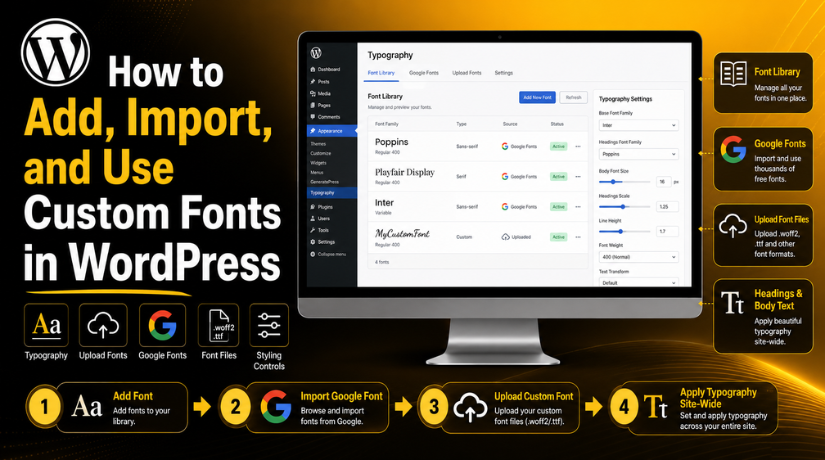
How to Add, Import, and Use Custom Fonts in WordPress
Introduction
Fonts play an important role in every WordPress website. They help visitors read your content with comfort. They also support your brand style and visual identity. A clean font can make your website look professional. A poor font can make users leave quickly.
Many website owners use custom fonts in WordPress for better control. These fonts help match the website with the business brand. They also make headings, buttons, menus, and pages more attractive. When used correctly, fonts improve both design and readability.
Custom fonts are helpful for many website types, such as:
- Business websites
- WooCommerce stores
- Blogs and news websites
- Portfolio websites
- Service-based websites
WordPress gives users different ways to add and use fonts. Some themes include built-in font settings. Some block themes support the Font Library feature. Users can also upload font files or use font plugins. This makes font control easier for beginners and website owners.
What Are Custom Fonts in WordPress?
Custom fonts are fonts added beyond your default theme fonts. They are not always included with WordPress or browsers. These fonts can come from Google Fonts, Adobe Fonts, or brand files. They can also be uploaded directly into your website.
Common custom font formats include:
- .woff2
- .woff
- .ttf
- .otf
The .woff2 format is often best for websites. It loads faster and works well on modern browsers. You can use custom fonts in WordPress for headings, body text, menus, buttons, forms, and captions.
Custom fonts help create a consistent website design. They also make your content feel more polished. However, users should choose fonts carefully. Too many fonts can slow the website. A simple font setup gives better speed and readability.
Where Do You Find Fonts in WordPress?
You can find font options in different WordPress areas. The exact location depends on your active theme. Block themes and classic themes use different design panels. So, always check your theme settings first.
In modern block themes, go to Appearance > Editor. Then open the Styles panel from the editor screen. Inside Styles, you can find typography controls. These controls help you change fonts across your website.
Classic themes usually use Appearance > Customize for design changes. There, you may find a Typography or Font section. Some themes also place font controls inside theme options. Page builders may also include their own font settings.
You may find font controls in these places:
- Appearance > Editor for block themes
- Appearance > Customize for classic themes
- Theme options panel
- Page builder design settings
- Plugin-based font settings
These WordPress typography settings help control headings, paragraphs, buttons, menus, and links. They make your website style more consistent and easier to read.
Understanding the WordPress Font Library
The WordPress font library helps users handle fonts inside WordPress. It gives more control without using many extra plugins. This feature works best with block themes and newer WordPress versions.
The Font Library allows users to add and organize font families. You can install supported fonts or upload local font files. After adding fonts, you can apply them through Global Styles.
This makes it easier to manage fonts in WordPress from one place. You can control fonts for headings, body text, and other elements. It also helps keep typography clean across the full website.
The Font Library is useful because it:
- Keeps font management simple
- Supports site-wide font changes
- Helps reduce extra plugin use
- Gives better design control
- Works well with Global Styles
Using the Font Library properly keeps your website clean and professional.
How to Add Custom Fonts Using the WordPress Font Library
The WordPress font library makes font setup easier for users. It helps you add fonts directly from the WordPress editor. You do not need complex coding for basic font changes. This method is useful for block themes and modern websites.
To add fonts, first log in to your WordPress dashboard. Then go to Appearance > Editor from the left menu. Open the Styles panel inside the site editor. After that, click the Typography option.
Now look for the font management or font library option. The label may change based on your theme version. From there, you can install a supported font family. You can also upload a local font file if needed.
Follow these simple steps:
- Open your WordPress dashboard.
- Go to Appearance > Editor.
- Click Styles inside the editor.
- Open the Typography settings.
- Choose the font library option.
- Install or upload your selected font.
- Apply the font to selected text areas.
- Save your changes and preview the website.
You can apply custom fonts in WordPress to headings, body text, buttons, and menus. This helps create a clean and branded website style. Always preview your website after saving font changes. Check both desktop and mobile views carefully.
How to Import Fonts in WordPress from Google Fonts
You can import Google Fonts directly from the Font Library. This option works best with block themes and newer WordPress versions. It gives users a simple way to add fonts without coding.
Follow these steps to import fonts:
- Log in to your WordPress dashboard.
- Go to Appearance > Editor.
- Open the Styles panel.
- Click the Typography option.
- Open the Manage Fonts or Font Library option.
- Select the Install Fonts tab.
- Search for your preferred Google Font.
- Choose the font family and required weights.
- Click Install to add the font.
- Save your changes after installation.
After importing the font, return to Typography settings. Select the imported font for headings, body text, buttons, or links. Then preview your website on desktop and mobile.
This is the easiest way for users learning how to import fonts in WordPress. It keeps the process simple and avoids extra plugin use.


If your theme does not show the Font Library option, use another method. You can import Google Fonts through theme typography settings. Some themes include Google Fonts inside Appearance > Customize. You can also use a trusted font plugin if your theme lacks this feature.
Always import only the font styles you need. Too many font weights can slow your website. A clean font setup keeps your website fast, readable, and professional.
How to Upload Custom Font Files in WordPress
You can upload font files when using brand fonts. This method is helpful for premium or custom font files. It also gives better control over font hosting. Many users choose this option for speed and branding.
Before upload, prepare your font file properly. Use web-friendly formats for better browser support. The .woff2 format is usually the best option. It loads faster and works well on modern browsers.
Follow these basic steps to upload custom fonts WordPress users can apply:
- Log in to your WordPress dashboard.
- Go to Appearance > Editor.
- Open Styles from the editor panel.
- Click the Typography option.
- Open Manage Fonts or Font Library.
- Select the Upload option.
- Upload your font file from your computer.
- Add the font name and required font weight.
- Save the font and apply changes.
You can also upload fonts through theme settings or plugins. Some themes provide a separate custom font upload area. Font plugins may also support local font files. Always use trusted plugins from reliable developers.
Before using any font, check the font license. Some fonts allow personal use only. Business websites need proper commercial usage rights. This helps avoid legal issues later.
How to Use Custom Fonts Across Your Website
After uploading fonts, apply them through WordPress typography settings. You can set fonts for headings, paragraphs, buttons, menus, and links. This helps keep the full website design consistent.
Use a clean font for body content. Body text should be easy to read. Use a stronger font for headings if needed. This helps users scan your content faster.
You can use custom fonts in WordPress for these areas:
- Page titles and headings
- Blog content and paragraphs
- Navigation menus and buttons
- Contact forms and labels
- Product titles and descriptions
Do not use too many font styles together. Two font families are enough for most websites. One can support headings, and one can support body text. This keeps the design clean and fast.
Always test your fonts on desktop and mobile. Check spacing, size, and readability before publishing changes.
How to Manage Fonts in WordPress Properly
After adding fonts, you must keep them organized. Good font control helps your website stay fast and clean. It also improves the reading experience for every visitor.
To manage fonts in WordPress properly, remove unused font families. Also remove extra font weights that your design does not need. For example, avoid loading thin, regular, medium, bold, and black together. Most websites only need regular and bold styles.
Use fallback fonts for safer loading. A fallback font appears when your main font fails. This helps visitors still read the content without layout issues.
Follow these simple font management tips:
- Remove unused fonts from the Font Library.
- Keep only required font weights.
- Use clear names for uploaded fonts.
- Check fonts after theme updates.
- Test fonts after cache clearing.
- Review mobile font size and spacing.
Best Practices for Using Custom Fonts in WordPress
Using custom fonts in WordPress needs a clean plan. Fonts should improve the design, not make it confusing. Choose readable fonts for paragraphs and long content. Avoid stylish fonts for body text because they reduce comfort.
Use proper font size for each device. Desktop text may look fine, but mobile text may feel small. Also keep enough line height between each line. This makes the content easier to read.
Check the text color and background contrast. Low contrast can make content hard to read. Always test your font setup before publishing changes.
Common Issues When Adding Custom Fonts
Sometimes fonts may not display correctly after setup. This can happen because of cache, format, or theme conflicts. The font may also fail if the wrong file type is used.
Common font issues include:
- Font not showing after upload.
- Browser cache showing old fonts.
- Theme settings overriding font choices.
- Font weight not loading correctly.
- Mobile view showing different font sizes.
To fix these issues, clear your site cache first. Then check the uploaded font format and theme settings. Also confirm that the selected font weight is installed.
Conclusion
Custom fonts help improve branding, readability, and website style. They also give better design control inside WordPress. However, fonts should be used carefully and managed properly. A clean setup helps your website look professional and load smoothly.
When you use the right font family, your content becomes easier to read. Your headings look stronger, and your pages feel more polished. This can improve user trust and make your website experience better.
If you need help adding, importing, or managing custom fonts on your WordPress website, 24×7 WP Support can help. Our WordPress experts can review your theme, font settings, and website design. We can also fix font display issues, upload custom fonts, and improve your website typography.
FAQs
1. Can I add custom fonts in WordPress without coding?
Yes, you can add custom fonts without coding. Modern block themes support the WordPress Font Library. Some classic themes also include typography settings. You can also use a trusted font plugin if needed.
2. Where can I manage fonts in WordPress?
You can usually manage fonts inside Appearance > Editor for block themes. Classic themes may use Appearance > Customize. Some themes and page builders also provide separate typography settings
3. What is the best font format for WordPress websites?
The .woff2 format is usually best for WordPress websites. It loads faster than many older formats. It also works well with most modern browsers.
4. Why is my custom font not showing in WordPress?
Your custom font may not show because of cache, wrong format, or theme settings. Clear your website cache first. Then check the font file, font weight, and typography settings.
5. Do custom fonts slow down a WordPress website?
Custom fonts can slow a website if used poorly. Too many font families and weights add extra loading time. Use only required fonts and test your website speed after changes.
Related posts:

Brian is a WordPress support specialist and content contributor at 24×7 WP Support. He writes practical, easy-to-follow guides on WordPress troubleshooting, WooCommerce issues, plugin and theme errors, website security, migrations, performance optimization, and integrations. With a focus on solving real website problems, Brian helps business owners, bloggers, and online store managers keep their WordPress sites running smoothly.
