
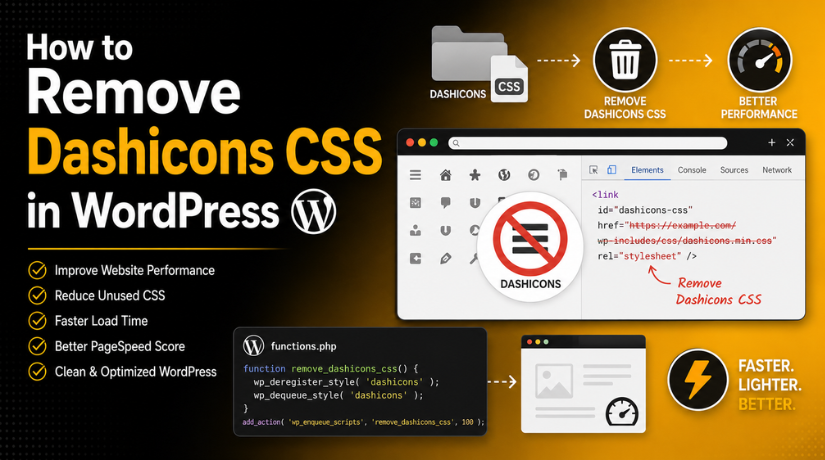
How to Remove Dashicons CSS in WordPress
Introduction
WordPress loads many files to run your website properly. These files include CSS, JavaScript, fonts, and images. Some files control your website design and layout. Some files support admin features inside the dashboard. One common file is WordPress Dashicons CSS, also known as dashicons.min.css.
Dashicons are useful inside the WordPress admin area. They help show small icons near menus and tools. However, this CSS file may also load on the frontend. That means normal visitors may download it too. In many cases, visitors do not need this file. So, it can become an extra unused CSS file.
Many website owners now focus on speed and user experience. Fast websites keep visitors engaged for longer. They also help users move through pages easily. This is why WordPress performance optimization matters so much today. Removing extra files is one smart step in that process.
When you remove Dashicons CSS in WordPress, you reduce one extra frontend request. This may look like a small change. But small changes can improve total page performance. It can also help reduce warnings in speed testing tools. Many tools may show it as unused CSS.
What Are Dashicons in WordPress and Why Do They Load?
Dashicons are the default icon font used by WordPress. They are small visual icons used inside the dashboard. These icons help users understand menus and tools faster. You may see them beside posts, pages, comments, media, settings, and plugins.
In simple words, Dashicons make the admin area easier to scan. Instead of plain text menus, WordPress shows helpful icons. These icons guide users while managing their website. For example, the post menu has a post icon. The media menu has a media icon. The comments menu has a comment icon.
Dashicons are mainly created for the WordPress dashboard. They are not always needed on public website pages. Public pages include your homepage, blog posts, service pages, and product pages. These pages usually need theme CSS, layout CSS, and content styling. They may not need admin icon fonts.
Still, WordPress Dashicons CSS can load on the frontend for different reasons. A theme may call Dashicons for design icons. A plugin may use Dashicons for frontend buttons. A custom post type may use it for admin styling. Some developers may also enqueue it without checking the page need.
This is where cleanup becomes useful. If your frontend does not use Dashicons, you can safely remove it. This process is often called dequeue Dashicons CSS in WordPress. It means you stop WordPress from loading that CSS file. This helps you remove unused CSS WordPress files more safely.
Should You Remove Dashicons CSS from WordPress for Better Speed?
You should remove Dashicons CSS in WordPress only when your frontend does not need it. Dashicons are useful inside the WordPress dashboard. They help show admin icons and toolbar icons clearly. But normal visitors may not need those icons. If the file loads on public pages without purpose, it becomes extra weight.
This is why many site owners choose to disable Dashicons WordPress frontend loading. It helps reduce one unused CSS file from the page. It also supports better WordPress performance optimization. A fast website gives users a smoother browsing experience. It can also help users stay longer on your pages.
The main benefit is simple. Your website loads fewer files for visitors. Even one small file can matter during speed cleanup. Many small files together can slow page loading. So, it is smart to review every loaded file carefully.
You should also think about unused CSS reports. Speed testing tools may show WordPress Dashicons CSS as unused. This often happens when the file loads but no icon appears. In that case, you can dequeue Dashicons CSS safely after testing. This helps you remove unused CSS WordPress files in a better way.
However, you should not remove Dashicons without checking your site. Some themes use Dashicons for frontend icons. Some plugins use them for rating stars or buttons. Some membership pages use them inside user dashboards. Some mobile menus may also depend on Dashicons.
How to Check If Dashicons CSS Is Loading on Your Website
Check Dashicons CSS Through Page Source
You can first check the website page source. Open your website frontend in any browser. Right-click on the page and choose “View Page Source.” Now press Ctrl + F and search for dashicons. If you find dashicons.min.css, then WordPress Dashicons CSS is loading on that page. This is the easiest method for beginners. It helps you confirm the file before making changes.
Check Dashicons CSS Using Browser Developer Tools
Browser developer tools give more accurate loading details. Open your website and right-click on the page. Click “Inspect” and go to the “Network” tab. Refresh the page while this tab stays open. Now filter the results by CSS files. Search for dashicons in the file list. If it appears there, the file is loading live. This helps you decide whether to dequeue Dashicons CSS.
Check Dashicons CSS With Speed Testing Tools
You can also use speed testing tools for this check. Tools like PageSpeed Insights and GTmetrix can show unused CSS. Sometimes, they may list Dashicons as an extra file. This can help during WordPress performance optimization. However, do not remove it only because a tool shows it. First, check whether your frontend design uses those icons.
Check Different Website Pages Separately
Do not check only the homepage. Dashicons may load differently on each page. Check your blog posts, service pages, product pages, contact page, and account page. Also check cart and checkout pages for WooCommerce sites. Some pages may need Dashicons, while others may not. This helps you remove unused CSS WordPress files safely.
Check Logged-In and Logged-Out Views
Dashicons may load differently for admins and visitors. Open your website while logged into WordPress first. Then open the same page in incognito mode. The incognito view shows the logged-out visitor version. This is important when you want to disable Dashicons WordPress only for public users. It keeps admin icons safe and working.
Check Frontend Icons Before Removing Dashicons
Before you remove Dashicons CSS in WordPress, check visible icons carefully. Look at menus, buttons, rating stars, forms, and mobile icons. Also check plugin-based sections and account dashboards. If icons disappear after removal, your site was using Dashicons. In that case, you can keep Dashicons on required pages only.
Important Safety Steps Before Removing Dashicons CSS from WordPress
Take a Full Website Backup First
Before you remove Dashicons CSS in WordPress, take a full backup. Your backup should include website files and database files. This gives you a safe restore option. If anything breaks, you can recover the website quickly. You can use your hosting backup tool. You can also use a trusted WordPress backup plugin.


Test the Change on a Staging Website
A staging website is a copy of your live website. It helps you test changes safely. You can disable Dashicons WordPress files there first. Then check the design, icons, menus, and buttons. If everything works fine, apply the same change live. This avoids problems for real visitors.
Avoid Editing Parent Theme Files
Do not add custom code inside parent theme files. Theme updates can remove your changes. They can also create unexpected code issues. A child theme is safer for custom changes. However, beginners may still find this hard. That is why a code snippets plugin is often better.
Use a Code Snippets Plugin for Safety
A code snippets plugin makes the process easier. You can add PHP code without editing theme files. You can also disable the snippet anytime. This is helpful if icons disappear after removing WordPress Dashicons CSS. It gives better control and reduces the risk of website errors.
Clear All Website Cache After Changes
Cache can show old website files. So, clear all cache after adding the snippet. Clear WordPress cache, plugin cache, server cache, and CDN cache. Also clear your browser cache. This helps you confirm whether dequeue Dashicons CSS worked correctly.
Test Logged-In and Logged-Out Views
Dashicons are often needed for logged-in users. They support the admin toolbar and dashboard icons. So, test your website while logged in. Then test again in incognito mode. This shows the normal visitor view. The safest method removes Dashicons only for logged-out visitors.
Check Important Website Pages
Test every important page after the change. Check the homepage, blog posts, service pages, and contact page. If you run WooCommerce, check product, cart, checkout, and account pages. Also test the mobile menu. This helps you remove unused CSS WordPress files safely.
Keep the Snippet Easy to Disable
Always use a clear snippet title. For example, use “Remove Dashicons CSS for Visitors.” This helps you find it later. If any issue appears, disable the snippet quickly. Then check which theme or plugin needs Dashicons. This keeps WordPress performance optimization safe and controlled.
How to Remove Dashicons CSS in WordPress Using a Code Snippets Plugin
Removing Dashicons with a code snippets plugin is simple and safe. You do not need to edit theme files directly. This method is useful for beginners and website owners. You can also disable the snippet anytime from the dashboard. Follow these steps carefully to remove Dashicons CSS in WordPress.
Step 1: Log in to Your WordPress Dashboard
- Open your WordPress login page.
- Enter your admin username and password.
- Click the Log In button.
- After login, open your WordPress dashboard.
- Make sure you have administrator access.
- You need admin access to add PHP snippets.
Step 2: Install a Code Snippets Plugin
- Go to Plugins from the left menu. Click the Add New option.
- Search for a trusted code snippets plugin.
- Click Install Now on the selected plugin.
- After installation, click the Activate button.
- This plugin helps you add PHP code safely.
- You do not need to edit theme files directly.
Step 3: Create a New PHP Snippet
- Open the snippets plugin from your dashboard menu.
- Click the Add New button.
- Add a clear title for your snippet.
- Use this title: Remove Dashicons CSS for Visitors.
- A clear title helps you find it later.
- Make sure you select a PHP snippet type.
Step 4: Add the Dashicons Removal Code
- Paste the code below inside the snippet code area.
- Do not paste it inside posts or pages.
- Do not add it inside the custom CSS box.
- This code will disable Dashicons WordPress frontend loading.
- It keeps Dashicons active for logged-in users.
Step 5: Choose the Correct Snippet Execution Option
- Check the snippet execution settings.
- Choose frontend only if this option appears.
- This keeps the code focused on public pages.
- You can also choose “run everywhere” if required.
- The code already checks logged-in user status.
- Avoid running the code inside content areas.
- PHP code must run in a safe PHP area.
Step 6: Save and Activate the Snippet
- Review the code once before saving.
- Click Save or Save Changes.
- Then click Activate for the snippet.
- The snippet will now run on your website.
- It will dequeue Dashicons CSS for logged-out visitors.
- Logged-in users can still use dashboard icons.
Step 7: Clear Your Website Cache
- Clear your WordPress cache first.
- Clear your caching plugin cache.
- Clear server cache from hosting if available.
- Clear CDN cache if you use Cloudflare.
- Clear your browser cache after that.
- You can also test in incognito mode.
- This helps you see the latest website version.
Step 8: Test Your Website as a Visitor
- Open your website in incognito mode.
- Check your homepage first.
- Then check blog posts and service pages.
- Check your contact page and important landing pages.
- Review menus, buttons, forms, and footer icons.
- Also test your website on mobile.
- Make sure no frontend icons are missing.
Step 9: Confirm Dashicons CSS Is Removed
- Open your website frontend.
- Right-click on the page. Click View Page Source.
- Press Ctrl + F on your keyboard.
- Search for the word dashicons.
- Check whether dashicons.min.css still appears.
- You can also use the browser Network tab.
- Filter CSS files and search for Dashicons.
- If it does not appear, the code works.
Step 10: Disable the Snippet If Icons Break
- Some themes may use Dashicons on frontend pages.
- Some plugins may use Dashicons for icons.
- Rating stars or menu icons may disappear.
- In that case, open the snippets plugin again.
- Disable the Dashicons removal snippet.
- Check which theme or plugin needs Dashicons.
- Keep Dashicons active on pages where required.
- This keeps WordPress performance optimization safe.
Common Problems After Removing Dashicons CSS from WordPress
Frontend Icons May Disappear After Removing Dashicons CSS
When you remove Dashicons CSS in WordPress, some frontend icons may disappear. This happens when your theme uses Dashicons for visible icons. These icons may appear in menus, buttons, sidebars, or footer sections. If they vanish, your website was using WordPress Dashicons CSS on public pages.
Admin Toolbar Icons May Look Broken for Logged-In Users
The admin toolbar may look broken if you remove Dashicons for all users. WordPress uses Dashicons inside the dashboard and admin toolbar. This is why you should not remove them globally. The best method is to disable Dashicons WordPress only for logged-out visitors. This keeps the admin area safe.
Rating Stars May Stop Showing on Review Sections
Some review plugins use Dashicons for star ratings. When you dequeue Dashicons CSS, those stars may stop showing. This issue mostly appears on product reviews, testimonials, or rating sections. If this happens, check the review plugin first. You can keep Dashicons active on review pages. You can also replace the stars with SVG icons.
Mobile Menu Icons May Break After CSS Removal
Some WordPress themes use Dashicons for mobile menu icons. These may include hamburger icons, close icons, and dropdown arrows. After you remove unused CSS WordPress files, always test the mobile menu. Open your website on a real phone. Check header menus, dropdown menus, search icons, and close buttons.
Plugin Frontend Dashboard May Look Incorrect
Some plugins use Dashicons on frontend dashboard pages. This often happens with membership, LMS, booking, directory, or account plugins. These plugins may show WordPress-style icons to logged-in users. If you remove Dashicons everywhere, these pages may look incomplete. So, test all user dashboard pages carefully.
Cache May Still Show Dashicons CSS After Removal
Sometimes Dashicons may still appear after adding the snippet. This does not always mean the code failed. Your website may still load an old cached version. Clear your WordPress cache first. Then clear server cache, CDN cache, and browser cache. After that, test your website in incognito mode.
Conditional Loading Can Fix Most Dashicons Issues
Conditional loading is the safest fix for most problems. It means Dashicons load only where needed. You can remove them from normal pages. You can keep them active on account, review, or dashboard pages. This method supports WordPress performance optimization without breaking design.
Conclusion
Dashicons are useful inside the WordPress admin area. They help display dashboard icons, toolbar icons, and menu icons. However, many public website pages do not need WordPress Dashicons CSS. When this file loads without any frontend use, it can add extra CSS to the page. Removing it can help reduce unused CSS and support better WordPress performance optimization.
Before making any change, always check your website first. Confirm whether Dashicons CSS is loading on public pages. Then check if your theme or plugins use those icons. The safest method is to remove Dashicons only for logged-out visitors. This keeps the dashboard safe and improves frontend loading.
After adding the snippet, test your website properly. Check menus, buttons, icons, rating sections, mobile views, and user account pages. If any icon breaks, disable the snippet and use conditional loading instead. WordPress users who need help checking unused CSS, plugin files, or speed-related issues, 24×7 WP Support provides WordPress support for self-hosted websites. You can visit the website or call +1-888-818-9916 for support.


Brian is a WordPress support specialist and content contributor at 24×7 WP Support. He writes practical, easy-to-follow guides on WordPress troubleshooting, WooCommerce issues, plugin and theme errors, website security, migrations, performance optimization, and integrations. With a focus on solving real website problems, Brian helps business owners, bloggers, and online store managers keep their WordPress sites running smoothly.
