
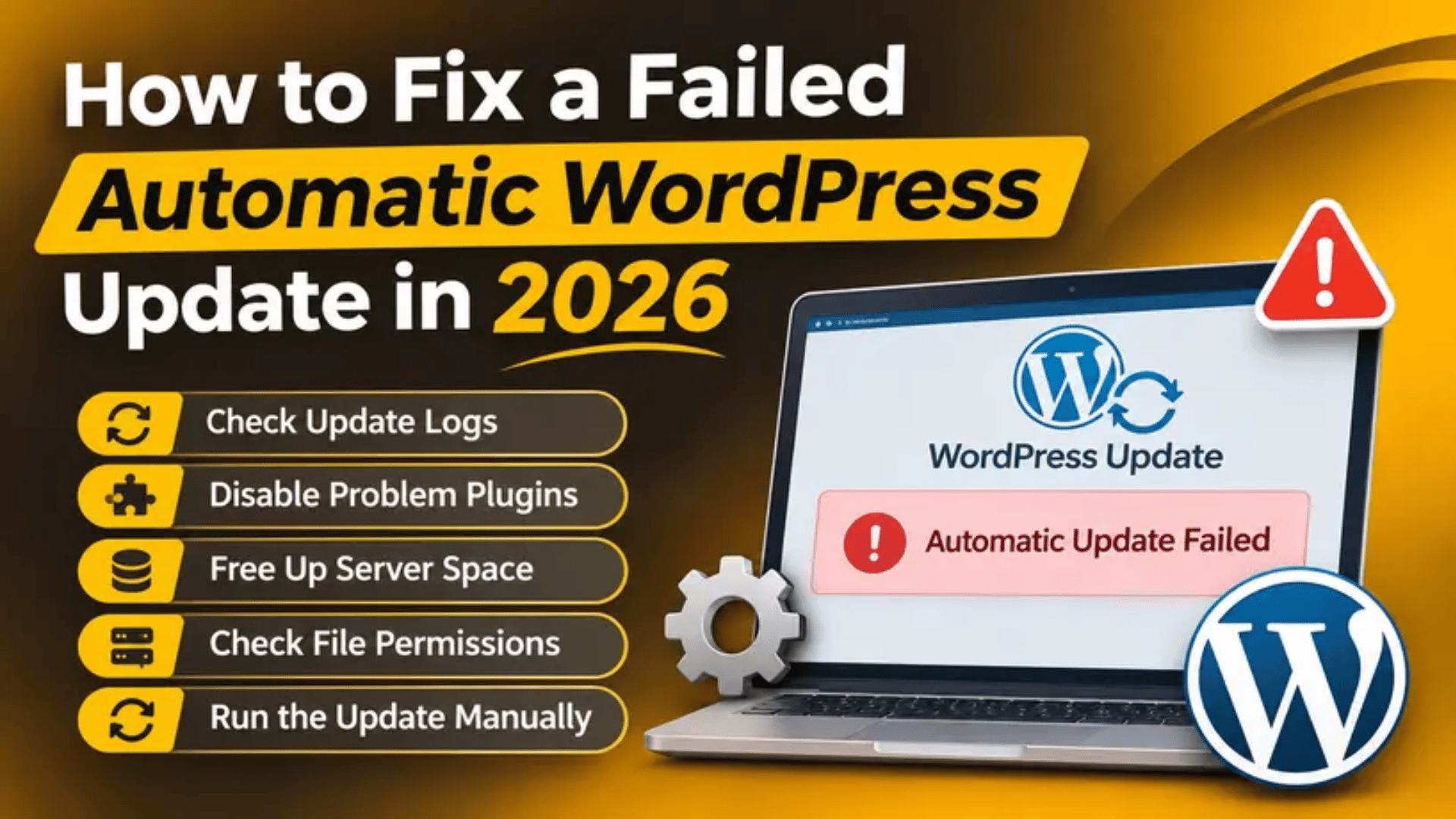
How to Fix a Failed Automatic WordPress Update in 2026
Introduction
WordPress updates itself in the background. Most of the time you never notice. Security releases land overnight, and your site keeps running. But sometimes the update stops halfway. The site then shows a maintenance notice, a blank page, or an error. Nothing you click in the dashboard helps.
This is a failed automatic update. It is one of the most common WordPress emergencies. It is also one of the easiest to recover from once you know the order of checks.
This guide explains what WordPress is actually doing when an update fails. It covers every realistic cause, the damage a stalled update does to your site, and the signs that tell you which stage broke. Then it walks through twelve numbered fixes, safest first. It ends with the habits that stop the problem coming back.
The advice applies to WordPress core updates, plugin updates, and theme updates. It also applies to WooCommerce stores, where a stalled update can stop orders.
What Is a Failed Automatic Update?
An automatic update is a job WordPress runs on its own. Nobody clicks a button. WordPress checks for new versions, downloads the files, and swaps them into place. The whole job takes a few seconds on a healthy server.
The job runs in a fixed order. WordPress first writes a small file called .maintenance into your site’s root folder. That file is the “closed” sign. While it exists, visitors see a short maintenance message instead of your pages. WordPress then writes a lock into the database so a second update cannot start at the same time. It downloads the new version into wp-content/upgrade/. It unpacks the files. It copies them over the old ones. Finally it removes the lock, deletes .maintenance, and reopens the site.
A failed update means the job stopped before that last step. The new files may be fully copied, half copied, or not copied at all. The important part is what got left behind. The .maintenance file is still there. The database lock is still there. Your site is still wearing the “closed” sign even though no update is running.
That is why the site looks broken to visitors while the dashboard looks fine to you, or the other way round. You are not looking at a damaged site. You are usually looking at a site stuck in the middle of a job that never ended.
What Causes an Automatic Update to Fail?
An update touches the network, the file system, the database, and PHP. A problem in any one of them can stop the job. These are the causes worth checking.
The script ran out of time. Your host sets a PHP time limit. Shared plans often set it to 30 seconds. A large update on a slow disk can take longer. PHP then kills the script mid-copy. WordPress never reaches the cleanup step.
The site ran out of memory. Unpacking a zip file needs free memory. If the memory limit is low, PHP stops with a fatal error. This is the same limit behind the allowed memory size exhausted error.
File permissions block the copy. WordPress must write into wp-admin, wp-includes, and wp-content. If the owner or the permissions are wrong, the copy fails partway. Our guide to file and folder permission errors covers the correct values.
The disk is full. An update needs room for the zip, the unpacked copy, and the live files. If the account hits its storage quota, the write fails silently. Databases can hit this too.
A stale lock is still in the database. WordPress stores a row called core_updater.lock in the wp_options table. It clears the row when the update ends. A crash leaves it behind. WordPress then refuses to start a new update and shows “another update is currently in progress”. That row expires on its own after fifteen minutes. Our post on the another update in process error goes deeper.
The download never finished. WordPress pulls the files from WordPress.org. A firewall, a DNS problem, or a dropped connection gives you a broken zip. The unpack step then fails.
WP-Cron never fired. Background updates are triggered by WordPress’s own scheduler. If that scheduler is disabled or blocked, updates simply never run. They are not failing; they are never starting. Read more on how WordPress cron works.
A plugin or theme conflict broke the request. Some plugins hook into the update process. A badly behaved one can throw a fatal error mid-update. Plugin conflicts are a common trigger.
Updates are switched off in the configuration. A constant in wp-config.php can block all file changes. Two common ones are DISALLOW_FILE_MODS and AUTOMATIC_UPDATER_DISABLED. If either is set, WordPress will not update at all.
What Is the Impact of This Issue on the Website?
A stalled update is not a cosmetic problem. It affects real visitors and real money. The damage depends on how far the update got before it stopped.
Visitors cannot reach your pages. While .maintenance sits in the root folder, every page shows a short maintenance notice. Your content is gone from view. This is the most visible symptom.
Sales stop on a store. A WooCommerce checkout cannot run during maintenance mode. Carts are abandoned. Payment callbacks from providers may fail because they cannot reach your site.
Search engines may see the outage. WordPress serves a 503 status during maintenance. A short 503 is safe and search engines retry. An outage that lasts for days is a different matter, and rankings can slip.
Your files may be a mix of two versions. A half-finished copy leaves some files new and some old. WordPress then behaves unpredictably. You may see white screens, missing admin menus, or fatal errors.
Security patches are not applied. Automatic updates mostly carry security fixes. If they keep failing, your site stays on an older release. That widens the window for known exploits.
Further updates are blocked. The stale lock stops plugin and theme updates too. One failure quietly freezes everything else.
Admin work becomes unreliable. Editors may find the dashboard slow or partly broken. That slows down every other job on the site.
How to Identify This Issue on the Website
Start with what you can see. The visible signs usually tell you which stage of the update broke. Work through them before you touch any files.
Sign: every page shows a maintenance message. The text reads “Briefly unavailable for scheduled maintenance. Check back in a minute.” If that message lasts more than a couple of minutes, the update has stopped. The .maintenance file was never removed. We cover this exact symptom in our guide to the briefly unavailable for scheduled maintenance error.
Sign: the dashboard says another update is in progress. This points at the stale database lock, not at the files. The files may be perfectly fine.
Sign: you received a failure email. WordPress emails the site administrator when a background update fails. The subject usually mentions that your site was unable to complete an update. The email often names the exact plugin or the exact core version.
Sign: the version number did not change. Go to Dashboard → Updates. If WordPress still offers the same update you thought had run, it never completed. Compare against the current WordPress version.
Sign: a white screen or a critical error notice. This suggests the files were partly replaced. Our guides on the white screen of death and the WordPress critical error apply here too.
Check Site Health. Go to Tools → Site Health → Status. Look for failed items about background updates, loopback requests, and scheduled events. A failing loopback test is important. WordPress needs loopback requests to check an update and to roll one back. Our Site Health guide explains each test.


Turn on debug logging. Add WP_DEBUG and WP_DEBUG_LOG to wp-config.php. Errors are then written to wp-content/debug.log. Take a backup before editing that file. See how WP_DEBUG works and what the wp-config.php file does.
Read the server error log. Your hosting panel keeps a PHP error log. Look for timeout, memory, or permission messages stamped at the time of the update. Our post on finding WordPress error logs shows where to look.
Open the browser console. Press F12 and check the Console and Network tabs. A failing admin-ajax or REST request shows up there. That points at a blocked request rather than a broken file.
Check the upgrade folder. Look inside wp-content/upgrade/. Leftover folders there are proof that an unpack step started and never cleaned up.
How to Fix a Failed Automatic WordPress Update
Work through these steps in order. The early steps are safe and reversible. The later ones touch files and the database, so take a backup first. If you are unsure, work on a staging copy rather than the live site.
Step 1: Take a full backup before you touch anything. Back up both the files and the database. Use your host’s backup tool or a backup plugin. Our guide on backing up and restoring WordPress walks through it. You should end up with a downloadable archive. If you cannot produce one, stop and ask your host before going further.
Step 2: Wait fifteen minutes and reload. Both locks expire on their own. The .maintenance file is ignored after ten minutes. The database lock clears after fifteen. Reload your homepage. If the site returns, the update simply timed out and nothing is broken. If the message is still there, move on.
Step 3: Clear every layer of cache. A page cache can keep serving the old maintenance page after the site has recovered. Clear your caching plugin, your host’s cache, and your browser cache. See how to clear the WordPress cache. Then reload in a private window. A private window ignores your local cache, so it gives an honest answer.
Step 4: Delete the .maintenance file. Connect with your host’s file manager or an FTP client. Look in the site root, the same folder as wp-config.php. Turn on “show hidden files” because the name starts with a dot. Delete .maintenance and reload. The site should come back at once. If you cannot see the file, it has already gone and the problem is elsewhere. Our guide to using a file manager helps if you have no FTP access.
Step 5: Empty the wp-content/upgrade folder. Delete the contents of that folder, but keep the folder itself. These are temporary files from the failed attempt. Removing them frees space and clears a broken half-unpacked copy. Nothing on your site depends on them.
Step 6: Remove the stale update lock. If the dashboard still says another update is in progress after fifteen minutes, the lock row needs deleting. Open your database tool and find the wp_options table. Search the option_name column for core_updater.lock. Delete that single row. Never do this without the backup from Step 1. Your table prefix may not be wp_, so check before you delete.
Step 7: Retry the update by hand. Go to Dashboard → Updates and click Update to version X. Watch it run. A manual update gives you the real error message instead of a silent background failure. Note down anything it reports. Our guide on updating a WordPress website covers the screen in detail.
Step 8: Raise the memory and time limits. If the error mentions memory or a timeout, ask your host to raise the PHP memory limit and the maximum execution time. A memory limit of 256M and a time limit of 120 seconds suit most sites. Many hosts expose both in their control panel. If the update then completes, the limits were the cause.
Step 9: Check the PHP version. A very old PHP version can break a new release. Go to Tools → Site Health → Info → Server to read your version. Our post on checking your PHP version explains the screen. Test any PHP upgrade on staging first, because old plugins may not survive the jump.
Step 10: Test for a plugin or theme conflict. Deactivate every plugin from Plugins → Installed Plugins. Try the update again. If it works, reactivate the plugins one at a time until it breaks. Then switch to a default WordPress theme and repeat. This is slow but it names the culprit exactly. Do this on staging if the site is busy.
Step 11: Fix the file permissions. Folders normally need 755 and files normally need 644. The wp-config.php file is often set tighter. Confirm the correct owner with your host, because a wrong owner blocks writes even when the numbers look right. Reset permissions, then retry the update.
Step 12: Replace the core files manually. This is the last resort and it needs the Step 1 backup. Download the matching WordPress release from WordPress.org. Delete only the wp-admin and wp-includes folders on your server. Upload the fresh copies of those two folders. Never delete wp-content and never overwrite wp-config.php, because that is where your content and your settings live. Then load /wp-admin/ and run the database update if WordPress asks for it. If this still fails, the problem is on the server and your host needs to look at it.
How to Prevent This Issue
Most failed updates trace back to a tight server or an untested change. A few habits remove most of the risk.
Keep a staging site. Test every core, plugin, and theme update there first. A staging copy costs nothing to break. Our post on staging versus live sites explains the difference.
Run automatic backups. Schedule daily file and database backups, and store them off the server. Check once a month that a backup actually restores. An untested backup is only a guess. See how to back up your WordPress database.
Give the site room to work. Ask your host for a PHP memory limit of at least 256M and a sensible execution time. Keep spare disk space. Updates fail most often on accounts running at their limit.
Stay on a supported PHP version. Old PHP breaks new releases and slows the site down. Move up one version at a time and test on staging.
Keep the plugin count honest. Every extra plugin is another thing that can hook into the update process. Delete what you no longer use rather than leaving it deactivated.
Choose which updates run on their own. Minor security releases are safe to automate. Major releases and large plugins are better done by hand, when you are watching. You can enable automatic updates selectively, or turn them off where they cause trouble.
Watch for the warning emails. Make sure the administration email address is one a person reads. Since WordPress 6.6, a plugin auto-update that causes a fatal error on the homepage is rolled back automatically, and WordPress emails you about it. That email is your early warning. It only works if loopback requests are allowed, so keep an eye on that Site Health test.
Monitor uptime. A monitor that checks your homepage every few minutes will tell you about a stuck maintenance page long before a customer does.
Conclusion
A failed automatic WordPress update looks alarming, but it is rarely as bad as it appears. The update is a short, ordered job. When it stops early, it leaves behind a .maintenance file and a database lock. Those two leftovers cause most of what you see.
The usual causes are a PHP timeout, a low memory limit, wrong file permissions, a full disk, a broken download, a blocked scheduler, or a plugin conflict. The impact is real: visitors see a maintenance page, stores stop taking orders, security patches go unapplied, and every later update is blocked.
Diagnosis is mostly a matter of reading the signs. The maintenance message, the failure email, the unchanged version number, Site Health, the debug log, and the server error log each point at a different stage.
The fixes follow a safe order. Back up, wait out the locks, clear caches, delete .maintenance, empty the upgrade folder, clear the stale lock, retry by hand, then raise limits, check PHP, test for conflicts, fix permissions, and only then replace core files manually. Prevention is simpler still: a staging site, tested backups, a server with room to breathe, and a sensible choice about which updates run unattended.
If your site is stuck and you would rather someone else took it from here, our WordPress engineers work on exactly this kind of problem every day. Visit 24×7 WP Support and tell us what you are seeing, and we will take a look.


Brian is a WordPress support specialist and content contributor at 24×7 WP Support. He writes practical, easy-to-follow guides on WordPress troubleshooting, WooCommerce issues, plugin and theme errors, website security, migrations, performance optimization, and integrations. With a focus on solving real website problems, Brian helps business owners, bloggers, and online store managers keep their WordPress sites running smoothly.