
What Is WordPress Cron and Should You Disable It?
Introduction
WordPress runs many tasks in the background every day. These tasks help your website work smoothly without manual action. This system is called WordPress cron, and it is important for many websites.
Most website owners do not notice it when everything works. But they quickly notice it when tasks stop running. For example, your scheduled blog post may not publish on time. Your backup plugin may not start its job. Your email plugin may delay important messages.
This can create real problems for blogs, business websites, and WooCommerce stores. It can also affect user trust and website performance.
Common signs of WordPress scheduled tasks not running include:
- Scheduled posts do not publish at the selected time.
- Backup jobs fail or run late.
- Plugin updates or scans do not start.
- WooCommerce emails may not send correctly.
- Automation tasks may stay pending for hours.
That is why understanding WP-Cron WordPress is helpful. It lets you know what is happening behind the scenes.
What Is WordPress Cron in Simple Terms?
WordPress cron is the built-in task scheduling system in WordPress. It helps WordPress run jobs at planned times. These jobs are called scheduled tasks or cron events.
A WordPress cron job can handle many useful website actions. It can publish a post later, run a backup, check updates, or send emails. Many plugins also use it to complete background work.
For example, a backup plugin may run every night. An SEO plugin may check links on a schedule. A WooCommerce plugin may process order-related tasks in the background.
WP-Cron WordPress is useful because it works automatically. You do not need to set it up manually for normal use. It starts working after WordPress is installed.
However, it is not always perfect. It depends on how your website receives traffic. This is why some websites face delays with scheduled tasks. Understanding WordPress cron helps you decide whether changes are needed later.
How WP-Cron Works Behind the Scenes
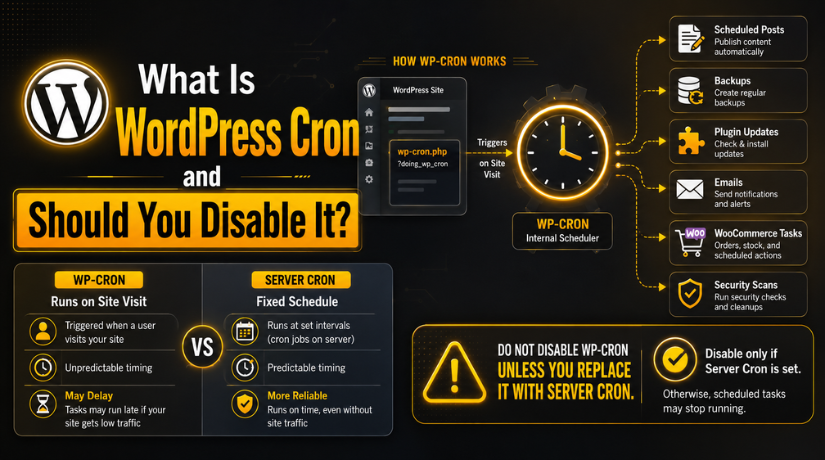
WP-Cron WordPress works differently from a real server cron. It does not run by itself at an exact server time. Instead, it usually runs when someone visits your website.
When a visitor opens a page, WordPress checks its scheduled tasks. If any task is due, WordPress tries to run it in the background. This may include posts, backups, emails, updates, or plugin jobs.
For example, you schedule a blog post for 9:00 AM. If no one visits your site at that time, the post may not publish exactly then. It may publish after the next website visit. This is why WordPress cron job timing can sometimes feel delayed.
This system works well for many normal websites. But it can create issues on some websites.
Common reasons include:
- Low traffic can delay scheduled tasks.
- Heavy traffic can trigger WP-Cron too often.
- Caching tools may block cron requests.
- Server limits may stop background requests.
- Plugin conflicts may break scheduled events.
When these issues happen, users may see WordPress scheduled tasks not running. The website may still look normal. But important background work may fail quietly.
Common Problems Caused by WP-Cron Issues
WP-Cron problems can affect many parts of a WordPress website. These issues often appear slowly and confuse website owners.
-
Scheduled Posts Do Not Publish on Time
One common issue is the WordPress missed schedule error. This happens when a post stays unpublished after its planned time. Bloggers and news websites may face this problem often. It can affect content planning and publishing flow.
-
Plugin Tasks Stop Running
Many plugins depend on WP-Cron WordPress to run tasks. Backup plugins may miss backup times. Security plugins may skip scans. SEO plugins may delay link checks or reports. Email plugins may also send messages late.
-
WooCommerce Tasks Get Delayed
WooCommerce websites need reliable background actions. Order emails, stock updates, subscriptions, and follow-ups may depend on cron events. If WP-Cron not running becomes a regular issue, store operations may slow down.
-
WP-Cron May Not Run at All
Sometimes WP-Cron does not run because requests are blocked. This may happen due to caching, server rules, security plugins, or hosting limits. In this case, scheduled tasks can stay pending until the issue is fixed.
Should You Disable WP-Cron in WordPress?
Many website owners ask this question after facing cron issues. The answer depends on your website’s needs. You should not disable WP-Cron WordPress without a proper plan. It controls many background tasks that keep your site working.
When you disable WP-Cron WordPress, WordPress stops checking tasks during site visits. This can help some websites. But it can also create problems if no server cron replaces it.
So, the best answer is simple. Do not disable it blindly. First, check why WordPress scheduled tasks not running issues are happening. Then decide if server cron is needed.
When You Should Not Disable WP-Cron
You may not need to disable WP-Cron on small websites. It works well for many blogs and simple business sites. If your website gets normal traffic, WP-Cron can manage basic tasks.
You should keep WordPress cron enabled when:
- Scheduled posts publish on time.
- Backup jobs run correctly.
- Plugin tasks work without delays.
- Email automation sends messages properly.
- Your hosting server has no cron warnings.
WP-Cron WordPress is useful because it needs no manual setup. WordPress installs it by default. This makes it simple for beginners and small website owners.
If your website works well, changing cron settings may not help. It may even create new issues. Always avoid technical changes without a clear reason.
When You Should Consider Disabling WP-Cron
You can consider disabling WP-Cron when tasks often fail. This is common on busy websites or plugin-heavy websites. It can also happen on WooCommerce stores with many background actions.
You may consider this option when:
- WP-Cron not running becomes a regular issue.
- Scheduled posts miss their publish time.
- Backup jobs fail or start late.
- WooCommerce emails or actions are delayed.
- Heavy plugin tasks slow down page loading.
- Hosting support recommends server cron.
In these cases, server cron can offer better control. It runs tasks at fixed times from your hosting server. This makes scheduled tasks more reliable.


However, you must be careful. If you disable WP-Cron WordPress without server cron, scheduled tasks may stop. Posts, backups, emails, and plugin jobs may fail. So, always set up server cron before disabling WordPress cron.
WordPress Cron vs Server Cron: What Is the Difference?
Understanding WordPress cron vs server cron is important before making changes. Both systems run scheduled tasks, but they work in different ways.
WordPress cron runs when someone visits your website. It checks if any task is due during that visit. If a task is ready, WordPress tries to run it in the background.
Server cron works from your hosting server. It runs at fixed times, even when no one visits your site. This makes it more stable for busy or task-heavy websites.
Here is a simple comparison:
Trigger: WordPress Cron runs when someone visits the website. Server cron runs at fixed server times.
Reliability: WordPress Cron can be delayed sometimes. Server cron is more reliable for scheduled tasks.
Setup: WordPress Cron is built into WordPress. Server cron needs hosting or server access.
Best For: WordPress Cron is best for small websites and blogs. Server cron is better for busy websites and WooCommerce stores.
Control: WordPress Cron gives limited schedule control. Server cron gives better timing and control.
WP-Cron WordPress is easy for beginners. It works without extra setup after WordPress installation. But it may not be ideal for every website.
Server cron is better when timing matters. It can help with backups, scheduled posts, emails, and WooCommerce tasks. It is also useful when a WordPress cron job must run on time.
How to Set Up Server Cron in WordPress
Learning how to set up server cron in WordPress helps improve task reliability. But you should make changes carefully. A small mistake can stop scheduled tasks.
Step 1: Disable Default WP-Cron
First, take a full backup of your website. Then open your wp-config.php file. Add this line before the final stop editing line:
define(‘DISABLE_WP_CRON’, true);
This step will disable WP-Cron WordPress from running on site visits.
Step 2: Create a Server Cron Job
Next, open your hosting control panel. You may find cron settings in cPanel, VPS tools, or your hosting dashboard. You can also ask your hosting support for help.
Step 3: Run wp-cron.php at a Fixed Interval
Set the server cron to run wp-cron.php regularly. Many websites use 5, 10, or 15-minute intervals. Your hosting plan may also have limits.
Step 4: Test Scheduled Tasks
After setup, test posts, backups, emails, and plugin jobs. This confirms that your WordPress cron job is running correctly.
Best Practices Before Disabling WP-Cron
Before you disable WP-Cron WordPress, check your website carefully. This change can affect posts, backups, emails, and plugin tasks. A safe process helps you avoid new issues.
Start with a full website backup. This should include files and database. If anything goes wrong, you can restore the site quickly.
Next, check whether your hosting supports server cron. Some shared hosting plans have limits. So, confirm the allowed cron interval before making changes.
You should also review active plugins. Many plugins depend on a WordPress cron job. These may include backup, SEO, security, email, and WooCommerce plugins.
Follow these best practices:
- Take a full backup before making changes.
- Check hosting support for server cron access.
- Review current scheduled tasks and plugin logs.
- Test changes on a staging site when possible.
- Do not disable WP-Cron without server cron.
- Monitor posts, backups, and emails after setup.
These steps help reduce risk. They also make troubleshooting easier if WordPress scheduled tasks not running issues continue.
Conclusion
Most small websites can keep WordPress cron enabled. It works well when scheduled tasks run without delays. You should not disable it only for speed or guesswork.
However, server cron may help larger websites. It is useful for WooCommerce stores, busy blogs, and plugin-heavy websites. It can also help fix the WordPress missed schedule error.
If tasks keep failing, review the real cause first. Then decide whether disabling WP-Cron WordPress is the right step. For expert help,24×7 WP Support can check cron issues, plugin conflicts, and server cron setup.
Related posts:

How Much Does It Cost to Hire Someone to Build a WordPress Website?

WordPress Website Monitoring Tools and Services (Free and Paid)
Can You Build a WordPress Website with GoDaddy?

What Is the Fediverse in WordPress? Beginner Guide

Essential Technical Optimisation Best Practices for WordPress Business Sites

Brian is a WordPress support specialist and content contributor at 24×7 WP Support. He writes practical, easy-to-follow guides on WordPress troubleshooting, WooCommerce issues, plugin and theme errors, website security, migrations, performance optimization, and integrations. With a focus on solving real website problems, Brian helps business owners, bloggers, and online store managers keep their WordPress sites running smoothly.
