
How to Enable Automatic Updates in WordPress (Complete Guide)
Introduction
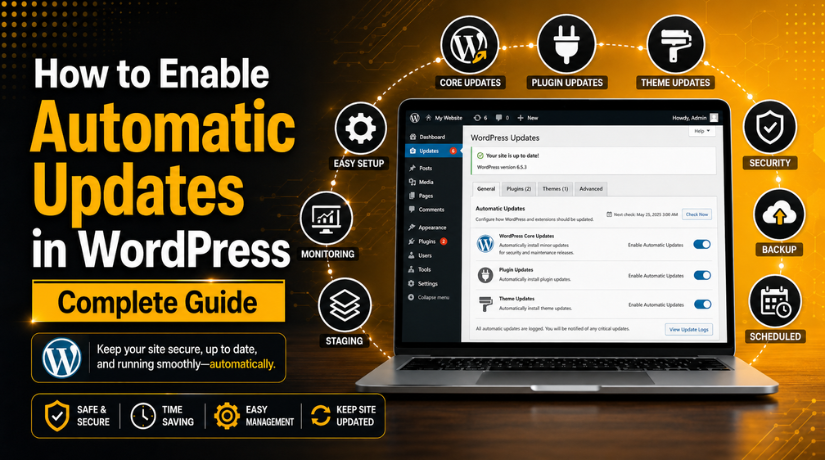
WordPress websites need regular updates to stay safe and smooth. Each update can fix bugs, security risks, and performance issues. Many website owners forget to check updates every week. This can make the website weak against common online threats. That is why many users want to Enable Automatic Updates in WordPress. It helps WordPress manage updates without manual effort every time.
A website uses many moving parts every day. These parts include WordPress core, plugins, themes, and language files. When one part becomes outdated, problems can start appearing. Your website may become slow, unsafe, or unstable. Some plugins may stop working with newer WordPress versions. Some themes may also create layout issues after delayed updates. So, regular updates are important for healthy website management.
However, automatic updates should be used with proper care. Not every update is safe for every website. A plugin update may affect forms, carts, or design sections. A theme update may change some styling or page layouts. This is why you should understand the process first. Safe update planning protects your website from sudden problems.
This complete guide explains the basic idea clearly. You will learn how to update WordPress automatically in simple steps. You will also understand what automatic updates include. This first part explains the meaning and working process. It gives you a strong base before enabling updates.
What Are Automatic Updates in WordPress and How Do They Work?
Automatic updates mean WordPress updates selected items by itself. You do not need to click the update button manually. WordPress checks available updates in the background. Then it installs approved updates based on your settings. This feature helps keep your website fresh and secure.
Many users search for Enable auto updates WordPress because they want easier maintenance. The feature can update WordPress core files, plugins, themes, and translations. Each update type has a different role on your website. Some updates fix security issues. Some updates improve features or remove known bugs. Others help your website work better with newer systems.
WordPress core updates are related to the main WordPress software. These updates improve the base system of your website. Minor core updates usually fix security and maintenance issues. Major updates may add new features and bigger changes. Because of this, major updates need more careful checking.
WordPress plugin auto updates are also very useful. Plugins add extra features to your website. These may include contact forms, SEO tools, security tools, and sliders. If plugins remain outdated, they may create security risks. Automatic plugin updates help keep trusted plugins current. Still, important plugins should be tested before full automation.
Should You Enable Automatic Updates in WordPress for Your Website?
Many website owners ask this question before changing update settings. The answer depends on your website type and setup. WordPress automatic updates can be very helpful for many websites. They keep important files updated without daily manual checking. This saves time and lowers many common website risks.
When you Enable Automatic Updates in WordPress, your website gets updates faster. This is useful when plugins release security fixes or bug patches. Old plugins and themes can create weak points quickly. Hackers often target websites using outdated plugin files. So, updates play an important role in website safety.
Automatic updates are useful for blogs and small business websites. These websites usually have simple features and fewer custom changes. They often use common plugins for SEO, forms, and security. In such cases, WordPress plugin auto updates can work well. They help keep basic website tools fresh and stable.
Automatic updates also reduce manual work for busy owners. You do not need to check updates every day. WordPress can handle selected updates based on your settings. This makes website care easier for beginners and non-technical users. It also helps website owners avoid missing important updates.
Many users search for How to update WordPress automatically because they want simple website care. Automatic updates make the process faster and more consistent. They also help your website stay ready for newer versions. When used correctly, they support better security and performance.
Things to Do Before Enabling Automatic Updates in WordPress Safely
Before you Enable Automatic Updates in WordPress, you should prepare your website first. Automatic updates can save time and improve website safety. Still, they may create issues when settings are not ready. A plugin update can affect forms, carts, or page layouts. A theme update can also change design sections suddenly. So, preparation helps you avoid unwanted website problems.
Take a Full Website Backup Before Enabling Automatic Updates
A full backup is the first important safety step. You should take a backup before changing update settings. A full backup includes website files and database files. Website files include themes, plugins, uploads, and WordPress files. The database includes posts, pages, users, comments, and settings.
Create a Staging Website for Testing Updates First
A staging website is a copy of your live website. It helps you test updates before applying them live. This is very useful for business and eCommerce websites. You can check plugins, themes, pages, and forms safely. If something breaks, your live website remains unaffected.
Check Plugin and Theme Quality Before Auto-Updating
Not every plugin should update automatically without review. Some plugins are stable, trusted, and updated often. Others may be outdated, unsupported, or poorly maintained. You should check plugin quality before enabling auto-updates.
Keep Hosting, cPanel, or FTP Access Ready Before Updates
Hosting access is very important during update problems. Sometimes, an update may break the WordPress admin area. In that case, you cannot fix the issue from the dashboard. You may need cPanel, FTP, or hosting File Manager access.
With FTP or File Manager, you can disable a broken plugin. You can rename the plugin folder and stop the error. You can also switch a theme if the active theme fails. This helps recover the website without waiting too long.
How to Enable Automatic Updates for WordPress Using a Plugin
Using a plugin is a simple way to manage updates. It gives better control without editing website code. This method helps beginners manage WordPress automatic updates easily.
Step 1: Log In to Your WordPress Admin Dashboard
- Open your WordPress login page.
- Enter your admin username and password.
- Click the Log In button.
- After login, you will see your WordPress dashboard.
- This dashboard helps you manage updates, plugins, and themes.
Step 2: Go to the Add New Plugin Page
- Look at the left-side menu in your dashboard.
- Click on Plugins from the menu.
- Now click on Add New.
- This page helps you search for new plugins.
- You can install an automatic update plugin from here.
Step 3: Search for an Automatic Update Plugin


- Go to the plugin search box.
- Type Easy Updates Manager in the search field.
- This plugin helps you Enable Automatic Updates in WordPress.
- You can also choose another trusted update plugin.
- Always check ratings, reviews, and recent update history.
Step 4: Install and Activate the Plugin
- Click the Install Now button.
- Wait until WordPress completes the installation.
- After installation, click the Activate button.
- The plugin will now work on your website.
- You can now manage update settings from its panel.
Step 5: Open the Plugin Settings Page
- Find the plugin settings in your dashboard menu.
- It may appear under Dashboard, Settings, or Updates.
- Open the settings page carefully.
- You will see different update control options.
- These options help manage WordPress automatic updates easily.
Step 6: Choose WordPress Core Update Settings
- Find the WordPress core update settings.
- WordPress core means the main WordPress software.
- Enable minor updates for safer automatic updates.
- Minor updates usually fix bugs and security issues.
- Test major updates before applying them automatically.
Step 7: Enable Automatic Updates for Trusted Plugins
- Review all active plugins on your website.
- Enable WordPress plugin auto updates for trusted plugins.
- Choose plugins with good ratings and regular updates.
- You can enable updates for SEO and security plugins.
- Avoid auto-updates for payment and checkout plugins.
Step 8: Enable Theme Updates Carefully
- Open the theme update settings inside the plugin.
- Enable WordPress theme auto updates only when safe.
- Use this option for stable and trusted themes.
- Avoid this option for themes with custom code.
- A theme update may affect design or page layout.
Step 9: Save Your Automatic Update Settings
- Review all selected update settings again.
- Make sure only safe items are selected.
- Click the Save Changes button.
- Do not close the page before saving.
- Your Enable auto updates WordPress settings are now active.
Step 10: Check Your Website After Saving Settings
- Open your website in a new browser tab.
- Check the homepage and main service pages.
- Test contact forms, menus, buttons, and links.
- If you run a store, check cart and checkout pages.
- This helps confirm your website works properly.
How to Check If Automatic Updates Are Working Properly in WordPress
After enabling updates, you should check them regularly. This helps confirm that WordPress automatic updates are working properly. Regular checks also help find update issues early.
Check the WordPress Updates Page
- Go to Dashboard > Updates in WordPress.
- Check your current WordPress version.
- Review available plugin and theme updates.
- Check if any update is still pending.
- This page shows your main update status.
Review Installed Plugin Update Settings
- Go to Plugins > Installed Plugins.
- Check the automatic update option beside each plugin.
- Confirm which plugins have auto-updates enabled.
- Keep WordPress plugin auto updates enabled for trusted plugins.
- Disable auto-updates for critical plugins when needed.
Check Theme Automatic Update Settings
- Go to Appearance > Themes.
- Click your active theme.
- Open the theme details window.
- Check if automatic updates are enabled.
- This confirms your WordPress theme auto updates setting.
Review Admin Email Notifications
- Check your website admin email inbox.
- Look for WordPress update notification emails.
- These emails may show successful or failed updates.
- Check the spam folder if emails are missing.
- Make sure your admin email address is correct.
Test Important Website Pages
- Open your homepage after updates.
- Check service pages, blog pages, and contact pages.
- Test contact forms, menus, buttons, and links.
- If you use WooCommerce, check cart and checkout pages.
- This helps find problems before visitors notice them.
Check Website Design and Layout
- Review your website design after updates.
- Check headers, footers, banners, and buttons.
- Check page sections on desktop and mobile.
- Look for broken layouts or missing images.
- This helps protect your website user experience.
Look for Failed Update Messages
- Check your WordPress dashboard for update errors.
- Look for failed update or maintenance mode messages.
- Do not ignore any warning message.
- Check which plugin, theme, or core update failed.
- Get hosting or developer help if needed.
Check Hosting Error Logs If Needed
- Open your hosting panel or cPanel.
- Find the error logs section.
- Check logs for plugin or server errors.
- Error logs can show the real update issue.
- Share these logs with your developer if needed.
Keep Checking Updates Regularly
- Review update settings at least once every week.
- Check your website after major plugin updates.
- Keep backups ready before important changes.
- Monitor important pages after automatic updates.
- This keeps your WordPress website safe and stable.
Conclusion
Automatic updates can make WordPress website management easier. They help keep WordPress core, plugins, and themes updated. They also reduce the risk of missed security updates. However, automatic updates should always be used with care. A safe setup includes backups, trusted plugins, staging tests, and regular checks. This helps protect your website from update errors, plugin conflicts, and layout issues.
Before you Enable Automatic Updates in WordPress, review your website type. Simple blogs and small business websites can use more automation. WooCommerce, membership, booking, and custom websites need extra testing. You should also check important pages after each update. This includes your homepage, forms, cart, checkout, and login pages.
Users of WordPress who need help with updates, backups, plugin issues, or website errors, 24×7 WP Supportprovides WordPress support for self-hosted websites. You can visit 24x7wpsupport or call +1-888-818-9916 for support details. Their contact page lists this number as toll-free for the United States and Canada.





Brian is a WordPress support specialist and content contributor at 24×7 WP Support. He writes practical, easy-to-follow guides on WordPress troubleshooting, WooCommerce issues, plugin and theme errors, website security, migrations, performance optimization, and integrations. With a focus on solving real website problems, Brian helps business owners, bloggers, and online store managers keep their WordPress sites running smoothly.
