
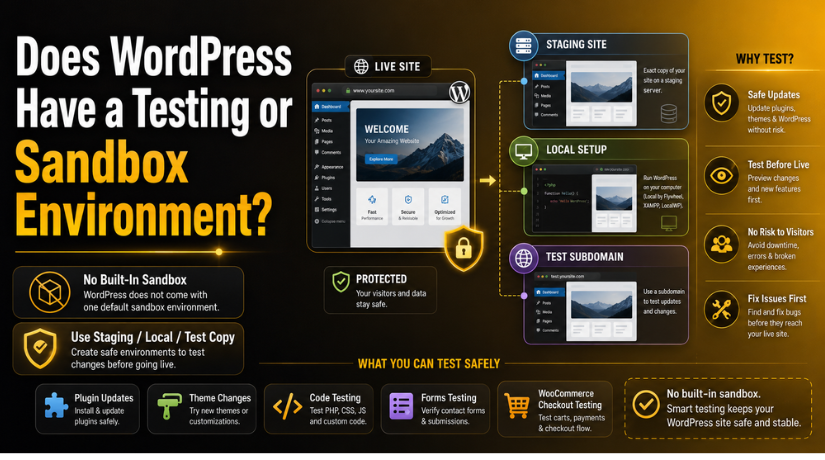
Does WordPress Have a Testing or Sandbox Environment?
Introduction
WordPress gives website owners full control over their websites. You can change themes, install plugins, edit pages, update code, and improve speed. This flexibility is useful, but it also needs careful handling. One small change can affect your website layout, forms, checkout, login page, or loading speed.
Many business owners update their live website without testing first. This can create broken pages, plugin errors, design issues, or checkout problems. For a business website, these issues can affect leads, sales, and customer trust. That is why testing WordPress changes before publishing them is important.
A safe testing process helps you check updates before visitors see them. It lets you find problems early and fix them calmly. You can test plugin updates, theme changes, page builder edits, and custom code. This helps you protect your live website from unwanted errors.
Testing is very important for service websites, online stores, and business blogs. These websites often depend on contact forms, payment pages, and booking systems. If these features stop working, users may leave the website quickly.
You should always test WordPress website safely before making major changes live. This simple habit can save time, money, and stress. It also keeps your website stable for real users.
Does WordPress Have a Built-In Sandbox Environment?
WordPress does not include a default built-in sandbox button. You will not find one common testing area inside every WordPress dashboard. A live WordPress website is the main website that users visit. Any direct change on the live site can appear immediately.
This means WordPress itself does not provide one automatic testing system for all websites. However, you can still create a WordPress sandbox environment through other safe methods. These methods usually depend on your hosting company, developer setup, or website management process.
Many hosting providers offer a staging feature with their plans. This allows you to create a copy of your website. You can test updates there before applying them live. Developers may also create a local setup on their computer. Some users create a private test site on a subdomain.
So, the answer is simple. WordPress does not offer one built-in sandbox for every user. But it supports safe testing through staging sites, local setups, and separate test copies.
What Is a Safe Testing Setup in WordPress?
A safe testing setup is a separate copy of your website. It lets you check changes before visitors see them. This setup protects your live website from errors, downtime, and design issues. You can test updates without disturbing real users or customers.
A proper testing setup should look like your live website. It should include the same theme, plugins, pages, and settings. This helps you find real issues before they affect users. It also helps you understand how each change works.
For example, you may want to update a plugin. You may also want to change your homepage design. If you test these changes on a live site, users may see errors. But a test copy gives you a safe space.
A WordPress staging environment works like a private testing area. It helps you check plugin updates, theme changes, forms, and checkout pages. It is very useful for business websites and online stores.
A safe setup should help you test:
- Website design changes
- Plugin and theme updates
- Contact forms and login pages
- WooCommerce cart and checkout pages
- Custom code and speed settings
This process helps you make better website decisions. It also protects your brand trust and user experience.
Main Ways to Test WordPress Changes Safely
There are three common ways to test WordPress changes safely. Each option works for different user needs and skill levels.
-
Hosting-Based Staging Site
A hosting-based WordPress staging site is the easiest option. Many WordPress hosting companies provide staging tools inside the hosting panel. You can create a website copy with a few clicks. Then you can test updates, plugins, and design changes safely.
After testing, you can move approved changes to the live website. This option is best for beginners and business owners.
-
Local Development Setup
A local setup creates a WordPress development environment on your computer. Developers use this option to test code, plugins, and designs privately. It does not need public access while testing. However, it needs more technical setup and careful migration later.
-
Separate Test Subdomain or Folder
Some users create a test site on a subdomain. For example, they may use staging.example.com for testing. This method gives good control, but needs proper security. You should block search engines from indexing this test copy.
What Changes Should Be Tested Before Going Live?
Every WordPress change does not carry the same risk. Some changes are small and simple. Others can affect your whole website. That is why testing important changes before launch is necessary. It helps you protect visitors, leads, sales, and website trust.


You should always test plugin updates before applying them live. A plugin update can change features, settings, or design behavior. It can also create conflicts with other installed plugins. Theme updates should also be tested with proper care. A theme controls your layout, header, footer, and page design.
WordPress core updates also need careful testing. These updates improve security, speed, and site features. However, older plugins or themes may not support them correctly. Testing helps you find such issues before users face them.
You should also test new plugin installations. A new plugin may add extra scripts or database changes. It may slow down your website or break existing features. WooCommerce websites need extra care during testing. Cart, checkout, payment, shipping, and email alerts must work properly.
Important changes to test include:
- Plugin, theme, and WordPress core updates
- New plugin installation and setup
- WooCommerce cart and checkout changes
- Contact forms and lead forms
- Login, registration, and account pages
- Custom PHP, CSS, or JavaScript edits
- Page builder design changes
- Speed, cache, and security settings
Testing these areas helps you test WordPress website safely. It also keeps your live website stable and user-friendly.
How to Test WordPress Changes the Right Way
Many users ask how to test WordPress changes without breaking anything. The right process starts with a complete website backup. Your backup should include website files and the database. This gives you a safe restore point if anything fails.
After backup, create a separate test copy of your website. You can use a staging site, local setup, or test subdomain. Make sure this copy looks and works like your live website. Then apply your planned updates or changes there first.
Check the most important website areas after each change. Do not test only the homepage. A small issue may appear on inner pages, forms, or checkout.
Follow this simple testing process:
- Take a full website backup first.
- Create a separate test copy.
- Check that the copy works correctly.
- Apply updates or changes there.
- Test key pages and features.
- Fix errors before final approval.
- Move approved changes to the live site.
- Check the live website again.
Also test your website on desktop and mobile devices. Many layout issues appear only on smaller screens. Check forms, buttons, menus, and payment steps carefully. This process helps you publish changes with more confidence.
Common Mistakes Users Should Avoid While Testing
Testing WordPress changes is useful only when done correctly. Many users create problems because they skip simple safety steps. These mistakes can affect website speed, design, forms, and sales. A careful process helps you avoid these unwanted risks.
The biggest mistake is testing changes on the live website. Live testing can break pages while visitors are browsing. It can also affect leads, orders, and customer trust. You should always use a separate WordPress staging environment first.
Another common mistake is skipping a full website backup. A backup protects your files, database, media, and settings. If something fails, you can restore the website quickly. Without a backup, recovery may take more time.
Users should also avoid these testing mistakes:
- Not checking contact forms after updates
- Ignoring WooCommerce cart and checkout pages
- Forgetting to test login and account pages
- Allowing Google to index the test copy
- Moving untested changes to the live website
- Not checking mobile layout after design changes
These mistakes can create hidden issues after launch. Always check important pages before making changes public.
When Should You Get WordPress Support?
You should get WordPress support when testing feels risky. Some changes need technical knowledge and careful handling. This includes plugin conflicts, database edits, custom code, and WooCommerce settings.
Support is also helpful when staging setup is confusing. Experts know how to test WordPress changes safely. They can find errors before your visitors notice them. This protects your website, business, and customer experience.
Conclusion
WordPress does not include one default sandbox for every website. But you can still test changes safely. A staging site, local setup, or test copy can help. These options protect your live website from sudden problems. Always test first before making important changes public. This careful approach helps you avoid broken layouts, plugin conflicts, and lost leads. It also keeps your website stable for real visitors. When you test updates before launch, you make smarter website decisions. You also protect your brand trust, user experience, and business growth.
If you need help setting up a safe testing area, 24×7 WP Support can guide you. Our team can help with staging setup, plugin testing, theme updates, and WordPress troubleshooting. You can contact 24×7 WP Support for expert help before making major website changes live.
Related posts:
HTML vs WordPress for SEO: Which Is Better in 2026?
WordPress Quizlet Explained: Anchor Text, Permalinks, and Key Terms
What Is Elementor in WordPress? Purpose, Features & How to Build With It
Is WordPress a Framework or a CMS? Clear Explanation
How to Contact WordPress Support: Phone, Email & All Options Explained

Brian is a WordPress support specialist and content contributor at 24×7 WP Support. He writes practical, easy-to-follow guides on WordPress troubleshooting, WooCommerce issues, plugin and theme errors, website security, migrations, performance optimization, and integrations. With a focus on solving real website problems, Brian helps business owners, bloggers, and online store managers keep their WordPress sites running smoothly.
