
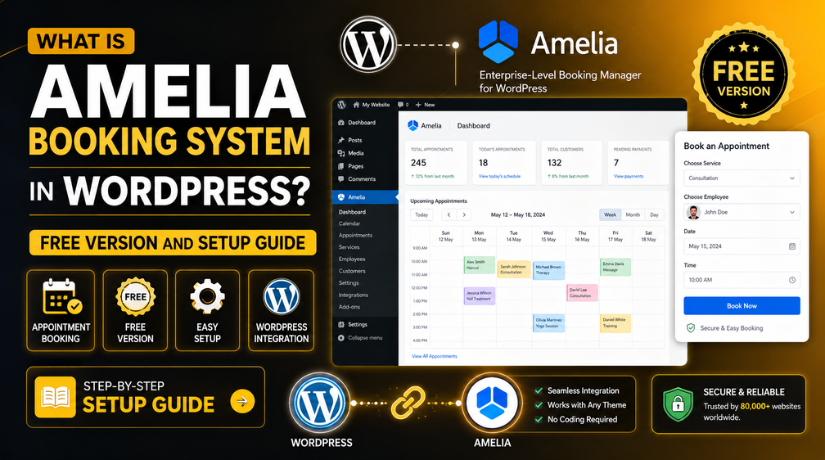
What Is Amelia Booking System in WordPress? Free Version and Setup Guide
Introduction
Many WordPress websites need a simple booking process today. Customers now expect fast service without long phone calls. They want to book appointments anytime, from any device. This is why online booking tools are very useful.
Manual booking can create many problems for small businesses. A customer may call when your team is unavailable. Emails may get missed during busy hours. Staff may also book the same time twice. These small issues can affect customer trust and service quality.
A booking system helps solve these problems in one place. It lets visitors choose services, dates, and available time slots. It also helps business owners manage bookings from WordPress. This makes the process faster and more organized.
A proper booking setup can help many service-based businesses, such as:
- Salons and beauty service websites
- Coaching and consulting websites
- Fitness trainers and yoga studios
- Clinics and wellness service providers
- Repair, cleaning, and local service businesses
The Amelia booking system WordPress plugin is one option for these needs. It helps website owners add booking features without complex coding.
What Is Amelia Booking System in WordPress?
Many beginners ask, what is Amelia in WordPress and how does it work? Amelia is a booking plugin made for WordPress websites. It helps businesses accept appointments, events, and service bookings online.
The Amelia WordPress booking plugin gives users a clear booking flow. Website visitors can choose a service and select a time. They can also enter their details before confirming the booking. This makes the customer experience simple and smooth.
Website owners can manage bookings from the WordPress dashboard. They can add services, set working hours, manage employees, and view appointments. This removes the need for manual appointment tracking.
Amelia is useful for businesses that depend on scheduled services. It keeps booking details organized inside WordPress. It also helps reduce confusion between customers and business teams.
For beginners, Amelia can be a helpful starting point. It gives a structured way to handle appointments online. With the right setup, it can improve booking speed, customer experience, and daily workflow.
Best Business Types That Can Use Amelia
The Amelia booking system WordPress plugin can support many service websites. It works well for businesses that accept appointments, sessions, or event bookings. It helps owners manage time slots without using manual records.
Service-based businesses often need a clear booking process. Customers want quick access to available dates and times. Amelia helps show these options directly on the website.
Here are some business types that can use Amelia:
- Salons and beauty studios:
Salons can manage haircuts, styling, makeup, and beauty appointments. Customers can choose a service and book a suitable time. - Fitness trainers and yoga instructors:
Trainers can list private sessions, group classes, or yoga slots. This helps users book without calling the trainer directly. - Consultants and coaches:
Business coaches, career advisors, and consultants can schedule meetings easily. They can manage session times from one dashboard. - Clinics and wellness centers:
Wellness providers can use Amelia for planned appointment bookings. It helps reduce missed calls and booking confusion. - Repair and local service providers:
Local service businesses can manage visits, inspections, and repair bookings. Customers can request a time based on available slots. - Event organizers:
Event-based businesses can manage registrations and event booking details. This helps keep booking data organized in WordPress.
Why Amelia Works Well for Appointment-Based Websites
Amelia works well when a business depends on fixed time slots. It helps connect services, staff, and customer bookings together. This makes the booking process clear for everyone.
A good booking system should reduce daily admin work. Amelia helps website owners avoid repeated calls and missed messages. Customers can check available slots before sending a booking request.
It is also useful when a business has more than one service. Each service can have its own duration and booking details. This helps customers choose the right option without confusion.
For appointment-based websites, Amelia creates a smoother customer journey. Visitors can book from the website in a few steps. Business owners can then manage those bookings from WordPress.
This makes Amelia helpful for both small and growing businesses. It supports better planning, cleaner scheduling, and faster customer action.
Does Amelia Have a Free Version for WordPress Users?
Many users ask, does Amelia have a free version for WordPress? Yes, Amelia offers a free limited version for WordPress users. The official Amelia pricing page mentions a free limited version. WordPress.org also lists Amelia as a booking plugin for appointments and events.
The free version is helpful for beginners and small businesses. It allows users to test Amelia before choosing advanced options. This makes it useful for website owners with basic booking needs.
You can install the free plugin from the WordPress plugin directory. This means you do not need custom coding. You can add it directly from your WordPress dashboard.
What Can Users Expect From Amelia Free Version?
The Amelia booking plugin free version is useful for simple booking setups. It can help users understand how Amelia works inside WordPress. It also helps test basic appointment booking before upgrading.
The free version can be helpful for:
- Testing the booking form layout
- Learning the plugin dashboard
- Creating a basic booking process
- Checking how customers book appointments
- Understanding service and time slot settings
However, the free version may not include every advanced feature. Some features can depend on the current Amelia plan. Users should always check the latest plugin details before setup.
This is important for business websites with complex booking needs. You may need more controls as your bookings grow.
When Should You Consider the Paid Version?
You should consider the paid version when basic booking is not enough. A growing business may need more advanced booking features. This can include better automation, payment options, or deeper settings.
The paid version may be better when you need:
- Advanced booking controls
- More flexible appointment settings
- Online payment support
- Better customer notifications
- More business management options
Start with the free version if your needs are simple. It gives you a safe way to test the plugin. Then upgrade only when your website needs more booking power.
How to Add Amelia to WordPress
Step 1: Log in to Your WordPress Dashboard
Before learning How to add Amelia to WordPress, start with admin access. You need permission to install and activate plugins. Log in to your WordPress dashboard using your admin details.
Before making changes, check your website backup. A backup helps protect your data during plugin installation. This is a safe practice for every WordPress website owner.


Also confirm that your website uses an updated WordPress version. Updated websites usually support plugins better and reduce setup issues.
Step 2: Go to Plugins and Click Add New
After logging in, go to the left-side dashboard menu. Click on “Plugins” and then select “Add New.” This section helps you find plugins from the WordPress plugin directory.
You can install many WordPress plugins from this area. However, always choose trusted plugins with active updates. This helps keep your booking setup safe and stable.
Step 3: Search for Amelia Booking Plugin
Now use the search box on the plugin page. Type “Amelia” in the search field and wait for results. You should see the Amelia booking plugin in the list.
Check the plugin name, logo, and details before installation. This helps you avoid installing the wrong plugin. You can also review ratings, active installs, and update details.
These checks help you make a better plugin choice. They also support a safer WordPress setup process.
Step 4: Install and Activate Amelia
Once you find Amelia, click the “Install Now” button. WordPress will download and install the plugin automatically. After installation finishes, click the “Activate” button.
Activation turns the plugin on for your website. After activation, Amelia usually adds its menu in WordPress. You can then open its settings and begin setup.
If activation fails, check your WordPress version first. You can also check plugin conflicts or hosting limits. These are common reasons for plugin setup issues.
Step 5: Open Amelia Settings After Activation
After activation, open the Amelia menu from your dashboard. This is where you can manage booking settings. You can add services, employees, working hours, and booking forms.
Start with basic settings first. Add only the details needed for your booking process. This keeps the setup clean and easy to test.
Once added, review every setting carefully before publishing. A correct setup helps customers book without confusion. It also helps your business manage appointments more smoothly.
How to Setup Amelia Booking Plugin After Installation
After activation, the next step is basic configuration. Many beginners search for how to setup Amelia booking plugin correctly. The process becomes easier when you follow each step carefully.
Start by adding your first service. A service is what your customer will book online. It can be a consultation, class, repair visit, or appointment. Add a clear service name, short description, duration, and price.
Next, set the service duration and booking rules. This helps Amelia show correct time slots to visitors. For example, a 30-minute service needs proper spacing. This prevents two customers from booking the same time.
After that, add employee or provider details. This is useful when different staff members offer services. You can assign services to the right provider. It helps customers choose the correct person while booking.
Now set your working hours and days off. This is very important for accurate bookings. Add business hours, breaks, holidays, and unavailable days. It helps avoid wrong appointment requests on closed days.
Then place the booking form on your website. You can add it to a booking page or service page. Keep the page clean and easy to understand. Customers should find the booking form without confusion.
Important Things to Check Before Using Amelia Live
Before publishing, test the complete booking process yourself. This helps you find small mistakes before customers do. A test booking also confirms that the form works correctly.
Check these points before making the page live:
- Review all service names and prices.
- Confirm available dates and time slots.
- Test the booking form as a customer.
- Check customer and admin email notifications.
- Review the booking page on mobile.
- Confirm timezone settings for your service area.
These checks improve trust and reduce booking errors. They also create a better customer experience from the start.
Conclusion
Amelia can be a good booking option for WordPress websites. It helps manage services, staff, time slots, and appointments. The free version is useful for basic testing. The setup process is also simple for beginners.
A correct Amelia setup can save time every day. It can also make online booking easier for customers. For help with WordPress plugin setup or booking issues,24x7wpsupport can guide you with the right configuration.





Brian is a WordPress support specialist and content contributor at 24×7 WP Support. He writes practical, easy-to-follow guides on WordPress troubleshooting, WooCommerce issues, plugin and theme errors, website security, migrations, performance optimization, and integrations. With a focus on solving real website problems, Brian helps business owners, bloggers, and online store managers keep their WordPress sites running smoothly.
