
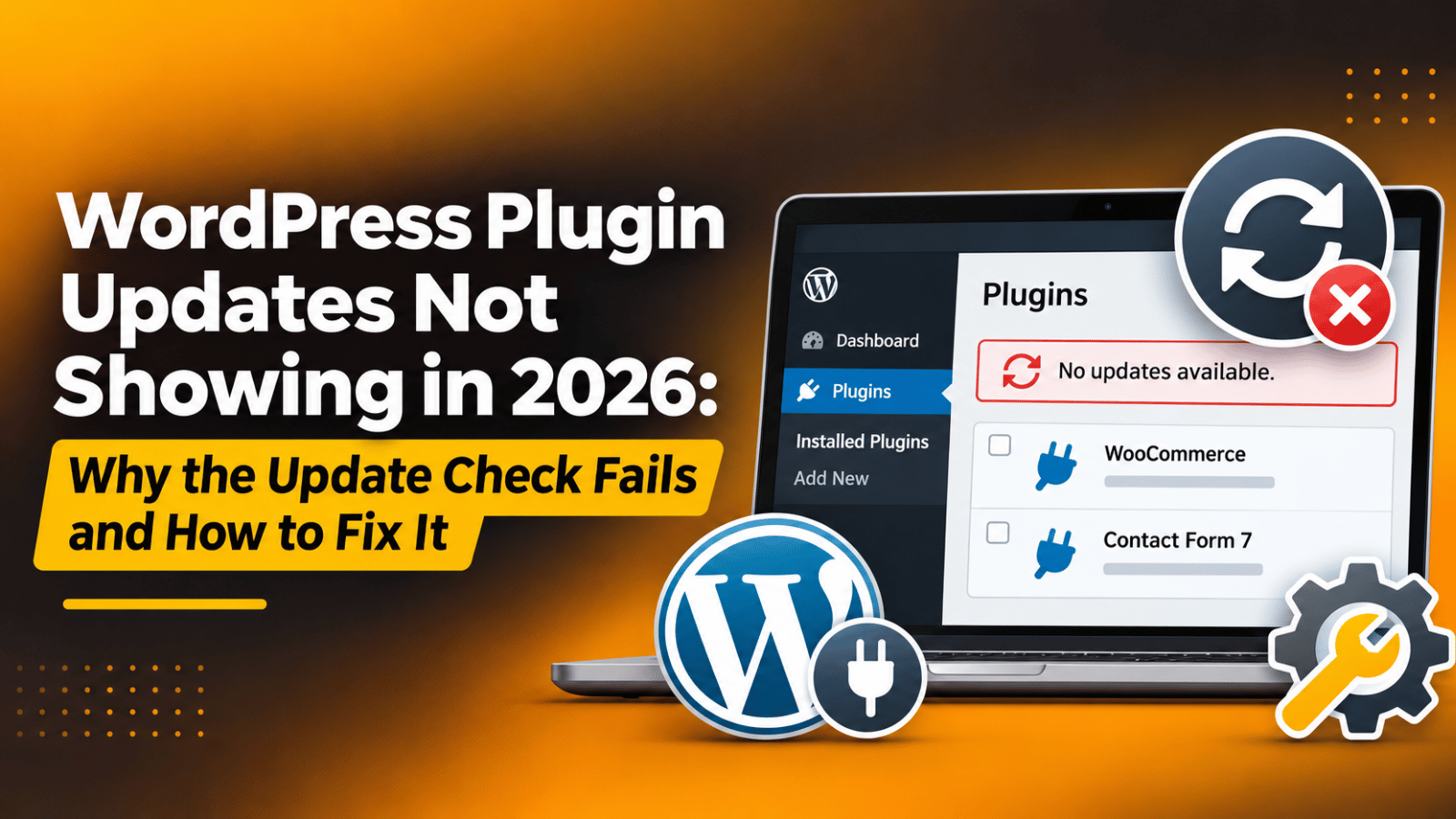
WordPress Plugin Updates Not Showing in 2026: Why the Update Check Fails and How to Fix It
Introduction
Your Plugins screen says everything is up to date. But you know it is not. A plugin you rely on released a new version last week, and your site still shows the old one. No update count sits next to the Plugins menu. No orange update row appears under the plugin name.
This is the WordPress plugin update check failing. It is quiet, and that is what makes it risky. A site that cannot see updates cannot install them. Security patches pile up behind a screen that keeps telling you all is well.
This article explains how WordPress actually checks for plugin updates. It covers what breaks that check, what the failure costs you, how to confirm it is happening, and how to fix it step by step. You will also get a prevention plan so the check keeps running on its own.
Everything here applies to a standard WordPress install and to a WooCommerce store. The steps move from safe and simple to deeper and more technical. Work through them in order. Before you touch any file or database table, take a backup or work on a staging copy of your site.
What Is the Plugin Update Check Issue?
WordPress does not ask for update news every time you load a page. That would be slow and wasteful. Instead it runs a scheduled job called wp_update_plugins. That job fires twice a day, roughly every 12 hours.
When the job runs, WordPress builds a list of every plugin folder on your site. It reads the version number and the plugin header from each main plugin file. It then sends that whole list to the WordPress.org plugin API in one request. The API replies with the latest known version of each plugin it recognises.
WordPress stores that reply in the database. It saves it as a temporary record called a transient, named update_plugins. A transient is simply cached data with an expiry time. Your Plugins screen never talks to the API directly. It reads this cached record and compares the stored version numbers with the versions installed on your site.
What you see when it works. A number badge appears next to Plugins in the admin menu. Each outdated plugin gets a highlighted row that says a new version is available, with a link to view details and a link to update now. The Dashboard, Updates screen lists the same plugins in one place.
What you see when it fails. The badge never appears. Every plugin row looks normal. Dashboard, Updates says your plugins are all up to date, even though you can see a newer version on the plugin’s own page. Sometimes the Updates screen is simply blank where the plugin list should be.
So the visible symptom is “no updates found”. The real fault is one of three things. Either the scheduled job never ran, or the request to the API never completed, or the reply was saved but is stale or damaged. The rest of this article works through all three.
What Causes This Issue?
The update check touches the scheduler, the network layer, the database, and your site configuration. A break anywhere along that path produces the same silent result. Below are the causes worth checking, in rough order of how often they turn up on real sites.
A stale transient that has not expired. The cached update record lasts about 12 hours. If a check ran while the API was slow or unreachable, WordPress may store an empty or partial result. Your site then serves that empty result from cache until it expires. Nothing looks broken, and no error is written anywhere.
WP-Cron is disabled or never fires. WordPress schedules the update job through WP-Cron. WP-Cron is not a real system timer. It only runs when someone visits the site. On a low-traffic site, or on a site where DISABLE_WP_CRON was set to true and no server cron job replaced it, the job simply never runs. Our guide on what WordPress cron is and when to disable it explains this behaviour in more detail.
File modifications are switched off. A single line in wp-config.php can hide the whole update system. When DISALLOW_FILE_MODS is set to true, WordPress removes the plugin installer, the plugin editor and every update notice. Managed hosting plans and security hardening guides often add this line. The site owner is rarely told.
Outbound requests are blocked. The check is an ordinary outgoing HTTP request from your server to the plugin API. If the server firewall blocks outbound traffic on port 443, the request dies. The same happens when WP_HTTP_BLOCK_EXTERNAL is defined and the API host is not on the allow list. WordPress treats the timeout as “no updates available”.
A caching layer is serving an old admin page. Page caching, object caching and browser caching can all hold onto an old view of the admin area. Object caching is the bigger culprit, because the update transient itself may be cached in memory rather than the database. Clearing every layer is part of the fix, and our post on how to clear the WordPress cache walks through each one.
A plugin conflict is filtering the results. WordPress lets any plugin hook into the update process and change the results. Update managers, security plugins and licence managers all use these hooks. A badly written one, or one whose licence has lapsed, can empty the update list for every plugin on the site. Our guide to finding and fixing WordPress plugin conflicts shows how to isolate the culprit.
The PHP memory limit is too low. The update check runs in the same PHP process as the page that triggered it. On a site with 40 or 50 plugins, building the list and parsing the reply takes real memory. When the limit is hit, PHP stops mid-request. The transient is never written, and you see a partial page or none at all. Our article on fixing the allowed memory size exhausted error covers the symptoms.
The plugin folder or header does not match the directory. The API matches plugins by folder name, or by the slug in the plugin header. If you renamed the folder, or installed a plugin from a zip that unpacked under a different name, the API cannot match it. That single plugin never shows an update while the rest of your list works fine.
The plugin is not hosted on WordPress.org at all. Premium and custom plugins deliver their own updates through their own servers. They need a valid licence key and a working connection to that server. When the key expires, updates stop. This is a licence problem, not a WordPress problem, and it affects only that plugin.
The options table is damaged or bloated. Transients live in the wp_options table. A corrupted row, a table that has grown to hundreds of megabytes with expired transients, or an autoload column stuffed with junk can all stop new values being written. Database maintenance is covered later in this article.
WordPress core files are incomplete. A failed core update can leave older files in wp-includes. The update functions then behave in unexpected ways. This is rare, but it does happen after an interrupted update or a partial restore from backup.
Your user role does not have the capability. Only users with the update_plugins capability see update notices. An editor or a shop manager will never see them. If the site was handed to you with a reduced role, the updates are there and simply hidden from your account.
What Is the Impact of This Issue on the Website?
A failed update check does not break the front end on day one. That is exactly why it is dangerous. The damage builds quietly over weeks while the dashboard reports good news.
Security patches never reach your site. Most plugin releases contain security fixes. Published vulnerabilities are indexed and scanned for within hours. A site running a known vulnerable version is a soft target. Because the dashboard shows nothing, nobody on your team knows the site is exposed.
Automatic updates stop working too. Plugin auto-updates rely on the same cached update record. If the record is empty, the auto-updater has nothing to install. Site owners who turned on automatic updates in WordPress assume they are covered. They are not.
Compatibility drifts and then snaps. Plugins are tested against current WordPress and current PHP. When your plugins freeze in time and the platform moves on, small incompatibilities build. The site keeps working until one core or PHP update arrives. Then several things break at once, and you are debugging a year of skipped releases in one afternoon.
Checkout and payment flows fall behind. On a WooCommerce store this hits revenue directly. Payment gateways change their APIs. Shipping providers change their endpoints. Tax rules change every year. A store stuck on old extension versions starts failing at checkout, and the failure often shows up as an abandoned order rather than an obvious error.
Bugs and slow code stay in your site. Every release fixes real defects and usually trims queries and page weight. You keep living with problems the developer solved months ago. Support time gets spent chasing bugs that a one-click update would clear.
Search rankings feel it indirectly. Slower pages, broken features and, in the worst case, a compromised site all affect how search engines treat you. A hacked site can be flagged with a warning in results. Recovery takes far longer than the update would have.
Your maintenance reporting becomes fiction. Monthly care reports that read “0 updates available” look excellent. They are worthless if the check is broken. Clients and stakeholders make decisions on that report, and it is telling them the opposite of the truth.
How to Identify This Issue on the Website
Confirm the fault before you change anything. The goal is to prove that a newer version exists and that your site cannot see it. Start with what you can observe, then move to the tools.
Sign 1: No update badge anywhere. Look at the admin menu. A working site with outdated plugins shows a circled number next to Plugins and next to Dashboard, Updates. If that number is missing while you know a plugin is behind, the check is suspect.
Sign 2: The version numbers do not match. Open Plugins, Installed Plugins and note the version under a plugin you can verify. Then open that plugin’s public page in a browser and read its current version. A gap between the two, with no update notice on your site, is the clearest proof.
Sign 3: The Add New Plugin screen is missing. If Plugins, Add New has disappeared, and there is no Update option under any plugin, file modifications are almost certainly switched off. This one symptom explains both problems at once.
Sign 4: “Check Again” does nothing. Go to Dashboard, Updates and click the Check Again button. The page should reload and show a fresh timestamp. If it reloads instantly and still reports everything current, the request is failing or the result is being served from cache.
Sign 5: Themes and core are stuck too, or only one plugin is. Check whether theme and core updates are equally silent. When all three are frozen, the cause is shared, so look at cron, outbound connections or the config file. If everything updates except one plugin, look at that plugin’s folder name and licence status instead.
Check Site Health first. Go to Tools, Site Health, Status. WordPress runs its own checks here and reports two things that matter for this issue. It flags when a scheduled event has missed its run, and it flags when the site cannot reach the WordPress.org API. Our full guide to Site Health in WordPress explains how to read each result.
Read the Site Health Info tab. Switch to Tools, Site Health, Info and open the WordPress Constants panel. It lists the current value of DISALLOW_FILE_MODS, DISABLE_WP_CRON and WP_HTTP_BLOCK_EXTERNAL. This is the fastest way to see your configuration without opening a single file.
Turn on debug logging. Add WP_DEBUG and WP_DEBUG_LOG to wp-config.php, then reload the Updates screen. Errors are written to wp-content/debug.log. Look for HTTP request failures, memory warnings and fatal errors from plugin code. Our post on what WP_DEBUG is and how it works covers the settings. Turn debug display off again on a live site.
Read the server error log. The PHP error log often holds the real reason a request stopped. Connection refused, name resolution failure, and allowed memory size exhausted are all common entries here. Our guide on finding and accessing WordPress error logs shows where to look on most hosting setups.
Use the browser Network tab. Open your browser developer tools and switch to the Network tab. Load Dashboard, Updates and click Check Again. Watch for the admin-ajax or update request. A 500 status, or a request that hangs and then times out, points at PHP or at the outbound connection.
Use the browser Console tab. Switch to Console and look for red JavaScript errors on the Plugins and Updates screens. A script error from one plugin can stop the update UI rendering even when the data behind it is correct.
Test the plugin folder names. Compare the folder in wp-content/plugins/ with the slug the plugin uses in the public directory. They must match for the API to recognise the plugin. A folder renamed during a manual install is a common cause of a single stuck plugin.


Run the plugin deactivation test. Deactivate every plugin, then check Dashboard, Updates. If updates appear, reactivate plugins one at a time and re-check after each. Do this on a staging copy where possible, because deactivating plugins on a live store affects real customers.
Switch to a default theme. Activate one of the bundled WordPress themes for a moment and re-check the Updates screen. Theme code can hook into update filters just as plugin code can. If updates appear with the default theme active, the fault is in your theme’s functions file.
Query the database directly. In your database tool, look in the wp_options table for the row named _transient_update_plugins. Take a database backup before you touch anything here. If the row is missing, the check never completed. If it exists but its response section is empty, the API replied with nothing useful.
How to Fix This Issue
Work through these steps in order. The early ones are safe and take seconds. The later ones touch configuration files and the database, so back up your site or use a staging copy before you reach them. Our guide on how to back up and restore a WordPress website covers a full backup, and backing up your WordPress database covers the database on its own.
Step 1: Force a fresh check from the Updates screen. Go to Dashboard, Updates and click Check Again. This deletes the cached update record and asks the API straight away. If the page comes back with your missing plugin listed, you are done. If it still reports everything current, the cached record was not the only problem, so continue.
Step 2: Confirm the newer version really exists. Open the plugin’s page in the WordPress.org directory or on the developer’s site. Read the current version and the release date. Compare it with the version shown under Plugins, Installed Plugins. If the versions match, there is no update to find and nothing is broken.
Step 3: Check your user role. Log in as an administrator, not as an editor or a shop manager. Only accounts with the update plugins capability see update notices. If you are on a multisite network, plugin updates are managed from the Network Admin dashboard, not from an individual site.
Step 4: Clear every cache layer. Clear your caching plugin, your object cache, any server-side page cache your host provides, and your browser cache. Then reload Dashboard, Updates. Object caching matters most here, because the update transient can be held in memory rather than in the database. Our post on enabling caching in WordPress explains how the layers stack up.
Step 5: Check Site Health for missed scheduled events. Open Tools, Site Health, Status. Look for a warning about a scheduled event that has failed or is overdue. If wp_update_plugins is listed as missed, the scheduler is your problem and Step 8 is your fix. A clean Site Health report here rules the scheduler out.
Step 6: Look for DISALLOW_FILE_MODS in wp-config.php. Back up the file first, then open wp-config.php in the root of your site. Search for DISALLOW_FILE_MODS. If you find it set to true, that line is hiding every update notice on the site.
define( 'DISALLOW_FILE_MODS', false );Change the value to false, or remove the line entirely, then save and reload the Plugins screen. The Add New button and the update rows should both return. If your host set that line deliberately, ask them before changing it, because they may apply updates for you.
Step 7: Remove or adjust WP_HTTP_BLOCK_EXTERNAL. Still in wp-config.php, search for WP_HTTP_BLOCK_EXTERNAL. When it is true, WordPress blocks all outgoing requests except to hosts you allow. Either remove the line, or add the WordPress.org API host to the allow list so update checks can get through.
define( 'WP_ACCESSIBLE_HOSTS', 'api.wordpress.org,*.wordpress.org' );Save the file and run Check Again. If updates appear now, outbound blocking was the cause and you can leave the allow list in place.
Step 8: Get WP-Cron running again. Look for DISABLE_WP_CRON in wp-config.php. If it is set to true, a real server cron job must call wp-cron.php instead. Check with your host that this job exists and is running. If it is not, either set the constant back to false, or ask your host to add a cron job that runs every 5 to 15 minutes. A low-traffic site with no server cron will always drift behind.
Step 9: Delete the update transient by hand. If Check Again is not clearing the cache, remove the record directly. Take a database backup first. In your database tool, open the wp_options table and delete the rows named _transient_update_plugins and _transient_timeout_update_plugins. WordPress rebuilds them on the next admin page load, so nothing is lost.
Step 10: Raise the PHP memory limit. If the log shows memory exhaustion, give PHP more room. Many hosts let you set this from the control panel. You can also add a line to wp-config.php above the “stop editing” comment.
define( 'WP_MEMORY_LIMIT', '256M' );Reload Dashboard, Updates afterwards. If the screen now completes and shows updates, memory was the limit. If your host caps the value below what you set, the line will have no effect and you will need to ask them to raise it.
Step 11: Increase the maximum execution time. A slow API reply can outlast a short PHP timeout. Ask your host to raise max_execution_time to at least 60 seconds, then run Check Again. A check that succeeds after a long pause tells you the request was being cut short.
Step 12: Rule out a plugin conflict. Deactivate all plugins, then load Dashboard, Updates. If the missing updates appear, reactivate plugins one by one, checking after each. Pay special attention to security plugins, update managers and licence managers, because those hook directly into the update process. Do this on a staging copy if the site is live.
Step 13: Test with a default theme. Switch to a bundled WordPress theme and re-check the Updates screen. If updates appear, your theme’s functions file is filtering them. Look for code that hooks into the plugins update transient and returns an empty value. Change theme code on a staging copy, never directly on a live site.
Step 14: Fix mismatched plugin folders. For a plugin that is stuck while others update, compare its folder name in wp-content/plugins/ with the slug on its public page. If they differ, back up the site, deactivate the plugin, delete it, and install it cleanly from the Plugins, Add New screen. Reactivate it and check the Updates screen again. Your settings normally survive, because they live in the database, not in the folder.
Step 15: Renew or re-enter premium licence keys. Premium plugins update from their own servers and need a valid key. Open the plugin’s settings page and look at the licence status. Re-enter the key, or renew it, then save and run Check Again. An expired key stops updates for that plugin only, which matches the single-plugin symptom in Step 14.
Step 16: Clean and repair the options table. A bloated or damaged options table can stop new transients being written. Back up the database first. Remove expired transient rows, then run a repair on the wp_options table from your database tool. Reload the Updates screen afterwards. If writes now succeed, keep table maintenance on your regular schedule.
Step 17: Re-install WordPress core files. If nothing above works, replace the core files. Go to Dashboard, Updates and click Re-install Now. This overwrites the core files without touching your content, themes, plugins or settings. Take a backup first anyway. When the re-install finishes, run Check Again one more time. Our guide on how to update a WordPress website covers the safe order for core work.
Step 18: Force the check from the command line. If you have WP-CLI access, you can bypass the browser completely. Back up first, then run the update check and read the raw result.
wp transient delete update_plugins
wp plugin list --update=available
A clean list of available updates proves the site can reach the API and that the fault was in the admin layer. An error message here names the real problem, usually a connection failure or a PHP error, and tells you which of the earlier steps to revisit.
How to Prevent This Issue
Once updates are flowing again, keep them flowing. Prevention here is mostly about monitoring the check itself rather than trusting the dashboard to tell you when it stops.
Check Site Health on a schedule. Put Tools, Site Health, Status into your monthly routine. It surfaces missed scheduled events and API connection problems before they cost you anything. Two minutes a month catches the most common cause of this issue.
Verify one version number by hand each month. Pick any plugin, open its public page, and compare the version with what your site shows. This single check proves the whole update pipeline works. It is the only test that cannot be fooled by a cached “all up to date” message.
Use a real server cron job. If your site has low or uneven traffic, do not rely on visitor-triggered WP-Cron. Ask your host to add a server cron job that calls wp-cron.php every 5 to 15 minutes, and set DISABLE_WP_CRON to true. Scheduled jobs then run on time regardless of traffic.
Keep a documented list of your config constants. Record which constants your wp-config.php defines and why. When a hardening step adds DISALLOW_FILE_MODS or an outbound block, that decision is written down. The next person to inherit the site does not spend an afternoon rediscovering it.
Test updates on staging before they reach the live site. Keep a staging copy that mirrors production. Apply plugin updates there first, click through the key flows, then repeat on the live site. Our post on the difference between staging and live WordPress sites explains how to keep the two in sync.
Take a backup before every update round. Automatic daily backups with a tested restore path turn a bad update into a ten-minute rollback. Test the restore at least once a quarter. A backup you have never restored is a guess, not a safety net.
Keep PHP current and supported. Run a PHP version that still receives security support, and check your plugins are tested against it before you switch. Older PHP versions run out of support, and plugin developers stop testing against them, which creates exactly the compatibility drift this issue hides.
Prune plugins you do not use. Every extra plugin adds to the update request, to memory use, and to the chance that one of them filters the update results. Deactivate and delete anything you are not actively using. A leaner site checks for updates faster and fails less often.
Maintain the database. Schedule a monthly clean-up of expired transients and post revisions, and keep an eye on the size of the options table. A tidy database writes new transients reliably, which is exactly what the update check depends on.
Turn on automatic updates for low-risk plugins. For simple utility plugins, auto-updates reduce the window between a patch being released and it being installed. Keep them off for anything that touches checkout, payments or layout, and update those by hand after testing. You can review the trade-offs in our guide to turning automatic updates on and off in WordPress.
Watch for the related update errors. A site that struggles with updates often shows other symptoms too. If an update stalls part way, our guides on fixing the another update in process error and clearing a site stuck in maintenance mode will get you moving again. If a bad update takes the site down, see how to fix the WordPress white screen of death and how to fix a WordPress fatal plugin error.
Conclusion
WordPress checks for plugin updates twice a day through a scheduled job. That job sends your plugin list to the WordPress.org API and caches the answer in a transient. When updates stop showing, one link in that chain has broken.
The causes are a stale transient, a scheduler that never fires, file modifications switched off, outbound requests blocked, a caching layer, a plugin or theme filtering the results, a low memory limit, a mismatched plugin folder, an expired licence, or a damaged options table.
The cost is real. Security patches never arrive, auto-updates quietly stop, compatibility drifts, checkout flows fall behind, and your maintenance reports tell you the opposite of the truth.
To diagnose it, prove the version gap by hand, read Tools, Site Health, turn on debug logging, and check the server error log. To fix it, work from Check Again and cache clearing through the config constants, then cron, memory, plugin and theme testing, and finally the database and a core re-install.
To keep it fixed, monitor Site Health, verify one version by hand each month, run a real server cron job, test on staging, back up before every update round, and keep your plugin list lean. That routine costs minutes and protects everything else.
If your plugin updates are still not appearing after all of this, or you would rather not touch config files and database tables on a live site, our engineers can take it from here. Talk to the 24×7 WP Support team and we will diagnose the update check, restore it safely, and put a maintenance plan in place so it keeps running.
Related posts:




Brian is a WordPress support specialist and content contributor at 24×7 WP Support. He writes practical, easy-to-follow guides on WordPress troubleshooting, WooCommerce issues, plugin and theme errors, website security, migrations, performance optimization, and integrations. With a focus on solving real website problems, Brian helps business owners, bloggers, and online store managers keep their WordPress sites running smoothly.