
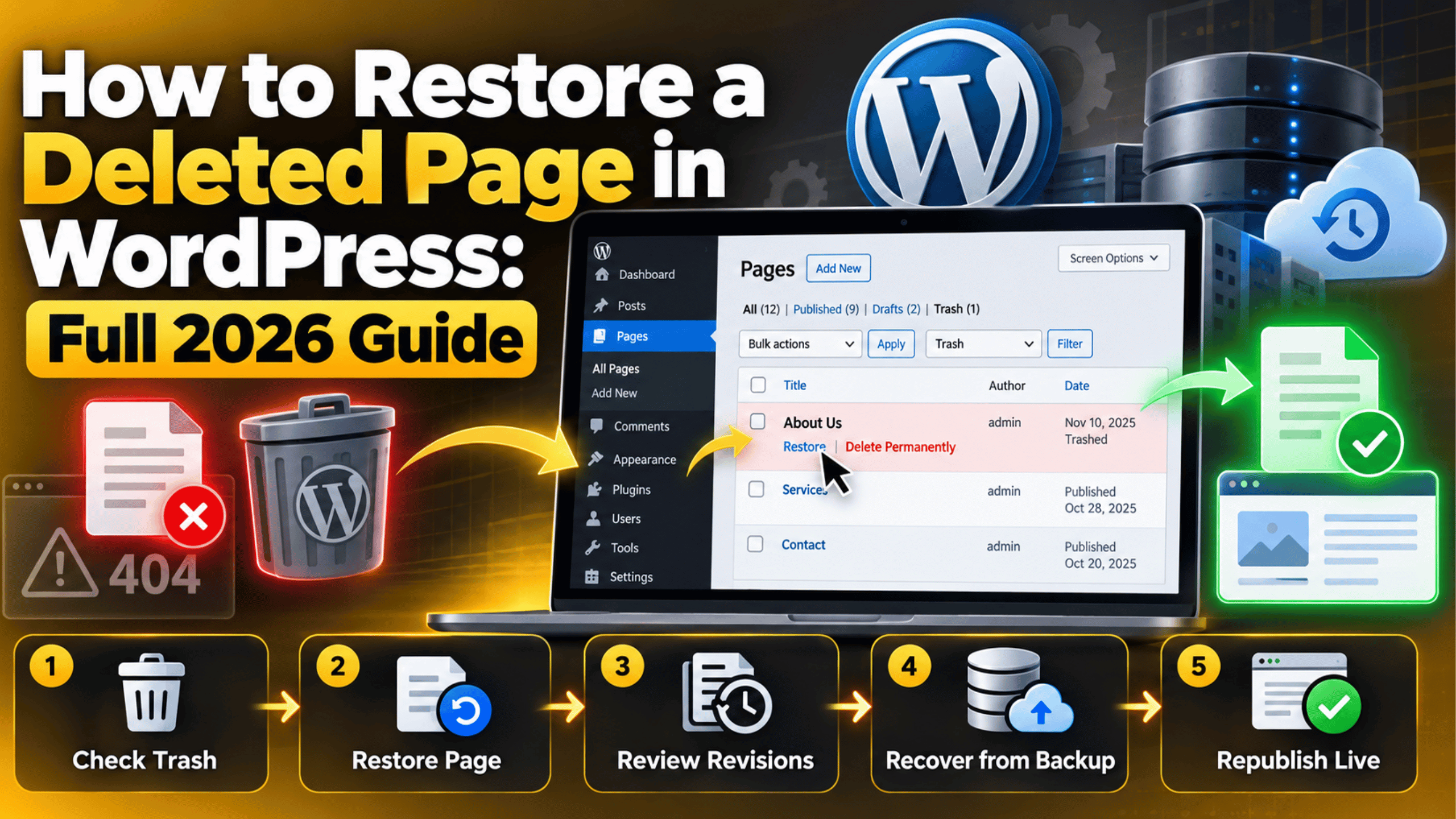
How to Restore a Deleted Page in WordPress: Full 2026 Guide
Introduction
A page vanishes from your WordPress site. Visitors land on a 404 screen. The menu link leads nowhere. Your best-performing service page is simply gone. It is a stressful moment for any site owner, and it often happens at the worst time. Many owners find out only when a customer tells them.
The good news is that WordPress rarely destroys content straight away. Most deleted pages sit safely in the Trash for weeks. Others can be pulled back from a backup, a staging copy, or the database itself. You just need to know where to look and in what order.
This guide walks through the whole recovery path. You will learn what WordPress actually does when a page is deleted, why pages go missing, and what the loss costs you. Then you get a numbered set of steps to get the page back. We finish with the habits that keep this from happening again. Every step names the exact screen so you are never left guessing.
What Is the Deleted Page Issue?
WordPress does not store pages as files on your server. It stores them as rows in your database, inside a table called wp_posts. Each page is one row. A column called post_status records what state that row is in.
When you click Trash on a page, WordPress does not remove the row. It only changes post_status from publish to trash. The content is still there. WordPress simply hides it from the front end and from the main Pages list. That is why a trashed page can come back in one click.
Clicking Delete Permanently is different. That removes the row from the database. It also removes the page’s revisions, its custom fields, and its comment records. Nothing in the WordPress admin can bring it back after that point.
There is also a timer. By default, WordPress empties the Trash automatically after 30 days. A page you trashed last month may already be gone for good. This is set by the EMPTY_TRASH_DAYS value, which lives in your wp-config.php file.
Visitors see the result as a 404 error. Logged-in admins see the page missing from Pages → All Pages. Menus that pointed to it break or drop the item. Nothing on screen tells you which of the two deletions happened, so the first job is always to find out.
What Causes a WordPress Page to Disappear?
A missing page is not always a deleted page. Several very different problems produce the same symptom. Working through the realistic causes saves you from a recovery you never needed.
Someone trashed it by hand. This is the most common cause by far. An editor clears out old drafts and catches a live page in the sweep. A bulk action on the Pages list can trash twenty items in one click. Nothing warns you before it happens.
The Trash was emptied on schedule. WordPress runs a cleanup job through WP-Cron. After 30 days, trashed items are removed for good. If you only notice the loss weeks later, the safety net may already be gone.
The page was not deleted, only unpublished. A page set back to Draft or Pending disappears from the public site instantly. It still sits in the admin under a different status filter. Many “deleted page” reports turn out to be this.
The slug or parent page changed. Editing a permalink changes the URL. The old address then returns a 404 while the page itself is perfectly fine. Changing a parent page has the same effect, because it rewrites the whole path.
A user with too much access removed it. Editors and Administrators can delete published pages. Contributors cannot. Handing out the wrong role is a quiet but frequent cause of content loss.
A plugin or theme conflict broke the page list. A fatal PHP error or a badly written query can hide items from the admin. The page is still in the database. It just never reaches the screen. Plugin conflicts also break page builder templates in the same way.
A migration or import went wrong. Moving a site, restoring an old backup, or re-running an import can overwrite newer content. The page then reverts to an older version, or never arrives at all.
The database is damaged. A crashed table or a full disk can corrupt rows. Pages then load blank, throw errors, or vanish from listings. A database repair often brings them back.
Caching is showing you an old copy. A page cache or a CDN can serve a stale 404 long after the page returns. The page works for you and fails for everyone else, which is very confusing.
The site was compromised. Malware sometimes deletes or replaces pages. If several pages went missing at once, and nobody on the team touched them, treat it as a security incident first.
What Is the Impact of a Deleted Page on Your Website?
Losing one page is rarely a small problem. The damage spreads through your navigation, your search rankings, and your sales. Here is what actually breaks.
Visitors hit a dead end. Anyone who clicks the old link sees a 404 screen. Most of them leave rather than search for the replacement. Bounce rate on that path climbs straight away.
Search rankings drop. Search engines recrawl the URL and find nothing. The page falls out of the index within days or weeks. Any backlinks pointing at it now point at an error page, so that authority is wasted.
Conversions stop. If the missing page was a service page, a pricing page, or a landing page, enquiries stop with it. Paid ad clicks keep arriving and keep failing. You pay for traffic that cannot convert.
Menus and internal links break. WordPress usually drops the menu item when a page is deleted. Links inside other posts stay, but now lead nowhere. Your internal link structure weakens across the whole site.
Forms and tracking disappear. Contact forms, booking forms, and thank-you pages often live on their own page. Delete one and the lead flow stops silently. Analytics goals tied to that URL stop firing too.
Rebuilding costs real time. A page written over several hours takes just as long to rewrite. Design work inside a page builder is often harder to reproduce than the text.
Trust takes a hit. Customers who saw the page yesterday and cannot find it today start to wonder. For a store or a booking site, that doubt is expensive.
How to Identify a Deleted Page on Your Website
Before you restore anything, work out what state the page is really in. The checks below move from the quickest to the most technical. Start at the top and stop as soon as you find the answer.
Sign 1: The URL returns a 404. Open the page address in a private browsing window. A 404 means WordPress cannot match that URL to any published content. A redirect to the homepage usually means the slug changed instead.
Sign 2: The page is missing from the Pages list. Go to Pages → All Pages and search the title. If nothing appears, the page is not in the published or draft pool.
Sign 3: A Trash tab has appeared. The status links above the list read All, Published, Draft, and Trash. The Trash link only shows when something is in it. A number beside it is your strongest early clue.
Sign 4: The menu item vanished. Open Appearance → Menus. WordPress strips menu items for deleted pages automatically. A gap in the menu confirms a real deletion rather than a status change.
Sign 5: Search Console reports new 404s. A sudden rise in “Not found” URLs points to the date the page went missing. That date helps you choose the right backup later.
Check every status filter. Click All on the Pages screen, then Draft, then Pending. Also set Screen Options to show 200 items per page. A page moved to Draft by another editor hides in plain sight otherwise.
Check other authors and dates. Use the author and date filters at the top of the Pages list. On a busy site, a page may simply have moved out of your usual view.
Use the REST API for a direct answer. While logged in as an administrator, visit /wp-json/wp/v2/pages?status=trash on your own site. It returns the trashed pages as raw data. This bypasses any admin screen that is failing to render.
Check Site Health and the error logs. Open Tools → Site Health for warnings about the database or scheduled events. Then read your WordPress error logs for fatal errors around the time the page disappeared.


Turn on debugging if the list looks broken. Enabling WP_DEBUG and WP_DEBUG_LOG writes errors to wp-content/debug.log. Do this on a staging copy where you can, because it touches wp-config.php.
Check the browser console for front-end oddities. If the page loads but shows nothing, open the browser console and look at the Console and Network tabs. A failed script can blank a page that still exists.
Look in the database as a last check. In phpMyAdmin, browse the wp_posts table and search the page title. If the row exists with post_status set to trash, recovery is simple. If no row exists at all, you will need a backup.
How to Restore a Deleted Page in WordPress
Work through these steps in order. The early ones are safe and take seconds. The later ones touch your database and your files, so read the warnings before you start. Take a full backup before any step that changes data.
Step 1: Open the Trash on the Pages screen. Go to Pages → All Pages and click the Trash link above the list. If the link is not there, the Trash is empty and you can skip to Step 4. If your page is listed, you are one click from having it back.
Step 2: Restore the page from the Trash. Hover over the page title and click Restore. WordPress returns it to Draft status, not to Published. Check the Pages list and confirm the title now appears under Draft.
Step 3: Publish the restored page and check its URL. Open the page and click Publish. Then visit the live URL in a private window. If the address is different from the old one, edit the permalink back to the original slug so existing links still work.
Step 4: Check the Draft and Pending filters. Click All, then Draft, then Pending on the Pages screen. Search the title in each view. If the page turns up here, it was never deleted, and publishing it again is the whole fix.
Step 5: Confirm the slug and parent have not changed. Open the page editor and look at the permalink under the title. Also check the Page Attributes panel for a parent page. A changed parent rewrites the URL and produces a 404 on the old address, even though the page is live.
Step 6: Restore an earlier version through revisions. If the page exists but the content was wiped, open it and find Revisions in the sidebar. Pick a version from before the change and click Restore. WordPress revisions only survive while the page itself survives, so this will not help a permanently deleted page.
Step 7: Clear every cache and look again. A stale cache can keep serving the 404. Clear your WordPress cache, purge any CDN cache, and reload in a private window. If the page now loads, the restore already worked and only the cache was lying to you.
Step 8: Rule out a plugin or theme conflict. Do this on a staging site rather than the live one. Deactivate all plugins, then check the Pages list. If the page reappears, reactivate plugins one at a time until the list breaks again. Then switch to a WordPress default theme and repeat the test.
Step 9: Look for the page on a staging or development copy. Many sites keep a staging clone that is days or weeks behind. If the page still exists there, copy the content straight out of it. Understanding the difference between staging and live keeps you from overwriting newer work.
Step 10: Restore the page from a backup. Pick a backup from just before the page disappeared. Never restore the whole site over a live one without thinking first, because you will lose every change made since that date. Where possible, restore the backup to a staging copy, open the page there, and copy the content across by hand. Our guide to backing up and restoring a WordPress website covers the safe order.
Step 11: Recover the row directly in the database. Take a database backup before you touch anything. Then open phpMyAdmin, select your site’s database, and browse wp_posts. Search for the page title, find the row, and change post_status from trash to publish. Save the row and reload the Pages screen. If you are new to this tool, read our guide on working with the WordPress database in phpMyAdmin first.
Step 12: Use WP-CLI if you have server access. Command-line work changes live data instantly, so back up first and test on staging. List trashed pages, then restore the one you need:
wp post list --post_type=page --post_status=trash --fields=ID,post_title
wp post update 1234 --post_status=publish
Replace 1234 with the real ID from the first command. This route is useful when the admin screens will not load at all. Our overview of WP-CLI and SSH explains how to get connected.
Step 13: Repair the database if rows look damaged. Back up the database first. Then add define('WP_ALLOW_REPAIR', true); to wp-config.php and visit /wp-admin/maint/repair.php. Run the repair, then remove that line again straight away, because the page is public while it is enabled.
Step 14: Rebuild the page if nothing else brings it back. Check your own drafts, email attachments, and any exported copy under Tools → Export. Public web archives sometimes hold a readable copy of the old page. Rebuild at the same URL so existing links and rankings have the best chance of recovering.
Step 15: Put the page back into your site structure. Add it to Appearance → Menus again. Fix internal links that pointed at it. Then ask search engines to recrawl the URL through Search Console so the page returns to the index sooner.
How to Prevent Pages From Being Lost Again
Recovery is stressful. Prevention is mostly a set of small habits. Put these in place once and a deleted page becomes a five-minute inconvenience instead of a crisis.
Run automatic daily backups. Schedule backups of both files and database, and store copies off the server. Test a restore at least once. A backup you have never restored is only a hope, not a plan.
Keep the Trash for longer. Raise the retention window by adding define('EMPTY_TRASH_DAYS', 90); to wp-config.php. Back up first, and make the edit on staging if you can. Ninety days gives you a far bigger safety net than thirty.
Give people the smallest role that works. Only Administrators and Editors can delete published pages. Set writers to Author or Contributor. Review your user list every few months and remove old accounts.
Use a staging site for every risky change. Test plugin updates, theme changes, and imports on a copy first. Nothing reaches the live site until it behaves on staging.
Keep an activity log. A log records who deleted what and when. It turns a mystery into a two-minute answer, and it tells you exactly which backup to use.
Export your content regularly. Tools → Export produces an XML file with all your pages and posts. Save one every month. It is small, free, and independent of your host.
Watch for 404 errors. Check Search Console monthly for new “Not found” URLs. Most page losses show up there before anyone reports them.
Keep WordPress, plugins, themes, and PHP current. Outdated code causes the conflicts and fatal errors that hide content. Check your PHP version and update on a supported release.
Review Site Health every month. Site Health flags database problems and stalled scheduled events early. Both are warning signs for content trouble.
Conclusion
A deleted WordPress page is usually recoverable. WordPress moves pages to the Trash rather than erasing them, and the Trash holds them for thirty days by default. Most of the time, the fix is one Restore click on Pages → All Pages → Trash.
When that fails, the cause is usually something other than a true deletion. A status change, a new slug, a plugin conflict, or a stale cache all look identical from the front end. Checking the status filters, the permalink, and the cache before anything else saves a lot of work.
If the page really has gone, a backup, a staging copy, or the wp_posts table will bring it back. Those steps change live data, so a fresh backup comes first every time. When even that is not possible, rebuilding at the same URL is still the best move for your rankings.
Afterwards, spend an hour on prevention. Daily backups, a longer Trash window, tighter user roles, a staging site, and an activity log cover almost every way a page goes missing. If you would rather someone else handled the recovery and the setup, the team at 24×7 WP Support works on exactly this kind of problem every day.
Related posts:
What Is the Fediverse in WordPress? Beginner Guide

Mailjet integration WooCommerce: Step by step process

Wondering How to Improve WordPress Accessibility? We Have Got Your Back

How to Add and Manage Super Admins in WordPress Multisite (2026)
How to Backup Your WordPress Database: Step-by-Step Guide for 2026

Brian is a WordPress support specialist and content contributor at 24×7 WP Support. He writes practical, easy-to-follow guides on WordPress troubleshooting, WooCommerce issues, plugin and theme errors, website security, migrations, performance optimization, and integrations. With a focus on solving real website problems, Brian helps business owners, bloggers, and online store managers keep their WordPress sites running smoothly.
