
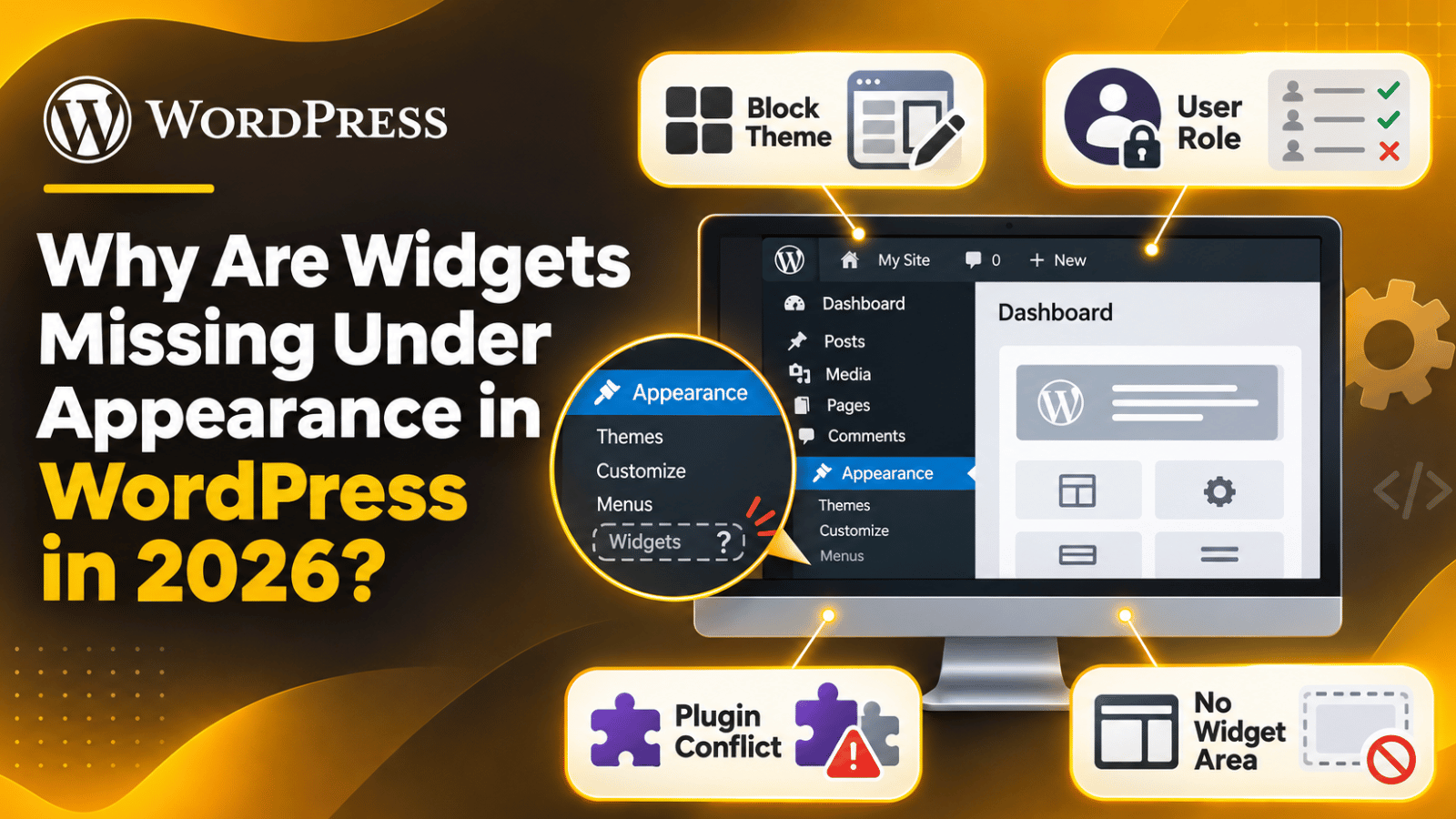
Why Are Widgets Missing Under Appearance in WordPress in 2026?
Introduction
You open your WordPress dashboard to change something in the sidebar. You hover over Appearance. The Widgets link is not there. Themes, Customize, Menus and Editor may all be present, but Widgets has gone.
This worries a lot of site owners. It looks like something broke overnight. In most cases nothing is broken at all. WordPress hides that screen on purpose when certain conditions are true, and the most common condition in 2026 is simply the kind of theme you are running.
This guide explains what the Widgets screen actually is and why WordPress removes it. It covers every realistic cause, from theme type to user role to plugin conflicts. It shows you how to tell which cause applies to your site. Then it walks through twelve numbered fixes in a safe order, and ends with how to stop the surprise happening again.
The advice suits both non-technical site owners and developers. Where a step touches a file, you will be told to back up first.
What Is the Missing Widgets Issue?
A widget is a small block of content you drop into a fixed area of your theme. A search box, a list of recent posts, a contact note in the footer. The areas themselves are called widget areas, or sidebars. Your theme decides how many exist and where they appear.
The Widgets screen lives at Appearance → Widgets. It is the page where you drag those blocks into those areas. The important detail is that WordPress does not always show it. The menu item is conditional. WordPress adds it only when two things are true. The active theme must register at least one widget area, and your user account must hold the permission to edit theme options.
If the theme registers no widget areas, there is nothing for the screen to manage, so WordPress removes the link. If your account lacks the permission, WordPress hides it from you but leaves it for administrators. Either way the page itself is not deleted. Your saved widget content is not deleted either. It stays in the database, waiting for a theme that has somewhere to put it.
So “missing widgets” is almost never data loss. It is WordPress correctly hiding a screen that does not apply to your current setup. The job is to work out which condition is switching it off.
What Causes Widgets to Disappear From Appearance?
Several different situations produce the same missing link. Work down this list in order, because the first cause explains most cases in 2026.
You switched to a block theme. This is by far the most common reason now. Block themes, introduced with full site editing, do not use classic widget areas. They replace the whole idea with template parts you edit visually. WordPress therefore drops Appearance → Widgets and gives you Appearance → Editor instead. Nothing has failed. The tool simply moved.
Your classic theme registers no widget areas. Some lightweight classic themes never call for a sidebar. A single-column landing theme is a good example. With zero areas registered, WordPress has nothing to display and hides the menu.
Your user role is too low. The Widgets screen needs the permission to edit theme options. Administrators have it. Editors, Authors, Contributors and Subscribers do not. If you recently moved to a non-admin account, the screen disappears for you alone. Our guide to WordPress user roles and permissions sets out what each role can do.
A plugin removed the menu item. Admin menu managers, white-label tools, and client-portal plugins often hide screens deliberately. One of them may have been set to hide Widgets and then forgotten. Plugin conflicts can do the same by accident.
Custom code in the theme is hiding it. A few lines in a theme’s functions file can remove any admin submenu. This happens in themes built for a specific client, and in child themes that were customised years ago.
A fatal error broke the theme. If the theme’s code fails while WordPress is loading, the widget areas never get registered. You usually see other symptoms too, such as a broken layout or a critical error notice.
The theme routes widgets through the Customizer instead. Some classic themes point you to Appearance → Customize → Widgets. The top-level link is still hidden, but the feature works. Our post on the WordPress Customizer explains that screen.
A JavaScript error stopped the menu rendering. A broken script from a plugin can leave parts of the admin menu unfinished. Other links usually look odd too.
You are on a multisite network with limited permissions. Network settings can restrict what a single site administrator may change. Theme options are sometimes on that list.
An aggressive cache is serving an old admin page. This is rare but real. A stale cached dashboard can show a menu from before a theme change.
What Is the Impact of This Issue on the Website?
The seriousness depends on whether the widget areas have genuinely gone or only the screen has. Here is what usually follows.
Sidebar and footer content stops being editable. You cannot change a phone number, a promotion, or an opening-hours note. The content may still display, which is worse, because it is now out of date and you cannot correct it.
Parts of the layout may empty out. If you moved to a theme with no widget areas, anything that lived in a sidebar simply stops appearing. Visitors see a narrower page, or a gap where a block used to be.
Calls to action disappear. Newsletter sign-ups, enquiry prompts and featured offers are commonly placed in widget areas. Losing them quietly reduces the number of leads a page produces.
Navigation gets harder for visitors. Category lists, recent posts and search boxes are widgets. Without them, people have fewer routes into your content, and time on site can fall.
Internal links are lost. Sidebar link lists pass signals between your pages. If those blocks vanish, your internal linking thins out and older posts get fewer visits.
Editors get blocked. If the cause is a role permission, your team cannot do routine updates. Every small change has to go through an administrator.
Time is wasted on the wrong diagnosis. Many owners assume the site is hacked or the database is damaged. That leads to unnecessary restores. Knowing the real cause saves hours.
How to Identify This Issue on the Website
Start with the visible signs. Each one points at a different cause, so a few minutes of looking will usually settle it before you change anything.
Sign: Appearance shows an Editor link. Look at the Appearance submenu. If you see Editor and no Widgets, you are on a block theme. That is the answer, and nothing is broken.
Sign: Themes and Customize are missing too. If several Appearance links have gone, this is a permission problem rather than a theme problem. Check which account you are signed in as.
Sign: the sidebar still shows old content on the front end. This tells you the widget areas exist and the data is intact. Only the admin screen is hidden. That points at a plugin, custom code, or a permission rule.
Sign: the sidebar vanished from the front end as well. Now the theme itself is the suspect. Either it registers no areas, or its code is failing.
Sign: the problem started right after a theme or plugin change. Note what changed and when. That single fact usually names the cause on its own.
Open the screen directly. Type the widgets address into your browser: your site address followed by /wp-admin/widgets.php. If the page loads normally, only the menu link was hidden. If WordPress says you do not have permission, it is a role issue. If it says the theme does not support widgets, the theme registers no areas.
Check the Customizer. Go to Appearance → Customize and look for a Widgets panel. If it is there, your widget areas are alive and you can edit them from that screen today.


Confirm your role. Go to Users → Profile, or ask an administrator to check Users → All Users. Only Administrator accounts see theme options on a standard install.
Check Site Health. Go to Tools → Site Health → Status. Look for failed tests and for notes about the active theme. Our Site Health guide explains what each result means.
Look at the browser console. Press F12 and open the Console tab. Script errors here explain a half-drawn admin menu. Our post on using the browser console with WordPress walks through it.
Turn on debug logging. Add WP_DEBUG and WP_DEBUG_LOG to wp-config.php, then read wp-content/debug.log. Back up the site before editing that file. See how WP_DEBUG works and what wp-config.php does. Theme errors show up here clearly.
Read the server error log. Your hosting panel keeps a PHP log. A fatal error in the theme is stamped with a time and a file path. Our guide on finding WordPress error logs shows where to look.
How to Fix Missing Widgets Under Appearance
Work through these in order. The early steps change nothing and cost nothing. The later ones touch code, so back up first or use a staging copy.
Step 1: Take a backup before you change anything. Back up both files and database. Use your host’s tool or a backup plugin. Our guide on backing up and restoring WordPress covers it. You should finish with a file you can download. If you cannot produce one, stop here and ask your host.
Step 2: Open the widgets page directly. Visit /wp-admin/widgets.php on your site. If the page loads, note that and move to Step 7, because the screen exists and only the link is hidden. The message you get instead is the most useful clue you will find today, so read it carefully.
Step 3: Check whether you are on a block theme. Go to Appearance and look for Editor. If it is there, your theme is a block theme and the Widgets screen is not coming back while that theme is active. This is expected behaviour, not a fault. Move to Step 4.
Step 4: Use the Site Editor instead of widgets. On a block theme, go to Appearance → Editor, open a template part such as the footer or a sidebar, and add blocks there. Everything a widget did has a block equivalent, including search, recent posts and categories. Save the template part and check the front end. Our introduction to the WordPress block editor helps if this is new to you.
Step 5: Confirm you are signed in as an administrator. Go to Users → Profile and check your role. If you are an Editor or lower, that alone explains the missing screen. Ask an administrator to raise your role, or to make the change for you. Do not add capabilities with code as a first move, because that widens access across the whole site.
Step 6: Look in the Customizer. Open Appearance → Customize. If a Widgets panel appears, use it. Your areas and content are intact and editable from there. This is a complete workaround on themes that route widgets this way.
Step 7: Clear every cache and retry. Clear your caching plugin, your host’s cache and your browser cache, then reload the dashboard in a private window. See how to clear the WordPress cache. A private window ignores your local cache, so the result is trustworthy.
Step 8: Deactivate plugins to find a hidden menu. Go to Plugins → Installed Plugins and deactivate all of them. Reload the dashboard. If Widgets reappears, reactivate the plugins one at a time, checking Appearance after each. The one that makes it vanish again is your answer. Do this on staging if the site is busy, because deactivating plugins affects visitors.
Step 9: Check any admin menu manager settings. If Step 8 pointed at a menu or permissions plugin, open its settings rather than deleting it. There is usually a checkbox controlling the Widgets screen for a given role. Switch it back on and save. This keeps the rest of that plugin’s configuration intact.
Step 10: Switch to a default WordPress theme as a test. Activate a classic default theme from Appearance → Themes for a few minutes. If Widgets returns, your previous theme is the cause. Switch straight back afterwards. Your widget content is stored per theme, so expect the areas to look empty on the test theme; that is normal and nothing is lost.
Step 11: Look for code that removes the menu. If the theme is the cause, search its files for a call that removes an admin submenu, and for the function that registers sidebars. Never edit a parent theme directly, because the next theme update will overwrite your work. Make the change in a child theme instead. Our comparison of the functions file versus a custom plugin explains where such code belongs.
Step 12: Register a widget area if the theme genuinely has none. On a classic theme with no sidebars, a developer can register one so the screen returns. Keep the code in a child theme or a small custom plugin, and test it on staging before it goes live. If the theme is a block theme, do not do this. Use the Site Editor from Step 4, because mixing the two approaches makes the site harder to maintain later.
How to Prevent This Issue
Most of these surprises come from a change nobody wrote down. A few habits make the next theme switch uneventful.
Know which kind of theme you are choosing. Before you activate anything, check whether it is a block theme or a classic theme. That single fact tells you whether you will be using the Site Editor or the Widgets screen. Our explainer on what a WordPress theme is and how it works covers the difference.
Test theme changes on staging. Activate the new theme on a copy first and walk through the admin screens your team uses. You will spot a missing Widgets link in minutes rather than on a live site.
Export your widget settings before a theme switch. Keep a copy of what was in each area so you can rebuild it quickly. Our guide on importing and exporting widget settings shows how.
Give people the role that matches their job. If an editor needs to change the footer, they need administrator rights or a properly configured role. Decide this deliberately rather than discovering it during a deadline.
Keep a written record of admin customisations. Note any plugin or snippet that hides a screen, and why. The person who inherits the site will otherwise spend an afternoon on the same puzzle.
Review plugins you no longer use. Delete them rather than leaving them deactivated. Fewer moving parts means fewer things quietly changing the admin menu.
Take a backup before every theme change. Theme switches are the single most common trigger here. A recent backup turns a bad switch into a five-minute rollback.
Check the dashboard after core updates. Major WordPress releases sometimes move features. A quick look at your main admin screens after an update catches these changes early.
Conclusion
Missing widgets under Appearance looks like a fault, but it is usually WordPress behaving exactly as designed. The screen is conditional. It appears only when the active theme registers at least one widget area and your account can edit theme options.
In 2026 the leading cause is the move to block themes, which replace widget areas with template parts in the Site Editor. The other realistic causes are a classic theme with no sidebars registered, a user role that is too low, a plugin or snippet hiding the menu, a fatal error in theme code, a theme that routes widgets through the Customizer, and, occasionally, a stale cache.
The effects are real even when nothing is broken. Sidebar and footer content becomes uneditable, calls to action and navigation blocks can disappear, internal links thin out, and editors get blocked from routine work.
Diagnosis is quick once you know where to look. Check the Appearance submenu, open /wp-admin/widgets.php directly, read the message it gives you, confirm your role, check the Customizer, and fall back to Site Health, the browser console and the debug log. The fixes then follow a safe order: back up, open the page directly, identify the theme type, use the Site Editor if it is a block theme, check your role, try the Customizer, clear caches, test plugins, check menu manager settings, test a default theme, and only then look at theme code or register a new widget area.
If your Widgets screen has gone and you would rather not work through all of that yourself, our WordPress engineers handle this kind of thing daily. Visit 24×7 WP Support, tell us what your Appearance menu shows, and we will take it from there.
Related posts:

Does Showit Work With WordPress? Setup, Linking, and Cost Explained
How to Transfer Your Domain from GoDaddy to WordPress
How to Contact WordPress Support: Phone, Email & All Options Explained
How to Fix Slow Admin Dashboard for Faster Loading
Where Is the Style Tab in WordPress & What Does It Do? (Complete Guide)

Brian is a WordPress support specialist and content contributor at 24×7 WP Support. He writes practical, easy-to-follow guides on WordPress troubleshooting, WooCommerce issues, plugin and theme errors, website security, migrations, performance optimization, and integrations. With a focus on solving real website problems, Brian helps business owners, bloggers, and online store managers keep their WordPress sites running smoothly.