
What Is the WordPress Customizer and How to Access It
Introduction
WordPress gives users many ways to manage website design. Many website owners want to change their site without coding. They may need to update a logo, menu, colors, or homepage layout. This is where the WordPress Customizer becomes useful.
The Customizer helps you control theme settings from one simple screen. Before you publish modifications, a live preview is also displayed. This facilitates the safe testing of upgrades. Before visitors view your website, you can see how it might seem.
For beginners, this tool saves time and reduces confusion. It keeps many basic design options in one place. Business owners can make small updates without hiring a developer every time.
However, some users may not find the Customizer in newer WordPress themes. This typically occurs when a block theme is in use. These themes use the Site Editor instead of the classic Customizer.
You will discover the functions of the Customizer in this guide. Additionally, you will discover its significance and its place in WordPress.
What Is the WordPress Customizer?
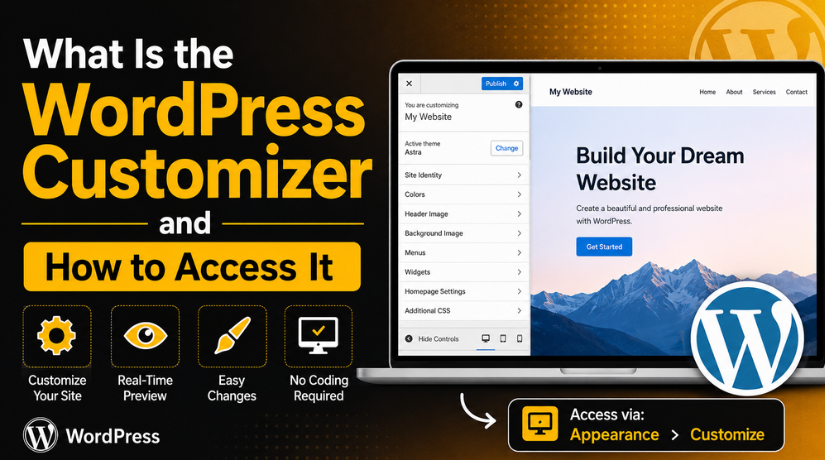
The WordPress Customizer is a built-in WordPress design tool. It allows you to change theme-related settings from your dashboard. You can also preview those changes before making them live.
Classic themes are primarily compatible with the WordPress Theme Customizer. Some hybrid themes may also support it. The options you see depend on your active theme. One theme may show many controls. Another theme may show only a few basic settings.
Common Customizer options may include:
- Site title and tagline
- Logo and site icon
- Menus and menu locations
- Sidebar and footer widgets
- Homepage display settings
- Colors and background settings
- Additional CSS for small style changes
The main benefit is the live preview panel. You can test changes without affecting visitors right away. After checking everything, you can click publish. This makes the Customizer helpful for safe and simple website updates.
Why the WordPress Customizer Is Useful for Website Owners
The WordPress Customizer is useful for quick design changes. It gives website owners more control without editing code. You can update basic theme settings from one simple area. You can also preview each change before publishing it.
This makes the tool helpful for beginners and small businesses. You can test a new logo, color, or menu safely. The live preview helps you avoid sudden design mistakes. It also saves time during small website updates.
Once you learn how to use WordPress Customizer, you can manage many simple changes yourself. A developer is not required for every minor update.
The Customizer is useful for managing:
- Website logo and site icon
- Site title and tagline
- Header and background colors
- Navigation menus
- Sidebar and footer widgets
- Homepage display settings
These options may change based on your active theme. Some themes offer many controls. Some themes only offer limited design settings.
How to Access Theme Customizer in WordPress
If you want to learn how to access Theme Customizer in WordPress, start from your dashboard. For classic themes, this is the most popular approach.
Access It from the WordPress Dashboard
First, log in to your WordPress admin dashboard. Then, look at the left-side menu. Go to Appearance and click Customize.
After clicking it, WordPress opens the live preview screen. For classic themes, this is the most popular approach. Your website preview appears on the right side.
Follow these simple steps:
- Log in to your WordPress dashboard.
- Click Appearance from the left menu.
- Select Customize.
- Wait for the live preview screen to load.
This option appears mainly in classic WordPress themes. You can see Editor instead if you use a block theme.
Access It from the Admin Bar
The Customizer can also be accessed from the front end. First, visit your website while logged in. Then, check the top admin bar.
You will see Customize there if your theme allows it. Click it to open the live preview screen.
Some themes may show this option differently. Others may hide it completely when using block-based design tools.
What Settings Can You Manage in the WordPress Customizer?
The WordPress Customizer gives you control over many theme settings. These settings depend on your active WordPress theme. Some themes offer many options, while others stay limited. Still, most classic themes include a few common sections.
Site Identity
The Site Identity section controls your basic brand details. You can add or update your website title here. You can also edit the tagline shown by some themes. Many themes also allow logo and site icon uploads.
This section usually includes:
- Site title
- Tagline
- Logo
- Site icon or favicon
Colors and Background
Many themes allow color changes through the Customizer. You may change the background color, header color, or link color. These settings help match your website with your brand style.
Some themes give advanced color controls. Others only provide one or two color options.
Menus
The Menus section helps you manage website navigation. You can create new menus and assign menu locations. Pages, posts, categories, and custom links can also be added.
When you wish to improve visitor navigation, this is helpful. A clear menu helps users find important pages faster.
Widgets
Widgets help you add content blocks to theme areas. Many classic themes support sidebar and footer widgets. You can add search bars, recent posts, categories, or custom HTML.
Available widget areas depend on your theme layout. Some themes may offer only footer widget sections.
Homepage Settings
The Homepage Settings section controls your front page display. You can show your latest blog posts. You can also select a static homepage and blog page.
This option is helpful for business websites. Most business sites use a static homepage for services.
Additional CSS


Additional CSS lets you add small style changes. You can adjust spacing, colors, fonts, or layout details. Use this option only when you understand basic CSS.
Wrong CSS may affect your website design. So, always test changes before publishing them.
How to Use WordPress Customizer Safely
Learning how to use WordPress Customizer safely helps prevent mistakes. The live preview is useful, but careful testing still matters.
Follow these simple safety tips:
- Preview every change before publishing it.
- Change one setting at a time.
- Check both desktop and mobile views.
- Avoid random CSS without testing.
- Keep a backup before major design changes.
- Publish only after checking the full preview.
For example, upload a new logo carefully. Then check the header on mobile and desktop. This helps you catch design issues before visitors see them.
Why Is the WordPress Customizer Missing?
A WordPress Customizer missing issue can confuse many website owners. You may expect the Customize option under Appearance. But sometimes, that option does not appear there. This usually happens because of your theme, user role, or site setup.
You Are Using a Block Theme
Many newer WordPress themes use block-based editing. These themes may not show the classic Customizer option. Instead, they use the Site Editor for design changes.
You can usually access it from:
- Appearance → Editor
This is normal behavior in many modern WordPress themes. It does not always mean your website has an error.
Your Theme Has Limited Customizer Support
Some themes provide only a few Customizer options. Others move design settings into their own theme panel. So, the Customizer may appear limited or different.
For example, one theme may show logo, colors, and menus. Another theme may only show homepage settings. This depends on how the theme was built.
A Plugin or Theme Conflict May Hide It
Plugin or theme conflicts can also affect dashboard options. A broken plugin may stop admin screens from loading properly. A poorly coded theme may also hide the Customize link.
This often happens after updates or new plugin installations. Testing plugins one by one can help find the cause.
User Role Permissions May Limit Access
Only users with proper permissions can edit theme settings. You might not be able to see Customizer settings if you are not an administrator. Ask the site owner to check your user role.
What to Do If WordPress Customizer Is Not Working
A WordPress Customizer not working issue can happen in many ways. The preview may keep loading. The screen may go blank. Changes may also fail to save.
Clear Browser and Website Cache
To begin, empty the cache in your browser. Next, use your WordPress caching plugin to clear the cache. Also clear server cache if your hosting provider offers it.
Old cached files can block fresh preview updates. This simple step often fixes display problems.
Deactivate Plugins Temporarily
Plugin conflicts are a common cause. Deactivate plugins one by one for testing. After each test, open the Customizer again.
When the issue stops, the last plugin may be the cause.
Switch to a Default Theme for Testing
Activate a default WordPress theme for a short test. This helps confirm whether your theme causes the issue. If the Customizer works, contact your theme developer.
Check JavaScript Console Errors
JavaScript errors can break the live preview panel. Open your browser developer tools and check console errors. Ask a developer if the errors look unclear.
Update WordPress, Theme, and Plugins
Outdated files may create compatibility problems. Update WordPress, themes, and plugins carefully. Always take a backup before applying major updates.
WordPress Customizer vs Site Editor: What Should You Use?
The WordPress Customizer and Site Editor both manage website design. The right option depends on your active WordPress theme. Classic themes usually use the Customizer for design settings. Block themes usually use the Site Editor for full-site editing.
If you use a classic theme, go to Appearance → Customize. If you use a block theme, go to Appearance → Editor. This difference is normal in modern WordPress websites.
The Customizer is best for basic theme settings. The Site Editor is best for block-based templates and layouts. So, a missing Customizer is not always a serious issue.
When Should You Ask for WordPress Support?
You should ask for support when the issue affects website control. Some problems need safe testing and technical checks. A small mistake can affect your live website layout.
You may need expert help when:
- The Customizer screen is blank.
- The live preview keeps loading.
- Changes are not saving correctly.
- The Customize option disappears after updates.
- Plugin conflicts are hard to identify.
- CSS changes break your website layout.
A WordPress expert can check your theme, plugins, cache, and errors. This saves time and helps prevent more website issues.
Conclusion
The WordPress Customizer helps manage theme settings with live preview. You can access it from Appearance → Customize in classic themes. If you use a block theme, use Appearance → Editor instead.
The Customizer can help with logos, colors, menus, widgets, and homepage settings. It also makes small design updates safer for beginners.
If your WordPress Customizer is missing or not loading, 24×7 WP Support can help. Our WordPress experts can check your theme, plugins, errors, and settings. We can fix the issue and make your website easier to manage.
FAQs
1. What is the WordPress Customizer?
The WordPress Customizer is a built-in tool in WordPress. It helps you change theme settings from one screen. You can update logos, menus, widgets, colors, and homepage settings. It also shows a live preview before publishing changes.
2. How do I access Theme Customizer in WordPress?
You can access it from your WordPress dashboard. Log in to your admin area. Then go to Appearance → Customize. If you use a block theme, you may see Appearance → Editor instead.
3. Why is my WordPress Customizer missing?
The WordPress Customizer missing issue often happens with block themes. Newer block themes use the Site Editor instead. It may also happen due to theme limits, plugin conflicts, or user permission issues.
4. Why is my WordPress Customizer not working?
The WordPress Customizer not working issue can happen due to cache, plugin conflicts, theme errors, or outdated files. Clear cache first. Then test plugins, switch themes, and update WordPress carefully.
5. Can I use WordPress Customizer without coding?
Yes, you can use the Customizer without coding. Most settings are simple and beginner-friendly. You can change logos, colors, menus, widgets, and homepage settings. Only the Additional CSS section needs basic coding knowledge.



Brian is a WordPress support specialist and content contributor at 24×7 WP Support. He writes practical, easy-to-follow guides on WordPress troubleshooting, WooCommerce issues, plugin and theme errors, website security, migrations, performance optimization, and integrations. With a focus on solving real website problems, Brian helps business owners, bloggers, and online store managers keep their WordPress sites running smoothly.
