
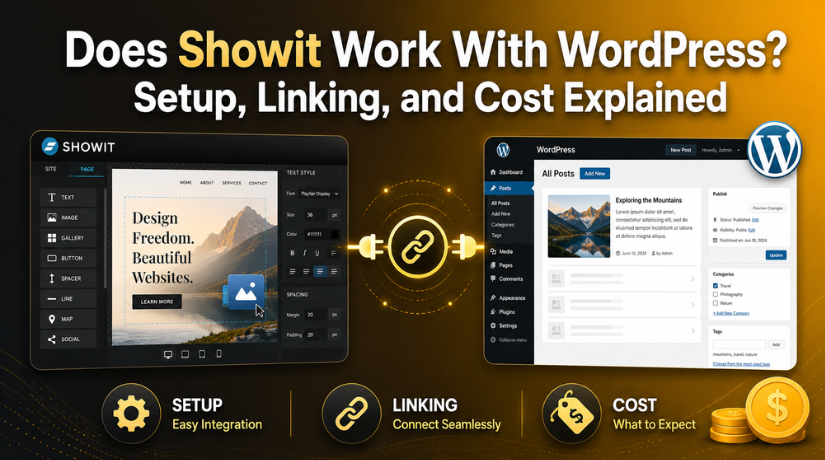
Does Showit Work With WordPress? Setup, Linking, and Cost Explained
Introduction: Why Users Ask About Showit and WordPress
Many website owners want a site that looks clean and professional. They also want a blog that is simple to manage. This is why many users ask, does Showit work with WordPress? The answer matters because both tools serve different needs. Showit is popular among designers, coaches, photographers, and service businesses. It gives users strong design control without heavy coding. WordPress is trusted for blogging, content updates, and SEO management. When both tools work together, users can enjoy design freedom and blog control.
This setup is helpful for businesses that publish regular content. It also helps users who want a custom-looking website. However, many beginners feel confused about the connection. They want to know what Showit handles and what WordPress handles. They also want to understand setup, linking, and cost before starting. This guide explains the basics in a clear way. It will help users make better website decisions.
What Is Showit and How Does It Use WordPress?
Showit is a drag-and-drop website design platform. It helps users build custom pages with visual control. Users can design layouts, sections, buttons, images, and mobile views. This makes Showit useful for brand-focused websites. It gives more design freedom than many standard templates.
WordPress works differently. It is mainly used to manage blog content in this setup. Users can write posts, add images, create categories, and update SEO details. The Showit WordPress integration connects these two roles. Showit controls how the blog looks on the front end. WordPress controls the blog content behind the scenes.
For example, a user may design a blog layout in Showit. Then they can publish each blog post from WordPress. The post will appear inside the Showit-designed layout. This keeps the website design consistent across all pages. It also keeps blogging simple for regular content updates.
So, Showit and WordPress are not merged into one platform. They work together with separate roles. This makes the setup flexible for design and content needs.
Does Showit Work With WordPress? Clear Answer for Beginners
Yes, Showit works with WordPress, but in a specific way. It mainly uses WordPress for blog content and publishing. Showit handles the website design, layout, and visual style. WordPress handles blog posts, categories, media, and content updates. This setup gives users both design control and blogging power.
Many beginners think Showit and WordPress become one platform. That is not exactly how the setup works. Showit remains the main design tool for the website. WordPress works behind the scenes for the blog section. So, users do not build the full site inside WordPress. They build the design in Showit and manage blog content in WordPress.
This setup is useful for many small businesses. It also works well for bloggers, coaches, photographers, and creatives. They can keep a custom website design while using WordPress for content. This makes the process easier for users who publish often.
The main benefit is balance. Showit gives strong creative freedom. WordPress gives reliable blog management. Together, they create a simple workflow for content-based websites.
How Showit WordPress Integration Works Behind the Scenes
The Showit WordPress integration works through separate design and content roles. Website pages are designed directly inside Showit. Blog templates are also created inside Showit. These templates control how blog posts look to visitors.
WordPress is used to add the actual blog content. Users can write posts, upload images, select categories, and update SEO fields. Once the post is published, it appears within the Showit-designed blog layout.
This means users do not design every blog post manually. The template does most of the visual work. The content added in WordPress fills that design automatically.
For example, a blog title, image, date, and content can come from WordPress. Showit then displays those details in the selected design format. This keeps every post clean, branded, and consistent across the website.
So, the integration supports a clear workflow. Showit manages design, while WordPress manages publishing.
Showit WordPress Setup: What You Need Before Connecting Them
Before starting the Showit WordPress setup, users should understand the basic needs. This helps avoid confusion during the website setup process. Showit and WordPress work together, but both have separate roles. Showit manages the website design and visual structure. WordPress manages blog content and publishing tools.
The first thing users need is a Showit account. The account gives access to the website design platform. Users also need the right Showit blog plan. A website-only plan may not support WordPress blogging. So, users should choose a blog plan if they need posts.
A domain name should also be ready before setup. The domain connects the website to the live URL. Users with an existing WordPress blog may need login access too. This is helpful when moving old posts, images, or categories.
The right plan depends on the website needs. A basic blog plan may work for simple content. An advanced blog plan may help with larger needs. It may also be better for custom plugins or blog migration.
Users should check these items first:
- Showit account access
- Domain name access
- WordPress blog login details
- Blog plan selection
- Plugin and migration needs
These steps make the setup cleaner and easier to manage.
Important Things to Check Before Setup
Users should review a few points before connecting both platforms. First, check if the website needs only pages or also a blog. This decision affects the required Showit plan. Next, check if the blog already exists on WordPress. Existing blogs may need careful migration and URL planning.
Users should also check if custom plugins are required. Some websites need SEO, forms, security, or tracking tools. It is also important to review old blog URLs. Redirects may be needed if the URL structure changes.


SEO settings should not be ignored during setup. Titles, meta descriptions, images, and categories should be reviewed. This helps protect search visibility after launch. A clear pre-check can prevent broken links, missing posts, and ranking issues later.
How to Connect Showit to WordPress in Simple Steps
Understanding how to connect Showit to WordPress helps users avoid setup mistakes. The process is not very hard, but each step matters. Showit controls the website design, while WordPress controls blog publishing. So, both sides must be checked before launch.
Start by choosing the correct Showit blog plan. A website-only plan is not enough for blogging. Users need a blog plan if they want WordPress posts. This is an important part of the Showit WordPress setup.
Next, design the main website pages inside Showit. These pages may include the homepage, about page, service pages, and contact page. After that, create blog templates in Showit. These templates control how each blog post will appear online.
Then, connect the domain using the correct DNS settings. DNS connects the domain name with the Showit website. Users should check these settings carefully before publishing the site.
After the domain setup, open the WordPress admin area. This is where blog posts are created and managed. Users can add posts, images, categories, tags, and SEO details from WordPress.
Follow these basic steps:
- Choose the right Showit blog plan.
- Design website pages in Showit.
- Create blog templates in Showit.
- Connect the domain with DNS settings.
- Publish blog content from WordPress.
- Test blog posts on the live website.
Before finishing, check all menus, links, images, and mobile layouts. Also, test the blog URL structure. This helps users confirm that visitors can access pages properly.
Common Setup Mistakes to Avoid
Many setup issues happen because users skip basic checks. Choosing the wrong Showit plan is a common mistake. It can stop users from using WordPress blogging features.
Another mistake is ignoring DNS settings. Wrong DNS records can stop the website from loading. Users should also test blog URLs after setup. Broken blog links can hurt both users and SEO.
Avoid these issues:
- Not checking the Showit plan first.
- Forgetting mobile layout testing.
- Ignoring SEO titles and meta descriptions.
- Missing redirects for old WordPress URLs.
A careful setup keeps the website clean, stable, and easy to manage.
Do I Need to Pay for Showit and WordPress Separately?
Many users ask, do I pay for Showit and WordPress when using both together. In most cases, users pay for their selected Showit plan. If the plan includes blog hosting, WordPress is included for blogging. This means users usually do not need a separate WordPress.com plan for the same blog.
However, some extra costs may still apply. Users may need to pay for a domain name. They may also pay for premium plugins, email tools, SEO tools, or expert help. These costs depend on the website needs.
The main thing to remember is simple. Showit handles the website design and hosting plan. WordPress handles blog content within that setup. So, users should review the plan details before buying.
Showit WordPress Pricing: Which Plan Makes Sense?
Showit WordPress pricing depends on the website and blog needs. A website-only plan may work for users without a blog. This plan is suitable for simple business websites. But it is not enough for users who want WordPress blogging.
A Basic Blog plan may fit users starting a new blog. It can work for simple posts, images, and regular updates. An Advanced Blog plan may be better for larger needs. It can help users who need migration or custom plugins.
Users should choose a plan based on these points:
- Do they need a blog?
- Are they moving an old WordPress blog?
- Do they need custom plugins?
- How much blog traffic do they expect?
- Do they need expert setup help?
The right plan should support current and future needs.
Conclusion
Showit with WordPress can be a good setup for many users. Showit gives design freedom. WordPress gives strong blog publishing tools. Together, they help users manage design and content clearly.
Before starting, users should review the plan, domain, blog structure, and SEO settings. If you need help with WordPress-related setup, review, or troubleshooting, you can contact 24×7 WP Support for clear guidance.

Brian is a WordPress support specialist and content contributor at 24×7 WP Support. He writes practical, easy-to-follow guides on WordPress troubleshooting, WooCommerce issues, plugin and theme errors, website security, migrations, performance optimization, and integrations. With a focus on solving real website problems, Brian helps business owners, bloggers, and online store managers keep their WordPress sites running smoothly.
