
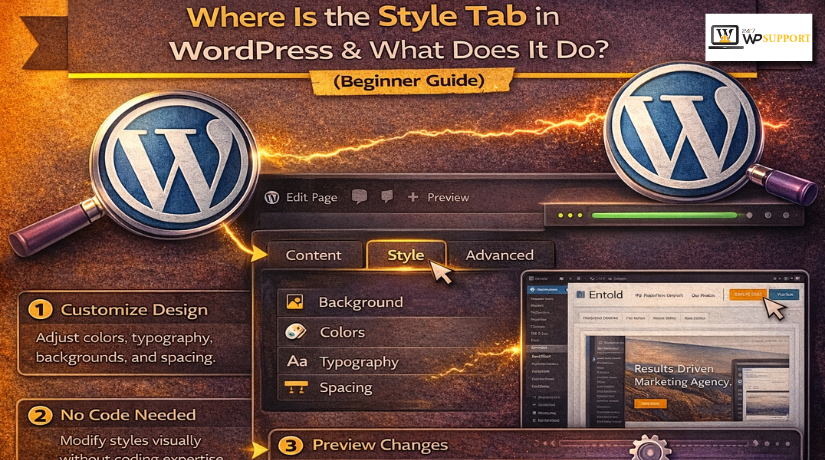
Where Is the Style Tab in WordPress & What Does It Do? (Complete Guide)
Introduction
Many users want better control over their website design. They often search Where is the Style tab in WordPress when editing pages or posts. This happens because the editor shows many options at once. New users may not know which panel controls visual design. Some expect one fixed tab for every design change. But WordPress works a little differently in many cases. The Style tab can appear in different places. Its exact location depends on the block and theme. That is why WordPress Style tab location can confuse beginners. Some users open the editor and only see content settings. Others click around but still miss the design tools. This creates delay and frustration during normal editing work. A clear understanding can save time and effort. It also helps users make clean changes with confidence.
Design plays a big role in how a website feels. A page may have strong content but weak styling. In that case, users may leave the page quickly. Good styling makes content easy to read and follow. It also helps important sections stand out clearly. When users understand What is Style tab in WordPress, editing becomes much easier. They can update colors, font sizes, spacing, and layout faster. They do not need coding for many simple changes. This is why the Style tab matters for daily work. It supports faster editing and better visual control. It also helps users customize WordPress design in a simple way. Instead of using custom code for every change, they can use built-in options. This is useful for blog owners, store owners, and business sites. It makes the editing process more user-friendly and less stressful.
This guide will explain the Style tab in simple words. It will show what the Style tab really means. It will also explain how it helps during editing. You will learn the common WordPress block editor styling options available in many blocks. You will understand how styling works in modern WordPress. The guide will also make the Gutenberg Style tab explained in an easy way. It will help you know where to click first. It will also explain why the panel may look different. Many users want to learn how to change styles in WordPress without confusion. This guide is built for that exact need. It focuses on simple steps and clear explanations. It also stays close to how users actually work.
What Is the Style Tab in WordPress?
The Style tab is the area that controls visual design. It does not change the written content itself. It changes how that content looks on the page. This includes text color, background color, spacing, and fonts. In simple words, it is the design control area. When people ask What is Style tab in WordPress, they usually mean this panel. It helps shape the look of a block or section. It is especially useful in the modern block editor. WordPress now gives users more visual control than before. That is why the Style tab has become more important. It supports clean design work without making editing too technical. For many users, it is one of the most useful tools in the editor.
The Style tab usually appears in the right sidebar. It becomes visible after selecting a block in the editor. For example, click a paragraph, heading, or button block. Then the design options often appear in the sidebar. This is the most common WordPress Style tab location today. Some users expect it in the top toolbar instead. Others look for it in the left menu. But in many cases, it appears on the right side. This is where many WordPress theme style settings and block controls appear. The options may include color, typography, border, and spacing. Some blocks show many style settings.
What Does Style Tab Do in WordPress?
The Style tab gives you visual control over blocks and content areas. It helps you change how content looks without editing the words. In many cases, it works from the editor sidebar after selecting a block. This is why users often search Where is the Style tab in WordPress before making design changes. Once you find the WordPress Style tab location, you can start editing colors, text, spacing, and borders more easily. This is also why the Gutenberg Style tab explained is an important topic for beginners today.
Style Tab Helps You Change Colors in WordPress Easily
One major job of the Style tab is color control. It lets you change text color and background color quickly. Some blocks also support link, button, caption, and heading colors. These controls help you match your brand design better. They also help important content stand out more clearly. This is one reason people use it to customize WordPress design without code. If you want cleaner pages, color settings help a lot. They make your layout feel more organized and more professional.
Style Tab Helps You Control Typography for Better Reading
The Style tab also helps with text appearance and readability. WordPress typography controls can include font size and line height. They can also include font family, font style, and weight. In many setups, letter spacing and text decoration are available too. These WordPress block editor styling options help content feel cleaner and easier to scan. This is useful for blog posts, service pages, and landing pages. When text looks balanced, visitors stay longer and read more. That is a key reason why the Style tab in WordPress matters so much.
Style Tab Helps You Manage Spacing Between Content Elements
Spacing control is another important feature inside the Style tab. It helps you adjust margin and padding around blocks. Margin controls the outer space around a block. Padding controls the inner space inside the block area. Some themes also support block gap settings for layouts. These tools help sections breathe and feel less crowded. They also improve content flow across the page. If you are learning how to change styles in WordPress, spacing is one of the first tools to understand. Good spacing makes pages look planned and easier to follow.
Style Tab Helps You Edit Borders, Corners, and Shape Details
The Style tab can also control borders and shape details. Depending on the block and theme, you may change border color. You may also change border width, style, and radius. Rounded corners can make buttons and images look softer. Strong borders can help separate key sections clearly. These settings are simple, but they improve design quality fast. This is part of modern WordPress theme style settings in the editor. It gives users more control without writing custom CSS first. For many sites, these tools are enough for normal design work.
Style Tab Helps You Improve Overall Page Design in WordPress
The Style tab is not only about small design edits. It helps build a cleaner and more balanced page layout. Better colors, better spacing, and better typography work together. They make pages feel easier to trust and easier to use. This is why many users want to customize WordPress design from inside the editor. They want simple control without plugin overload or coding stress. Once you understand the WordPress Style tab location, page editing becomes more practical. It also becomes easier to keep the full website visually consistent.
Style Tab Supports a Better User Experience for Visitors
Good styling improves more than looks alone. It also improves the visitor experience on every page. Clear text is easier to read and follow. Good spacing helps visitors move through sections smoothly. Better buttons and visual contrast improve action points. When design feels clean, people trust the site more. This is why WordPress block editor styling options matter for business websites too. The Style tab supports design choices that improve readability and flow. In simple terms, it helps content look better and work better. That is the real answer behind the What is Style tab in WordPress for most users.
How to Use Style Tab in WordPress (Step By Step Guide)
Step 1: Open the Page or Post in the WordPress Editor
- Log in to your WordPress dashboard.
- Open the page or post you want to edit.
- Make sure it opens in the block editor.
- This is the first step to find Where is the Style tab in WordPress.
Step 2: Click the Block You Want to Style
- Click the exact block you want to edit.
- You can choose a paragraph, heading, image, button, or group block.
- WordPress shows style controls only for the selected block.
- This is why many users miss the WordPress Style tab location.
Step 3: Open the Right Sidebar in the Editor
- Look at the right side of the editor screen.
- If the sidebar is hidden, click the settings icon at the top.
- This sidebar shows the block controls.
- Most WordPress block editor styling options appear here.
Step 4: Switch to the Block Settings Panel
- Make sure you are inside the block settings panel.
- Do not stay in page or post settings by mistake.
- The block panel shows design controls for the selected block.
- This is an important part of Gutenberg Style tab explained.
Step 5: Find the Style Options for the Selected Block
- Look for the style-related controls in the sidebar.
- You may see color, typography, border, spacing, or layout options.
- The exact options depend on the block and theme.
- These controls help you Customize WordPress design easily.
Step 6: Change Colors, Fonts, and Spacing Carefully
- Start changing the design settings one by one.
- You can update text color and background color.
- You can also change font size, spacing, and borders.
- This is the main way to learn How to change styles in WordPress.
Step 7: Check the Block Preview Before Saving
- Review the block after making changes.
- Check if the text is easy to read.
- Make sure spacing and alignment look balanced.
- This helps keep your WordPress theme style settings clean.
Step 8: Click Update or Publish to Save Changes
- Click the Update or Publish button after editing.
- This saves the design changes on the live page.
- If you do not save, the changes will not appear.
- Always complete this step after styling any block.
Step 9: Repeat the Same Process for Other Blocks
- Select the next block you want to style.
- Open its settings in the right sidebar.
- Apply the needed design changes.
- This is how users understand What is Style tab in WordPress in real use.
Step 10: Use the Site Editor for Full Website Style Changes
- Go to Appearance > Editor if your theme supports it.
- Open the global design controls for the website.
- Here you can manage colors, typography, and layout.
- This is useful when you want to Customize WordPress design site-wide.
Using the Style tab becomes easy with regular practice. Just open the page, select the block, find the style settings, make changes, and save. That is the easiest step-by-step method for users who want to understand Where is the Style tab in WordPress and use it correctly.
Common Problems Users Face with the Style Tab in WordPress
Style Tab in WordPress May Not Appear Until You Select a Block
Many users open the editor and expect the Style tab immediately. But WordPress usually shows styling controls only after block selection. If no block is active, the editor may only show page settings. This is why many users ask Where is the Style tab in WordPress during editing. The issue is common for beginners and first-time block editor users.
WordPress Style Tab Location Can Look Different on Different Websites
The WordPress Style tab location is not always the same everywhere. It can change based on the active theme and editor setup. Some themes show more controls, while others show fewer. Some blocks also support more style features than others. That is why the design panel can look different from one website to another.


Some WordPress Block Editor Styling Options May Be Missing
Many users find the Style tab but cannot see every option. They may see colors but not spacing or border controls. This usually happens because different blocks support different features. It is a normal part of WordPress block editor styling options. The block type and theme both affect what appears.
Style Changes in WordPress May Not Show on the Live Page
Sometimes users change styles in the editor, but the front end looks unchanged. This can happen when the page was not updated correctly. It can also happen because of cache, theme conflicts, or plugin issues. In such cases, users feel confused about How to change styles in WordPress properly. The style change may be saved, but another layer may hide it.
Many Users Confuse the Style Tab With the Settings Tab
This is another common problem inside the block editor. The Settings tab and Style tab may appear in the same sidebar area. One controls layout or structure, while the other controls design. New users often open the wrong panel first. That is why the Gutenberg Style tab explained is important for easy learning.
Too Many Manual Style Changes Can Make the Website Look Messy
Some users change every block in a different way. They use random colors, font sizes, spacing, and button styles. This breaks the visual flow of the website. It also makes the design look unplanned and inconsistent. If you want to customize WordPress design well, styling should stay balanced and controlled.
Mobile Layout Problems Can Appear After Style Changes
A block may look fine on desktop view first. But after styling, it may look tight on mobile screens. Large spacing, font size, or padding can cause this issue. Many users forget to test after making design changes. That is why every style update should be reviewed on different screen sizes.
Best Practices for Using the Style Tab in WordPress
Start With Small Style Changes and Check the Result Carefully
The best way to use the Style tab is slowly. Make one change at a time and review the result. This helps you understand what each setting does. It also reduces design mistakes during editing. This is one of the easiest ways to customize WordPress design with confidence.
Keep Your WordPress Theme Style Settings Consistent Across the Website
Consistency makes a website look more professional and trusted. Try to keep heading sizes similar on related pages. Keep button colors and spacing patterns balanced too. Clean design helps visitors move through the site more easily. Good WordPress theme style settings should support a steady visual style.
Use Style Changes Only When They Improve Readability and Layout
Do not change styles only to make something look different. Each update should improve clarity, spacing, or page structure. Good styling helps users read content faster and easier. This is the smart approach to How to change styles in WordPress. Strong design should support content, not distract from it.
Always Preview the Page Before You Publish Style Changes
Previewing your work is always an important step. Check font size, spacing, alignment, and visual balance first. Then review how the page looks as a whole. A small check can prevent many simple design mistakes. It also helps you keep the What is Style tab in WordPress practical, not confusing.
Test Different Blocks to Understand Their Style Options Better
Every block has different styling features in WordPress. A paragraph block may offer simple typography options. A button block may offer borders, colors, and spacing controls. Testing blocks helps you learn the editor faster. It also helps you understand real WordPress block editor styling options through practice.
Clear Cache If Your Style Changes Do Not Appear Properly
Sometimes the style update is correct, but the page still looks old. In that case, cache may be the real issue. Clearing cache often helps show the latest design correctly. This is useful when the editor and front end do not match. It saves time and prevents extra confusion during testing.
Check Theme and Plugin Compatibility When Style Controls Act Strange
Some themes and plugins change how the editor behaves. They may hide controls or affect front-end output. If the Style tab looks unusual, another tool may be involved. This is why checking compatibility is always a smart step. It helps you find the real cause faster.
Conclusion
The Style tab is a very useful tool in WordPress. It helps you control how your content looks without using code. You can change colors, font size, spacing, borders, and other visual settings with simple editor tools. Once you understand Where is the Style tab in WordPress, the editing process becomes much easier. You also save time when working on pages, posts, and block layouts.
It is also important to understand that the WordPress Style tab location may not look the same on every website. The active theme, selected block, and editor setup can all change what you see. That is why many users feel confused at first. But once you learn the basic flow, using the Style tab becomes simple. It becomes easier to improve design, keep pages consistent, and create a better user experience.
If you want to customize WordPress design in a clean and professional way, the Style tab is a great place to start. It gives you better control over your website layout and appearance. When used properly, it helps your website look more polished, readable, and trusted.
If you are still having trouble with the Style tab, block editor settings, theme styling, or design issues, 24x7wpsupport is here to help. Our team can help you fix WordPress editor problems, adjust styling correctly, solve theme conflicts, and improve your website design setup.
Whether you need help with a small design issue or full WordPress customization, 24x7wpsupport can provide trusted support for your website. Contact 24x7wpsupport today and get professional help to make your WordPress website look and work better.
Related posts:






Brian is a WordPress support specialist and content contributor at 24×7 WP Support. He writes practical, easy-to-follow guides on WordPress troubleshooting, WooCommerce issues, plugin and theme errors, website security, migrations, performance optimization, and integrations. With a focus on solving real website problems, Brian helps business owners, bloggers, and online store managers keep their WordPress sites running smoothly.
