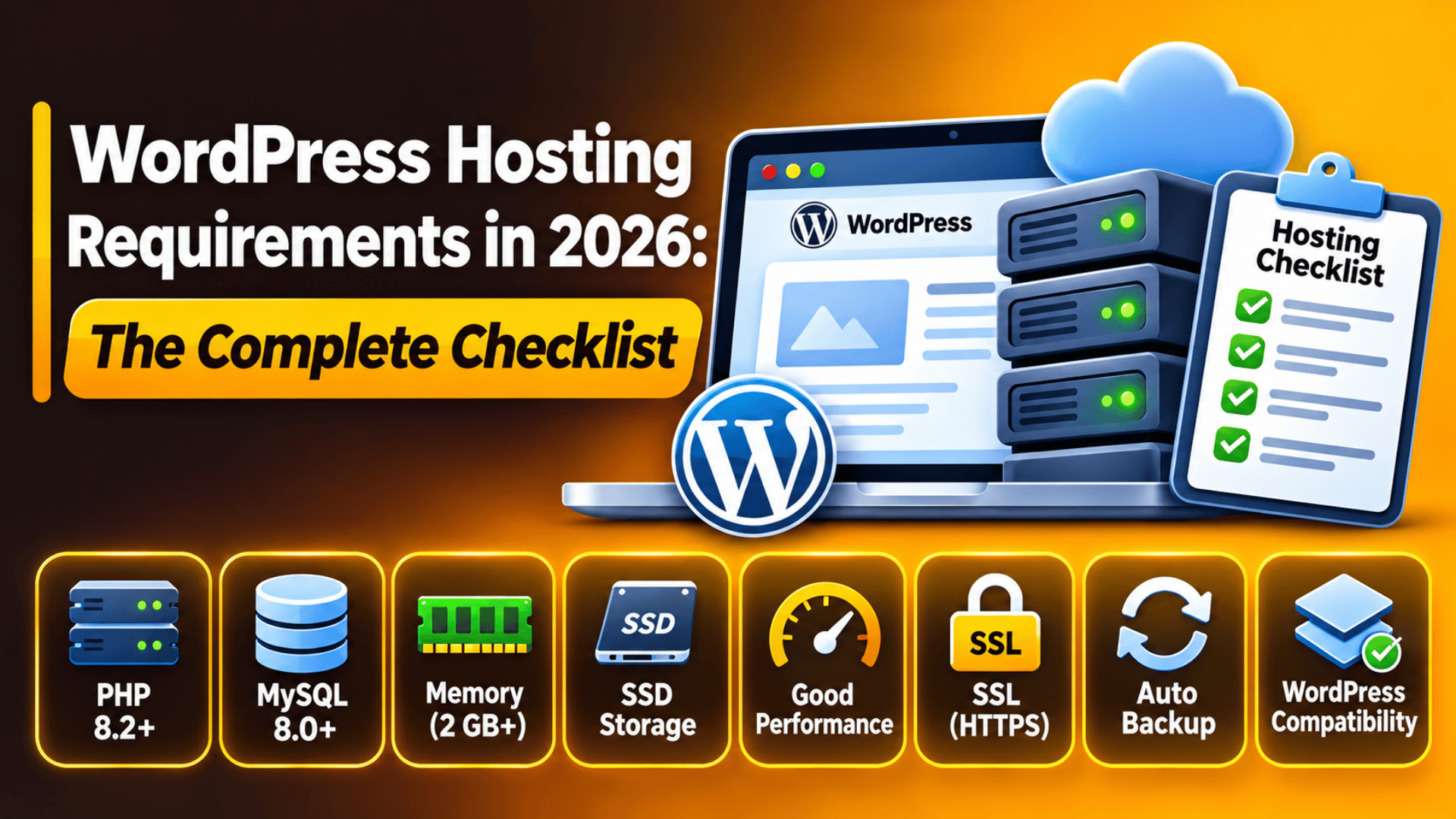
WordPress Hosting Requirements in 2026: The Complete Checklist
WordPress will run on almost any web server. That is the good news, and it is also the trap. “It runs” and “it runs well” are two very different things.
A host that only just meets the minimum will give you slow pages, failed uploads, timeouts during updates, and a dashboard that crawls. None of that shows up on the sales page.
This checklist covers what WordPress officially needs in 2026, what the official list quietly leaves out, and how to check exactly what your current host gives you. Every number here is one you can ask a host for by name.
The Official Requirements, in Plain English
WordPress publishes a short list of what a server must provide. It has three parts, and it is shorter than most people expect.
You need PHP, the language WordPress is written in. You need a database, either MySQL or MariaDB, which is where your posts, pages, users and settings live. And you need HTTPS, so traffic between your visitor and your server is encrypted.
WordPress also names a web server. Apache and Nginx are the two it recommends, because they are the best tested. Any server that runs PHP and talks to a database will work, but you will be on your own if something odd happens.
That is the whole official list. Notice what is missing: no memory figure, no disk space, no speed target, no backup policy. Those gaps are where most real hosting problems live, and the rest of this guide fills them in.
One more point about the official list. It describes recommendations, not hard floors. WordPress will still install on older versions. It will simply be slower, less secure, and harder to support.
PHP: Which Version You Actually Need
PHP is the single biggest lever you have. It decides how fast pages are built, and it decides whether known security holes in the language itself are still open on your server.
For 2026, ask your host for PHP 8.3. It is fully supported by WordPress core, and the PHP project itself is issuing security fixes for it into December 2027. PHP 8.2 is an acceptable fallback if a plugin you rely on is not ready. Anything in the 7.x range is past end of life and should be treated as a problem to fix, not a setting to leave alone.
The speed difference is not small. Moving from PHP 7.4 to 8.x typically cuts page build time noticeably on the same hardware, because the engine itself got faster. You get that for free, without touching your theme.
Check what you are on today at Tools → Site Health → Info → Server. Our guide on how to check your WordPress PHP version walks through the other ways to find it.
Before you switch versions, take a full backup and test the change on a staging site first. An old plugin that uses removed PHP functions will throw a fatal error the moment the version changes. You want to find that on a copy rather than on your live site.
The Database: MySQL or MariaDB
Your database holds everything you have ever written. It deserves more thought than it usually gets when people compare hosting plans.
WordPress supports two database systems. MySQL 8.0 or newer is one. MariaDB 10.11 or newer is the other. MariaDB began as a fork of MySQL. They behave almost identically from the WordPress point of view, and you rarely need to care which one you are on.
There is a timing point worth knowing in 2026. MySQL 8.0 reached the end of its support life in April 2026, so a host still offering only 8.0 is offering software that no longer receives fixes. MySQL 8.4 is the current long-term release. On the MariaDB side, 10.11 is supported into February 2028 and 11.4 into May 2029. Any of those three is a sensible answer from a host.
Ask about two other things while you are at it. First, whether you get direct database access, through a control panel tool or a command line. Second, how the database is backed up and how quickly it can be restored. When a table breaks, that answer is the only one that matters, and our guide on how to repair a database in WordPress assumes you have both.
HTTPS Is Not Optional Any More
Every WordPress install should be served over HTTPS. Browsers mark plain HTTP pages as not secure, search engines treat encryption as a baseline, and several browser features simply refuse to run without it.
The practical requirement is that your host gives you a valid TLS certificate, renews it automatically, and does not charge extra for it. Automatic renewal matters more than the brand of certificate. An expired certificate throws a full-page browser warning, and that costs you every visitor until it is fixed.
Ask whether the host forces HTTPS at the server level, or leaves you to do it in WordPress. Server-level redirects are faster and harder to get wrong. You can read the difference in our guide to HTTP versus HTTPS in WordPress, and there are step-by-step instructions in how to install a free valid SSL certificate.
One warning. Switching to HTTPS after a site has been live on HTTP leaves mixed content behind, where a page loads over HTTPS but pulls an image over HTTP. Plan for a clean-up pass rather than assuming the switch is instant.
The PHP Settings That Break Sites When They Are Too Low
This is the part no hosting comparison table shows you, and it is where most support tickets actually come from. These are server settings, not WordPress settings, so your host controls them.
Memory limit. Ask for a PHP memory limit of at least 256M. WordPress itself defaults to a much smaller figure, and a busy site with a page builder and a shop will pass it. When it does, you get a white page or a memory exhausted message, as covered in our guide to the allowed memory size exhausted error.
Maximum execution time. The PHP default is often 30 seconds. Ask for 300. Imports, bulk updates, backups and image regeneration all take longer than half a minute on a real site, and a short limit kills them halfway through.


Upload size. Two settings control this: upload_max_filesize and post_max_size. Ask for at least 64M on both, and make sure post_max_size is the larger of the two. If it is smaller, uploads fail in a confusing way with no clear message.
Maximum input variables. The default of 1000 sounds generous until you save a large menu or a theme options page. Ask for 3000. Below that, settings silently vanish when you save, which is one of the hardest WordPress faults to diagnose.
Most hosts will raise all four on request. If yours will not, that tells you something useful about the plan you are on.
PHP Extensions and Server Modules to Ask For
PHP ships as a core plus optional extensions. WordPress needs a handful of those extensions to work properly, and a few more to work well. A cheap plan sometimes ships without them.
The ones WordPress depends on are json, mysqli, curl, dom, mbstring, openssl, xml and zip. Without curl, your site cannot talk to outside services, so updates and licence checks fail. Without zip, plugin and theme installs fail.
Then there are the strongly recommended ones. imagick or gd handle image resizing, and image quality suffers noticeably without them. exif reads photo orientation, fileinfo checks upload types, sodium verifies signed update packages, and intl handles dates and sorting in languages other than English.
On the server side, ask for OPcache, which keeps compiled PHP in memory instead of recompiling it on every request. Ask for the rewrite module on Apache, or the equivalent rewrite configuration on Nginx, because pretty permalinks depend on it. There is background on that server choice in our guide to using Nginx with PHP.
You can see exactly which extensions you have under Tools → Site Health → Info, in the sections for Server and for Media Handling.
What the Official List Leaves Out
Meeting the published requirements gets a site running. It does not make hosting good. Four things decide that, and none of them appear on the WordPress list.
Speed of the underlying hardware. Two plans can both offer PHP 8.3 and perform very differently, because one puts hundreds of sites on a server and the other puts a handful. Ask how many sites share your machine, and whether CPU and memory are guaranteed or shared.
Backups you can actually restore. Daily automatic backups, kept for at least 30 days, restorable by you without raising a ticket. A backup you cannot restore yourself at midnight is not really a backup.
A staging environment. One-click staging turns risky changes into safe ones. If your host does not offer it, you will end up testing on the live site, which is how most outages start. Our guide on staging versus live WordPress explains the workflow.
Access and caching. SSH and WP-CLI turn hour-long jobs into single commands. Server-level page caching and a persistent object cache do more for speed than most plugins, and our guide to enabling caching in WordPress covers where they fit together.
How to Check What Your Host Gives You Today
You do not have to take a sales page at its word. WordPress reports most of this itself, and the whole check takes about ten minutes.
Start with Site Health. Go to Tools → Site Health and open the Info tab. The Server panel shows your PHP version, memory limit, maximum execution time, upload size and the loaded extensions. The Database panel shows your database software and version. Our Site Health guide explains what each figure means.
Read the Status tab too. WordPress flags an outdated PHP version, a missing extension or a disabled loopback request as a recommended improvement. Work through those before blaming a plugin for anything.
Check your logs. Recurring memory or timeout entries in the WordPress error logs usually mean an undersized plan, not a broken plugin. The same is true of a repeated 503 service unavailable error.
Then ask your host directly. Send them the numbers above and ask which they will raise. The answer, and how long it takes, tells you as much about the plan as the specification does.
Choosing a Plan, and Where to Get Help
Write the list down before you shop. PHP 8.3, MariaDB 10.11 or MySQL 8.4, free automatic HTTPS, 256M of PHP memory, a 300 second execution limit, 64M uploads, 3000 input variables, the extensions above, OPcache, daily restorable backups, staging, and SSH access.
Send that list to any host you are considering and ask them to confirm each line. A host that answers quickly and in plain terms is a reasonable candidate. A host that dodges the question, or points you at a more expensive plan for basics like backups, is telling you what support will feel like a year from now.
Price is the last thing to compare, not the first. A plan that costs a few pounds more each month but ships current PHP, real backups and staging will usually cost you less overall, because you spend fewer hours fixing things. If you are already unhappy and thinking about moving, our guide on transferring a WordPress website between hosts covers the steps.
If you would rather not audit this yourself, we can do it for you. Talk to 24×7 WP Support and we will check your current setup against this list, tell you what is undersized, and help you sort it out or move.
Related posts:


Brian is a WordPress support specialist and content contributor at 24×7 WP Support. He writes practical, easy-to-follow guides on WordPress troubleshooting, WooCommerce issues, plugin and theme errors, website security, migrations, performance optimization, and integrations. With a focus on solving real website problems, Brian helps business owners, bloggers, and online store managers keep their WordPress sites running smoothly.