
What Are WP-CLI and SSH in WordPress
Introduction
Most WordPress users manage websites from the admin dashboard. They add pages, update plugins, change themes, and upload media. This method works well for daily website tasks. However, some technical tasks need faster and deeper access.
This is where WP-CLI and SSH in WordPress become helpful. These tools allow users to manage WordPress through secure commands. Developers, hosting teams, and support experts often use them. They help save time during updates, checks, and troubleshooting.
For example, your WordPress dashboard may stop loading. A plugin error may block admin access. A website may become slow after an update. In these cases, command-line access can help find problems quickly.
WP-CLI and SSH are also useful for regular maintenance. They help manage plugins, themes, users, and website settings. They can also support database tasks and bulk updates. This makes them valuable for larger WordPress websites.
Many beginners feel confused when they hear these terms. But the basic idea is simple. SSH gives secure access to the server. WP-CLI helps control WordPress through commands.
What Is SSH in WordPress?
What is SSH in WordPress? SSH means Secure Shell. It is a secure method to connect with your hosting server. It allows trusted users to access the server through a command line.
SSH is not a WordPress plugin or dashboard feature. It belongs to the hosting server environment. WordPress files live on this server. So, SSH helps users reach those files safely.
With SSH, users can view folders, check files, and run commands. They can also manage server-level tasks without using cPanel. This is useful when the dashboard is not available.
SSH is commonly used by:
- WordPress developers
- Hosting support teams
- Website maintenance experts
- Advanced website owners
SSH should always be used carefully. A wrong command can affect website files. So, users should take backups before making changes. For beginners, expert support is always safer.
Why SSH Access Is Useful for WordPress Users
SSH access is useful when you need deeper website control. It helps you connect with your hosting server securely. After login, you can view WordPress files and folders directly. This is helpful when dashboard access becomes limited or broken.
Many website issues cannot be fixed from the admin area. A plugin conflict may lock you out. A theme error may break the frontend. A failed update may stop important pages from loading. In these cases, SSH can help technical users check problems faster.
You can access WordPress using SSH to review key areas. It allows safe access to important website paths. You can check files, folder names, and permission settings. You can also move inside the WordPress installation folder.
SSH is also helpful for support teams. They can run commands without opening every dashboard screen. This saves time during urgent fixes and maintenance work.
Common SSH uses include:
- Checking WordPress file and folder structure.
- Reviewing file permissions on the server.
- Opening the WordPress installation directory.
- Running command-line tools like WP-CLI.
- Troubleshooting when the dashboard is not working.
SSH should be used with care. It gives direct server access. So, users should avoid random commands. Always create a backup before making major changes.
What Is WP-CLI in WordPress?
WP-CLI means WordPress Command Line Interface. It helps users manage WordPress through simple commands. Instead of clicking inside the dashboard, users type commands.
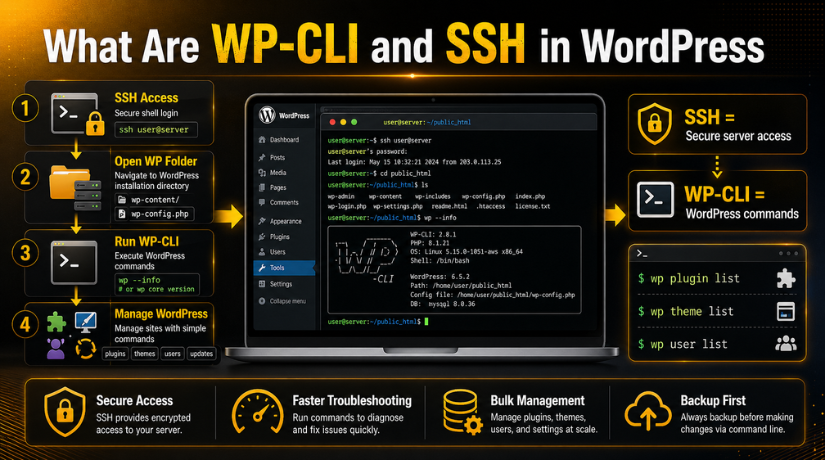
WP-CLI is often used after SSH login. First, the user connects to the server. Then, they open the WordPress folder. After that, they run WP-CLI commands for different tasks.
This tool is helpful for developers and support teams. It can update plugins, check themes, and manage users. It can also help when the dashboard is slow or unavailable.
WP-CLI makes technical WordPress work faster and more controlled. It is not required for every website owner. But knowing its purpose helps during support and troubleshooting.
What Can You Do With WP-CLI?
WP-CLI helps users handle many WordPress tasks through commands. It is useful when dashboard work feels slow or limited. Many developers use it for updates, checks, and quick fixes.
If you want to know how to use WP-CLI in WordPress, start with simple tasks. These tasks may include checking plugins or viewing WordPress versions. You should avoid advanced commands until you understand them.
You can manage WordPress with WP-CLI in many useful ways. It gives faster control without opening many dashboard pages.
Common WP-CLI tasks include:
- Updating the WordPress core safely.
- Installing new plugins from the WordPress repository.
- Activating or deactivating plugins when errors appear.
- Deleting unused plugins from the website.
- Checking the active theme and installed themes.
- Creating new users for website access.
- Updating user roles when needed.
- Resetting passwords during login issues.
- Importing or exporting the WordPress database.
- Running search-and-replace tasks after migrations.
WP-CLI is especially helpful during plugin conflicts. You can deactivate a broken plugin without dashboard access. This can quickly restore website access in many cases.
How WP-CLI and SSH Work Together
WP-CLI and SSH are different tools, but they work together. SSH gives secure access to your hosting server. WP-CLI gives command control over your WordPress website.
The process is usually simple for trained users. First, they connect to the server through SSH. Next, they move into the WordPress installation folder. Then, they check if WP-CLI is available. After that, they run commands safely.
This setup helps support teams fix issues quickly. It also helps during updates, migrations, and maintenance work. However, users should never run unknown commands. A wrong database command can change important website data.
Before using these tools, always create a full backup. Also, test major changes on staging when possible. This keeps your live WordPress website safer.
How to Check WP-CLI in WordPress
Before running any command, connect to your server through SSH. Then, open the main WordPress installation folder. This folder usually contains wp-config.php, wp-content, and wp-admin.
If you want to know how to check WP-CLI in WordPress, use this command:
wp –info
This command shows WP-CLI details on your server. It may display the WP-CLI version, PHP version, and server path. If you see these details, WP-CLI is available.
You can also check your current WordPress version with this command:


wp core version
This command should run inside the WordPress folder. If it works, WP-CLI can read your WordPress setup. If it shows an error, check your folder path first.
Sometimes WP-CLI is not installed on the server. Some hosting providers disable it for security reasons. In that case, contact your hosting provider. You can also ask a WordPress support team for help.
Common WordPress WP-CLI Commands
Useful WordPress WP-CLI commands can save time during maintenance. They help users check important website details quickly. They also help during updates and troubleshooting work.
Here are some common commands users should know:
wp core version
This command checks the current WordPress version.
wp plugin list
This command shows all installed plugins and their status.
wp plugin update –all
This command updates all installed plugins together.
wp theme list
This command shows all installed WordPress themes.
wp user list
This command displays all WordPress users.
wp option get siteurl
This command shows the website URL saved in WordPress.
wp cache flush
This command clears cache when your setup supports it.
These commands look simple, but they can affect your website. Always read the command before running it. Avoid testing random commands on a live website. Use backups before updates or database-related work. This small step can protect your website from unwanted issues.
Benefits of Using WP-CLI and SSH in WordPress
Using WP-CLI and SSH can make WordPress management much faster. These tools help users complete technical tasks with fewer steps. They are useful when the dashboard feels slow or unavailable.
WP-CLI helps manage updates, users, plugins, and themes quickly. SSH gives secure access to the hosting server. Together, they provide better control during maintenance and troubleshooting.
Main benefits include:
- Faster WordPress core, plugin, and theme updates.
- Better access when the dashboard stops working.
- Easier troubleshooting during plugin or theme errors.
- Quick checks for users, URLs, and website settings.
- Better control for developers and support teams.
- Helpful management for large WordPress websites.
These tools save time on repeated dashboard tasks. They also help support teams fix issues with more accuracy.
Safety Tips Before Using WP-CLI or SSH
WP-CLI and SSH are powerful tools. So, users should handle them with care. A wrong command may change files, users, or database values.
Before using these tools, follow these safety tips:
- Take a full website backup first.
- Confirm the correct website folder before running commands.
- Do not share SSH login details publicly.
- Avoid commands you do not understand.
- Be careful with database and delete commands.
- Test major changes on a staging website first.
- Ask expert support when you feel unsure.
These simple checks can prevent serious website problems. They also protect important content and customer data.
When Should You Use WP-CLI and SSH?
Use these tools when normal dashboard access is not enough. They are helpful during updates, errors, migrations, and urgent fixes. You can also use them for bulk WordPress tasks.
They are not required for every small website change. For simple edits, the WordPress dashboard is usually enough.
Conclusion
SSH gives secure access to your hosting server. WP-CLI helps manage WordPress through commands. Together, they make advanced WordPress work faster and easier.
Beginners may not use these tools daily. Still, understanding them helps during support and troubleshooting. If you need safe help with WP-CLI, SSH, or WordPress fixes, 24×7 WP Support can guide.

Brian is a WordPress support specialist and content contributor at 24×7 WP Support. He writes practical, easy-to-follow guides on WordPress troubleshooting, WooCommerce issues, plugin and theme errors, website security, migrations, performance optimization, and integrations. With a focus on solving real website problems, Brian helps business owners, bloggers, and online store managers keep their WordPress sites running smoothly.
