
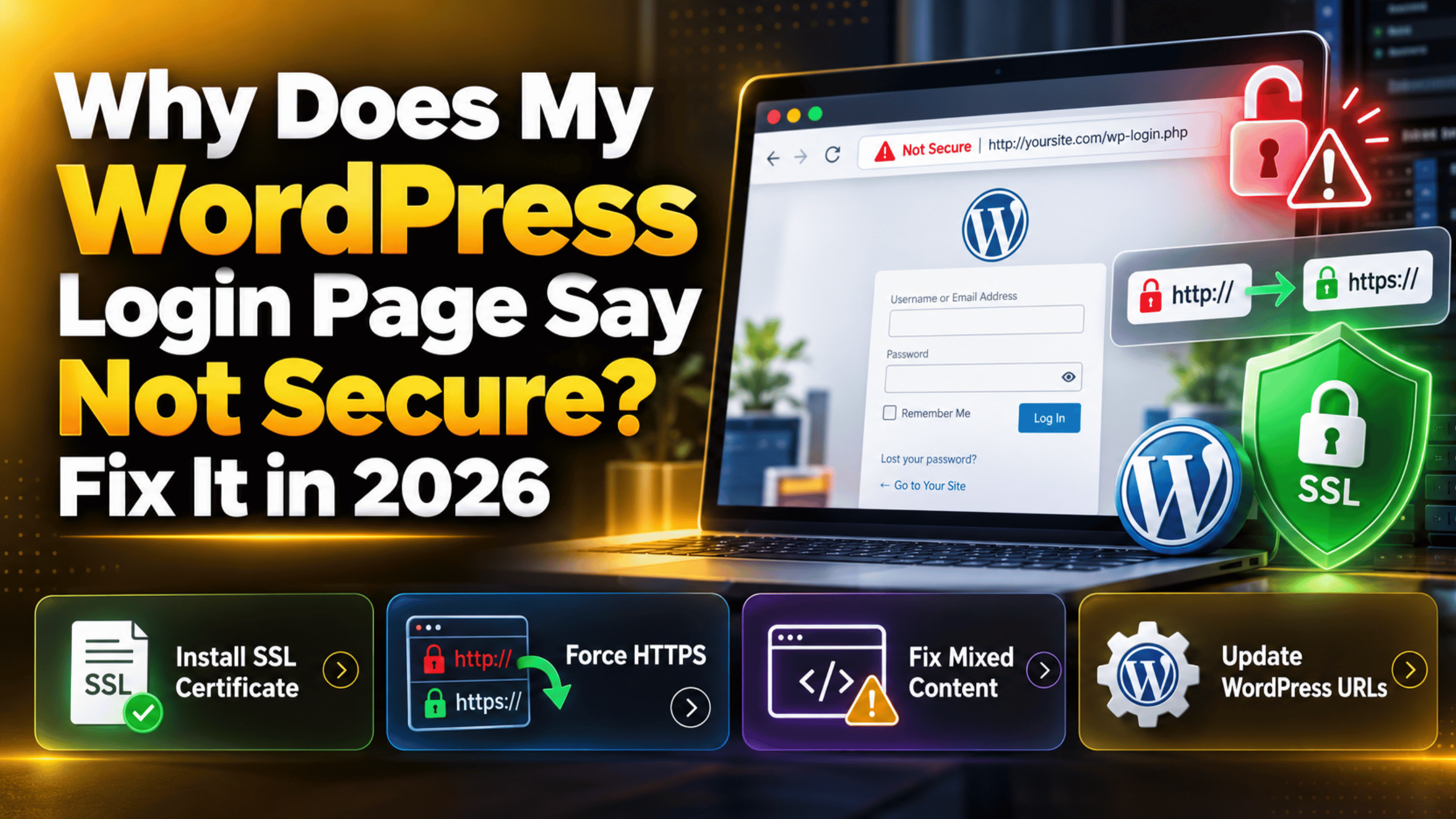
Why Does My WordPress Login Page Say Not Secure? Fix It in 2026
Introduction
You open your WordPress login page. Next to the web address, the browser shows a warning. It says Not secure. Your password box sits right below it. That is an unsettling thing to see on your own site.
This warning is common, and it is almost always fixable. It does not mean your site has been hacked. It means the browser cannot confirm that your login page is encrypted. Encryption is the scrambling that hides data while it travels between a browser and a server. Without it, a username and password cross the internet as plain readable text.
This guide explains the warning in plain language. You will learn what the browser is checking, what causes the warning on a WordPress site, and what it costs you when it stays. You will also get a clear way to diagnose the problem and twelve ordered steps to fix it. The advice applies to any WordPress site, including a store running WooCommerce. Work through it in order, because the early steps are quick and safe.
What Is the “Not Secure” Login Warning?
Every page you load travels over one of two protocols. HTTP sends data as plain text. HTTPS wraps that data in encryption first. The difference between the two is covered in our guide to HTTP and HTTPS in WordPress.
Browsers treat password fields as special. When a browser finds a password box on a page that is not fully encrypted, it flags the page. Chrome shows “Not secure” in the address bar. Other browsers use a crossed-out padlock or a short warning panel.
Your WordPress login screen lives at /wp-login.php. The admin area lives under /wp-admin/. Both protect sensitive data, so both are judged by the same rule.
Here is what WordPress actually does when the warning appears. WordPress builds the login page using the Site Address you saved in your settings. If that address starts with http://, WordPress writes links, form actions and asset paths using http:// too. The browser then loads an unencrypted page, finds a password field on it, and warns the visitor.
The warning can also appear when the page itself is encrypted but something inside it is not. A logo, a font or a script loaded over plain HTTP will break the padlock. That situation is called mixed content, and we cover it in detail in our article on mixed content warnings in WordPress.
So the warning is a message about transport, not about malware. The browser is telling you that it cannot promise the login data will stay private.
What Causes This Issue?
Several different problems produce the same warning. Knowing the full list saves you time, because you can rule causes out quickly. Below are the ones we see most often on real WordPress sites.
No certificate is installed at all. A certificate is the file that lets a server prove its identity and set up encryption. Without one, the site can only answer over HTTP. New sites and freshly migrated sites are the usual victims. Our walkthrough on how to install a free valid certificate on a WordPress website covers the fix.
The certificate has expired. Most certificates last ninety days or one year. Auto-renewal can fail quietly. The site keeps working over HTTP, so nobody notices until a browser complains.
The certificate does not cover the exact hostname. A certificate issued for example.com may not cover www.example.com. If you log in through the version that is not covered, the browser rejects the connection. Subdomains such as a staging address have the same problem.
WordPress still stores an HTTP address. Go to Settings → General. If WordPress Address (URL) or Site Address (URL) begins with http://, WordPress will keep building unencrypted pages even though a valid certificate exists.
Nothing forces the admin area onto HTTPS. WordPress has a setting named FORCE_SSL_ADMIN. When it is off, anyone can reach /wp-login.php over plain HTTP by typing the address by hand.
There is no redirect from HTTP to HTTPS. Without a redirect, both versions of every page stay reachable. Old bookmarks and old links keep landing people on the unencrypted copy.
Mixed content sits on the login screen. A custom login logo, a background image or a web font may be hard-coded with an http:// path. One such file is enough to break the padlock on that page.
A cache is serving an old copy. Page caches, object caches and browser caches all hold older versions. You can fix the real problem and still see the warning for a while.
A proxy or content delivery network is misconfigured. If a delivery network talks to your server over plain HTTP, your site can end up in a redirect loop or serve mixed content. If that happens, read our guide to fixing the too many redirects issue in WordPress.
The certificate chain is incomplete. A certificate is trusted through a chain of intermediate files. If the server sends only part of that chain, some browsers and phones report a problem while others do not.
What Is the Impact of This Issue on the Website?
It is tempting to ignore a warning that only you see. That is a mistake. The costs are real, and several of them reach your visitors and your revenue.
Login details travel in the clear. This is the serious one. On an unencrypted connection, a username and password can be read by anyone able to watch the network. Public wi-fi makes that much easier. An exposed admin password puts the whole site at risk.
Session cookies can be captured. After you log in, WordPress stores a cookie that keeps you signed in. Over HTTP that cookie can be copied and reused. An attacker then does not need your password at all.
Customers lose trust instantly. If your store has a customer account page, shoppers see the same warning you do. Many will leave rather than type a password into a flagged page. That shows up as lost signups and abandoned carts.
Checkout can break. Payment providers expect an encrypted connection. A store that is only partly encrypted may see failed payments, blocked embedded forms or refused callbacks.
Search performance suffers. HTTPS is a confirmed ranking signal. Running two reachable versions of every page can also split your signals and confuse indexing.
Browsers keep getting stricter. Each release treats unencrypted pages more harshly than the last. A quiet grey label can become a full-page interstitial.
How to Identify This Issue on the Website
Diagnosis is quick when you know where to look. Start with the signs you can see, then move to the tools. Each sign below points at a different cause, which narrows the search.
Sign: the address bar still shows http://. Load your login page and read the full address. If it starts with http://, nothing is sending you to the encrypted version. That points at a missing redirect or an HTTP address saved in settings.
Sign: the padlock is crossed out but the address says https. This almost always means mixed content. The page is encrypted, but something inside it is not.
Sign: the browser shows a full warning page instead of a label. That is a certificate problem rather than a protocol problem. The certificate is expired, untrusted, or issued for a different name.
Sign: the warning appears on www but not on the bare domain. Your certificate covers one hostname and not the other.
Sign: one device shows the warning and another does not. Suspect an incomplete certificate chain or a stale cache on one device.
Tool: the padlock menu. Click the warning icon in the address bar. The panel names the exact problem. It will say the connection is not secure, or that the certificate is invalid or expired.


Tool: the browser Console and Network tabs. Open developer tools and read the Console. Mixed content is reported there by name, with the exact file that was blocked. Then reload the page with the Network tab open and sort by the protocol column. Anything still loading over HTTP is your culprit. See our guide on how to open the browser console to debug WordPress.
Tool: Tools → Site Health. WordPress runs its own checks here. It reports whether your site is using HTTPS and whether your stored addresses match. Our complete guide to Site Health in WordPress explains each result.
Tool: Settings → General and your hosting panel. Read both address fields in WordPress carefully, as they must match each other and must use https://. Then open the security or certificate screen in your hosting panel and check that a certificate exists, that it is active, and that the expiry date is in the future.
Tool: your logs. Turn on WP_DEBUG and WP_DEBUG_LOG, then reproduce the problem. Errors are written to wp-content/debug.log, and our article on what WP_DEBUG is and how it works explains the settings. Redirect loops and certificate failures usually leave a trace in the server error logs too, which you can reach using our guide on how to find and access WordPress error logs.
Tool: a plugin and theme test. Deactivate plugins one at a time, then switch to a default theme. If the warning clears, you have found the source. Do this on a staging copy whenever you can.
How to Fix This Issue
Work through these steps in order. The early ones are quick and reversible. The later ones touch files and server settings, so they carry more risk. Before any step that edits a file, take a full backup or work on a staging copy.
Step 1: Read what the browser is actually complaining about. Click the warning icon beside the address of /wp-login.php. Note the exact wording. “Your connection is not private” points at the certificate. “Not secure” with no extra panel usually points at plain HTTP. If it mentions insecure content, you have mixed content.
Step 2: Try the encrypted address by hand. Type https:// in front of your login address and load it. If the padlock appears and stays closed, your certificate is fine. The problem is then only that nothing sends people to the secure version, so skip ahead to Step 6. If the page refuses to load, continue with Step 3.
Step 3: Confirm a certificate exists and is active. Open your hosting control panel and find the certificate screen. Check three things: a certificate is listed, its status is active, and it is attached to the right domain. If none is listed, issue one now. Most hosts offer a free certificate that installs in a few clicks.
Step 4: Check the certificate covers the exact hostname. In the same panel, read the names on the certificate. It must list the hostname you type in the browser. If you use www, the certificate must include www. Reissue it to cover both the bare domain and the www version.
Step 5: Renew an expired certificate. The padlock menu shows the expiry date. If it has passed, renew it. Then find the auto-renewal setting and switch it on. If auto-renewal failed before, check that a redirect rule or firewall rule is not blocking the renewal process.
Step 6: Correct your stored addresses in WordPress. Go to Settings → General. Change both WordPress Address (URL) and Site Address (URL) to the https:// version. Use exactly one hostname style, with www or without. Save, then log in again. If the warning clears here, you are done. If saving locks you out, your certificate is not working yet, so go back to Step 3.
Step 7: Clear every cache layer. Caches hide your progress. Purge your caching plugin, purge any server cache in your hosting panel, purge your delivery network, and then empty your own browser cache. Test again in a private window, which ignores most local caching.
Step 8: Find and remove mixed content on the login screen. Open the login page with the Console tab visible. Every blocked item is listed with its full HTTP address. Trace each one. A custom login logo is set in a plugin or theme option, so edit that option and save the https:// version. A font or script hard-coded in a theme file needs a theme edit, so take a backup first. Our article on fixing WordPress HTTPS mixed content warnings covers the harder cases.
Step 9: Force the login and admin pages onto HTTPS. Back up wp-config.php before editing it. Then add this line above the comment that says to stop editing:
define( 'FORCE_SSL_ADMIN', true );Save the file and reload the login page. WordPress will now send every admin request to the encrypted version. If you get a redirect loop instead, remove the line and fix the server redirect in Step 10 first. Our guide to the wp-config.php file in WordPress explains where this line belongs.
Step 10: Add a site-wide redirect to HTTPS. Most hosting panels now have a switch for this, often labelled force HTTPS. Use the panel switch if you have one, because it is safer than editing server files. If you must edit the rules yourself, back them up first. Afterwards, load an http:// address and confirm it jumps to https:// in one hop, as several hops can cause a loop.
Step 11: Check anything sitting in front of your site. A delivery network or proxy must talk to your server over HTTPS, not plain HTTP. In its dashboard, set the connection mode to full encryption rather than flexible. Then purge its cache. A mismatch here is a frequent cause of warnings that survive every other fix. Our list of free delivery networks for a WordPress website explains how these layers sit together.
Step 12: Repair the certificate chain and retest widely. If the site looks fine on your computer but warns on a phone, the chain is probably incomplete. Ask your host to reinstall the certificate with the full intermediate chain. Then test on a phone, on a different network, and in a private window. If all three show a closed padlock, the fix is in place. If the warning survives all twelve steps, something unusual is happening at server level, and that is a good moment to ask for help rather than keep guessing.
How to Prevent This Issue
Most of these warnings return because nobody is watching the moving parts. A few small habits keep the padlock closed.
Turn on auto-renewal, then verify it. Switching it on is not enough. Check the expiry date once a quarter and confirm it moved forward. An uptime or monitoring service that alerts you before expiry adds a useful second layer, because outside monitoring catches failures your own dashboard may be hiding.
Test every change on staging first. Address changes, redirect rules and delivery network settings are easy to get wrong. Our comparison of staging and live WordPress environments explains how to use one well.
Keep automated backups running. Backups do not prevent the warning, but they let you undo a bad redirect in minutes. Include the database, as address settings live there. See our guide on how to back up your WordPress database.
Keep WordPress, plugins and themes updated. Older code is more likely to write hard-coded HTTP paths. Updates often replace those with protocol-aware links.
Check compatibility before you install. Login branding and maintenance tools touch the login screen directly. Read the changelog and test on staging before adding one.
Stay on a supported PHP version and run Site Health monthly. Older PHP versions can fail to verify certificates correctly when WordPress makes outbound requests, which causes odd, hard-to-trace failures. Site Health takes thirty seconds to run and flags address mismatches early.
Harden the login page while you are there. Encryption protects the password in transit. It does not stop guessing. Pair it with limiting login attempts, two-factor authentication on admin login, and the wider checklist in our guide to securing your WordPress login page.
Keep your DNS records tidy. Stale records can send part of your traffic to an old server with an old certificate. Our guide to WordPress DNS settings covers how to check them.
Conclusion
A “Not secure” label on your WordPress login page is a transport problem. The browser has found a password field on a page it cannot confirm is encrypted. It is a warning about how data travels, not a sign that your site has been attacked.
The causes fall into a short list. There may be no certificate, an expired one, or one that does not cover the hostname you use. WordPress may still store an http:// address, nothing may force the admin area onto HTTPS, or a redirect may be missing. Mixed content may sit on the login screen, or a cache or delivery network may be serving the wrong version. The impact is worth taking seriously: passwords and session cookies are exposed, customers lose confidence, checkout can fail, and search performance can slip.
Diagnosis is straightforward. Read the padlock menu, check the address bar, open the Console and Network tabs, review Settings → General, run Tools → Site Health, and read your logs. Then work through the twelve fix steps in order, backing up before any file edit. Finish by renewing on schedule, testing on staging, and running Site Health each month.
If the warning is still there after all of that, or you would rather not touch server files yourself, we can take a look. 24×7 WP Support works on WordPress and WooCommerce problems like this every day, including certificates, redirects and login issues. Get in touch and tell us what your browser is showing.

Brian is a WordPress support specialist and content contributor at 24×7 WP Support. He writes practical, easy-to-follow guides on WordPress troubleshooting, WooCommerce issues, plugin and theme errors, website security, migrations, performance optimization, and integrations. With a focus on solving real website problems, Brian helps business owners, bloggers, and online store managers keep their WordPress sites running smoothly.
