
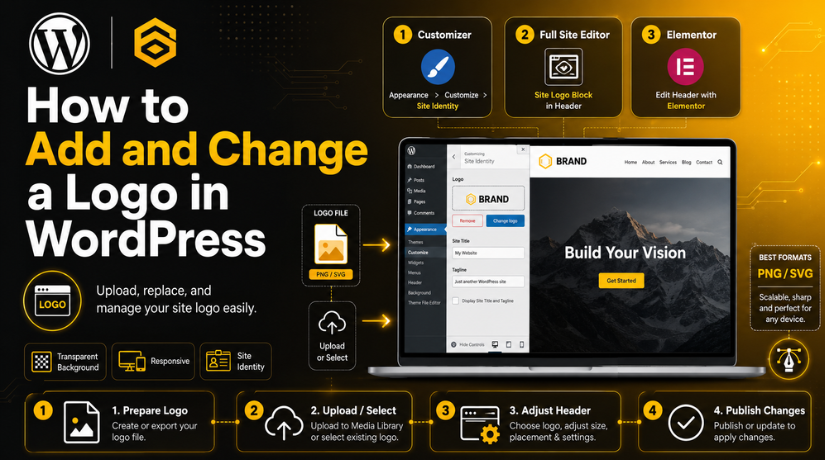
How to Add and Change a Logo in WordPress
Last updated on June 30th, 2026 at 09:10 am
Introduction
Your logo is often the first thing visitors notice when they land on your website. It sets the tone for your brand, communicates professionalism, and builds trust in an instant. If you’re running a WordPress site in 2026 and haven’t yet added a proper logo — or if you’re looking to refresh an outdated one — you’re in the right place.
The good news is that WordPress makes it relatively straightforward to add or update your logo, no matter which type of theme you’re using. Whether you’re on a classic theme, a modern block theme, or using a page builder like Elementor or Divi, there’s a method that works for your setup. This guide walks you through every approach, step by step.
Why Your Logo Placement in WordPress Matters
Before diving into the how-to, it’s worth understanding why getting your logo right is so important. Your site logo isn’t just a decorative element — it’s a functional part of your site’s navigation. Most visitors expect to click the logo to return to the homepage, and it typically appears in the header, which is visible on every single page of your site.
A logo that’s too large can push other header elements out of place. One that’s too small becomes unreadable on mobile screens. A logo saved in the wrong format — like a JPEG with a white background — will look out of place on colored or transparent headers. Getting the format, dimensions, and placement right from the start saves you a lot of trouble down the road.
For tips on getting your header design dialed in overall, check out this guide on how to customize headers in WordPress — it pairs naturally with the logo setup steps below.
Prepare Your Logo File Before Uploading
A common mistake is jumping straight to the WordPress dashboard without first making sure your logo file is properly formatted. A few minutes of preparation here will save you from dealing with blurry, misaligned, or oversized logos later.
Choose the Right File Format
For most WordPress sites in 2026, PNG is the preferred format for logos. Here’s why: PNG supports transparent backgrounds, which means your logo will blend seamlessly onto any header color or background image without an ugly white box around it. PNG also maintains sharp edges and clean lines, which is critical for logos with text or detailed graphics.
SVG is another excellent option, particularly for logos with geometric shapes or typography. SVG files are vector-based, meaning they scale to any size without any loss of quality — perfect for retina displays and varying screen sizes. The downside is that not all WordPress themes support SVG uploads out of the box, and you may need a plugin like Safe SVG to enable it safely.
Avoid JPEG for logos. JPEG compression introduces artifacts around sharp edges and doesn’t support transparency, which is exactly what you don’t want for a logo.
Get the Dimensions Right
There’s no single “correct” size for a WordPress logo because it depends on your theme. That said, a good starting point is a width of 200–320 pixels at 2x resolution (meaning the actual file is 400–640px wide) to look sharp on high-density screens. Keep the file size under 80 KB — a bloated logo file can slow down your page load time unnecessarily.
Method 1: Add a Logo Using the WordPress Customizer (Classic Themes)
If your site uses a classic or third-party theme — which is still the majority of WordPress sites — the WordPress Customizer is your primary tool for adding and changing the logo.
Step-by-Step Instructions
From your WordPress admin dashboard, go to Appearance → Customize. This opens the live preview Customizer, where changes appear in real time on the right side of the screen.
In the left panel, look for Site Identity and click it to expand the section. You’ll see options for Site Title, Tagline, Logo, and Site Icon. Click Select Logo to open the media library.
From here, you can either upload a new logo file by clicking “Upload Files” and selecting the image from your computer, or choose an existing image from your media library if you’ve already uploaded it.
Once selected, WordPress may prompt you to crop the image. If your logo is already correctly sized, you can click “Skip Cropping” to use it as-is. After selecting or cropping, click Publish in the top-left corner of the Customizer to save your changes.
How to Change an Existing Logo
If you already have a logo in place and want to replace it, the process is almost identical. Go to Appearance → Customize → Site Identity, and you’ll see the existing logo displayed with options to Change or Remove it. Click Change, upload your new logo file, and publish.
Method 2: Add a Logo Using the Full Site Editor (Block Themes)
If you’re using a block theme in 2026 — such as Twenty Twenty-Four, Twenty Twenty-Five, or another FSE-compatible theme — the process is a bit different. Block themes use the Full Site Editor (FSE) instead of the classic Customizer.
Adding a Logo via the Site Editor
Go to Appearance → Editor to open the Full Site Editor. In the left sidebar, you’ll see navigation options including Templates and Patterns. To add or change a logo, navigate to the header template or simply look for the Site Logo block that’s already in your header area.
Click on the Site Logo block. If no logo has been set yet, you’ll see an option to upload or select an image directly in the block’s toolbar. Click the upload icon, select your logo file, and the change will apply globally — meaning wherever the Site Logo block appears across your site, it will update automatically.
Once done, click Save in the top-right corner to apply the changes.
Adding a Site Logo Block If It’s Missing
If your header doesn’t already include a Site Logo block, you can add one manually. In the Site Editor, click on the header area and then click the + (block inserter) button. Search for “Site Logo” and insert the block into the header. Then upload your logo as described above.
Method 3: Add a Logo Using Elementor or Other Page Builders
Many WordPress sites use page builders like Elementor, Divi, or WPBakery to control the layout of headers and other page elements. If you built your header using a page builder, you’ll need to update the logo there rather than in the Customizer or Site Editor.
In Elementor
If you’re using Elementor Pro with a custom header template, open the header template in Elementor’s editor. Locate the Site Logo widget (or an Image widget if a static image was used instead). Click on it, then click the image to open the media library and replace it with your new logo. Update and publish the template.
In Divi
In Divi, the site logo is typically set under Divi → Theme Options → General → Logo. Click the upload button, choose your logo file, and save the settings. Alternatively, if you’re using Divi’s Theme Builder with a custom header, you’ll need to edit the header module directly in the builder.


If you’re exploring page builders for your site, our roundup of the best drag-and-drop WordPress theme builders covers the top free and paid options in detail.
How to Change Your WordPress Login Page Logo
By default, the WordPress login page shows the WordPress logo above the login form. If you want to replace it with your own brand logo — a small but professional touch — you’ll need either a plugin or a bit of custom code.
Using a Plugin
Plugins like Custom Login Page Customizer or LoginPress make this process simple. After installing and activating the plugin, go to its settings panel where you’ll find an option to upload a custom logo for the login page. These plugins also let you change the background, button colors, and other login page elements.
Using Custom Code
If you’d rather not add a plugin, you can add a small snippet to your child theme’s functions.php file to replace the login logo with your own image. This approach requires a bit of comfort with PHP, but it’s lightweight and doesn’t add any plugin overhead.
Adjusting Your Logo Size in WordPress
Sometimes the logo you upload looks too large or too small in the header. Rather than re-exporting the image at a different size, you can control the display size with CSS.
If you’re using the Customizer, go to Appearance → Customize → Additional CSS and add something like:
.custom-logo {
  max-width: 200px;
  height: auto;
}
The exact CSS class will vary depending on your theme. Use your browser’s developer tools (F12 in most browsers) to inspect the logo element and identify the correct class name.
In the Full Site Editor, you can also resize the Site Logo block directly by clicking on it and dragging the resize handles, or entering a pixel value in the block’s settings panel on the right.
Optimizing Your Logo for Speed and SEO
Your logo is loaded on every page of your site, so it’s worth optimizing it properly. A few practices that matter in 2026:
Always compress your PNG before uploading it. Tools like TinyPNG or Squoosh can reduce file size by 60–80% without any visible loss of quality. A logo that’s 150 KB could easily become 30 KB after compression — a meaningful difference for page speed.
Add descriptive alt text to your logo image. When you upload through the media library, fill in the Alt Text field with something like “YourBrandName logo” rather than leaving it blank. This is a minor but real contribution to accessibility and SEO.
Use a descriptive filename for your logo file rather than something like “image001.png”. A filename like “yourbrandname-logo.png” is slightly better for SEO and makes your media library easier to manage over time.
Speaking of site branding, don’t forget your favicon — the small icon that appears in browser tabs. It should be a consistent, simplified version of your logo. If you haven’t set one up yet, read our guide on how to create and change your WordPress favicon to complete your brand identity.
Troubleshooting Common Logo Issues
Even with the right steps, logo issues come up. Here are the most common ones and how to fix them.
Logo Not Showing After Upload
If you uploaded the logo but it’s not appearing on the front end, try clearing your browser cache and your site’s caching plugin cache. Many caching plugins will serve the old version of your header until the cache is purged.
Logo Appears Blurry
This usually means your logo file isn’t large enough for retina (HiDPI) displays. As a general rule, export your logo at 2x the display size. If you want the logo to appear at 200px wide, export it at 400px wide. WordPress will display it at the correct size but it’ll be sharp on high-density screens.
Logo Has a White Background
This is the classic JPEG vs. PNG issue. If your logo has a white box around it, the image was saved as JPEG (which doesn’t support transparency) or was created with a white background. Re-export the logo as a PNG with a transparent background and re-upload it.
Logo Is Oversized or Stretching the Header
Add a max-width CSS rule as described in the section above, or check if your theme has a built-in logo size setting in the Customizer under Site Identity → Logo Width.
Keep Your Branding Consistent Across Your Entire Site
Once you’ve updated your logo, take a moment to review your site’s overall branding consistency. Your logo, favicon, header background, button colors, and font choices should all work together to communicate a cohesive identity. In 2026, visitors form judgments about a website’s credibility in seconds — a professionally branded site earns trust that a mismatched one doesn’t.
Review your site on both desktop and mobile after making logo changes, since headers often behave differently on smaller screens. Most modern WordPress themes are responsive by default, but it’s worth confirming your logo looks right at all breakpoints.
If your theme doesn’t handle the logo well on mobile, check the theme’s documentation for mobile-specific logo settings, or use a small amount of CSS in the Additional CSS panel targeted at mobile screen widths using a media query.
Ready to Take Your WordPress Site to the Next Level?
Adding or changing a logo in WordPress is one of the simplest branding updates you can make, but it has a significant impact on how visitors perceive your site. Whether you’re using the classic Customizer, the Full Site Editor, or a page builder, the process is manageable — and the result is a site that looks polished and professional.
If you run into any issues along the way, or if your WordPress setup is more complex than a standard theme installation, the team at 24×7 WP Support is here to help. We provide round-the-clock WordPress support, maintenance, and customization services so your site stays running at its best. Get in touch with us today and let’s make your WordPress site look exactly the way you want it.
Related posts:

Brian is a WordPress support specialist and content contributor at 24×7 WP Support. He writes practical, easy-to-follow guides on WordPress troubleshooting, WooCommerce issues, plugin and theme errors, website security, migrations, performance optimization, and integrations. With a focus on solving real website problems, Brian helps business owners, bloggers, and online store managers keep their WordPress sites running smoothly.
