
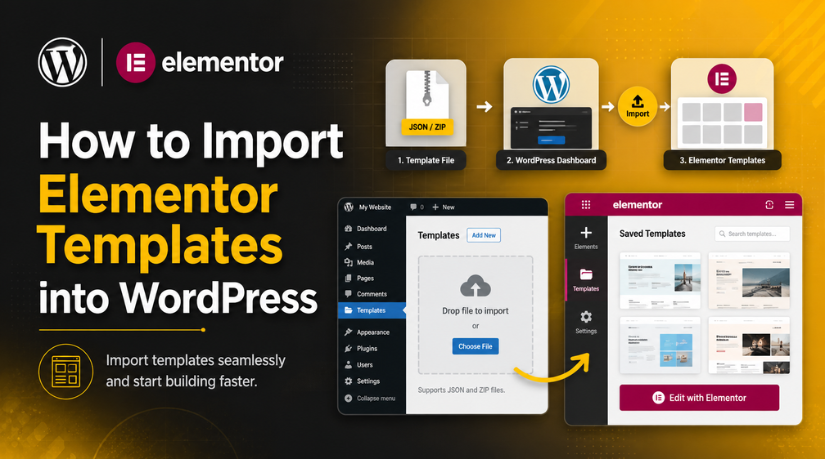
How to Import Elementor Templates into WordPress
Introduction
If you’ve ever stared at a blank Elementor canvas wondering where to begin, you’re not alone. Building a page from scratch takes time and that’s exactly why Elementor templates exist. Whether you’ve downloaded a sleek template from a marketplace, received a design from a client’s previous developer, or want to reuse your own saved layouts across projects, knowing how to import Elementor templates into WordPress is an essential skill in 2026.
In this guide, we’ll walk through every method from importing a single-page JSON file to installing a full website kit and cover the common pitfalls that trip up even experienced WordPress users. By the end, you’ll be importing and applying templates confidently.
What Are Elementor Templates?
Elementor templates are pre-designed layouts you can insert into any page or section without starting from zero. They come in several forms:
Page templates cover an entire page think landing pages, home pages, or about pages fully designed and ready for your content. Block (section) templates are smaller reusable pieces: a hero banner, a pricing table, a testimonials section. Website Kits bundle an entire site multiple pages, global styles, and settings into a single ZIP file for easy migration or duplication.
You can source templates from Elementor’s own built-in library, third-party marketplaces like Envato, premium plugin bundles, or export them from another WordPress site you own. If you’re brand new to Elementor itself, our beginner’s guide to what Elementor is and how to use it is a great place to start.
Before You Import: Prerequisites to Check
A little preparation prevents a lot of frustration. Run through this checklist before attempting any import:
Elementor Must Be Installed and Active
Sounds obvious, but confirm that Elementor (and Elementor Pro if the template uses Pro widgets) is installed, active, and updated to the latest version. Importing a template built on a newer version of Elementor than you have installed can cause silent failures or broken layouts.
Enable SVG and File Uploads If Needed
Go to Elementor Settings Advanced and enable unfiltered file uploads if your template package contains SVG files or custom fonts. Without this, the import will strip those assets.
Identify Required Plugins
Templates built with third-party add-ons (like PowerPack, Ultimate Addons, or WooCommerce widgets) require those same plugins on your site. If a required plugin is missing, the widget it powers simply won’t appear after import the template imports, but it looks incomplete. Review the template’s documentation for a plugin dependency list before you start.
Check PHP Memory and Upload Limits
Full website kit ZIPs can be large. If your server has a low upload_max_filesize or memory_limit, the import will fail silently. Ask your host to raise these limits, or use a plugin like WP Increase Upload File Size to bump them temporarily.
Method 1: Import a Template from Elementor’s Built-In Library
This is the simplest method and requires no file downloading. Elementor ships with hundreds of free and Pro page and block templates accessible from inside the editor.
- Open any page or post and click Edit with Elementor.
- Click the gray folder icon (Add Template) in the bottom toolbar or click the “+” icon on an empty section and then the folder icon.
- Browse the library. Switch between the Pages and Blocks tabs to see full-page layouts versus individual sections.
- Hover over any template and click Insert. Elementor loads the layout directly onto your page.
Pro templates are marked with a crown icon and require Elementor Pro to insert. Free templates are available to everyone. Once inserted, every element is fully editable click on any text, image, or widget and customize to your needs.
Method 2: Import a Single Template File (JSON or ZIP)
This is the method you’ll use when a designer hands you a file, when you buy a template from a third-party marketplace, or when you’ve exported a template from another Elementor site.
Step 1: Go to the Template Library
In your WordPress dashboard, navigate to Templates Saved Templates. This is your personal library of imported and saved Elementor layouts.
Step 2: Click the Import Icon
At the top of the Saved Templates page, look for a small import icon (an arrow pointing upward). Click it to open the file upload dialog.
Step 3: Upload the File
Click Select File and navigate to your downloaded .json or .zip template file. Click Import Now. Within seconds, the template appears in your library list.
Step 4: Apply It to a Page
Open the page you want to use the template on and click Edit with Elementor. Click the folder icon, switch to the My Templates tab, find your newly imported template, and click Insert. The full layout drops in and is ready to edit.
Note on images: Images embedded in the template point to the original site’s media library URLs. You’ll need to replace them with your own images after inserting they won’t transfer automatically.
Method 3: Import a Full Elementor Website Kit
Website Kits are the most comprehensive option they bundle multiple pages, global fonts, global colors, and plugin settings all in one ZIP. This is what you use when migrating a full Elementor-built website to a new domain or duplicating a site for a client.
Step 1: Access the Import Tool
Go to Elementor Tools in your WordPress admin. Look for the Import / Export Kit tab (in older versions this may be called Website Templates).
Step 2: Upload the Kit ZIP
Click Import Kit, upload the ZIP file, and click Next. Elementor scans the package and shows you a list of what’s inside: pages, settings, global colors, global fonts, and so on.
Step 3: Choose What to Import
You can selectively import only certain parts. For example, you might want the pages but not the global color settings if your current theme already has brand colors configured. Toggle the options to your preference, then click Import.


Step 4: Install Requirements
If the kit requires plugins you don’t have, Elementor will show an orange banner: “Install Requirements.” Click it to auto-install the needed plugins. Don’t skip this step missing plugins will leave gaps in your design.
Importing Elementor Template Kits from Envato
Envato Market and Envato Elements offer hundreds of premium Elementor Template Kits. The import flow is slightly different from the standard method:
- Download your kit ZIP file from Envato.
- In WordPress, go to Tools Template Kit. If this menu doesn’t exist, install the free Template Kit Import plugin from the WordPress plugin repository.
- Click Upload Template Kit ZIP File and select your file.
- Follow the prompts to install required plugins and import the individual pages and sections you want.
One advantage of the Envato workflow is granular control you can import just a hero section from a kit without pulling in the entire site structure.
How to Enable Flexbox Container Support (Important for Modern Templates)
Elementor introduced Flexbox Containers as the modern replacement for the old Section/Column structure. Many templates built in 2025 and 2026 use Containers rather than Sections. If you import one and it looks completely wrong or doesn’t render, Flexbox Container may not be enabled on your site.
To enable it: go to Elementor Settings Features and toggle Flexbox Container to Active. Save your changes. Then re-import the template it should render correctly this time.
Troubleshooting Common Elementor Import Issues
Even with everything in order, imports can go sideways. Here are the most frequent problems and their fixes:
Template Imports But Looks Broken
This is almost always caused by one of three things: a missing plugin, a global style conflict, or the page layout setting. First, check that all required plugins are installed. Then go to Elementor Settings and ensure “Disable default fonts” and “Disable default colors” are both enabled so your theme doesn’t override Elementor’s styles. Finally, open the page, go to the Page settings panel (the gear icon at the bottom left), and set Page Layout to Elementor Full Width this removes theme headers/footers/sidebars that can squish your layout.
Import Fails Completely
A silent failure at import usually means your PHP upload size or memory limit is too low. Contact your host to increase upload_max_filesize to at least 128MB and memory_limit to 256MB. Alternatively, use WP-CLI to import large kit files from the command line if your host supports it.
Elementor Editor Won’t Open After Import
A plugin conflict or corrupted import can occasionally prevent the Elementor editor from loading. Our detailed guide on fixing the Elementor editor not loading issue covers every known cause and fix, from disabling conflicting plugins to clearing the Elementor cache.
Save / Update Button Not Working After Import
If you edit an imported template and can’t save your changes, the issue is usually a server timeout or nonce expiration. We’ve covered this thoroughly in our guide to fixing the Elementor publish and update button not working.
Missing Images After Import
Images in templates reference the original site’s media URLs. They don’t travel with the template file. Replace them by clicking each image widget and uploading from your own Media Library. Tools like “Better Search Replace” can batch-update old image URLs in the database if you’re doing a full site migration.
Tips for Getting the Most from Elementor Templates in 2026
A few habits that separate users who struggle with templates from those who fly through them:
Always test on staging first. Import kits and templates on a staging copy of your site before touching production. A botched full-site import can disrupt live pages.
Check the template’s Elementor version requirements. Reputable template providers list which Elementor version they were built and tested on. Match versions to avoid compatibility headaches.
Save your best imports to My Templates. Once you’ve customized an imported template for your brand, save it back to your library via Right Click Save as Template. Now it’s available across all your pages and future projects.
Use the Navigator (Ctrl+I) to inspect structure. When an imported layout looks off, open the Navigator to see the full element tree and quickly identify missing or misaligned widgets.
Get Expert WordPress Help When You Need It
Importing Elementor templates should speed up your workflow not create new headaches. Whether you’re dealing with a kit that won’t import, a layout that renders incorrectly, or an editor that keeps freezing, the issue almost always has a systematic fix. Work through the troubleshooting steps above, and you’ll resolve most problems in minutes.
If you’re spending more time wrestling with WordPress and Elementor than actually building your site, the 24×7 WP Support team is here to help. We provide round-the-clock WordPress support from template imports and page builder fixes to complete site migrations. Get in touch with our team today and let us handle the technical heavy lifting so you can focus on what you do best.

Brian is a WordPress support specialist and content contributor at 24×7 WP Support. He writes practical, easy-to-follow guides on WordPress troubleshooting, WooCommerce issues, plugin and theme errors, website security, migrations, performance optimization, and integrations. With a focus on solving real website problems, Brian helps business owners, bloggers, and online store managers keep their WordPress sites running smoothly.
