
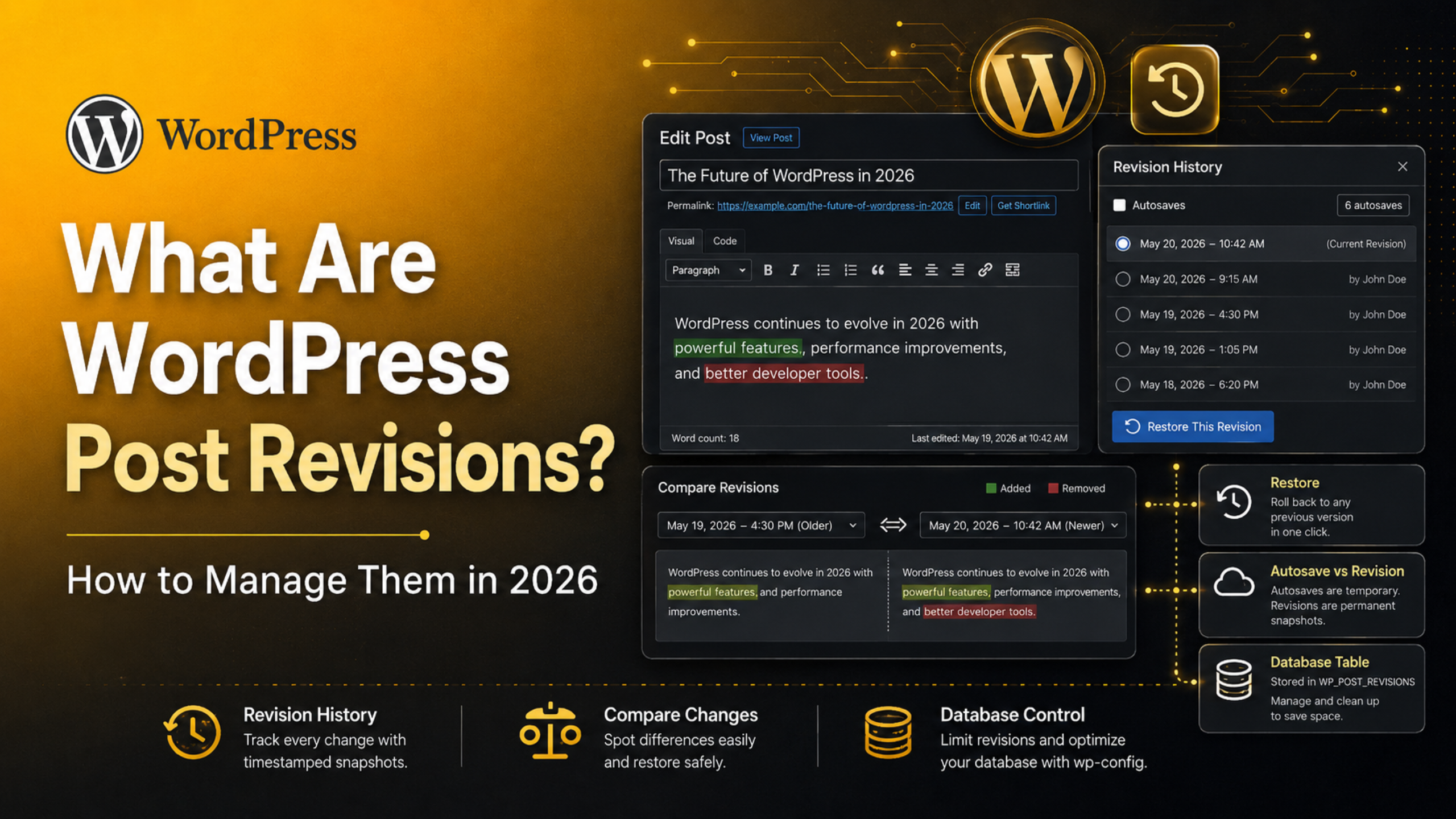
What Are WordPress Post Revisions? How to Manage Them in 2026
You write a paragraph. You delete it. An hour later you want it back. WordPress already saved a copy for you, and that copy is called a revision.
Revisions are one of the quietest features in WordPress. Most site owners never open the screen. Then one bad edit happens, and the feature suddenly looks like a lifesaver. This guide explains what revisions are, where they live, when they help, and how to keep them from piling up in your database in 2026.
What Is a WordPress Post Revision?
A revision is a saved snapshot of a post or page at one moment in time. Every time you click Save Draft, Update, or Publish, WordPress stores the previous version instead of throwing it away.
Each snapshot keeps the title, the body content, and the excerpt. It also records who made the change and when. Nothing on the live page changes. The snapshot simply sits in the background until you need it.
Revisions work on posts, pages, and most custom content types. If a content type supports revisions, the editor keeps a history for it automatically.
What a Revision Does Not Save
A revision is not a full backup of the page. It ignores custom fields, featured images, categories, tags, and settings added by plugins. Those values are stored separately. So a revision can restore your writing. It cannot restore your whole layout. That distinction matters when something breaks on a complex page.
Why WordPress Saves Revisions in the First Place
The feature exists because writing is messy. Drafts get rewritten. Editors disagree. Somebody pastes over the wrong section on a Friday afternoon.
Revisions give you three practical benefits:
- Recovery. You can undo a bad edit days or weeks later, long after the browser undo button stopped working.
- Accountability. On a team blog, you can see who changed what and when.
- Confidence. Writers edit more freely when they know a mistake is reversible.
For a multi-author site, that history is worth keeping. If several people touch your content, it also helps to understand WordPress user roles and permissions so the right people have the right editing access.
Revisions vs Autosaves: The Difference
People mix these two up constantly. They are related, but they behave differently.
A revision is created when you save on purpose. WordPress keeps every one of them by default, so a heavily edited post can hold dozens.
An autosave is created by the browser in the background while you type. WordPress writes one roughly every minute. Crucially, only one autosave exists per user per post. Each new autosave overwrites the last.
Autosaves are there for crashes. If your browser closes or your connection drops, WordPress offers to restore the autosaved copy the next time you open the post. Once you save the post yourself, the autosave stops mattering.
How to View and Restore a Revision
Open the post you want to inspect. In the editor sidebar, look under the post settings for a Revisions link with a number beside it. Click it.
You will see a comparison screen. A slider at the top moves through the history. Removed text appears in one colour, added text in another, so changes are easy to spot.
Drag the slider to the version you want. Then click Restore This Revision. WordPress loads that content back into the editor as the current version.
Restoring Is Safe
Restoring does not erase anything. The version you were on becomes another revision in the list. If you restore the wrong one, restore again and step forward.
One tip: restore into a draft first when the post is live and important. Review the result, then publish. That avoids showing half-finished content to visitors.
Comparing Two Specific Versions
Tick the Compare Any Two Revisions box at the top of the screen. The single slider splits into two handles. Now you can measure the gap between any two points in the history, not just neighbouring saves.
This is useful when an article was edited by three people over a week and you need to find exactly where a paragraph disappeared.
Where Revisions Live in Your Database
Revisions are not stored in a special table. They sit in the same posts table as your published content, marked with a revision type and linked to the parent post by its ID.
That design is simple and reliable. It also explains the main downside: a busy blog can end up with more revision rows than real content rows.
Imagine 500 published posts, each edited twelve times. That is 6,000 extra rows in the table that holds your entire content library. The site still works, but the table is now thirteen times larger than it needs to be.
Do Revisions Slow Down Your Website?
This is the question people argue about, so let us be precise.
Revisions do not slow down your front end directly. When a visitor loads an article, WordPress asks the database for that one published post. Revision rows are filtered out by the query. They are not fetched, parsed, or rendered.
Revisions do cause indirect problems as they accumulate:
- Database backups take longer and use more storage.
- Migrations and imports run slower.
- Admin searches across post content have more rows to scan.
- Some hosting plans cap database size, and revisions eat that allowance.
So the honest answer is that a few thousand revisions will not make your pages load slowly. A few hundred thousand will make your site harder to maintain. If your pages are already sluggish, the cause is usually elsewhere, and a broader WordPress performance check will point you at the real bottleneck.
How to Limit the Number of Revisions WordPress Keeps
You do not have to choose between unlimited history and none at all. WordPress lets you set a cap.
Open your wp-config.php file and add one line:
define( 'WP_POST_REVISIONS', 5 );
Place it above the comment line that says to stop editing. Save the file and upload it.


From that point, WordPress keeps only the five most recent revisions per post. When a sixth is created, the oldest is removed automatically. No plugin required, no maintenance task to remember.
Choosing the Right Number
Five is a sensible default for most blogs. It covers a normal editing session with room to spare.
Bump it to ten or fifteen if several editors work on the same articles, or if you publish long technical pieces that go through many rounds. Drop it to three on a large site where storage is tight.
The setting only affects revisions created after you add it. Existing history stays until you clean it up.
Test the Change First
Editing wp-config.php is low risk, but a stray character in that file will take the whole site down. Make the change on a copy of the site before touching production. If you have not set one up yet, here is how to create a staging site in WordPress.
How to Turn Revisions Off Completely
You can disable the feature with the same constant:
define( 'WP_POST_REVISIONS', false );
Autosaves still work, so crash protection remains. Only the saved history disappears.
Before you do this, consider what you are giving up. Once revisions are off, a bad paste is permanent. There is no history screen to fall back on. For the sake of a small amount of database space, most sites should keep a small number instead of zero.
Turning revisions off makes sense in narrow cases: a single-author site where content never changes after publishing, or a very large catalogue site where every row counts.
How to Clean Up Old Revisions Safely
Setting a limit stops the problem growing. It does not remove the history you already have. To clear that out, work through these steps in order.
1. Take a Full Backup
Back up the database before deleting anything. Revision cleanup is irreversible. A backup turns a possible disaster into a ten-minute restore.
2. Check How Many You Actually Have
Open your database tool and count the rows with the revision post type. The number is often surprising. If it comes back at 400, the cleanup is not urgent. If it comes back at 90,000, it is worth doing properly.
3. Delete in Batches
Removing tens of thousands of rows in one query can time out or lock the table on shared hosting. Delete in batches of a few thousand instead. It is slower to run and far less likely to break something.
Remember to remove the related metadata rows too. Orphaned metadata does not harm the site, but it defeats the purpose of the cleanup.
4. Optimise the Table Afterwards
Deleting rows frees space inside the table without shrinking the file on disk. Running an optimise operation on the posts table reclaims that space and rebuilds the index.
5. Set the Limit Now
If you clean up without adding the wp-config.php cap, you will be back in the same position next year. Do both in one sitting.
This kind of housekeeping pairs well with clearing other temporary data. Our guide on managing and deleting transients in WordPress covers the other common source of database clutter.
Common Revision Problems and Their Fixes
Three issues come up again and again in support tickets. All three have simple explanations.
The Revisions Link Is Missing
If no Revisions link appears in the sidebar, the post probably has no history yet. A post saved only once has nothing to compare against, so the panel stays hidden.
If the link is missing on an old, heavily edited post, check whether revisions were disabled in wp-config.php. A theme or a custom content type can also remove revision support in code.
Revisions Are Not Being Created
Autosaves and revisions both rely on background requests from the browser to the server. If those requests are blocked, saving still works but the history stops filling up.
Security rules on the server are the usual cause. So are browser extensions that block scripts on the admin screens. Test in a private window with extensions off before assuming the site is broken. Editor oddities like this often have the same root cause as other common WordPress block editor problems.
A Restored Version Looks Wrong
This usually means the missing part was never in the revision. Custom fields, page builder layouts, and featured images are stored outside the revision system, so restoring old body text alongside current settings can produce a mismatch.
When a page mixes builder layouts with normal content, restore a full backup rather than a single revision.
Revision Best Practices for 2026
A short policy keeps this feature useful instead of bloated:
- Cap revisions at five to fifteen depending on how many people edit your content.
- Never rely on revisions as a backup. They do not store images, custom fields, or settings.
- Clean the database once or twice a year rather than never.
- Restore into a draft when the post is live and heavily trafficked.
- Check the history before rewriting a page someone else published. The reason for a change is often visible in the diff.
Follow that and the feature does exactly what it should. It stays out of your way until the day you need it, and it does not quietly grow into a database problem.
Get Help With Your WordPress Database
Cleaning revisions is straightforward on a small blog. On a site with years of content, several editors, and a database nobody has looked at in a while, it deserves a careful hand.
Our team handles database cleanups, performance tuning, and day-to-day WordPress maintenance so you can stay focused on writing. If your site feels heavier than it should, talk to 24×7 WP Support and we will take a look for you.
Related posts:

Brian is a WordPress support specialist and content contributor at 24×7 WP Support. He writes practical, easy-to-follow guides on WordPress troubleshooting, WooCommerce issues, plugin and theme errors, website security, migrations, performance optimization, and integrations. With a focus on solving real website problems, Brian helps business owners, bloggers, and online store managers keep their WordPress sites running smoothly.
