
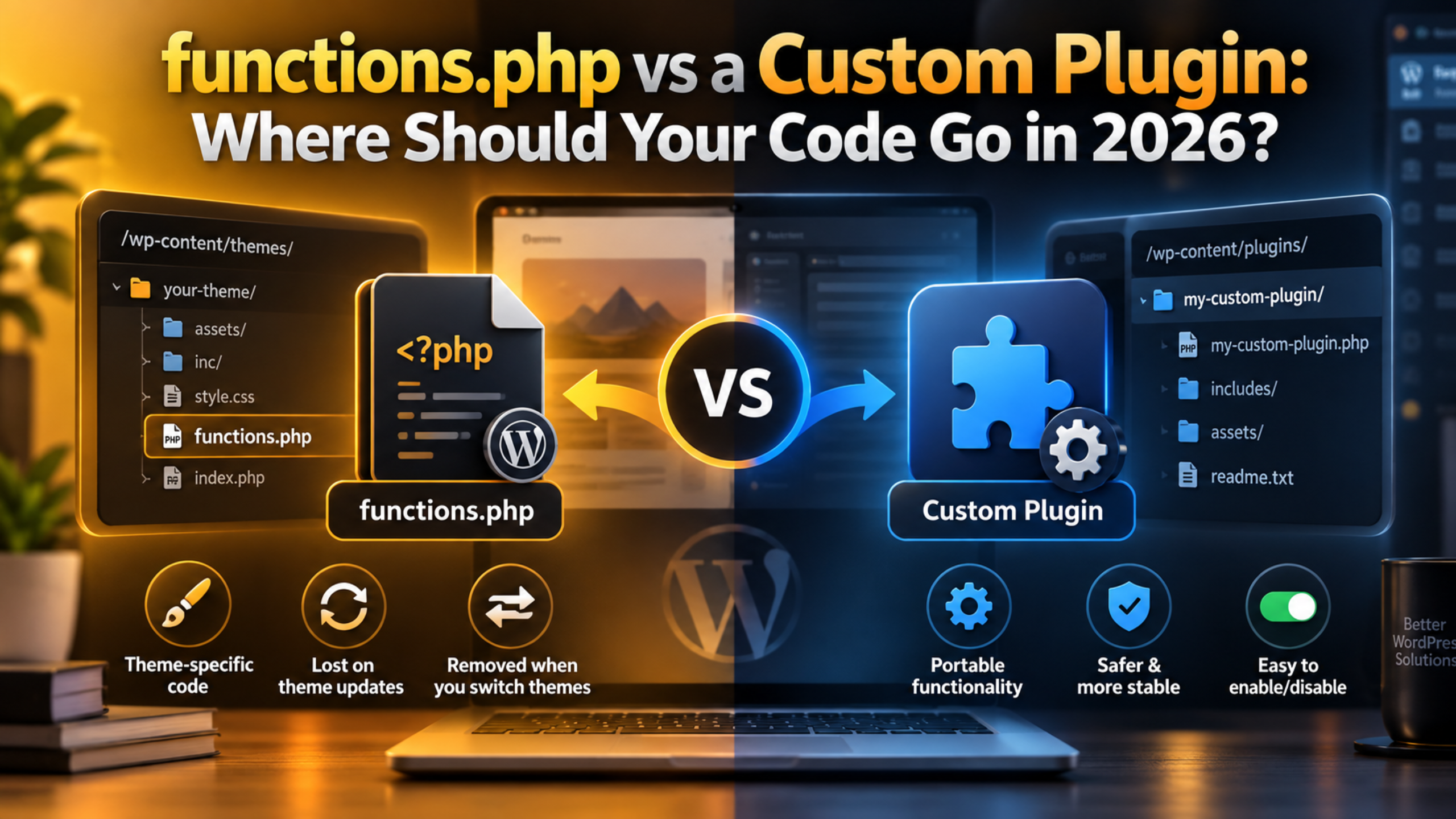
functions.php vs a Custom Plugin: Where Should Your Code Go in 2026?
Every WordPress site owner reaches this fork in the road eventually. You find a snippet that removes a field, adds a shortcode or changes a checkout label, and the instructions say to paste it into functions.php. It works, so you move on.
Then you switch themes, or a theme update lands, and the feature vanishes. That is the moment the choice starts to matter. This guide explains what each option actually does, when each one is correct, and how to move code between them safely.
What functions.php Really Is
The functions.php file lives inside your active theme folder, at /wp-content/themes/your-theme/functions.php. WordPress loads it automatically on every single request, both on the front end and inside the admin area. It runs early, before most of the page is built, which is why hooks placed there fire on time.
The important detail is ownership. That file belongs to the theme, not to your site. If you switch to a different theme, WordPress loads the new theme’s functions.php and stops loading the old one. Every function you added disappears with it, silently and instantly.
There is a second trap. If you edit functions.php in a theme you did not build, the next theme update overwrites the whole file. Your code is gone with no warning and no backup, unless you made one. This is the single most common way site owners lose custom work, and it is entirely avoidable. Take a backup or work on a staging copy of your site before you touch this file at all.
What a Custom Plugin Actually Is
A plugin sounds like a bigger commitment than it is. At its simplest, a plugin is one PHP file in /wp-content/plugins/ with a comment block at the top telling WordPress its name. That is the whole requirement. There is no build step, no framework and no approval process.
Here is a complete, working plugin. Save it as my-site-tweaks.php inside a folder called my-site-tweaks:
<?php
/* Plugin Name: My Site Tweaks */
Add that header, put your snippets underneath it, then go to Plugins in your dashboard and click Activate. WordPress now loads your code on every request, exactly as functions.php did. The difference is that it keeps loading no matter which theme is active and no matter how many times that theme updates.
You also gain a switch. If the code causes a problem, you deactivate the plugin from the Plugins screen and the site returns to normal. With functions.php there is no switch, so a broken snippet means editing files over FTP while the site is down.
The Rule That Decides It: Presentation or Function?
Strip away the debate and one question settles almost every case. Ask whether the code stops making sense when the theme changes. If the answer is yes, it belongs in the theme. If the answer is no, it belongs in a plugin.
Theme code is presentation. It controls how things look and where they sit: registering a menu location that only your theme’s header uses, adding a sidebar the layout depends on, enqueueing the stylesheet for your design, or setting the post thumbnail size your template calls. None of that survives a theme change with any meaning, so functions.php is the honest home for it.
Plugin code is function. It controls what your site does: a custom post type for case studies, a shortcode used across dozens of pages, a redirect rule, a change to how orders are labelled, an integration with an external service. Redesign the site tomorrow and every one of those still needs to work.
Applying the Test to Real Snippets
Consider a snippet that disables the admin toolbar for subscribers. That has nothing to do with how the site looks, so it is plugin code. A snippet that changes the excerpt length from 55 words to 30 is a judgement about your layout, so it is theme code.
Registering a custom post type is the clearest example of all. If it lives in functions.php and you switch themes, the post type stops being registered. The posts remain in the database but vanish from the dashboard, and owners often assume the content was deleted. Put it in a plugin and the content stays reachable forever. If you are still weighing up how much custom work your site really needs, our guide to custom coding in WordPress sets out the options.
Why a Child Theme Does Not Solve the Whole Problem
The standard advice is to use a child theme, and that advice is sound as far as it goes. A child theme gives you your own functions.php that parent theme updates cannot overwrite. If you are customising a theme you did not write, you should be using one.
But a child theme fixes only the update problem, not the portability problem. The code still lives inside a theme, so it still disappears the day you switch to a different design. Sites get redesigned every few years, and that is exactly when a forgotten snippet causes a mystery.
The practical approach is to use both. Keep genuine styling and template overrides in the child theme, and keep functional code in a plugin. Our explanation of how a WordPress child theme works covers the setup if you have not built one yet. The two tools solve different problems and work best together.
How to Build Your First Site Plugin, Step by Step
The whole process takes about five minutes and needs nothing beyond a text editor and file access. Doing it once means you never paste another snippet into the wrong place again, because you will always have somewhere obvious to put it. Most sites need exactly one of these, not a separate plugin per feature.
Do this on a staging copy if you have one, and take a full backup either way. The two stages below cover creating the file and then moving your existing snippets into it without taking the site down in between.
Creating and Activating the File
Connect over FTP or open your host’s file manager and go to /wp-content/plugins/. Create a new folder named after your site, such as acme-site-functions. Inside it, create a file with the same name and a .php extension.
Open that file and put a plugin header at the top: an opening PHP tag, then a comment block containing Plugin Name, and optionally Description, Version and Author. Only the name is required. Save the file, then open Plugins → Installed Plugins in your dashboard. Your plugin appears in the list. Click Activate.
Moving Existing Snippets Across
Now migrate what you already have. Open your current functions.php and read it from top to bottom, sorting each block by the presentation-or-function test above. Copy the functional blocks into your new plugin file, but do not delete anything from functions.php yet.


Save the plugin, reload your site and confirm the features still work. Only then remove those blocks from functions.php. Take a full backup before you start, because moving code that declares a function while the original is still active causes a fatal “cannot redeclare function” error. Our guide to fixing a WordPress critical error covers recovery if that happens.
Mistakes That Break Sites, and How to Avoid Them
Most functions.php disasters come from a handful of repeated errors, and the same three account for the majority of emergency calls. None of them are subtle once you know the pattern. Each has a fix that takes seconds if you apply it before you paste the code rather than after the site goes white. Read these three before your next edit.
The first is editing through Appearance → Theme File Editor in the dashboard. It feels convenient, but a single missing semicolon locks you out of the very screen you would use to undo it. Edit over FTP instead, where you can always revert. The same caution applies to the plugin editor, and if it is missing from your dashboard that is usually deliberate.
The second is a stray blank line or space after the closing PHP tag. WordPress sends headers before output, so that whitespace triggers a “headers already sent” warning and can break logins and redirects. The fix is simple: leave the closing tag off the end of the file altogether, which is standard practice in modern PHP. It is also worth confirming which PHP version your site runs, because older snippets often assume syntax that newer versions have dropped.
The third is copying a snippet without checking the hook it uses. Code hooked too early runs before WordPress has loaded what it needs and throws an undefined function error. If you are unsure which hook fits, our breakdown of add_action, do_action and add_filter explains what each one is for and when it fires.
What Happens When Code Goes Wrong in Each Place
The recovery path is very different depending on where the broken code sits, and this is a stronger argument for plugins than most people realise. It is worth understanding before you need it.
If a fatal error comes from a plugin, WordPress 5.2 and later catch it and email the site administrator a recovery link. That link logs you into a special session with the offending plugin paused, so you can fix or delete it from the dashboard. You can also just rename the plugin folder over FTP and WordPress deactivates it automatically.
If the same error comes from functions.php, the protection is weaker. The theme is not optional in the way a plugin is, so a syntax error there often produces a blank screen with no way in. You are editing files over FTP under pressure, guessing at the problem. Our walkthrough on fixing the white screen of death covers that scenario in detail, and the Site Health screen will often flag the underlying cause once you are back in.
The difference is not theoretical. It is the gap between a five minute fix and an hour of downtime.
Does One Option Perform Better Than the Other?
This question comes up constantly and the answer is reassuring. There is no meaningful speed difference between running code from functions.php and running the same code from a plugin. Both are loaded on the same request, both are compiled by the same PHP engine, and both are cached by the same opcode cache.
WordPress loads plugins slightly earlier in the boot sequence than the theme’s functions.php, which is a practical advantage rather than a performance one. It means plugin code can hook into events that fire before the theme is ready, which functions.php simply cannot reach.
What actually affects speed is what the code does. A snippet that runs an uncached database query on every page load will slow your site down wherever you put it. Judge your code by its queries and its external requests, not by which file holds it. Turning on WordPress developer mode on a staging copy makes those slow queries far easier to spot.
A Simple Policy You Can Follow From Today
You do not need to audit everything this afternoon. Adopt a rule going forward and clean up the backlog gradually.
From now on, every new functional snippet goes into your site plugin. Only styling, template and layout code goes into the child theme’s functions.php. When you next touch an old snippet for any reason, move it across then rather than making a separate project of it.
Add a short comment above each block explaining what it does and why it exists. Six months later, that one line is the difference between confidently removing dead code and leaving it in place because nobody remembers what it was for.
Finally, keep your site plugin in your backup routine and test changes on a staging site rather than the live one before they reach visitors. A plugin you can deactivate is already far safer than a theme file you cannot, but a tested change is safer still.
Getting Help With Custom WordPress Code
Custom code is where small sites quietly become fragile. Snippets accumulate over years, added by different people for reasons nobody wrote down, and one theme change brings the whole arrangement into the open at the worst possible moment.
Our team untangles exactly this. We audit what is in your functions.php, sort it by what genuinely belongs to the theme, build a proper site plugin for the rest, and test every feature before and after the move. Nothing goes live until it has been verified on a staging copy.
We also handle the emergencies: white screens after an edit, fatal errors following an update, and lockouts from a broken theme file. Because we work around the clock, you are not waiting for business hours while your site is down.
If your custom code has outgrown a single theme file, talk to 24×7 WP Support. We will get it organised, documented and safe to change.
Related posts:


Brian is a WordPress support specialist and content contributor at 24×7 WP Support. He writes practical, easy-to-follow guides on WordPress troubleshooting, WooCommerce issues, plugin and theme errors, website security, migrations, performance optimization, and integrations. With a focus on solving real website problems, Brian helps business owners, bloggers, and online store managers keep their WordPress sites running smoothly.
