
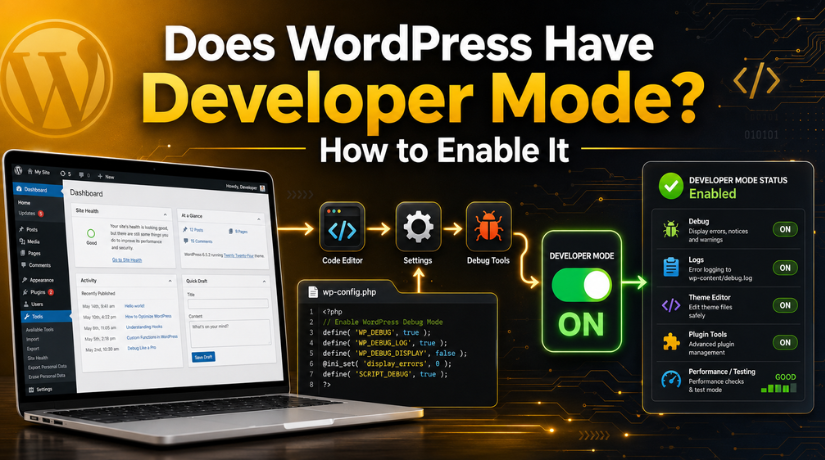
Does WordPress Have Developer Mode? How to Enable It
Introduction
Many WordPress users look for a simple developer mode option. They expect to find it inside the WordPress dashboard. However, WordPress does not work that way. It does not have a single button called developer mode. Instead, WordPress uses special settings inside important site files.
The term WordPress developer mode usually means a setup made for testing. It helps developers work on themes, plugins, or custom code. These settings are not used for normal content updates. They are mainly useful when someone needs to test changes safely.
For example, a developer may use these settings while building a custom theme. A plugin developer may also use them while checking plugin behavior. A site owner may hear this term when a developer asks for staging access.
This is why it is important to understand the meaning first. Developer mode is not a visual editor. It is not a page builder feature. It is also not a design setting inside WordPress. It is a development setting used for code-related work.
What Is Developer Mode in WordPress?
Developer mode in WordPress means enabling a development-focused setup. This setup helps WordPress understand the type of work being done. It may relate to theme development, plugin development, or WordPress core work.
The main goal is to support safer testing. It can help developers check changes before they affect visitors. This is useful for business websites, blogs, stores, and service websites.
WordPress development mode is mainly helpful in these cases:
- Testing a custom theme before it goes live
- Checking a plugin during development
- Reviewing code changes on a staging website
- Finding issues before updating the live site
- Helping a developer work in a controlled setup
Most regular users do not need developer mode every day. If you only publish blogs, update pages, or upload images, you may not need it. However, if your site needs custom coding, testing, or troubleshooting, developer mode can be useful.
You should also use it carefully. Any change to WordPress files can affect the site. So, always use a staging site or backup first.
Does WordPress Have a Built-In Developer Mode Button?
WordPress does not have a built-in developer mode button. You will not find this option inside the dashboard. There is no simple switch under Settings, Tools, or Appearance. This can confuse many new users.
When people search for WordPress developer mode, they often expect a visual option. But WordPress handles development settings through code. These settings are usually added inside the wp-config.php file. This file controls many important parts of your website.
Some hosting companies may offer their own developer tools. For example, they may provide staging, caching control, or file access. Some local tools may also use the term developer mode. These features can be useful, but they are not the same as the official WordPress development setting.
So, the direct answer is simple. WordPress does support development-related settings. However, it does not provide a one-click developer mode inside the admin area.
This is why users should understand the correct method first. Editing the wrong file can break the website. So, always use a backup before making changes.
What Is WP_DEVELOPMENT_MODE in WordPress?
WP_DEVELOPMENT_MODE is a WordPress constant. It tells WordPress what type of development work is happening. This setting can help during theme, plugin, or core development.
The WP_DEVELOPMENT_MODE WordPress setting supports different values. Each value has a specific purpose.
You can use:
- core for WordPress core development
- plugin for plugin development
- theme for theme development
- all for all development areas
- An empty value to turn development mode off
For example, use this code for theme development:
define( ‘WP_DEVELOPMENT_MODE’, ‘theme’ );
This code should be added inside the wp-config.php file. Place it before the line that says, “That’s all, stop editing!”
Most website owners will not need this setting daily. It is mainly helpful when testing custom code. Developers may use it while building themes or plugins. Site owners may use it on staging websites with expert help.
How to Enable Developer Mode in WordPress
Before learning how to enable developer mode in WordPress, understand one key point. This process needs access to your website files. So, you should follow each step with care. A small mistake in the wrong file can affect your website.
Step 1: Take a Full Website Backup
Always take a complete backup before editing WordPress files. Your backup should include website files and the database. This gives you a safe copy of your site.
A backup helps you restore the website quickly. It protects your data if something goes wrong. You can use a trusted backup plugin or your hosting backup tool.
Step 2: Use a Staging or Local Site
Do not enable developer mode directly on a live site. A live site is visible to visitors and customers. Any mistake can affect user experience and business trust.
Use a staging site or local setup instead. A staging site is a private copy of your website. You can test changes there before moving them live.
Step 3: Open the wp-config.php File
The wp-config.php file is an important WordPress file. It stores key settings for your website. You can find it in the main WordPress folder.
You can open this file using:
- cPanel File Manager
- FTP access
- SFTP access
- Hosting file management tools
Open the file carefully. Avoid changing any other code unless needed.
Step 4: Add the Right Development Mode Code
Now add the correct code based on your work. Place it before the line that says, “That’s all, stop editing!”
For theme development, use this code:
define( ‘WP_DEVELOPMENT_MODE’, ‘theme’ );
For plugin development, use this code:
define( ‘WP_DEVELOPMENT_MODE’, ‘plugin’ );


For all development work, use this code:
define( ‘WP_DEVELOPMENT_MODE’, ‘all’ );
Choose only the value that matches your task. This keeps your setup clear and controlled.
Step 5: Save the File and Test the Site
After adding the code, save the file. Then test your website properly. Check the homepage, dashboard, plugins, themes, and important pages.
Make sure the site loads without errors. Also check forms, menus, and main user actions.
Step 6: Turn It Off After Testing
You should turn off development mode after testing ends. This keeps the website cleaner for normal use.
Use this code to disable it:
define( ‘WP_DEVELOPMENT_MODE’, ” );
If you are unsure, ask a WordPress expert for help. This is safer for business websites.
What Is WordPress Debug Mode?
WordPress debug mode is a tool for finding website errors. It helps developers see problems inside WordPress code. These problems may include PHP errors, warnings, and notices. It can also help find theme or plugin issues.
Debug mode is not the same as developer mode. Developer mode tells WordPress about the development context. Debug mode helps find and record coding problems. This makes it useful during testing and troubleshooting.
You can enable WordPress debug mode inside the wp-config.php file. The common setup uses these code lines:
define( ‘WP_DEBUG’, true );
define( ‘WP_DEBUG_LOG’, true );
define( ‘WP_DEBUG_DISPLAY’, false );
Each line has a clear purpose:
- WP_DEBUG turns the debug feature on.
- WP_DEBUG_LOG saves errors inside a log file.
- WP_DEBUG_DISPLAY hides errors from the website screen.
This setup is safer for live websites. It records errors without showing them to visitors. Displayed errors may look unprofessional. They may also reveal sensitive file paths or code details.
For this reason, experts usually keep WP_DEBUG_DISPLAY set to false. This protects the user experience while still saving error details. A developer can then check the log file and fix issues.
WordPress Developer Mode vs Debug Mode
Many users confuse these two settings. So, understanding WordPress developer mode vs debug mode is important. Both settings support development work, but they do different jobs.
Developer mode defines what type of development is happening. It may relate to themes, plugins, core files, or all areas. It helps WordPress understand the development environment better.
Debug mode focuses on errors. It helps developers find broken code, warnings, or notices. It does not define the development type. It only helps reveal problems during testing.
Here is the simple difference:
- Developer mode sets the development context.
- Debug mode helps find coding issues.
- Developer mode does not replace debug mode.
- Debug mode does not turn on developer mode.
- Both can work together on staging sites.
For example, a developer may build a custom theme. In that case, they may enable theme development mode. They may also enable debug logging to catch code issues.
This setup is best used on staging or local websites. It gives developers useful information without risking the live site. For business websites, safe testing is always the better choice.
When Should You Enable Developer Mode?
You should enable developer mode only during planned website work. It is useful when your site needs testing, coding, or deeper review. It should not stay active during normal website use.
You may enable it when you are:
- Building or testing a custom theme
- Creating or checking a custom plugin
- Testing WordPress updates on staging
- Reviewing code changes before launch
- Helping a developer troubleshoot site behavior
For most website owners, daily tasks do not need developer mode. You can publish posts, edit pages, and upload images without it. Use it only when a development task needs a controlled setup.
Safety Tips Before Using Developer or Debug Settings
Developer and debug settings can be helpful. Still, they must be used with care. A wrong change inside WordPress files can break the website.
Follow these safety tips before making changes:
- Take a full backup before editing files.
- Use a staging site whenever possible.
- Avoid showing errors on live websites.
- Edit the wp-config.php file carefully.
- Disable testing settings after work is complete.
These steps help protect your website, users, and business reputation.
Conclusion
WordPress does have development-related settings, but not a dashboard button. The WP_DEVELOPMENT_MODE setting helps define development work. Debug mode helps find website errors. Both serve different purposes and need careful use.
If editing WordPress files feels risky, 24×7 WP Support can help you handle testing, errors, and development settings safely.
Related posts:
How To Fix WordPress “Briefly Unavailable For Scheduled Maintenance Error”
WordPress Developer vs WordPress Designer: Key Differences in 2026
How to Add Klaviyo Forms and Popups to WordPress Easily (Detailed Guide)
What Are WordPress Nameservers and How Do You Find Them?
WordPress DNS Settings: How to Connect, Find, and Reset Them

Brian is a WordPress support specialist and content contributor at 24×7 WP Support. He writes practical, easy-to-follow guides on WordPress troubleshooting, WooCommerce issues, plugin and theme errors, website security, migrations, performance optimization, and integrations. With a focus on solving real website problems, Brian helps business owners, bloggers, and online store managers keep their WordPress sites running smoothly.
