
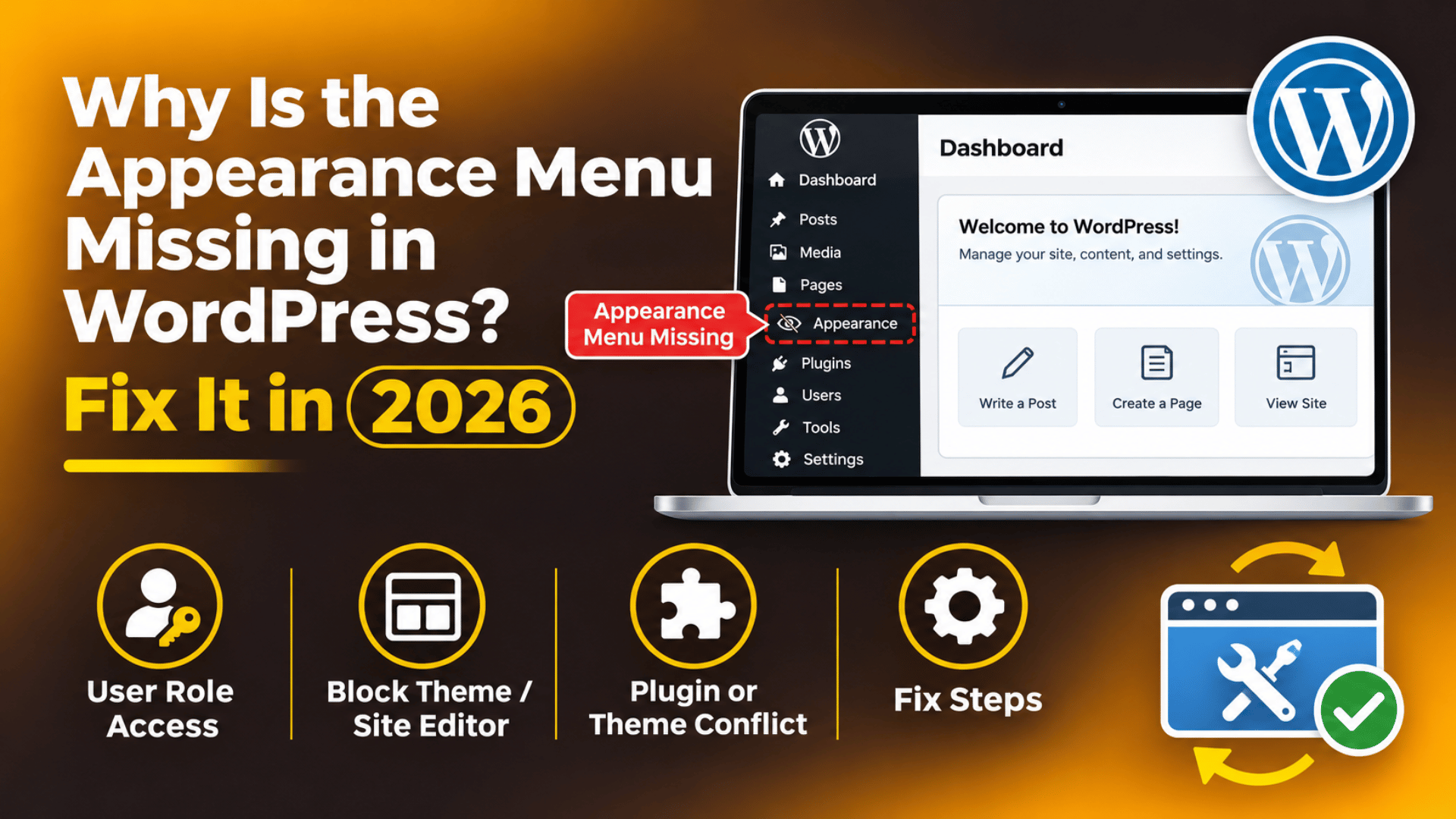
Why Is the Appearance Menu Missing in WordPress? Fix It in 2026
Introduction
You log in to WordPress. You go to change the theme. But the Appearance menu is not in the sidebar. For many site owners, that is a small moment of panic. Appearance is the door to your themes, your menus, your widgets and your site design. When it vanishes, the whole look of your site feels locked away.
The good news is simple. A missing Appearance menu is almost never a sign that your site is broken. In most cases the menu is hidden, not deleted. Something has changed your user role, your theme type, or a setting that controls the admin sidebar.
This guide walks through the whole problem. You will learn what WordPress is actually doing when the menu disappears, what causes it, what it costs you, how to spot the real reason, and how to get the menu back. Every step names the exact screen or file, so you can follow along inside your own WordPress admin area.
What Is the Missing Appearance Menu Issue?
The Appearance menu is a top-level item in the left admin sidebar. On a classic theme it usually holds Themes, Customize, Widgets, Menus, Theme File Editor, and sometimes extra theme options. WordPress builds this menu fresh on every admin page load. It is not stored as a fixed list.
Two things decide whether you see it. The first is your user capability. WordPress shows Appearance only to accounts that hold the switch_themes or edit_theme_options capability. By default only an Administrator has these. The second is the active theme type. A block theme and a classic theme register different sub-items, so the menu can look very different on two sites running the same WordPress version.
So what do you actually see? Sometimes Appearance is gone entirely, and the sidebar jumps straight from Plugins to Users. Sometimes Appearance is still there, but Widgets, Menus or Customize have vanished from under it. Sometimes the menu is there for one person and not for another. All three look like the same bug. They usually have different causes, and this article treats them separately.
What Causes the Appearance Menu to Disappear?
There is no single cause. In real support work the reason falls into one of the groups below. Read them in order, because the first two explain most cases we see.
Your account is not an Administrator. Editors, Authors, Contributors and Subscribers never see Appearance. They do not hold the theme capabilities. If someone changed your role, or you logged in with a second account, the menu goes away instantly. Our guide to WordPress user roles and permissions explains which role holds what.
Your site now runs a block theme. Block themes replaced the old design screens with the Site Editor. When a block theme is active, WordPress hides Widgets, Menus and the Customizer. You get Appearance → Editor instead. Nothing is broken. The screens simply moved.
A plugin removed the menu on purpose. Many membership, client-portal, white-label and role-editor plugins call the WordPress function remove_menu_page(). That function strips an item out of the sidebar. Some security plugins do the same to hide design tools from staff accounts.
Custom code in the theme. An agency or a previous developer may have added the same function to the theme’s functions.php file, or to a small code-snippet plugin. This is common on sites built for a client who should not change the design.
A capability was stripped by a role editor. Role-editing tools let an admin unset edit_theme_options for a role. The account still says Administrator, but the menu is gone. This one confuses people the most.
A fatal PHP error in the theme. If the active theme throws an error while loading, the menu items it registers may never appear. You will often see other odd gaps in the admin too. Checking your WordPress error logs will show this quickly.
Constants set in wp-config.php. The line define('DISALLOW_FILE_EDIT', true); removes the Theme File Editor. The line define('DISALLOW_FILE_MODS', true); goes further. It hides theme installs and updates as well. Both are normal hardening steps, and both surprise the next person who logs in. Our explainer on the wp-config.php file covers where these lines live.
Multisite restrictions. On a WordPress network, a single site administrator cannot install themes. Theme control sits with the Network Admin. Site owners often see a shortened Appearance menu and assume it is a bug.
Caching or a JavaScript error. A stale admin page from a caching layer can serve you an old sidebar. A JavaScript error can also stop the menu from drawing correctly. These cases are rarer, but they are cheap to rule out.
What Is the Impact of This Issue on the Website?
The site itself keeps running. Visitors see your pages as normal, orders keep coming in, and nothing is lost. The damage is to your ability to manage the site, and that adds up fast.
You cannot change or update your theme. Theme updates often carry security patches. If Appearance → Themes is hidden, those updates sit unapplied. Over months, that is a real security gap.
Navigation and sidebars are frozen. No Menus screen means no new links in the header. No Widgets screen means no change to the footer or sidebar. A simple request like “add the new service page to the menu” becomes impossible.
Branding work stalls. The Customizer holds the logo, the site title, colours and homepage settings on most classic themes. Losing it blocks every small design change.
Emergency rollback is blocked. If a theme update breaks your layout, the fastest fix is switching themes. Without the Themes screen, you lose that escape route and downtime gets longer.
Work gets pushed to risky methods. People start editing theme files over FTP instead. That is far more dangerous than using the admin screens, and it is where real damage usually begins.
Team and agency work slows down. A developer who cannot reach the design screens has to ask for access, wait, and bill for the delay. On client sites this is a frequent source of friction.
How to Identify This Issue on the Website
Before you change anything, find out which version of the problem you have. The signs below each point at a different cause. Work through them in order and note what you see.
Sign 1: Appearance is gone completely. The sidebar goes from Plugins straight to Users. This almost always means a capability problem or a plugin that removed the menu.
Sign 2: Appearance is there, but Widgets and Menus are not. You still see Themes and Editor. This is the classic sign of a block theme. Nothing has broken.
Sign 3: Only the Theme File Editor is gone. Everything else works. That points straight at DISALLOW_FILE_EDIT in wp-config.php. We cover this case in detail in fixing the missing WordPress theme editor.
Sign 4: Another admin can see the menu and you cannot. The site is fine. Your account is the problem. Compare the two accounts under Users → All Users.
Sign 5: It broke right after an update or a new plugin. Note the date. Then check Plugins → Installed Plugins for anything activated that day.
Check the direct URL. Type /wp-admin/themes.php after your site address. If the page loads, the screen exists and only the menu link is hidden. If you get “Sorry, you are not allowed to access this page”, your account lacks the capability. Try nav-menus.php, widgets.php and customize.php the same way.


Read Site Health. Go to Tools → Site Health → Info. Open the Themes panel and the Active Theme section. It tells you the theme name and whether it is a block theme. The Site Health screen also flags PHP and fatal-error problems.
Turn on debugging. Set WP_DEBUG and WP_DEBUG_LOG to true, then reload the admin. Errors are written to wp-content/debug.log. Our guide to WP_DEBUG in WordPress shows the exact lines to add. Take a backup before you edit wp-config.php.
Open the browser console. Press F12 and look at the Console tab, then the Network tab. Red errors here point at a script problem rather than a permissions problem. Here is how to open the browser console if you have not used it before.
Test with plugins off and a default theme on. This is the fastest way to separate a plugin problem from a theme problem. Do it on a staging copy if the site is busy.
How to Fix the Missing Appearance Menu
Work through these steps in order. They start with the safest checks and end with file-level work. Stop as soon as the menu comes back. Before any step that touches a file or the database, take a full backup or work on a staging site first.
Step 1: Check which account you are signed in as. Hover over “Howdy” in the top right, then click Edit Profile. Look at the Role field under Users → Profile. If it says anything other than Administrator, that is your answer. If it says Administrator and the menu is still missing, move on to Step 2.
Step 2: Open the Themes screen directly. Visit yoursite.com/wp-admin/themes.php. If the page loads normally, only the sidebar link is hidden, which points at a plugin or custom code. If you see a permission error, the capability itself has been removed. Note which of the two you got, because the later steps split at this point.
Step 3: Clear every cache and reload. Press Ctrl+F5 (Cmd+Shift+R on Mac) to force a fresh copy. Then purge any page cache or object cache your host provides. Log out and log back in. A stale admin page is rare, but this takes thirty seconds and rules it out.
Step 4: Find out whether you run a block theme. Go to Tools → Site Health → Info → Themes. If the active theme is a block theme, Widgets, Menus and Customize are hidden by design. You should see Appearance → Editor instead. That is expected behaviour, not a fault.
Step 5: Use the Site Editor instead of the old screens. On a block theme, open Appearance → Editor. Navigation now lives under the Navigation panel. Widgets are replaced by blocks placed directly in templates and template parts. Our walkthrough of the WordPress Customizer explains which jobs moved where. If you truly need the classic screens back, switch to a classic theme in Step 10.
Step 6: Ask another administrator to restore your role. Have them open Users → All Users, click your username, set Role to Administrator, then click Update User. Log out and log back in. The menu should return on the next page load. If the role already says Administrator, the missing piece is a capability, so go to Step 8.
Step 7: Restore an administrator when nobody can log in. Take a backup first. If you have WP-CLI access through SSH, run wp user list --role=administrator to see who is left. Then run wp user set-role yourusername administrator. If you have no admin at all, wp user create will make one. Only edit the database by hand as a last resort, and only on a copy you can restore.
Step 8: Look for a role editor or security plugin. Open Plugins → Installed Plugins. Scan for anything that manages roles, capabilities, client access, white-labelling or admin menus. Open its settings and look for edit_theme_options or a hidden-menus list. Re-enable Appearance there. This is the single most common cause once role has been ruled out.
Step 9: Deactivate all plugins, then bring them back one by one. Select all under Plugins → Installed Plugins, choose Deactivate from Bulk actions, and apply. Reload the admin. If Appearance returns, reactivate plugins one at a time, reloading after each. The one that makes the menu vanish again is your culprit. Our guide to WordPress plugin conflicts covers this test in more depth. Do it during quiet hours, or on staging.
Step 10: Switch to a default WordPress theme. If you still have the Themes screen, activate Twenty Twenty-Four or another default theme. If you do not, rename your theme folder over SFTP and WordPress will fall back automatically. Take a backup before renaming anything. If the menu returns, the problem sits in your theme’s code.
Step 11: Search the theme and snippet plugins for remove_menu_page. Back up first. Then search wp-content/themes/your-theme/functions.php for remove_menu_page and remove_submenu_page. Check any code-snippet plugin too. Comment out the line that targets themes.php and reload. If you use a child theme, check both the child and the parent.
Step 12: Check wp-config.php and, on multisite, the Network Admin. Back up the file, then look for DISALLOW_FILE_EDIT and DISALLOW_FILE_MODS. Removing DISALLOW_FILE_MODS restores theme installs and updates. On a network, sign in to Network Admin and go to Themes → Installed Themes, then enable the theme for the site. Single-site admins will still not see the theme installer, and that is correct on multisite.
If the menu is still missing after Step 12, enable WP_DEBUG_LOG and read wp-content/debug.log for a fatal error in the active theme. A theme that dies during load can take its own menu registrations with it. At that point the problem is code-level, and a deeper critical-error investigation is the right next move.
How to Prevent This Issue
Most of these cases are avoidable. A few habits keep the admin sidebar predictable for everyone on the team.
Keep at least two administrator accounts. One person losing access should never lock the whole site. Store the second account securely and review it every quarter.
Write down every capability change. If you strip edit_theme_options from a role, note it somewhere the next person will find. Six months later, nobody remembers.
Test updates on staging. Theme and plugin updates can change what the sidebar shows. A staging copy lets you see that before your live site does.
Back up before file edits. Take a full backup before touching wp-config.php or functions.php. Our guide on how to back up and restore a WordPress website covers a routine that works.
Keep PHP and WordPress current. Old PHP versions cause quiet failures in theme code. Check yours with our guide on checking your WordPress PHP version, then plan the upgrade on staging.
Audit plugins that touch the admin. Before installing anything that manages roles or hides menus, read what it changes. Fewer plugins with sidebar powers means fewer surprises.
Protect the admin login. A compromised account can have its role changed by an attacker. Adding two-factor authentication to your admin login reduces that risk.
Conclusion
A missing Appearance menu looks alarming, but it is usually a visibility problem rather than a broken site. WordPress builds the sidebar from your capabilities and your active theme. Change either one and the menu changes with it.
The main causes are a non-administrator role, a block theme that moved the design screens, a plugin or snippet calling remove_menu_page(), a stripped capability, a hardening constant in wp-config.php, or multisite restrictions. The cost is real. You cannot update themes, edit menus, change widgets or roll back a bad design change.
Diagnosis is straightforward. Check your role, open themes.php directly, read Site Health, turn on WP_DEBUG, then test with plugins off and a default theme on. The twelve fix steps above follow that same order, from a simple role check to a wp-config review. Prevention comes down to a second admin account, staging tests, backups, and a short note whenever you change a capability.
If you have worked through these steps and the menu has not come back, the cause is likely buried in custom code or server configuration. That is the point where a second pair of eyes saves time. Our team at 24×7 WP Support works on WordPress admin and permission problems every day, and we are happy to take a look at yours.
Related posts:
How to Backup Your WordPress Database: Step-by-Step Guide for 2026

WordPress SEO Plugins: Do You Need One, Which to Choose & How to Use It

Lead your business with WooCommerce Leadpages integration
How to Host WordPress on a VPS: Complete Setup Guide
Bricks Builder vs Elementor Pro: Which Is Better for WordPress?

Brian is a WordPress support specialist and content contributor at 24×7 WP Support. He writes practical, easy-to-follow guides on WordPress troubleshooting, WooCommerce issues, plugin and theme errors, website security, migrations, performance optimization, and integrations. With a focus on solving real website problems, Brian helps business owners, bloggers, and online store managers keep their WordPress sites running smoothly.