
What Authentication Does WordPress Use? A Complete 2026 Guide
Every WordPress site has to answer one question before it lets anyone do anything: who are you? That check is called authentication. It runs quietly in the background each time you load the dashboard, save a post, or connect an app to your site.
Most site owners never think about it until something breaks. This guide explains what authentication WordPress actually uses in 2026, in plain language. You will learn how browser logins work, what the secret keys in your config file do, why nonces exist, and how apps sign in without your password.
What Authentication Means in WordPress
Authentication is the process of proving identity. WordPress needs to know that the person asking for the dashboard is really the account holder. Once it is sure, it keeps that answer in memory for the rest of the visit.
People often mix this up with authorisation. The two are related, but they are not the same thing. Authentication asks “who are you?”. Authorisation asks “are you allowed to do this?”. WordPress handles the first with cookies and keys. It handles the second with user roles and permissions.
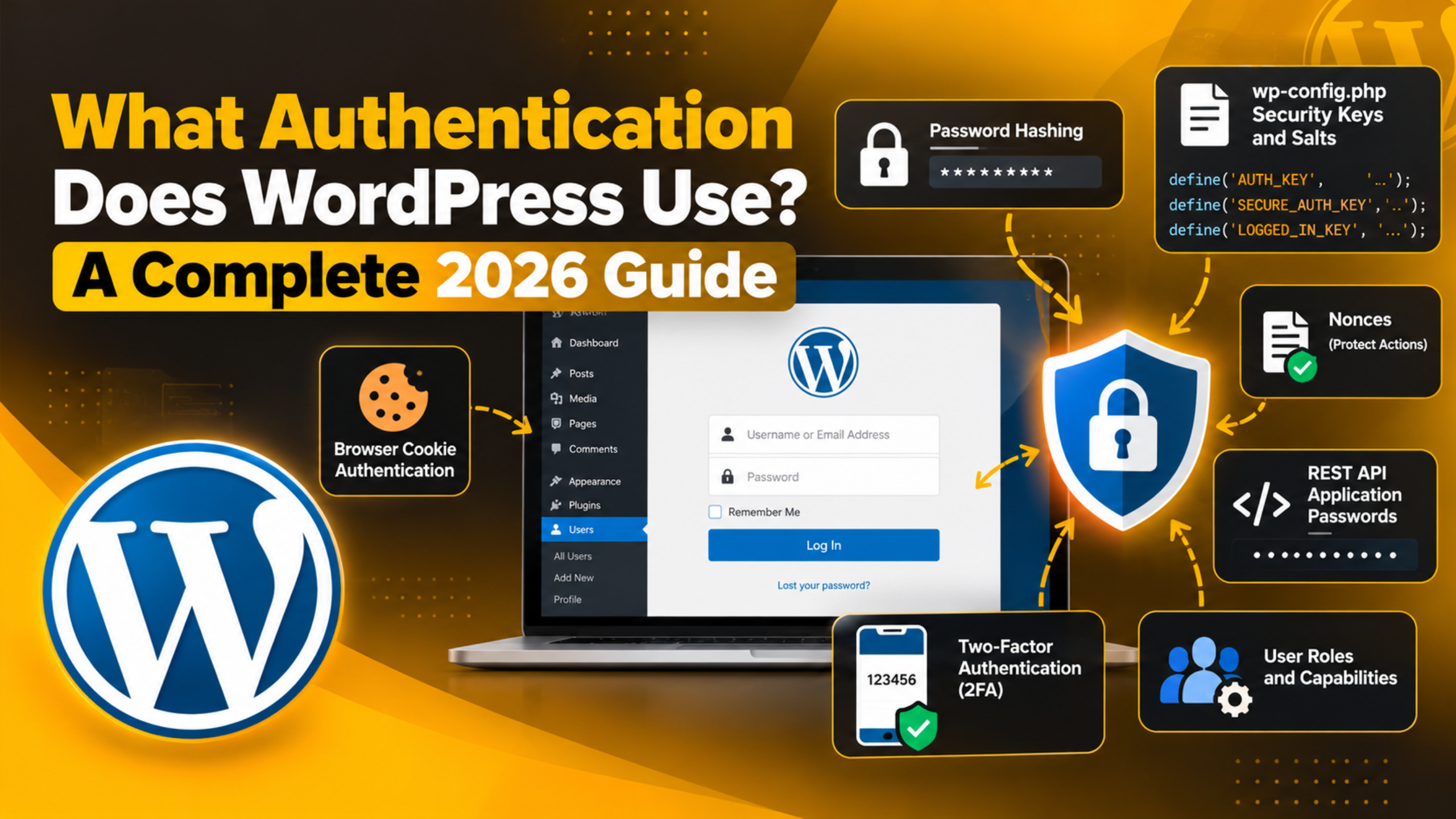
WordPress does not use one single method. It uses a small set of them, each for a different job. Browser logins use cookies. In-page actions use nonces. Apps and scripts use application passwords. Older tools may still use the legacy XML-RPC route. Core ships all of this, so no plugin is needed to log in safely.
Knowing which method is in play makes troubleshooting far easier. A browser problem and an API problem can look alike, yet they rarely share a cause.
Cookie-Based Authentication: How a WordPress Login Works
When you sign in at your WordPress login URL, WordPress checks the username and password against the user table in the database. Passwords are never stored as plain text. They are stored as a hash, which is a scrambled value that cannot be read back.
If the check passes, WordPress sets cookies in your browser. The main one is named wordpress_logged_in_ followed by a long hash. A second cookie, wordpress_sec_, is used inside the admin area when your site runs over HTTPS. Cookies that begin with wp-settings- are not part of the login. They only remember screen preferences, such as how wide your sidebar is.
The login cookie does not carry your password. It carries your username, an expiry time, and a signed token. On every page load, WordPress rebuilds that signature and compares it. A match keeps you logged in. Anything else makes you a visitor again.
By default the cookie lasts two days. Ticking “Remember Me” extends it to fourteen days. WordPress also stores a list of active session tokens against your user record. That list is what makes the “Log Out Everywhere Else” button on your profile page work. Each device gets its own token, so one can be cancelled without touching the rest.
This design has one practical side effect. Anything that interferes with cookies breaks the login, so caching, a mismatched site address, and blocked cookies all produce the same symptom.
Security Keys and Salts: The Secret Behind the Cookies
Those signed cookies need a secret, and the secret lives in your wp-config.php file. WordPress stores eight values there. Four are keys and four are salts. They are named AUTH_KEY, SECURE_AUTH_KEY, LOGGED_IN_KEY, NONCE_KEY, and their matching _SALT versions.
A salt is extra random text mixed into a value before it is hashed. It makes the result unique to your site. Two sites with the same password will still produce completely different cookie signatures. That is the point.
These values are created when WordPress is installed. You can also generate a fresh set from the official WordPress.org secret key service at https://api.wordpress.org/secret-key/1.1/salt/. Replacing them logs out every user on the site straight away, including you. Old cookies no longer match the new secret, so everyone has to sign in again.
Back up first. Editing wp-config.php is a risky change on a live site. A missing quote mark or semicolon will take the whole site down. Always take a full backup, or make the change on a staging site first, before you touch that file.
Rotating the keys is a sensible step after a suspected breach. It ends every session, including any an attacker still holds. It is a standard item in a wider WordPress security routine.
Nonces: Verifying Intent, Not Just Identity
Being logged in is not always enough. WordPress also needs to know that you meant to perform an action. That is the job of a nonce, short for “number used once”.
Here is the problem it solves. Imagine you are logged in as an administrator. You then visit a page on another website that quietly sends a delete request to your site. Your browser would attach your login cookie automatically. Without a second check, your site would obey. This trick is called cross-site request forgery.
A nonce blocks it. WordPress adds a short token to admin links and forms, usually as a _wpnonce value in the URL or a hidden field. When the request arrives, WordPress checks that the token matches the user, the action, and the current time window. No match means no action.
Nonces are time limited rather than truly single use. The default lifetime is 24 hours, and the token changes halfway through that window. Leave a form open overnight, submit it, and the token may have expired. WordPress then shows the message “Are you sure you want to do this?”. That message is not a bug or a hack attempt. It usually means the page sat idle too long. Reloading and repeating the action normally clears it.
Application Passwords and REST API Authentication
Apps, scripts, and other sites cannot fill in a login form. They need a different route. WordPress core answers this with application passwords, built in since version 5.6.
You create one at Users → Profile → Application Passwords. You give it a name, such as the name of the tool that will use it, and WordPress generates a 24-character password. It is shown once. Copy it then, because you cannot view it again later.
The external tool sends that value with each request using HTTP Basic authentication. Your real account password is never shared. Each application password can be revoked on its own, so removing one tool does not disturb the others. Because the value travels with every request, a valid HTTPS certificate is required. Our guide to WordPress application passwords covers setup and the common connection errors in more detail.
Requests from the block editor work differently. They run inside your own browser, so they reuse your login cookie plus a wp_rest nonce. That is why a request can succeed in the dashboard and fail from an outside script. If this layer is new to you, our REST API guide explains how routes and endpoints fit together.


XML-RPC is the older route, reached at /xmlrpc.php. It sends the username and real password with every call. It is legacy technology, replaced by the REST API and application passwords. Many sites no longer need it, and leaving it open gives attackers one more door.
What Happens After Authentication: Roles and Capabilities
Once WordPress knows who you are, it loads your role. The role decides what you can reach. Core ships five roles on a single site: Subscriber, Contributor, Author, Editor, and Administrator.
Each role holds a set of capabilities. A capability is a named permission, such as the ability to edit other people’s posts or install plugins. Before any sensitive screen loads, WordPress checks whether your account holds the matching capability. Fail that check and you see a short “sorry, you are not allowed” notice instead of the page.
This separation matters for safety. Authentication confirms the account. Capabilities limit the damage if that account is ever misused. Giving every team member an administrator account removes that protection completely.
Most sites can tighten this quickly. Writers rarely need plugin access. Contractors rarely need permanent accounts at all. You can also limit dashboard access so lower roles see a simpler screen. If your site does not accept public sign-ups, it is worth checking whether you should disable user registration as well.
How to Strengthen WordPress Authentication in 2026
Core authentication is solid on its own. Most break-ins succeed because of weak habits around it, not because the method itself failed. A few steps close the common gaps.
Use long, unique passwords. Let WordPress generate the password when you create an account, and store it in a password manager. Reused passwords are the single most common way an admin account is taken over.
Add a second factor. A one-time code at sign-in means a stolen password is not enough on its own. Our walkthrough on adding 2FA to the WordPress admin login shows the setup.
Limit failed login attempts. Automated scripts try thousands of guesses. Blocking an address after a handful of failures stops that traffic cheaply, and it also reduces server load.
Serve the whole site over HTTPS. Login details and application passwords travel in the request. Without a valid certificate, they can be read in transit, and the secure admin cookie will not be set.
Review application passwords regularly. Open Users → Profile and delete any entry you no longer recognise. Each one is a live key to your site.
Keep core, themes, and plugins current. Updates often patch the exact flaws that let an attacker bypass a permission check. Test larger updates on a staging copy first.
Give out the smallest role that works. Fewer administrators means fewer accounts worth stealing. Remove accounts as soon as someone leaves the project.
Common Authentication Problems and What They Tell You
Authentication faults follow a few familiar patterns. Reading the symptom correctly saves a lot of guesswork.
The login page reloads and sends you back. This usually points at the cookie. A mismatch between the WordPress Address and Site URL under Settings → General is a frequent cause, and so is a plugin interfering with the login form. The steps in our guide to a refreshing and redirecting login page work through it in order.
“Cookies are blocked” appears on the login screen. The browser never stored the test cookie. Private browsing, blocked third-party cookies, or a caching layer serving a stale login page are the usual suspects.
You are logged out every few minutes. Check whether a cache is storing pages for logged-in users. Recently changed salts will also end every session at once, which is expected behaviour rather than a fault.
An external tool returns a 401 response. The credentials were rejected, so the application password is wrong, revoked, or being sent to a URL that redirects. Our notes on fixing a 401 error in WordPress cover the checks to run.
You cannot sign in at all. Use the lost password link first. If email is not reaching you, a database-level reset is the fallback, and it needs a backup first. The fixes in our guide for when you cannot log into WordPress run from safest to most involved.
Bringing It All Together
WordPress does not rely on one authentication method. It layers several, each matched to a different kind of request. Cookies keep your browser session alive. Keys and salts in wp-config.php sign those cookies. Nonces confirm that an action was really intended. Application passwords let outside tools connect over the REST API without seeing your real password. Roles and capabilities then decide how far an account can go.
You do not need to memorise the internals to run a safe site. You do need strong passwords, a second factor, HTTPS everywhere, tidy user accounts, and current software. When something does go wrong, identifying which layer failed points you straight at the fix.
If a login loop, a failed API connection, or a security concern is holding your site back, our team works on exactly these problems every day. Visit 24×7 WP Support and tell us what you are seeing. We will take a look and talk you through the options.




Brian is a WordPress support specialist and content contributor at 24×7 WP Support. He writes practical, easy-to-follow guides on WordPress troubleshooting, WooCommerce issues, plugin and theme errors, website security, migrations, performance optimization, and integrations. With a focus on solving real website problems, Brian helps business owners, bloggers, and online store managers keep their WordPress sites running smoothly.
