
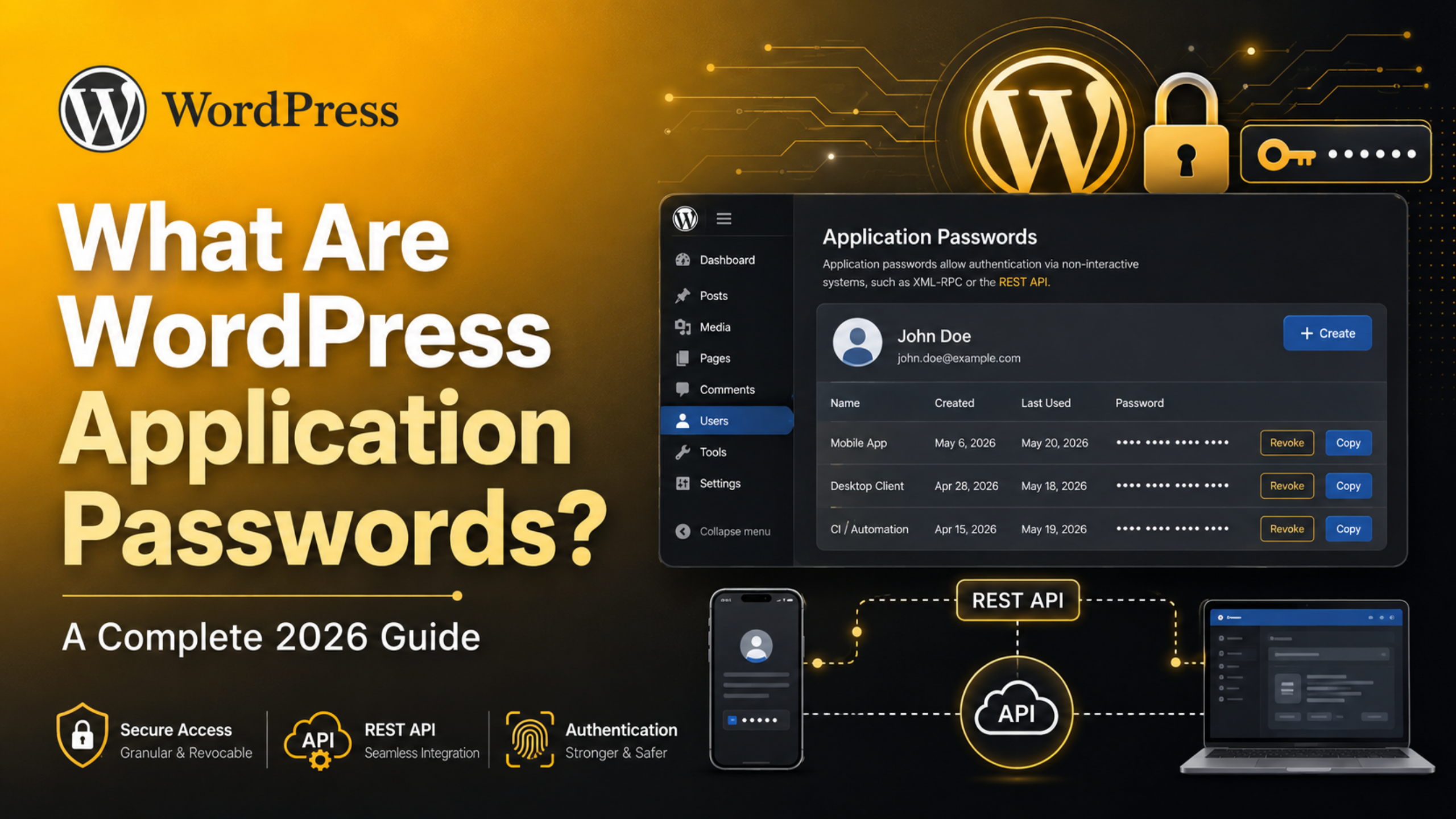
What Are WordPress Application Passwords? A Complete 2026 Guide
Sooner or later, something outside your website asks to log in to it. A mobile app. A reporting dashboard. A script that posts your products. The lazy answer is to hand over your admin password. The safe answer is an application password.
WordPress has shipped this feature in core for years, yet most site owners have never opened the screen. This guide explains what application passwords are, how they work, how to create and revoke them, and how to keep them from becoming a security problem in 2026.
What Is a WordPress Application Password?
An application password is a separate, generated password that lets an outside program sign in to your site as one of your users. It works for programmatic access only. Nobody can use it to log in through the normal WordPress login form.
Each one is tied to a single user account and given a label you choose, such as “Mobile app” or “Stock sync”. You can create as many as you like and revoke any of them at any time.
The password itself is twenty-four characters long, displayed in groups of four for readability. WordPress shows it once, at creation. After that it is stored as a hash, so even you cannot read it back.
What It Is Not
An application password is not a permission system. It does not let you grant partial access. Whatever the user account can do, the application password can do too.
Give one to a tool while signed in as an administrator, and that tool has administrator power. That single fact shapes every good practice further down this page.
Why Application Passwords Exist
Before this feature, connecting an external service to WordPress meant one of two bad options. You either pasted your real login password into a third-party box, or you installed an extra plugin to issue tokens.
Both options had problems. Sharing your real password means the other side now holds the keys to your whole account, including the ability to change your email address and lock you out. And every extra plugin is another moving part to maintain.
Application passwords fix that with three properties:
- Separation. The credential is not your login password, so revealing it does not reveal your account password.
- Revocability. You can kill one credential without disturbing anything else.
- Visibility. WordPress records when each one was last used, so dead integrations are easy to spot.
How Application Passwords Actually Work
The mechanism is deliberately simple. The external tool sends your username and the application password with every request, using standard HTTP basic authentication.
WordPress checks the pair against the stored hashes for that user. If it matches, the request runs with that user’s capabilities. There is no session, no cookie, and no expiry date.
Because the credential travels with every request, the connection must be encrypted. WordPress refuses to offer the feature on sites served over plain HTTP. A valid certificate is not optional here.
Where They Can Be Used
Application passwords authenticate requests to the WordPress REST API, which is how most modern apps and services talk to a site. They also work with the older remote publishing interface if your site still has it switched on.
Typical uses include mobile publishing apps, headless front ends, inventory and order sync tools, reporting dashboards, and custom scripts that create or update content on a schedule.
How They Differ From API Keys
People often call them API keys. The comparison is close but not exact, and the difference matters.
A typical API key is issued by the service you are connecting to, and it usually carries its own scope. It might allow reading data but not writing it.
An application password is issued by your own site, and it carries no scope of its own. It simply borrows the permissions of the user account behind it. The scoping has to happen when you choose that account.
They also differ in lifespan. Many API keys expire on a schedule. An application password lives until somebody revokes it, which is convenient and slightly dangerous at the same time.
How to Create an Application Password
The process takes about thirty seconds.
- Log in to your WordPress dashboard.
- Go to Users and open the profile of the account the tool should use. To create one for yourself, go to Users → Profile.
- Scroll to the Application Passwords section near the bottom.
- Type a clear name in the box. Name it after the tool, not the person.
- Click Add New Application Password.
- Copy the generated password immediately and paste it into the tool that needs it.
Once you navigate away, that password is gone from view forever. If you lose it, revoke the entry and create a new one. There is no recovery step.
Choosing the Right User Account
This is the decision that matters most, and it is the one people rush.
Ask what the tool actually needs to do. A service that only reads published posts does not need to install plugins. Create a dedicated account with the lowest role that still works, then issue the application password from that account.
If you are not sure which role fits, our guide to WordPress user roles and permissions breaks down what each one can and cannot do.
How to Revoke an Application Password
Revoking is the whole point of the feature, so it is deliberately easy.
Open the same profile screen. Each existing credential is listed with its name, creation date, and the date it was last used. Click Revoke beside the one you want to kill.
Access stops on the very next request. There is no grace period and no cache to clear. If a laptop goes missing or a contract ends, this is your fastest containment step.
There is also a Revoke all button. Use it when you suspect a breach and want everything cut off while you investigate.


Reading the Last Used Column
The last used date is the most underrated part of this screen. It quietly answers a question most site owners cannot otherwise answer: what is still connected to my website?
Anything that has not been used in months is almost certainly a leftover from a tool you stopped paying for. Revoke it. If something breaks, you will know within a day and can issue a new credential in seconds.
WordPress also records the address the request came from. A sudden change there is worth a second look.
Security Best Practices for 2026
Application passwords are safer than sharing your login. They are not risk free. Treat each one as a live key to your site.
One Credential Per Tool
Never reuse a single application password across several services. When you need to revoke one, you want the damage contained to that one integration.
Use a Dedicated, Low-Privilege Account
Resist the habit of issuing everything from the owner’s administrator account. A separate account per integration also makes the activity log far easier to read after an incident.
Store Them Like Passwords, Because They Are
Put the credential straight into the tool that needs it, or into a password manager. Do not email it, paste it into a chat channel, or leave it in a text file on a shared drive.
Review the List Every Quarter
Put a recurring reminder in the calendar. Open the screen, read the last used dates, and revoke anything you cannot explain. It takes two minutes.
Keep the Rest of the Site Locked Down
A credential is only as safe as the site around it. Strong account passwords, current core and plugin versions, and a sensible firewall all matter. If you have not reviewed that side recently, start with our roundup of the best WordPress security plugins.
Common Problems and How to Fix Them
The Section Is Missing From the Profile Screen
Three causes explain almost every case.
First, the site is not being served over a secure connection. WordPress hides the feature on plain HTTP. Fix the certificate and the section appears.
Second, a plugin or a snippet in the theme has switched the feature off. Some security plugins disable it by default. Check those settings before assuming the install is broken.
Third, you may be looking at another user’s profile without the capability to manage their account. Only users who can edit that account see the section.
Authentication Keeps Failing With a 401 Error
The most common culprit is the server stripping the authorization header before WordPress ever sees it. This happens on plenty of shared hosting configurations.
The fix lives in the server configuration, where the header has to be passed through to PHP. Your host can apply it in a minute if you tell them the header is being dropped.
Also check the obvious things: the username must be the account’s username, not its email address, and the spaces in the generated password are cosmetic. Most tools accept them either way, but a few do not.
The Integration Worked and Then Stopped
Look at the profile screen first. Someone may have revoked the entry, or the user account may have been deleted or had its role reduced.
If the credential is still listed and the last used date is recent, the problem is more likely a change on the other side, or a firewall rule now blocking the requests.
You Want to Test Safely
Never debug an integration against a live shop or a busy blog. Copy the site first and experiment there. Here is how to set up a staging site in WordPress before you start.
Should You Turn the Feature Off?
If nothing on your site uses programmatic access, switching it off removes one attack surface. It can be disabled site wide with a small snippet or through a security plugin setting.
Be careful, though. Disabling it also breaks the official mobile apps and any future service you might want to connect. For most sites, a short and well-reviewed list of active credentials is a better outcome than switching the feature off entirely.
A Simple Policy That Works
If you remember nothing else from this article, remember these five lines:
- One application password per tool, never shared.
- Issue it from the lowest role that does the job.
- Copy it once, store it in a password manager.
- Read the last used dates every quarter and revoke the dead ones.
- Revoke immediately when a device, contractor, or service goes away.
Follow that and external integrations stop being a source of quiet risk. They become something you can see, audit, and switch off in one click.
Need a Hand Securing Your WordPress Site?
Auditing credentials, tightening user roles, and hardening a site that has grown over several years is exactly the kind of work that gets postponed until something goes wrong.
Our team does it every day, quietly and without downtime. If you would like someone to review who and what has access to your website, talk to 24×7 WP Support and we will take it from there.

Brian is a WordPress support specialist and content contributor at 24×7 WP Support. He writes practical, easy-to-follow guides on WordPress troubleshooting, WooCommerce issues, plugin and theme errors, website security, migrations, performance optimization, and integrations. With a focus on solving real website problems, Brian helps business owners, bloggers, and online store managers keep their WordPress sites running smoothly.
