
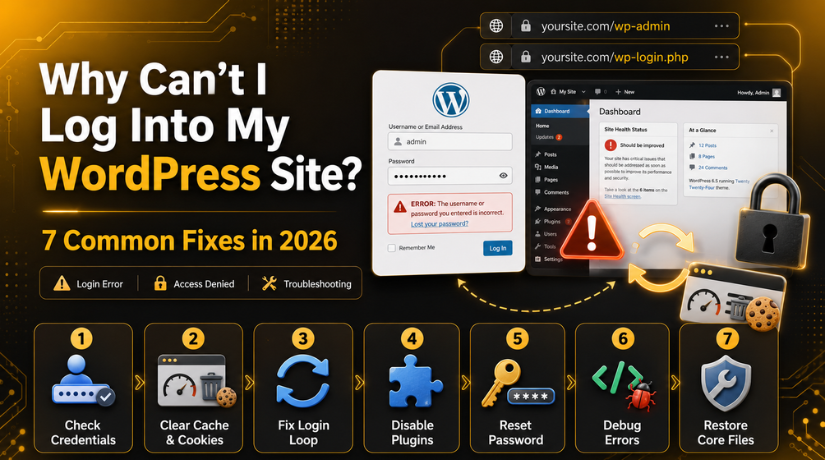
Why Can’t I Log Into My WordPress Site? 7 Common Fixes in 2026
Introduction
It always seems to happen at the worst possible moment — you head to your WordPress dashboard, type in your credentials, and nothing happens. Maybe the page just refreshes. Maybe you see a cryptic error message. Maybe you’re staring at a login loop that’s going nowhere fast. Whatever the symptom, one thing is certain: being locked out of your own WordPress site is frustrating, and every minute of downtime matters.
The good news? In the vast majority of cases, you don’t need a developer to fix WordPress login problems. The issues are usually one of a handful of well-known culprits, and each has a clear, step-by-step solution. This guide walks you through the seven most common reasons why you can’t log into your WordPress site in 2026 — and exactly how to fix them.
What Actually Happens When WordPress Login Breaks?
Before diving into fixes, it helps to understand what’s going on under the hood. When you visit yoursite.com/wp-admin and enter your credentials, WordPress performs a quick sequence: it checks your username/email and password against the database, creates an authentication cookie in your browser, and redirects you to the dashboard.
If any link in that chain breaks — wrong credentials, corrupted cookies, a misconfigured URL, a conflicting plugin, or a damaged core file — the login fails. Recognising which link is broken tells you exactly where to focus your troubleshooting energy.
Fix 1 — Double-Check Your Username, Email, and Password
This sounds obvious, but it’s the cause of a surprising number of locked-out situations. WordPress allows you to log in with either your username or the email address attached to your account. If you’ve been using one and it stops working, try the other.
A few things to verify first
- Check that Caps Lock is off — passwords are case-sensitive.
- If you use a password manager, make sure it hasn’t auto-filled credentials from a different site.
- Confirm you’re logging into the right site. It’s easy to mix up staging and live URLs.
If you’re confident the credentials are correct but login still fails, move to the password reset option on the login screen itself. Click “Lost your password?”, enter your username or email, and WordPress will send a reset link. Check your spam folder if it doesn’t arrive within a couple of minutes.
Need more detail on resetting credentials safely? Our guide on how to quickly reset your WordPress administrator password covers every method available, including database-level resets when email isn’t an option.
Fix 2 — Clear Your Browser Cache and Cookies
WordPress authentication relies entirely on cookies stored in your browser. If those cookies are outdated, corrupted, or conflicting with a previous session, the login page will keep spinning — or bouncing you back to itself — no matter how many times you try.
The fix is simple: clear your browser’s cache and cookies completely, then try logging in again on a fresh session. In Chrome, press Ctrl + Shift + Delete (Windows) or Cmd + Shift + Delete (Mac), select “All time” as the time range, tick Cookies and Cache, and click Clear Data.
If clearing cache and cookies doesn’t solve it, try an incognito/private window or a completely different browser. This rules out any lingering local data that might be interfering.
Also check that cookies are enabled
If you see a message saying “Cookies are blocked or not supported by your browser”, WordPress cannot set the authentication cookie it needs. Head into your browser settings and make sure cookies are enabled for your site’s domain.
Fix 3 — Fix the WordPress Login Redirect Loop
The login redirect loop is one of the most common and most confusing WordPress login problems. You enter your credentials, the page seems to reload, and you’re right back at the login screen — over and over, indefinitely.
This happens because WordPress uses two URL settings — Site Address and WordPress Address — to determine where to redirect users after a successful login. When those settings are incorrect or mismatched, the redirect bounces you between the login page and the dashboard endlessly.
Method 1: Fix URLs via wp-config.php
Open your wp-config.php file (found in your site’s root directory) via FTP or your hosting file manager. Add these two lines directly above the line that reads /* That's all, stop editing! */:
define('WP_HOME','https://yoursite.com');
define('WP_SITEURL','https://yoursite.com');
Replace yoursite.com with your actual domain, save the file, and try logging in again.
Method 2: Regenerate the .htaccess file
A corrupted .htaccess file can also cause the redirect loop. Via FTP, navigate to your site’s root directory, rename .htaccess to .htaccess_old, then try logging in. If it works, go to Settings › Permalinks in your dashboard and click Save Changes — this regenerates a clean .htaccess file automatically.
For a deeper walkthrough of this specific issue, see our dedicated post on fixing WordPress login page refreshing and redirecting.
Fix 4 — Deactivate All Plugins via FTP
Security plugins, caching plugins, and certain login-hardening tools can accidentally block your own access — particularly if you’ve triggered a brute-force lockout or if a recent plugin update introduced a conflict. The quickest way to test whether a plugin is the culprit is to deactivate all of them at once without needing to log in.
Here’s how to do it safely via FTP:


- Connect to your server using an FTP client like FileZilla.
- Navigate to
/wp-content/. - Find the folder named
pluginsand rename it toplugins_disabled. - Try logging into WordPress. If it works, a plugin was causing the issue.
- Rename the folder back to
plugins. WordPress will show all plugins as deactivated. - Reactivate plugins one by one, testing login after each, until you identify the conflict.
If a security plugin was blocking your IP, look for an IP whitelist option in that plugin’s settings before reactivating it.
Fix 5 — Reset Your Password via phpMyAdmin
If the standard “Lost your password?” email reset isn’t working — maybe your mail server is misconfigured — you can reset your WordPress password directly in the database through phpMyAdmin, which is accessible in most hosting control panels.
- Log in to your hosting control panel (cPanel, Plesk, etc.) and open phpMyAdmin.
- Select your WordPress database from the left sidebar.
- Open the
wp_userstable (the prefix may differ if you customised it). - Find your admin account row and click Edit.
- In the
user_passfield, select MD5 from the function dropdown and type your new password in the value field. - Click Go to save.
Try logging in with the new password immediately. Our step-by-step tutorial on resetting your WordPress password from phpMyAdmin has screenshots for every step if you need a visual guide.
Fix 6 — Deal with the White Screen or PHP Errors on Login
If your WordPress login page loads as a blank white screen — or shows a PHP error before redirecting you — the problem is almost certainly a PHP memory limit being exhausted or a code error in a theme or plugin file.
Enable WordPress debug mode
Open wp-config.php and find (or add) the following line:
define('WP_DEBUG', true);Reload the login page. Instead of a blank screen, you’ll now see the actual error message, which tells you exactly which file and line number is causing the problem.
Increase the PHP memory limit
Also in wp-config.php, add this line above the “stop editing” comment:
define('WP_MEMORY_LIMIT', '256M');This gives WordPress more breathing room when loading the login page. Once you’ve identified and resolved the underlying issue, remember to set WP_DEBUG back to false before going live again — debug mode exposes information you don’t want visible to site visitors.
Fix 7 — Restore a Clean WordPress Core via WP-CLI or Re-upload
In rare cases — usually following a hack, failed update, or incomplete migration — core WordPress files can become corrupted. If none of the above fixes have worked, it’s worth reinstalling WordPress core files without touching your database, themes, or plugins.
The safest way to do this in 2026 is via WP-CLI (available on most managed hosting platforms):
wp core download --forceThis command downloads a fresh copy of WordPress and overwrites only the core files, leaving your wp-content folder and wp-config.php completely untouched. Alternatively, download a fresh copy of WordPress from wordpress.org, extract it locally, and use FTP to re-upload the wp-admin and wp-includes folders — overwriting existing files but not adding any new ones to wp-content.
Why Does WordPress Keep Logging You Out After a Successful Login?
A closely related problem that many site owners encounter is logging in successfully — only to be booted back to the login screen after a few seconds or minutes. This is a session persistence issue, and it’s different from being unable to log in at all.
Common causes include a mismatch between the site URL and the cookie domain, a security plugin terminating sessions prematurely, or a server-side session configuration that’s too aggressive. We’ve covered all the scenarios and fixes in our detailed article on fixing the WordPress keeps logging out issue — it’s worth a read if you find yourself logged out immediately after getting in.
When DIY Fixes Aren’t Enough
The seven fixes above resolve the overwhelming majority of WordPress login problems. But there are situations where the issue goes deeper — a compromised site, a complex server misconfiguration, a database that’s been corrupted at a structural level, or a hosting environment with unusual restrictions. In those cases, spending hours troubleshooting on your own can do more harm than good, especially if you’re not comfortable working directly with PHP files, MySQL databases, or server configurations.
Knowing when to hand things over to an expert is part of good site management, not an admission of defeat. The longer a site is inaccessible, the more it affects your SEO rankings, your visitors’ trust, and — if it’s an e-commerce site — your revenue.
Get Back Into Your WordPress Site Today
Being locked out of WordPress is a stressful experience, but it’s almost always fixable. Work through the seven fixes in this guide in order — start with the simplest (credentials, cache, cookies) before moving to more technical interventions (wp-config.php, phpMyAdmin, core reinstall). In most cases, you’ll find the solution within the first two or three steps.
If you’ve tried everything and are still locked out, the team at 24×7 WP Support is here to help around the clock. We specialise in diagnosing and resolving exactly these kinds of tricky WordPress issues — quickly, carefully, and without risking your data. Reach out to us today and we’ll have you back in your dashboard in no time.
Related posts:

Brian is a WordPress support specialist and content contributor at 24×7 WP Support. He writes practical, easy-to-follow guides on WordPress troubleshooting, WooCommerce issues, plugin and theme errors, website security, migrations, performance optimization, and integrations. With a focus on solving real website problems, Brian helps business owners, bloggers, and online store managers keep their WordPress sites running smoothly.
