
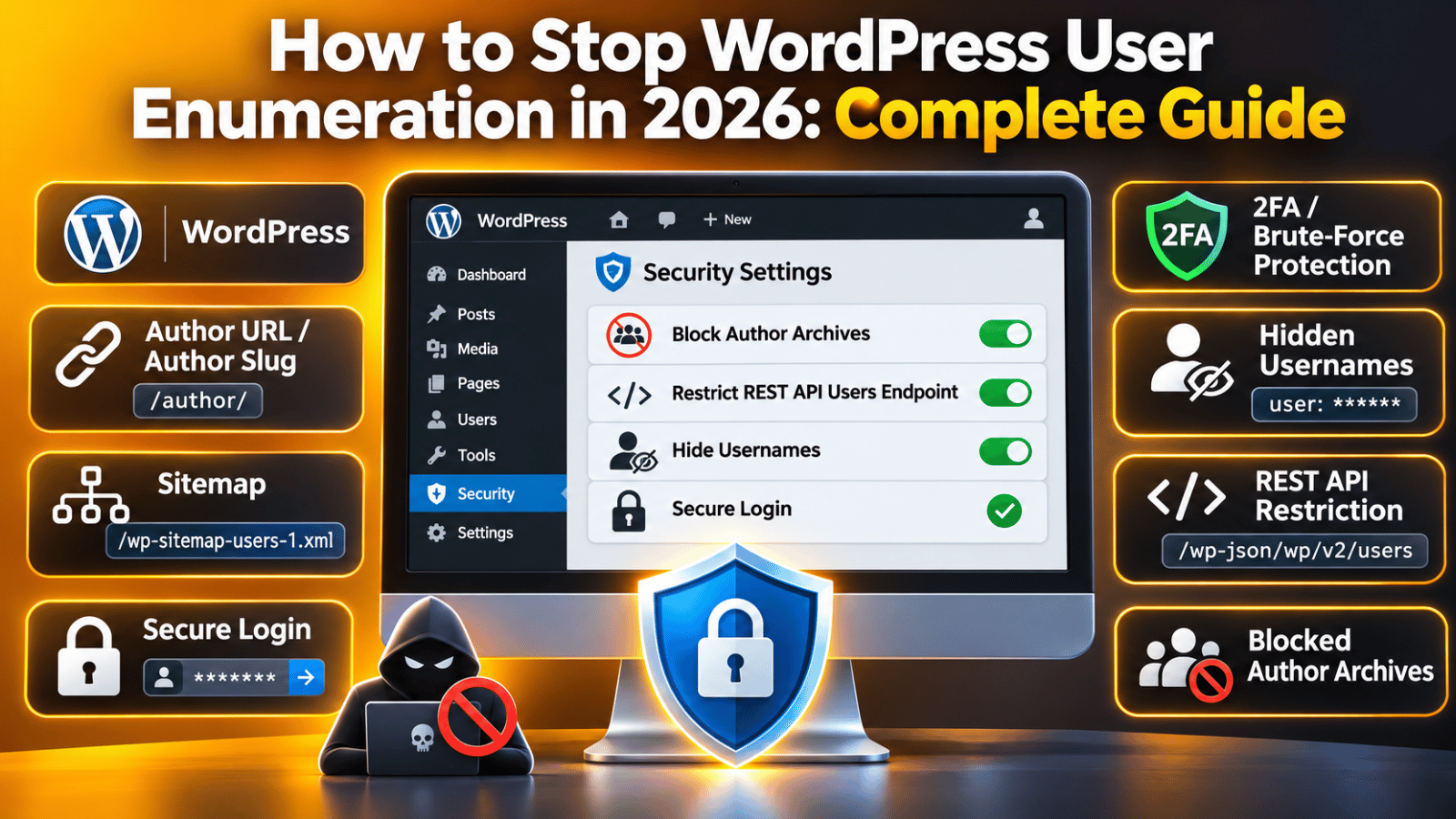
How to Stop WordPress User Enumeration in 2026: Complete Guide
Your WordPress site may be handing out usernames to anyone who asks. This is called user enumeration. It is not a bug, and it is not a sign that you did something wrong. It is how WordPress ships out of the box.
Type one URL, and a login name can appear on screen. A username is half of a login. Once someone has it, they only need the password, and bots will guess at it day and night.
This guide shows every place WordPress can leak a username. You will test your own site in about five minutes, then close each hole without breaking the block editor or your author pages.
What Is User Enumeration in WordPress?
User enumeration is the act of collecting the login names on a site. An attacker does not need a password to do it. They just ask the site politely, using the features WordPress already offers.
WordPress gives every user an ID number. The first account you create is usually ID 1. Several parts of WordPress will happily turn that number into a name. Author archives do it, the REST API does it, and the core sitemap does it too.
The name that comes back is often the display name, which is harmless on its own. The problem is the URL slug beside it. WordPress builds author URLs from the user_nicename field, and by default that field is made from the real login name. So a page at /author/janedoe/ tells the world that janedoe is a valid login.
It gets worse when the first account was never changed. Many sites still log in as admin. Confirming that removes all the guesswork from step one. Understanding WordPress user roles and permissions helps, because the accounts worth protecting most are the ones with admin rights.
Why Leaked Usernames Are a Real Risk
A username alone will not get anyone into your site. But it changes the maths for an attacker in a big way. Brute-force scripts guess pairs of names and passwords. Remove the name from the pair, and the work drops enormously.
There is a second cost, and it is one people forget. Failed login attempts are not free. Every guess loads WordPress, connects to the database, and burns PHP memory. A few hundred bots can slow a small site to a crawl, and on shared hosting it can push you over your resource limit.
Credential stuffing is the third risk. People reuse passwords. If your editor uses the same password here as on a site that was breached last year, a known username makes that pairing trivial to test.
Finally, there is the targeted angle. Knowing who writes on your site tells an attacker who to email. A convincing phishing message sent to a named editor is far more likely to work than a generic one. This is why user enumeration sits in almost every serious WordPress security checklist.
The Five Places WordPress Leaks Usernames
Most guides cover one or two of these and stop. That leaves the door open. Close all five, or you have simply moved the leak somewhere else.
1. The numbered author query string. Visit yoursite.com/?author=1 and WordPress looks up user ID 1. If that user has published a post, WordPress redirects to the author archive, and the new URL contains the nicename. This route is old, and it works even when the REST API is switched off.
2. The REST API users endpoint. Open /wp-json/wp/v2/users and you get a tidy JSON list. It shows the ID, display name and slug for every user who has published something. It exists so the block editor can fill its author dropdown, and it is the easiest route a bot will take. Our guide to the WordPress REST API explains this layer.
3. The core XML sitemap. WordPress has shipped its own sitemaps since version 5.5. One file is /wp-sitemap-users-1.xml, and it lists every author archive URL. Plenty of owners block the REST API and never notice it.
4. Login error messages. A wrong password on a real username says the password is wrong. An unknown name says so instead. The two replies differ, so a script can sort real names from fake ones.
5. The oEmbed endpoint. Request /wp-json/oembed/1.0/embed?url= followed by any post URL. The reply carries an author_name field. It is a quieter route, but scanners check it.
How to Test Your Own Site in Five Minutes
Do this before you change anything. You need to know which leaks you actually have, and you need a baseline to compare against afterwards. Use a private browser window so you are logged out, because a logged-in admin sees different results.
Check the author query. Load yoursite.com/?author=1. Watch the address bar. If it changes to /author/something/, that slug is your leak. Try ?author=2 and ?author=3 as well.
Check the REST API. Load yoursite.com/wp-json/wp/v2/users. A list of names means the endpoint is open. A message saying you are not allowed means it is already restricted.
Check the sitemap. Load yoursite.com/wp-sitemap-users-1.xml. Any URLs listed there are author archives that search engines are being invited to crawl.
Check the login form. Go to your login page. Enter a username you know is real with a wrong password. Note the message. Now enter a name that cannot exist, such as zzqqx99. If the two messages differ, you have a leak.
Write down what you find. Your site may leak through two of these routes and not the rest. The Site Health screen at Tools → Site Health will not flag any of this, so the manual check is worth doing.
How to Block Every Username Leak
Work through these three fixes in order. Each closes a different route, and none cancels out another. Apply them one at a time and test after each, so you know which change caused a problem if one appears.
Before You Edit Anything: Back Up and Use Staging
The fixes below add small pieces of PHP. A typo in PHP can take a site offline until you remove it, so set yourself up properly first. Take a full backup of your files and database, then make the changes on a staging site rather than the live one.
Where should the code live? Not in your theme’s functions.php if you can avoid it, because a theme update can wipe it. A small site-specific plugin is safer. Our comparison of functions.php versus a custom plugin covers both. Keep WordPress error logs and file access to hand so you can undo a change quickly.


Fix 1: Block the Numbered Author Redirect
This is the oldest leak and the one most people miss. When a logged-out visitor asks for ?author= followed by a number, send them away instead of redirecting them to a named archive.
The rule is short. Hook into template_redirect, which runs just before a page is rendered. Let signed-in users through untouched. For everyone else, check whether the request carries an author value that is a plain number, and if it does, redirect to the homepage. Any developer can add that in a few lines.
Then reload yoursite.com/?author=1 while logged out. You should land on your homepage with no author slug in the address bar. If the slug is still there, a caching layer is serving an old copy, so clear your cache and try again.
Want to go further? Change the slug itself. Under Users → Profile, set a display name that is not the login name, then have your developer update the user_nicename field to match. A leaked archive URL then gives away nothing.
Fix 2: Restrict the REST API Users Endpoint
Here is where most guides give bad advice. They tell you to remove the users routes completely. Do not do that. The block editor uses those routes to build its author dropdown, and removing them breaks it.
The better move is to allow the endpoint for signed-in users and refuse it for everyone else. Use the rest_endpoints filter. Leave every route untouched for logged-in users. For anonymous visitors, set the permission check on both the users list route and the single-user route so they deny the request. The editor keeps working, and the public gets nothing.
Log out, then load /wp-json/wp/v2/users. You should get a short error instead of a list. Log back in, open the block editor, and check the author dropdown still shows names. If it is empty, remove the change and re-apply it more narrowly.
Leave the rest of the API alone. Blocking every route breaks the editor, the Site Health checks and many plugins. Only the user routes need locking down.
Fix 3: Close the Sitemap, Login and oEmbed Leaks
Three smaller leaks remain. Each one takes a few lines, and together they finish the job.
Remove authors from the core sitemap. WordPress lets you drop a whole sitemap section with the wp_sitemaps_add_provider filter. Refuse the provider when its name is users, and the file stops being generated. Reload /wp-sitemap-users-1.xml afterwards and you should get a 404.
Make login errors identical. The login_errors filter lets you replace every message with one neutral line, so a script cannot tell real names from fake ones. Return a single sentence saying the username or password is not correct. Keep the wording plain and unhelpful to a bot.
Strip the author name from oEmbed. The oEmbed reply includes author_name and author_url. Unset both, and the endpoint still works for embeds while giving nothing away.
After each change, test the matching URL while logged out. Then log in and confirm normal use still works. A fix you cannot verify is a fix you cannot trust.
Make a Leaked Username Worthless
Blocking enumeration is worth doing. But treat it as one layer, not a wall. Someone may still learn a username from an old cached page, a byline, or a comment. So make that knowledge useless on its own.
Add a second factor. This is the single biggest win. Set up two-factor authentication on every account with admin or editor rights. A correct password is then not enough.
Limit login attempts. Bots rely on volume. Cap the failed tries from one address, and a guessing run stops being practical. Most security plugins include this, and many hosts offer it at the server level.
Move the login page. A custom login URL stops the dumbest bots. It is not real security on its own, but it cuts noise from your logs. Pair it with our guide to a secure WordPress login page.
Turn off what you do not use. XML-RPC is a common brute-force target. If nothing on your site needs it, switch it off.
Rename the first account. If you still log in as admin, create a fresh administrator with a different name, move your content to it, and delete the old one. Keep the wp-config.php file locked down too.
Keep It Closed, and Where to Get Help
Security drifts. A theme switch, a plugin update or a host migration can quietly undo a fix you made months ago. Build a short routine so you catch that early.
Re-run the five-minute test once a quarter, and always after a major change. Keep the results in a note so you can see what changed.
Watch your PHP version too. Old PHP stops receiving security fixes, and the snippets above will not protect a site on an unsupported release. Update core, themes and plugins on a schedule, and test on staging first.
Review your user list as well. Old freelancer accounts, dormant editors and leftover test users all widen the target. Remove what you do not need, and lower the role of anyone who does not need admin rights.
User enumeration is quiet. Nothing breaks and nothing looks wrong, so most owners never know their usernames are public until the login attempts pile up. If you would rather not edit PHP yourself, talk to us at 24×7 WP Support. We work on WordPress hardening and login security every day, and we can look at your setup and tell you what is exposed.
Related posts:



Brian is a WordPress support specialist and content contributor at 24×7 WP Support. He writes practical, easy-to-follow guides on WordPress troubleshooting, WooCommerce issues, plugin and theme errors, website security, migrations, performance optimization, and integrations. With a focus on solving real website problems, Brian helps business owners, bloggers, and online store managers keep their WordPress sites running smoothly.