
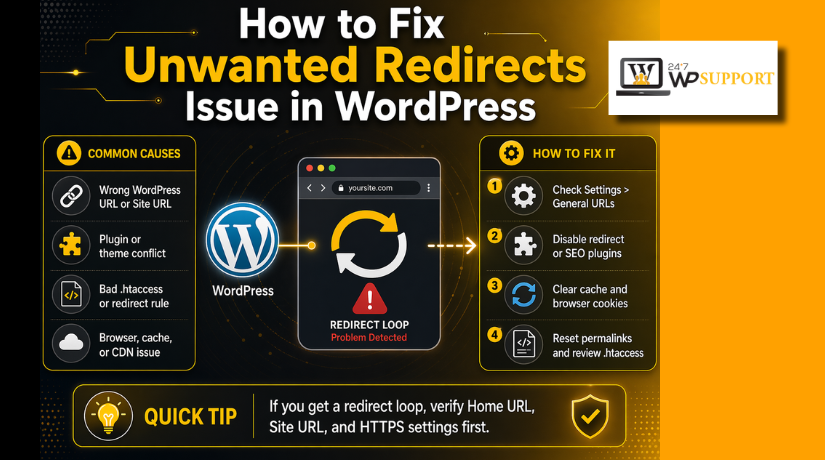
How to Fix Unwanted Redirects Issue in WordPress (Step-by-Step Guide)
Introduction
If your site opens the wrong page, keeps sending users back to login, or suddenly starts loading another domain, you may be dealing with a redirect problem. This guide is built to help you Fix unwanted redirects in WordPress in a simple and practical way. Many site owners face this issue after changing URLs, moving the site, adding SSL, editing redirect rules, or installing a new plugin. Sometimes the problem is small. Sometimes it points to a bigger security risk. WordPress itself allows URL control in settings and config files, while server rules and services like Cloudflare can also affect redirects. That is why one wrong setting can send visitors to the wrong place again and again.
This issue matters more than many users think. A broken redirect can stop visitors from reading posts, filling forms, buying products, or reaching the admin area. It can also hurt trust because users may think the site is unsafe or broken. Search engines also do not like messy redirect behavior, especially when pages loop, jump through many URLs, or land on unrelated pages. In some cases, the redirect is not a setup error at all. It may be caused by injected malicious code. That is why a proper WordPress redirect problem fix should begin with understanding the issue, not guessing.
What Are Unwanted Redirects in WordPress?
An unwanted redirect happens when a user asks for one URL, but the website sends them somewhere else without a valid reason. Not every redirect is bad. Some redirects are normal and useful. For example, when a page has moved permanently, a proper redirect can send users to the new page. The problem starts when the target is wrong, the rule repeats forever, or the redirect happens without your approval. A good redirect helps visitors. A bad redirect confuses them. That is the core difference you should explain early in the article.
A normal redirect usually has a clear purpose. It may send an old page to its updated version, move traffic from HTTP to HTTPS, or guide users after a planned site migration. A bad redirect does the opposite. It may send every page to the homepage, create a WordPress redirect loop issue, open an old domain after migration, or push users to a spam site. If you are seeing a website redirecting to another site WordPress issue, that is never normal behavior. It should be checked quickly because it may be caused by a plugin conflict, broken server rule, or hacked file.
You can see unwanted redirects in many common ways. A blog post may open the homepage instead of the correct article. The /wp-admin page may keep bouncing back to the login screen. A product page may jump to another product for no reason. After migration, the site may still open the old domain. On hacked sites, mobile users may see ads or unsafe pages while the admin sees everything as normal. These examples help readers understand that redirect issues do not always look the same. Some are obvious. Some stay hidden until traffic drops or users complain.
Main Signs That Show a Redirect Problem Exists on a WordPress Site
Your Browser Shows a Too Many Redirects Error
This is one of the clearest signs of a redirect issue. It means the page keeps sending the browser from one URL to another without stopping. The browser cannot complete the request, so it shows an error. This often happens during a WordPress redirect loop issue.
The Website Opens a Different Page Than the One You Clicked
Sometimes users click one page but land on another page. A blog post may open the homepage. A service page may open a category page. This usually means a redirect rule is wrong or too broad.
The Login Page Keeps Sending You Back Again and Again
If /wp-admin or the login page keeps refreshing, the site likely has a redirect loop. This may happen because of cookies, plugin conflicts, or wrong URL settings. It is a common sign in many WordPress redirect problem fix cases.
The URL Changes Many Times Before the Page Loads
When the address bar keeps changing, the site may be passing through several redirects. This is not normal for a healthy website. It usually means there are duplicate redirect rules or mixed URL settings.
The Site Works for Admin but Not for Visitors
Sometimes the admin sees the website normally, but visitors do not. Visitors may get redirected to another page or another domain. This often points to cache issues, rule conflicts, or malware-based redirects.
The Website Keeps Switching Between HTTP and HTTPS
If the site keeps jumping between secure and non-secure versions, there is likely an SSL or redirect conflict. This can happen when WordPress, hosting, and Cloudflare all force different versions.
The Old Domain Still Opens After Site Migration
After moving a website, some users still land on the old domain. This means old URLs may still exist in the database, config file, or redirect rules. It is a very common redirect problem after migration.
Only Mobile Users See the Redirect Problem
If the issue happens only on phones, the site may have a hidden redirect script. Many hacked sites target mobile users first. In such cases, you may need to fix WordPress redirect hack problems instead of only changing settings.
The Website Redirects to Spam, Ads, or Unsafe Pages
This is a serious warning sign. A clean WordPress site should never redirect users to random offers or suspicious websites. If this happens, you may need a WordPress malware redirect fix right away.
The Problem Starts Suddenly Without Any Planned Change
If the redirect issue appears without a plugin install, migration, or update, it should be checked carefully. Sudden redirect behavior often points to hidden file changes, hacked code, or malware activity.
Common Causes of Unwanted Redirects in WordPress You Should Know
Wrong WordPress Address and Site Address Settings
If the site URL settings are wrong, WordPress may keep redirecting users incorrectly. This often happens after migration, domain changes, or SSL setup. Even one wrong character can break page loading.
Hard-Coded URL Values in the wp-config.php File
Sometimes the real site URL is forced inside wp-config.php. If WP_HOME or WP_SITEURL contains the wrong domain, the site may ignore dashboard settings. This can create a redirect loop or wrong-page redirect.
Bad Redirect Rules Added by a Redirect Plugin
A redirect plugin can help, but one wrong rule can break many pages. Wildcard rules and regex redirects are especially risky. If they are set badly, every page may go to one incorrect location.
Conflict Between Multiple Redirect Plugins
Using more than one redirect tool can confuse the site. One plugin may tell the site to go left, while another sends it right. This creates mixed behavior and makes the WordPress redirect problem fix harder.
Incorrect Rules Inside the .htaccess File
The .htaccess file controls many server-level redirects on Apache hosting. If it contains bad or duplicate redirect lines, pages may loop or open the wrong URL. In many cases, a proper WordPress htaccess redirect fix solves the issue.
HTTP and HTTPS Redirect Conflict
This happens when the website cannot decide which version to load. WordPress may force HTTPS, while the server or CDN forces another version. This often causes loops and browser redirect errors.
Cloudflare or CDN Redirect Settings Conflict
Cloudflare can improve speed and security, but wrong settings can create redirect problems. If Cloudflare rules do not match your hosting setup, the website may keep bouncing between versions.
Plugin Conflict From Security, SEO, or Membership Tools
Many plugins control access and page flow. Security plugins may block requests. Membership plugins may redirect users after login. SEO tools may also create redirect rules. If two tools clash, redirects can break.
Theme Code or Custom Functions Causing Forced Redirects
Some themes include custom redirect logic in their files. A developer may also add redirect code inside functions.php. If that code is wrong, pages may open the wrong location again and again.
Old Domain Values Still Left After Migration
After moving a website, old links may remain in the database. Menus, widgets, internal links, and media may still point to the old domain. This causes partial redirects and confusing page behavior.
Browser Cache, Cookies, or Server Cache Storing Old Redirects
Sometimes the redirect rule is already removed, but the old behavior still appears. This happens because the browser, plugin cache, server cache, or CDN still remembers the old redirect path.
Malware or Hidden Redirect Virus in Website Files
This is one of the most dangerous causes. Hackers may place redirect code inside theme files, plugin files, or core files. If your website redirects to another site WordPress issue is caused by infection, you may need to fix WordPress redirect hack problems and also learn how to remove redirect virus WordPress safely.
Hacked Plugins or Themes Downloaded From Unsafe Sources
Nulled or untrusted plugins often contain hidden code. That code may inject redirects without showing any warning at first. In such cases, a full WordPress malware redirect fix is usually required.
Server-Level Redirect Rules Added During Old Troubleshooting
Sometimes old manual fixes stay active for too long. A developer may have added redirect rules during SSL setup, testing, or migration. If those rules were never removed, they can later cause unwanted redirects.
Important Checks to Complete Before You Start Fixing Unwanted Redirects in WordPress
Create a Full Backup of Your Website Before Changing Any Redirect Setting
Before you try to fix unwanted redirects in WordPress, take a full backup first. Back up both your files and your database. Do not skip hidden files like .htaccess. WordPress documentation says a full restore needs both files and database. This step protects your site if one small change makes the redirect issue worse.
Use a Staging or Development Copy So You Do Not Break the Live Website
If you have a staging site, use it before editing the live site. WordPress recommends working on a development copy when you need to update or modify a website without interrupting the live version. This is a smart step for any WordPress redirect problem fix because redirect errors can lock users out very fast. A safe test area lets you check changes without risking visitors, leads, or sales.
Write Down the Exact Redirect Behavior Before You Start Testing Random Fixes


Do not start changing settings without first recording the problem clearly. Note which URL starts the redirect, where it ends, and whether the browser shows a loop error. Also check whether the issue affects one page or the whole site. This simple habit saves time because many redirect problems look similar at first, but the real cause is often very different.
Test the Redirect Issue in Different Browsers Devices and Login States
Check the site while logged in and while logged out. Test it on desktop and mobile. Open it in a private browser window too. This matters because some redirect issues only appear when cookies, cache, or session rules are involved. Cloudflare’s current cache guidance also warns that aggressive caching can break login flows and session handling on dynamic pages.
Review Any Recent Plugin Theme SSL or Migration Changes Before You Go Further
Many redirect problems begin right after a change. A plugin update, SSL setup, migration, or rule edit can trigger the issue. Think back to what changed just before the problem started. This helps narrow the search fast. If your website redirects to another site WordPress issue began after a new plugin or site move, that clue may point you to the real source much faster.
Keep Your Hosting FTP Database and Cloudflare Access Ready Before Troubleshooting
Some redirect problems block normal admin access. That is why you should keep backup access ready before troubleshooting. Make sure you can open your hosting panel, file manager, FTP, database tool, and Cloudflare dashboard if your site uses Cloudflare. This is especially important when the issue turns into a WordPress redirect loop issue and you cannot reach the dashboard normally.
How to Fix Unwanted Redirects Issue in WordPress (Complete Guide)
Step 1: Identify Exactly Where the Redirect Starts and Where It Ends
Start with the full redirect path. Check the first URL the user opens and the final page where the site lands. Also note whether the issue is a 301, a 302, or a loop. This matters because a homepage redirect, an old-domain redirect, and a spam redirect usually come from different causes.
Step 2: Clear Browser Cache Cookies and All Website Caches First
Clear your browser cache and delete cookies for the domain. Then purge your WordPress cache plugin, hosting cache, and CDN cache. Old cached rules can make a fixed site still look broken. This is one of the first steps in any WordPress redirect problem fix process.
Step 3: Check the WordPress Address and Site Address Settings
Open the General settings area in WordPress and review both main URL fields carefully. Make sure the domain is correct and that the right protocol is used. A wrong site URL is a very common reason sites keep redirecting after setup changes or migration.
Step 4: Review wp-config.php for WP_HOME and WP_SITEURL Values
If the dashboard settings look correct but the redirect remains, open wp-config.php. Check whether WP_HOME or WP_SITEURL is hard-coded. WordPress says these constants override the database URL values, so one wrong line here can keep the site redirecting even after you update the admin settings.
Step 5: Disable Redirect Plugins and Review Their Rules One by One
Now check any plugin that creates or manages redirects. Review old 301 and 302 rules, wildcard rules, and regex rules. If you use more than one redirect plugin, disable the extra one. This step often helps when you need to Fix unwanted redirects in WordPress without adding more conflicts.
Step 6: Reset Permalinks to Refresh WordPress Rewrite Rules
Go to the Permalinks settings page and save the structure again without changing anything. This refreshes WordPress rewrite rules and can fix broken routing behavior. It is a simple step, but it solves many common redirect and URL issues.
Step 7: Inspect the .htaccess File for Broken or Duplicate Redirect Rules
If your site runs on Apache, open .htaccess and review every manual redirect line. Remove outdated entries, duplicate HTTPS rules, and old migration redirects. A careful WordPress htaccess redirect fix often solves loops and wrong-page redirects caused by server rewrite rules.
Step 8: Check Server SSL and HTTPS Rules for Conflicts
Make sure HTTPS is not being forced from too many places at once. WordPress, the server, a plugin, and a CDN should not all push different redirect behavior. Cloudflare documents that conflicting origin redirects and HTTPS rules are a common cause of ERR_TOO_MANY_REDIRECTS.
Step 9: Review Cloudflare SSL Mode and HTTPS Settings
If you use Cloudflare, check the SSL mode and the “Always Use HTTPS” setting together. Cloudflare says mismatched SSL mode and origin redirects can create loops, and duplicated HTTPS forcing can do the same. This step is very important in modern WordPress redirect troubleshooting.
Step 10: Disable All Plugins and Reactivate Them One at a Time
If the issue is still there, disable all plugins and test the site again. Then reactivate them one by one until the redirect returns. This is one of the safest ways to find conflicts from SEO, security, membership, or login plugins. It is also a strong step for a real WordPress redirect loop issue.
Step 11: Switch to a Default Theme to Check for Theme-Based Redirect Code
If plugin testing does not solve the issue, switch to a default WordPress theme for testing. Some themes contain custom redirect code in functions.php or other files. If the redirect disappears after the theme switch, the problem is likely inside the active theme or custom code added to it.
Step 12: Clean Up Old Domain Links After a Migration
If the site was moved recently, search for old domain references in the database, menus, widgets, internal links, and plugin settings. WordPress migration guidance explains that URL updates must be handled carefully during moves. Leftover old URLs are one of the most common causes of wrong redirects after migration.
Step 13: Scan the Website If the Redirect Looks Suspicious or Unsafe
If users are being sent to ads, spam pages, or unknown websites, treat it as a security issue. In that case, you may need to fix WordPress redirect hack problems, not just settings. A suspicious website redirecting to another site WordPress issue may point to infected plugins, theme files, or hidden code, so a WordPress malware redirect fix should be part of the process.
Step 14: Test the Full Website Again After Every Change
After each fix, test the homepage, main pages, login page, and any store pages if the site uses WooCommerce. Check both mobile and desktop versions. This helps you confirm which step solved the issue and prevents new redirect errors from going unnoticed.
Step 15: Keep the Final Redirect Setup Clean and SEO Safe
When the issue is fixed, keep only the redirects you truly need. Google recommends permanent server-side redirects like 301 or 308 for moved pages, and it advises avoiding long redirect chains. Redirect each old URL to the closest final page instead of sending everything to one unrelated target.
How to Prevent Unwanted Redirects in WordPress in the Future
Use Only One Clear Redirect Management System on Your Website
Do not manage redirects from many places at once. Avoid using multiple redirect plugins together. Also avoid mixing plugin rules, server rules, and CDN rules without a clear plan. Too many redirect systems create conflicts very fast. One clear method is always easier to manage and test.
Test Redirect Changes on a Staging Website Before Applying Them Live
Never make major redirect changes directly on the live website if you can avoid it. A staging copy gives you a safe place to test rules, SSL settings, and migration updates. This reduces the chance of breaking the main website while troubleshooting.
Keep WordPress Themes and Plugins Updated All the Time
Old plugins and outdated themes often create redirect issues after server or PHP changes. Some old tools also contain security risks. Keeping everything updated reduces compatibility issues and lowers the chance of hidden redirect bugs or redirect hacks.
Be Very Careful When Changing Domain SSL or Cloudflare Settings
Most redirect problems begin after domain changes, SSL setup, or CDN changes. Always check whether WordPress, hosting, and Cloudflare agree on the same URL version. One wrong HTTPS rule can create a full redirect loop across the site.
Remove Unused Plugins Themes and Old Redirect Rules Regularly
Unused tools increase risk and confusion. An inactive plugin may still leave old settings behind. An old redirect rule may keep working even after the original task is finished. Clean up unused themes, plugins, and redirect entries often to keep the website stable.
Run Security Scans Often to Catch Hidden Redirect Malware Early
If you want to stop future infections, check the site regularly. Run malware scans, review admin users, and avoid unsafe plugins or themes from unknown sources. This is especially important if you already faced a website redirecting to another site WordPress issue before.
Review Website Behavior After Every Migration or Major Technical Change
After a migration, SSL update, plugin replacement, or redesign, test the site fully. Open key pages, check the login page, and confirm that old URLs no longer redirect incorrectly. Early testing helps you catch redirect problems before users report them.
Conclusion
Unwanted redirects in WordPress can damage your website in many ways. They can block users from reaching the right page, break login access, reduce trust, and affect search visibility. In some cases, the issue comes from a small settings mistake. In other cases, it may be caused by plugin conflicts, broken .htaccess rules, SSL mismatch, migration leftovers, or even hidden malware. That is why this problem should never be ignored. The best way to solve it is to follow a clear process step by step. Start by checking the redirect path, clearing cache, reviewing WordPress URL settings, and inspecting redirect rules. Then move on to plugins, themes, server settings, Cloudflare, and old migration data. If the redirect looks suspicious or sends users to unsafe pages, treat it as a security issue and clean the website properly. A careful fix not only restores the correct page flow, but also protects your traffic, leads, sales, and long-term SEO health.
If you do not want to risk making the issue worse, expert help can save you time and stress. 24x7WPSupport can help you fix unwanted redirects, remove redirect hacks, clean malware, repair .htaccess issues, solve SSL and Cloudflare conflicts, and restore normal WordPress behavior safely. Whether your website is stuck in a redirect loop or redirecting visitors to the wrong place, their team can inspect the real cause and apply the right fix. Visit 24x7wpsupport to get professional WordPress support and keep your website safe, stable, and working the right way.
Related posts:

Brian is a WordPress support specialist and content contributor at 24×7 WP Support. He writes practical, easy-to-follow guides on WordPress troubleshooting, WooCommerce issues, plugin and theme errors, website security, migrations, performance optimization, and integrations. With a focus on solving real website problems, Brian helps business owners, bloggers, and online store managers keep their WordPress sites running smoothly.
