
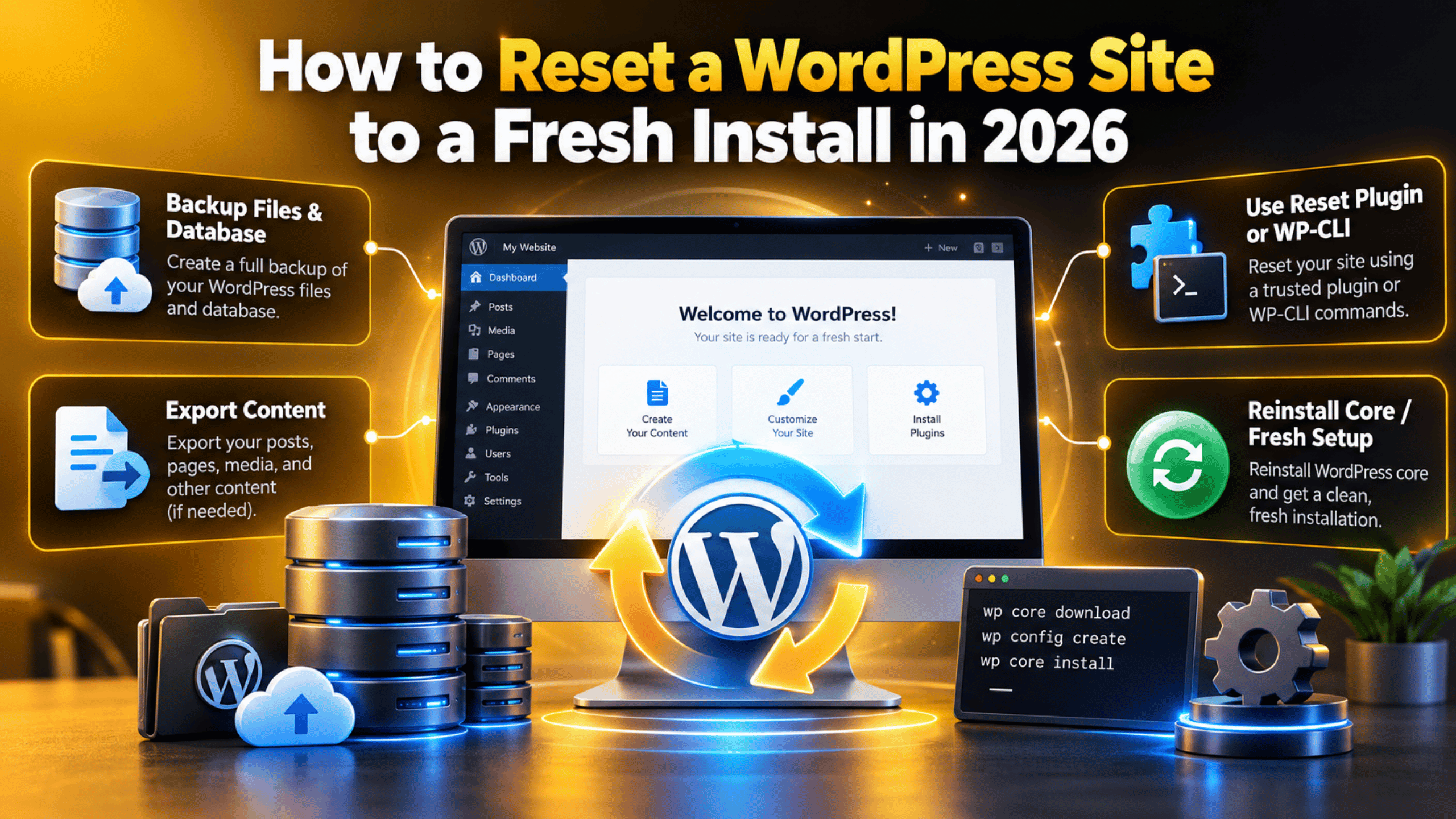
How to Reset a WordPress Site to a Fresh Install in 2026
Introduction
Sometimes a site is easier to rebuild than to untangle. A test site fills up with half-finished pages. A client project needs a clean slate. A theme demo leaves behind content you never wanted. Resetting takes the site back to the state it was in the day WordPress was installed, without deleting WordPress itself. This guide explains what a reset really removes, how it differs from uninstalling, and four ways to do it safely in 2026.
What Resetting a WordPress Site Actually Does
A reset empties the database tables WordPress uses for your content and settings, then rebuilds them the way a brand new install would. Your posts, pages, comments, media entries, categories, tags, menus, widgets and options all disappear. WordPress itself stays exactly where it is.
Your administrator account survives too. That is the point of a reset rather than a wipe. You stay logged in, and you land on a dashboard that looks like day one.
Two things usually stay on disk unless you go out of your way to remove them. The first is your uploads folder, which still holds every image file even though the media library no longer lists them. The second is your plugin and theme files, which remain installed but switch off. Most reset tools ask whether you want those cleared as well.
Your site address, your database credentials and your WordPress configuration file are untouched. The site keeps working at the same URL the moment the reset finishes.
Reset, Reinstall or Uninstall: Which One Do You Need?
These three words get used as if they mean the same thing. They do not, and picking the wrong one costs you either time or data. Work out which outcome you actually want before you touch anything.
A reset clears your content and settings but keeps WordPress installed and keeps you logged in. Choose this when the software is fine and only the content is in the way. A rebuilt client site, a cluttered staging copy or an abandoned experiment all suit a reset.
A reinstall replaces the WordPress core files while leaving your database alone. Your content survives. Choose this when core files look damaged, when an update failed halfway, or when you suspect a file has been tampered with. It fixes the software, not the content.
An uninstall removes everything, including WordPress and usually the database. Nothing is left at that address. Choose this only when the site is finished for good. Our guide on uninstalling WordPress from cPanel covers that path in detail.
If you are only locked out rather than starting over, you do not need any of these. A password reset solves that in a couple of minutes.
Before You Reset: Five Things to Save First
A reset cannot be undone. There is no confirmation screen that hands your posts back an hour later. Take these five steps before you start, even on a site you are certain you no longer need.
Take a full backup. This means the database and the files together, downloaded to your own computer rather than left on the server. If you change your mind tomorrow, this backup is the only way back. Safer still, do the reset on a staging copy first and see what you get.
Export your content. Go to Tools → Export, choose All content, and download the XML file. It is small, and it lets you bring posts and pages back into a fresh site through Tools → Import later.
Write down your plugin and theme list. Open Plugins → Installed Plugins and copy the names, then note your active theme. Rebuilding that list from memory a week later is slow and error-prone.
Save your media. Download the uploads folder over SFTP or through your file manager. Even when a reset leaves those files on disk, the library entries that point at them will be gone.
Note your key settings. Screenshot your permalink structure, your site title and tagline, your timezone, and any licence keys. Small settings are the ones people forget, and they are annoying to hunt down twice. Our guide to managing and deleting WordPress media files is useful if you want to slim the folder before saving it.
Method 1: Reset by Hand From the Dashboard
You do not need any extra software to clear a small site. Doing it by hand takes longer, but nothing is hidden from you and nothing is deleted that you did not click. This suits a site with a handful of posts and pages.
Start with the content. Go to Posts → All Posts, tick the box in the header row to select everything, choose Move to Bin and apply. Open the Bin tab and choose Empty Bin. Repeat the same steps under Pages and Comments.
Next clear the media library. Go to Media → Library, switch to list view, select all and delete permanently. This removes both the library entries and the files themselves, so make sure your download finished first.
Then tidy the structure. Delete unused categories and tags under Posts → Categories and Posts → Tags. Clear your menus under Appearance → Menus and your widgets under Appearance → Widgets.
Finish with plugins and themes. Deactivate every plugin from Plugins → Installed Plugins, then delete the ones you will not use again. Our walkthrough on deleting a WordPress plugin properly explains why deleting beats deactivating. Switch to a default theme under Appearance → Themes and remove the rest.
One thing this method cannot do is remove leftover database rows that plugins created. Those stay behind. For a truly clean slate, use one of the methods below.
Method 2: Reset With a Reset Plugin
Reset plugins exist for exactly this job, and they are the fastest option for anyone without command line access. Search for a site reset plugin under Plugins → Add New, and pick one with a large install base and a recent update date.


Once installed, the tool adds a page under Tools. It will ask you to type a confirmation word before it does anything, which is a deliberate speed bump rather than an inconvenience. Read the options on that page carefully before you confirm.
Most of these tools let you choose what survives. Common options include keeping your current theme active, keeping specific plugins active, keeping your uploads folder, and keeping your site title. Tick only what you genuinely want to carry over.
The reset itself usually takes a few seconds. WordPress logs you straight back in and drops you on a dashboard with a single sample post, exactly as a new install looks. Install the reset tool on a staging copy first if you have never used it before, so you can see precisely what it removes without risking the real site.
Method 3: Reset From the Command Line With WP-CLI
If your host gives you SSH access, the command line is the cleanest and quickest route. WP-CLI is the official WordPress command line tool, and it is preinstalled on many hosting plans. Our introduction to WP-CLI and SSH in WordPress covers how to connect.
Export a database backup before you run anything. The database export command writes a copy into your site folder in a few seconds, and it is your only safety net here. Download that file before going further.
The gentler command empties the site. It deletes all posts, pages, comments and terms while leaving users, settings, plugins and themes exactly as they are. Add the uploads flag if you also want the uploads folder cleared.
The heavier command resets the database itself. It drops every table and gives you an empty database, which means WordPress will ask you to run the famous five minute install again. Use this only when you want the database rebuilt from scratch.
Two more commands are worth running afterwards. One deactivates every plugin at once, and the other activates a default theme so you get back to a standard look. If anything behaves oddly later, our guide on repairing a WordPress database covers the recovery options.
Method 4: Start Over With a Clean Install
Sometimes a reset is not enough. If the site has been running for years, has passed through several owners, or you suspect the database holds something you cannot account for, a genuine fresh install is the safer choice.
The approach is straightforward. Delete the WordPress files from your web folder, create a new empty database in your control panel, upload a fresh copy of WordPress, and run the installer. You get software and database that share no history with the old site.
Many control panels include a one-click installer that does all of this for you. Look for the WordPress option, choose the same domain, and let it create a new database rather than reusing the old one. Reusing the old database defeats the purpose.
This route deletes everything, so your backup matters more here than anywhere else. Keep the old database export somewhere safe for a few weeks. If you later find a page you needed, you can still pull the text out of that file.
What to Check After the Reset
A reset leaves a few loose ends that are easy to miss on the day and annoying to discover a month later. Run through this short list before you start rebuilding.
Reset your permalinks. Go to Settings → Permalinks, choose your preferred structure and save, even if it already looks correct. Saving rewrites the rules and clears out stale ones.
Clear every cache. Caching plugins and server caches will happily serve pages that no longer exist. Flush them all, then load the site in a private window to confirm. Our guide on clearing the WordPress cache covers each layer.
Check Site Health. Open Tools → Site Health and read the report. It will flag an outdated PHP version, a missing update or a broken REST API before those turn into real problems. Our Site Health guide explains what each warning means.
Block search engines while you rebuild. Tick the discourage search engines box under Settings → Reading so a half-built site does not get indexed. Set a calendar reminder to untick it on launch day, because this is the single most commonly forgotten setting in WordPress.
Confirm your admin account still works. Log out, log back in, and check that your user still has the administrator role under Users → All Users.
Bringing It All Together
Resetting a WordPress site is quick once you know which outcome you want. A reset clears content and settings while keeping WordPress and your login. A reinstall replaces core files but keeps your content. An uninstall removes everything.
Whichever route you take, the order matters more than the method. Back up first, export your content, note your plugins and settings, and work on a staging copy where you can. Then reset by hand for a small site, with a reset tool for speed, or from the command line when you have SSH access. A genuine fresh install is the right call when the site has a long or unclear history.
Finish by resaving your permalinks, clearing every cache and reading the Site Health report. Keep the old backup for a few weeks after the reset. It costs nothing to store, and it is the one thing that turns a painful mistake into a five minute fix.
If you would rather someone else handle the reset, the backup and the rebuild, our team works on WordPress sites every day. Visit 24×7 WP Support and tell us what you are starting from.

Brian is a WordPress support specialist and content contributor at 24×7 WP Support. He writes practical, easy-to-follow guides on WordPress troubleshooting, WooCommerce issues, plugin and theme errors, website security, migrations, performance optimization, and integrations. With a focus on solving real website problems, Brian helps business owners, bloggers, and online store managers keep their WordPress sites running smoothly.
