
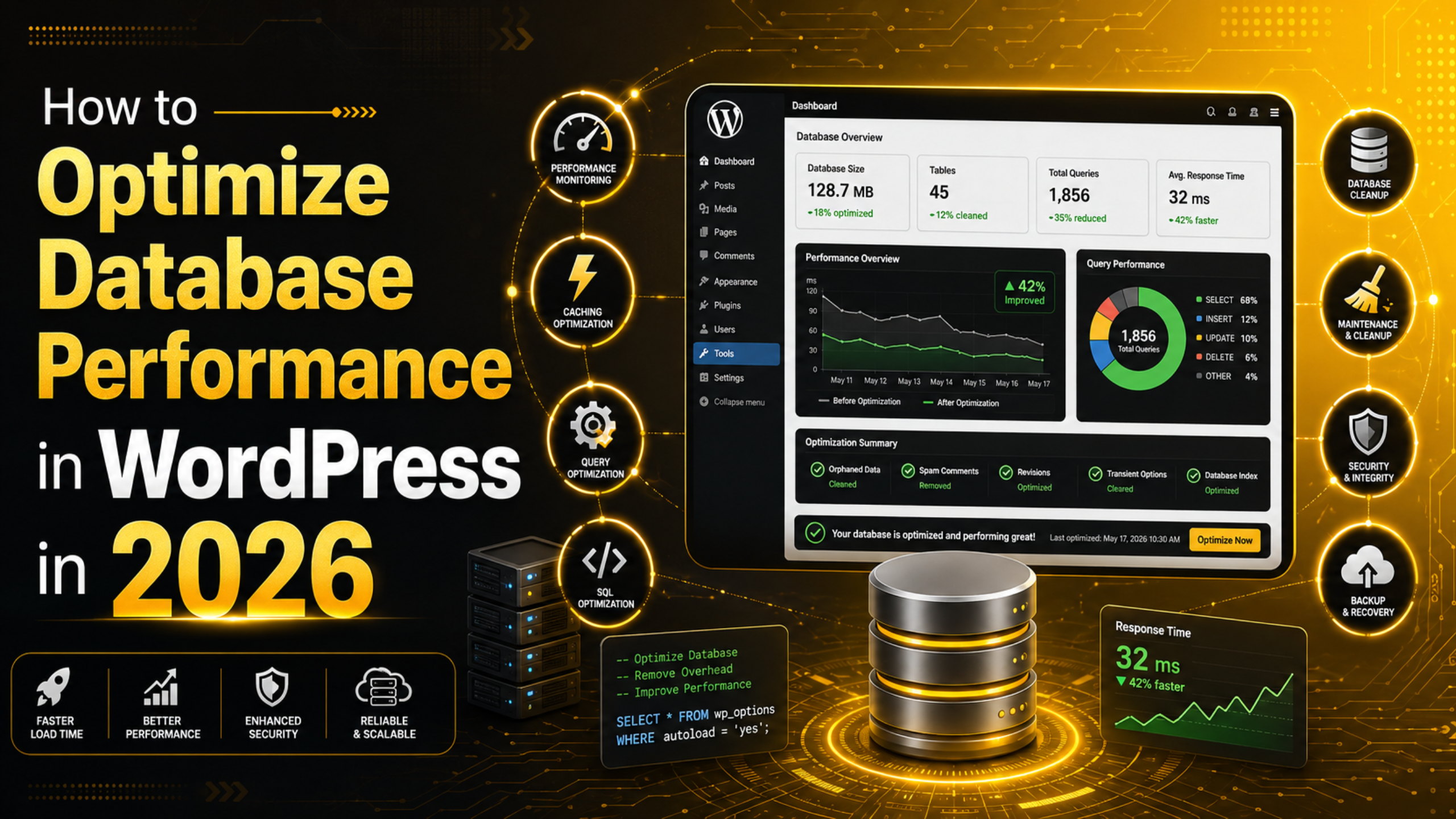
How to Optimize Database Performance in WordPress in 2026
Last updated on August 12th, 2026 at 08:00 am
Your WordPress database is the engine room of your website. Every post, comment, setting, and plugin option lives inside it, and every page load asks it questions. When that database is lean and well organised, your site feels fast. When it becomes bloated and cluttered, pages crawl, the admin area lags, and visitors lose patience. Optimising database performance is one of the highest-impact, most overlooked ways to speed up a WordPress site in 2026.
The good news is that you do not need to be a developer to make a real difference. This guide walks through why databases slow down, how to spot the warning signs, and the practical steps you can take to keep yours running smoothly, safely, and for the long term.
Why Your WordPress Database Slows Down Over Time
A fresh WordPress install has a small, tidy database. As your site grows, so does the data behind it. Every time you save a draft, WordPress may store a revision. Every plugin you install can add its own tables and options. Spam comments pile up, expired temporary data lingers, and deleted items leave traces behind.
Over months and years, this accumulation turns a slim database into a heavy one. The database still works, but it has to sift through far more rows to answer each query. That extra effort adds milliseconds to every request, and those milliseconds add up into sluggish page loads and a slow dashboard.
Signs Your Database Needs Optimization
How do you know it is time to act? A few common symptoms point to a database that has grown unwieldy. Your admin dashboard feels slow to load or save. Pages take longer to appear even though your images and theme have not changed. Search on your site returns results slowly. You notice your hosting resource usage creeping up without a matching rise in traffic.
Sometimes the trouble shows up as errors rather than sluggishness. If you ever run into an error establishing a database connection, that is a sign the database is under strain or misconfigured, and it deserves attention before it becomes a bigger outage.
Always Back Up Before You Optimize
Before you change anything, make a complete backup of your database and files. Optimisation involves deleting data, and while the steps below are safe when done carefully, mistakes happen. A recent backup means you can restore your site in minutes if something goes wrong.
Use a trusted backup method or ask your host to create a restore point. Store the backup somewhere off the server, such as cloud storage or your own computer. Never run cleanup queries on a live site without a safety net. This single habit separates a smooth optimisation from a stressful recovery.
Clean Up Post Revisions, Drafts, and Trash
Post revisions are one of the biggest sources of database bloat. Every time you edit and save a post, WordPress can keep a full copy of the previous version. A single article edited dozens of times might store dozens of revisions, each taking up space and adding rows to your tables.
You can limit how many revisions WordPress keeps by adding a simple line to your configuration, or clear old ones out entirely. Auto-drafts and trashed posts also accumulate, so empty the trash regularly. Reducing revisions alone can shrink a bloated database noticeably and speed up queries that scan the posts table.
Set a sensible revision limit
Rather than banning revisions completely, keep a small number so you still have a safety history. Limiting revisions to the last handful of edits gives you the best of both worlds: protection against mistakes without letting old versions pile up forever.
Remove Spam and Unapproved Comments
Spam comments are another silent contributor to database bloat. Even if you never approve them, they can sit in your database taking up space and slowing down comment queries. Emptying spam and trash from your comments section clears out this dead weight.
If your site attracts a lot of spam, consider tightening your comment settings so junk never reaches the database in the first place. Prevention is always lighter on your database than cleanup, and it saves you from repeating the same chore every month.
Delete Expired Transients
Transients are temporary pieces of data that WordPress and plugins store to speed things up, such as cached query results or remote API responses. Each transient has an expiry time, but expired transients are not always removed automatically. Over time they can build up into thousands of stale rows in the options table.
Clearing expired transients is a safe and effective cleanup step. WordPress will simply regenerate any it still needs. Removing the stale ones trims the options table, which is queried on nearly every page load, so the payoff is felt site-wide.
Clear Out Orphaned Metadata
When you delete a post, comment, or user, related metadata is not always fully removed. The same happens when you uninstall plugins that leave their data behind. These orphaned rows point to content that no longer exists, yet the database still stores and scans them.
Cleaning up orphaned post meta, comment meta, and user meta reduces clutter in some of the busiest tables in your database. Because these tables are consulted constantly, keeping them tidy has an outsized effect on overall responsiveness.
Optimize Your Database Tables
Beyond deleting unneeded data, you can defragment and reorganise your tables so they use space efficiently. In database terms this is the OPTIMIZE operation, and it reclaims wasted space left behind after lots of deletions and updates.


You can run this through a management tool your host provides. If you are comfortable working in phpMyAdmin, you can select your tables and choose the optimise option directly. If a table ever becomes corrupted, a similar tool lets you repair the database in WordPress before continuing. Always work from a backup and avoid touching tables you do not understand.
Tame Autoloaded Data
WordPress loads certain options on every single page request. This is called autoloaded data, and it is meant to be small and fast. The problem is that some plugins add large amounts of autoloaded data, or leave it behind after being removed. When autoloaded data grows too large, every page load carries extra baggage.
Reviewing your autoloaded options and trimming what is unnecessary can produce an immediate speed improvement. Because this data is fetched constantly, even a modest reduction is felt across the whole site. This is one of the most rewarding optimisations for busy, plugin-heavy websites.
Reduce Database Load with Caching
Optimisation is not only about cleaning; it is also about asking the database fewer questions. Caching stores the results of expensive work so the database does not have to repeat it for every visitor. A good caching setup can dramatically cut the number of queries your site runs.
Object caching keeps frequently used query results in memory, while page caching serves ready-made pages without touching the database at all. If you have not set this up yet, learning how to add and enable caching in WordPress is one of the best companions to database cleanup. Just remember to clear your WordPress cache after making big changes so visitors see the latest version.
Choose Efficient Plugins
Plugins are often the hidden cause of database strain. Some create heavy tables, run frequent queries, or store enormous logs. Before installing anything new, consider how it will treat your database, and deactivate plugins you no longer use.
When a plugin is removed, check whether it cleaned up after itself. Many leave tables and options behind. Auditing your plugins once or twice a year keeps your database from carrying the weight of tools you abandoned long ago. Fewer, better-behaved plugins almost always mean a faster site.
Keep an Eye on Database Size and Queries
You cannot improve what you do not measure. Periodically check the size of your database and which tables are the largest. A table that balloons far beyond the others is usually a clue that a specific plugin or feature needs attention.
Monitoring slow queries helps too. If certain pages consistently take longer, the cause is often an inefficient query or a missing index. Spotting these patterns early lets you fix the root cause instead of endlessly cleaning up symptoms. Regular monitoring turns database care from a rescue mission into a simple routine.
Many hosting dashboards include basic database statistics, and lightweight tools can show you query counts per page. You do not need enterprise software to stay informed. A quick monthly glance at your largest tables and slowest pages is usually enough to catch trouble before your visitors ever notice it, and it gives you confidence that your cleanup efforts are actually working.
Build Ongoing Maintenance Habits
Database optimisation is not a one-time task. Data accumulates continuously, so the best results come from a light, regular routine rather than a rare deep clean. Schedule a monthly check to empty trash, clear spam, remove expired transients, and optimise your tables.
Set your revision limit once so bloat is controlled automatically. Keep plugins lean and updated. Maintain reliable backups so every cleanup is risk-free. These small habits compound over time, keeping your site fast in 2026 and well beyond without dramatic intervention.
When to Bring in the Experts
Some database work is straightforward, but deeper issues, such as adding custom indexes, restructuring queries, or diagnosing a table that keeps corrupting, call for experienced hands. If your site is mission-critical, high-traffic, or simply too important to risk, professional help is a smart investment rather than an expense.
A missed step during database work can take a site offline, so there is no shame in asking for support. The right team can optimise safely, set up automated maintenance, and give you a database that stays fast without constant attention.
Final Thoughts
A fast WordPress site starts with a healthy database. By cleaning up revisions, spam, transients, and orphaned data, optimising your tables, taming autoloaded options, and leaning on caching, you can transform a sluggish site into a snappy one. Pair those fixes with steady maintenance habits and reliable backups, and your database will stay in top shape all year long.
If you would rather leave the heavy lifting to specialists, or you want a thorough performance overhaul done safely, the expert team at 24×7 WP Support can optimise your WordPress database, set up smart caching, and keep your site fast and secure around the clock. Reach out today and give your website the strong foundation it deserves.
Related posts:

Brian is a WordPress support specialist and content contributor at 24×7 WP Support. He writes practical, easy-to-follow guides on WordPress troubleshooting, WooCommerce issues, plugin and theme errors, website security, migrations, performance optimization, and integrations. With a focus on solving real website problems, Brian helps business owners, bloggers, and online store managers keep their WordPress sites running smoothly.
