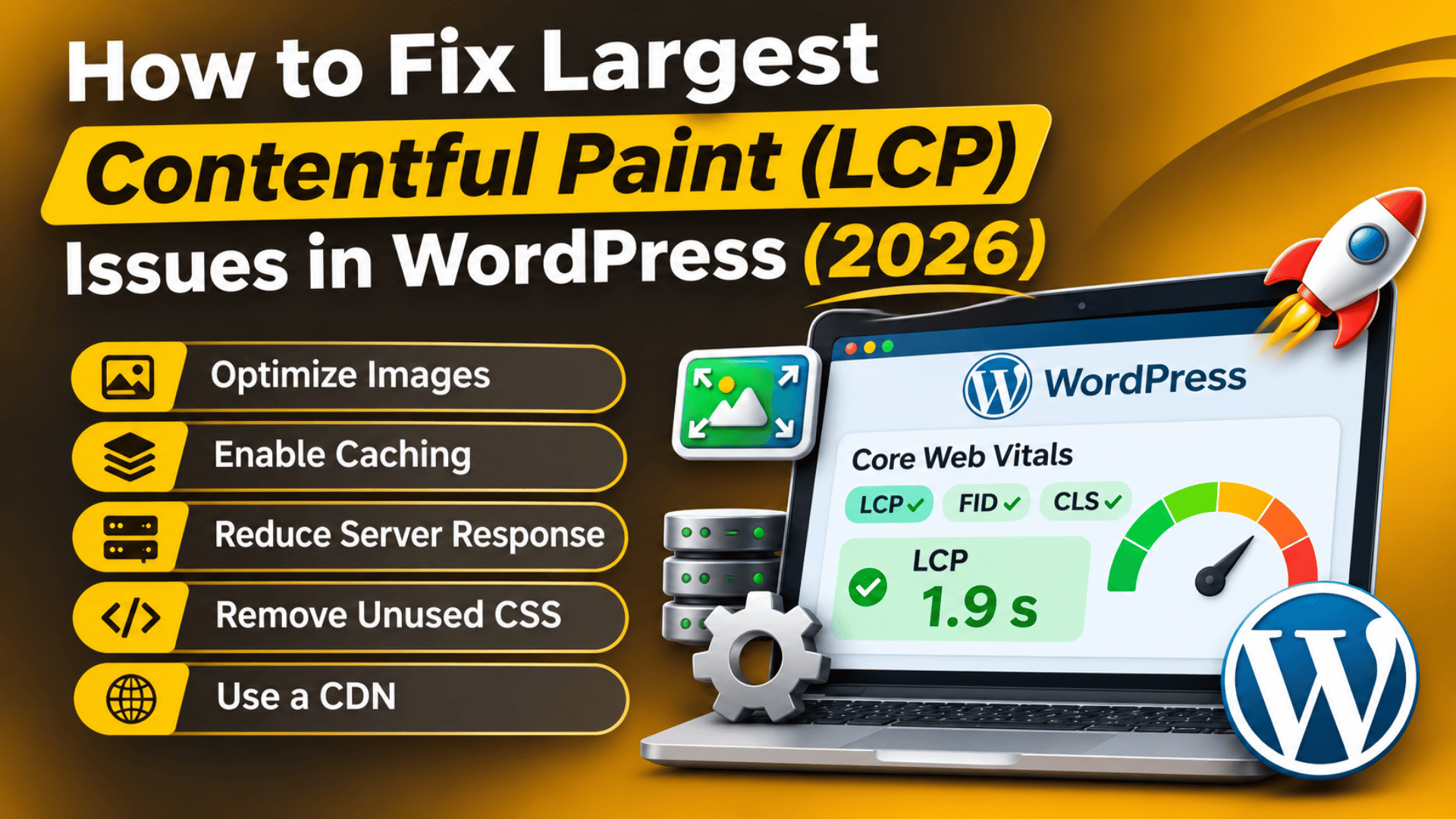
How to Fix Largest Contentful Paint (LCP) Issues in WordPress (2026)
Introduction
Largest Contentful Paint, or LCP, measures how long your page takes to show its biggest visible item. That item is usually a hero image, a product photo, or a large block of text. If LCP is slow, visitors stare at a half-empty page. Many of them leave before it finishes.
Google uses LCP as one of its three Core Web Vitals. A good score is 2.5 seconds or less. A score above 4 seconds is rated poor. A slow LCP can hurt both your search visibility and your sales, especially on a WooCommerce store where every second counts at checkout.
This guide explains what LCP is and why it goes wrong on WordPress sites. You will learn the main causes and what a slow score costs you. You will also learn how to measure it with free tools, and how to fix it step by step. The fixes run from simple settings to deeper server checks. We end with habits that keep the score healthy. Take a full backup before you change anything on a live site. If you can, test each change on a staging copy first.
What Is Largest Contentful Paint in WordPress?
LCP is a timing. It records how many seconds pass between the moment a visitor starts loading your page and the moment the largest item in the first screen is fully drawn. The browser picks that item on its own. On most pages it is one of four things: an image, a video poster image, a block of text, or an element with a CSS background image.
WordPress does not control this timing alone. Your hosting server, theme, plugins, images, fonts, and caching all take part. That is why two sites on the same theme can have very different scores.
What the visitor sees. A slow LCP looks like a blank or half-built page. The menu may show up first, then a long pause, then a big banner pops in. On a store, the product photo appears last, so shoppers feel the page is broken or slow.
What the admin sees. In PageSpeed Insights you will see a warning that reads “Largest Contentful Paint element” with the exact image or text block named. The Core Web Vitals report in Google Search Console groups slow URLs under “Poor” or “Needs improvement”.
Lab data and field data. Lab data comes from a single test run on a simulated device. Field data comes from real visitors over the last 28 days. Field data decides how Google rates your site, so use lab tests to find problems, then watch field data to confirm the fix worked.
The four parts of LCP. Every LCP time is the sum of four parts: server response time, the delay before the browser starts loading the main item, the time the item takes to download, and the delay before it is painted. Knowing which part is largest tells you where to start.
What Causes Slow LCP on a WordPress Site?
Slow LCP is rarely caused by one thing. It is usually a stack of small delays. Here are the causes we see most often on WordPress and WooCommerce sites.
Slow server response. If the server takes more than about 600 milliseconds to send the first byte, every other step starts late. Weak shared hosting, an old PHP version, and heavy database queries all slow this first step. A site without page caching builds each page from scratch for every visitor.
Oversized images. A 3 MB photo used as a hero banner is the classic culprit. Many themes also load the full-size file and shrink it with CSS. The browser still has to download every byte.
Lazy loading on the main image. Lazy loading tells the browser to wait before loading an image. That is great for images lower on the page. It is harmful for the top image, because the browser delays the very item it needs first. Some themes and optimization plugins add lazy loading to every image, including the hero.
Render-blocking CSS and JavaScript. The browser will not draw the page until it has loaded the styles it needs. Large theme stylesheets, many plugin stylesheets, and scripts placed in the page head can all hold the paint back.
Slow web fonts. When your main headline is the LCP element, the text cannot show until the font file arrives, unless you tell the browser to use a fallback font first.
Heavy sliders and page builders. Sliders often load a script before they show the first slide. Page builders can add deep layers of markup and extra scripts. Both push the main image later in the loading order.
Missing or broken caching. Without browser caching and page caching, repeat visitors download the same files again. A misconfigured cache can also serve stale or uncompressed files. If you are not sure how this works, read our guide on how to clear the WordPress cache.
Plugin and theme conflicts. Two plugins that both optimize scripts can undo each other. A plugin may also load its files on every page when it is only needed on one. Our post on WordPress plugin conflicts explains how to spot this.
Outdated PHP and low memory. Old PHP versions run slower and use more memory. When memory runs low, pages take longer to build or fail. You can read how to check your WordPress PHP version in a few clicks.
What Is the Impact of Slow LCP on the Website?
A slow LCP is more than a bad number. It changes how real people behave on your site and how search engines see it. Here is what it can affect.
Bounce rate and engagement. Visitors who wait several seconds for the main content are more likely to leave. Mobile users on slower networks leave fastest. Every lost visitor is a lost chance to read, subscribe, or buy.
Conversions and checkout. On a WooCommerce store, a slow product page delays the add-to-cart button, because shoppers wait for the page to settle before they trust it. Slow shop and category pages also push buyers back to search results.
Search visibility. Core Web Vitals are a ranking signal. They are not the strongest one, but when two pages are close in quality, a faster page can have the edge. Search Console also lists slow URL groups, so problems show up in its reports.
Ad and affiliate income. If your income comes from ads or affiliate links, slower pages mean fewer page views per visit and fewer clicks.
Server load. The same things that cause slow LCP, such as large files and uncached pages, also raise CPU and bandwidth use. This can push you toward a hosting upgrade you could have avoided.
Trust and brand feel. A page that builds in pieces looks unfinished. Customers judge a store by how it feels in the first few seconds, long before they read a word.
Layout shifts that often come with it. Late-loading images with no set size also cause content to jump. That hurts Cumulative Layout Shift, another Core Web Vital, and makes the page feel unstable.
How to Identify LCP Problems on Your Website
Before you fix anything, find out which item is slow and why. Start with what you can see, then move to the tools. The steps below move from easy to technical.
Sign: the hero area appears last. If the menu and text appear but the big banner arrives seconds later, the image is likely too heavy or is being lazy loaded.
Sign: the page looks fine on desktop but not on a phone. Mobile devices have slower processors and networks. A page that feels fast on your laptop can be slow for most visitors.
Sign: PageSpeed Insights shows red or orange LCP. Open PageSpeed Insights, enter the URL, and look at the mobile tab first. Under diagnostics, open “Largest Contentful Paint element”. It names the exact element and breaks the time into the four parts.
Sign: Search Console lists poor URLs. In Google Search Console, open Experience, then Core Web Vitals. Look at the mobile report. It groups similar URLs, so a single template problem shows up as one big group.
Tool: Chrome DevTools. Press F12, open the Performance tab, and record a page load. The timeline marks the LCP point. Click it to see which element it was. The Network tab shows which files downloaded before it and how big they were.


Tool: Tools, then Site Health. In the WordPress dashboard, go to Tools, then Site Health. Check the Status tab for notes about PHP version, persistent object cache, and outdated plugins. Site Health will not name LCP, but it points to slow foundations.
Tool: WooCommerce, then Status. On a store, open WooCommerce, then Status. Review the PHP version, memory limit, and the list of active plugins and the theme. A low memory limit and many active plugins both deserve attention.
Tool: Debug log. If the page also throws errors, turn on WP_DEBUG and WP_DEBUG_LOG in wp-config.php, after a backup. Then read the wp-content/debug.log file. Repeated notices from one plugin often mean slow code. Turn debugging off again when you are done.
Tool: Plugin and theme test. Switch to a default WordPress theme on a staging copy and test again. If LCP improves a lot, the theme is the main cause. Then deactivate plugins in small groups and test after each group.
Tool: Server timing. Check the time to first byte in the Network tab. Anything near or above one second points to the server, not to the images. Our guide on why your WordPress site is slow goes deeper on this step.
Tool: WP-CLI. If you have shell access, run wp plugin list to see active plugins and wp db size to see how large the database is. Run these on staging first, or take a backup before you change anything.
How to Fix LCP Issues in WordPress
Work through these steps in order. They start with the safest and cheapest changes. Test with PageSpeed Insights after each one, so you know what helped. Back up the site before you start, and use a staging copy for the riskier steps.
Step 1: Find the exact LCP element. Run PageSpeed Insights on mobile and note the element it names. Every later step depends on this. If it is an image, you will work on size, format, and priority. If it is text, you will focus on fonts and CSS. Write the element down so you can check it again after each change.
Step 2: Resize and compress the main image. Open the file and check its real size. A hero banner rarely needs to be wider than 1600 pixels. Aim for under 200 KB if you can. Re-upload a smaller version in the Media Library. Our guide to the best image optimization options shows how to do this in bulk.
Step 3: Use a modern image format. WebP files are often much smaller than JPEG files at the same quality. WordPress supports WebP uploads. See our post on using WebP images in WordPress for the exact steps. If the page looks the same and the number drops, it worked.
Step 4: Stop lazy loading the top image. Recent WordPress versions skip lazy loading for the first large image, but themes and optimization plugins can override that. In your optimization plugin settings, look for a lazy load option and exclude the hero image, or exclude the first image on the page. A successful result is that the image starts downloading right away in the Network tab.
Step 5: Load the main image with high priority. The browser can be told to fetch one image first. This is called fetch priority. Recent WordPress versions add it to the likely LCP image. If your theme does not, ask your developer to add the fetchpriority attribute with the value high to that single image. Use it on one image only, or it stops helping.
Step 6: Turn on page caching and compression. A cached page is built once and served to many visitors. This cuts server response time sharply. Enable page caching in your caching plugin or in your host panel, and make sure Gzip or Brotli compression is on. Then clear the cache. If the time to first byte drops, caching was the missing piece.
Step 7: Reduce render-blocking files. In your optimization settings, enable CSS minification and defer non-critical JavaScript. Change one option at a time and check the front end after each change. If a menu or slider breaks, undo that option. Deferring scripts is powerful but can clash with some themes, so test on staging.
Step 8: Preload fonts and use a fallback. If your LCP element is text, host your fonts on your own server, preload the main font file, and add font-display: swap in the CSS. This lets text show in a fallback font while the real font loads. Our post on reducing HTTP requests also covers removing extra font files.
Step 9: Replace or simplify heavy sliders. If a slider is the LCP element, try a single static hero image instead. Static images load faster and give a more stable layout. If you must keep the slider, make sure only the first slide loads at the start.
Step 10: Use a content delivery network. A CDN stores copies of your files in many locations, so visitors download them from a nearby server. This helps most when your audience is spread across countries. Read our list of the top free CDN options for WordPress before you choose.
Step 11: Rule out plugin and theme conflicts. Back up first. Then deactivate plugins in small groups on a staging copy and test LCP each time. Once you find the slow one, update it, replace it, or ask the author for a fix. Our guide on plugin conflicts on a WooCommerce store shows a safe testing method.
Step 12: Upgrade PHP and check server resources. Move to a currently supported PHP version in your host panel, after a backup and a staging test. Check that your memory limit is at least 256 MB for WooCommerce. If the time to first byte stays high after every other step, ask your host about server load, or look at the slow dashboard guide for database clues.
If you have worked through all twelve steps and the score is still poor, the cause may sit deeper in the theme code or the server setup. At that point, a short technical review is the fastest route. We are happy to take a look at your site if you would like another pair of eyes.
How to Prevent LCP Problems in the Future
Good LCP is not a one-time fix. New plugins, new images, and new updates can all bring the problem back. A few steady habits keep your score safe.
Set an image rule for every upload. Decide a maximum width and file size for hero and product images. Share it with everyone who edits content. Most slow LCP issues begin with one large upload.
Test updates on staging. Update plugins, themes, and WordPress itself on a staging copy first, and compare PageSpeed results before and after. Our guide on how to update a WordPress website walks through a safe update routine.
Keep regular backups. Take a backup before every major change so you can roll back a change that hurt speed. See how to back up and restore WordPress and WooCommerce.
Watch field data monthly. Check the Core Web Vitals report in Search Console once a month. Field data lags by up to 28 days, so a regular check catches slow drift early.
Limit plugins and scripts. Every active plugin can add files. Remove plugins you no longer use, and avoid two tools that do the same job.
Keep PHP and the database healthy. Use a supported PHP version. Clear expired transients and old revisions on a schedule, after a backup. Our post on repairing the WordPress database covers the basics.
Review caching rules. After any theme or plugin change, clear caches and confirm that your hero image is still excluded from lazy loading. Also confirm that compression still works.
Choose hosting that fits your traffic. If traffic grows, so does server work. Move to a plan with more resources before slowdowns begin. For a wider view, see our guide to Google PageSpeed Insights.
Conclusion
Largest Contentful Paint measures how fast the biggest item on your page appears. It goes wrong when the server is slow, the main image is too big, or lazy loading and blocking files get in the way. Slow fonts, heavy sliders, weak caching, and clashing plugins add more delay.
The impact is real. Visitors leave, stores lose sales, and search results can suffer. To find the cause, run PageSpeed Insights, read the Search Console report, and use Chrome DevTools, Site Health, and a plugin test. Then fix the problem in order: resize and convert the main image, stop lazy loading it, enable caching, trim blocking files, fix fonts, and check the server.
Prevent the problem with upload rules, staging tests, backups, and a monthly look at field data. Always back up before you change a live site. If you would like help with a stubborn score, our team at 24×7 WP Support works on WordPress and WooCommerce speed problems every day and can review your site with you.
Related posts:
What Is a WordPress Child Theme and When Should You Use One in 2026?

WordPress Divi Theme Installation Failed: Could Not Create Directory Fix

How to Reduce HTTP Requests in WordPress: 2026 Speed Guide
Does WordPress Creator Include Hosting? Full 2026 Breakdown

How to Start a Blog on WordPress: Complete Beginner's Guide

Brian is a WordPress support specialist and content contributor at 24×7 WP Support. He writes practical, easy-to-follow guides on WordPress troubleshooting, WooCommerce issues, plugin and theme errors, website security, migrations, performance optimization, and integrations. With a focus on solving real website problems, Brian helps business owners, bloggers, and online store managers keep their WordPress sites running smoothly.