
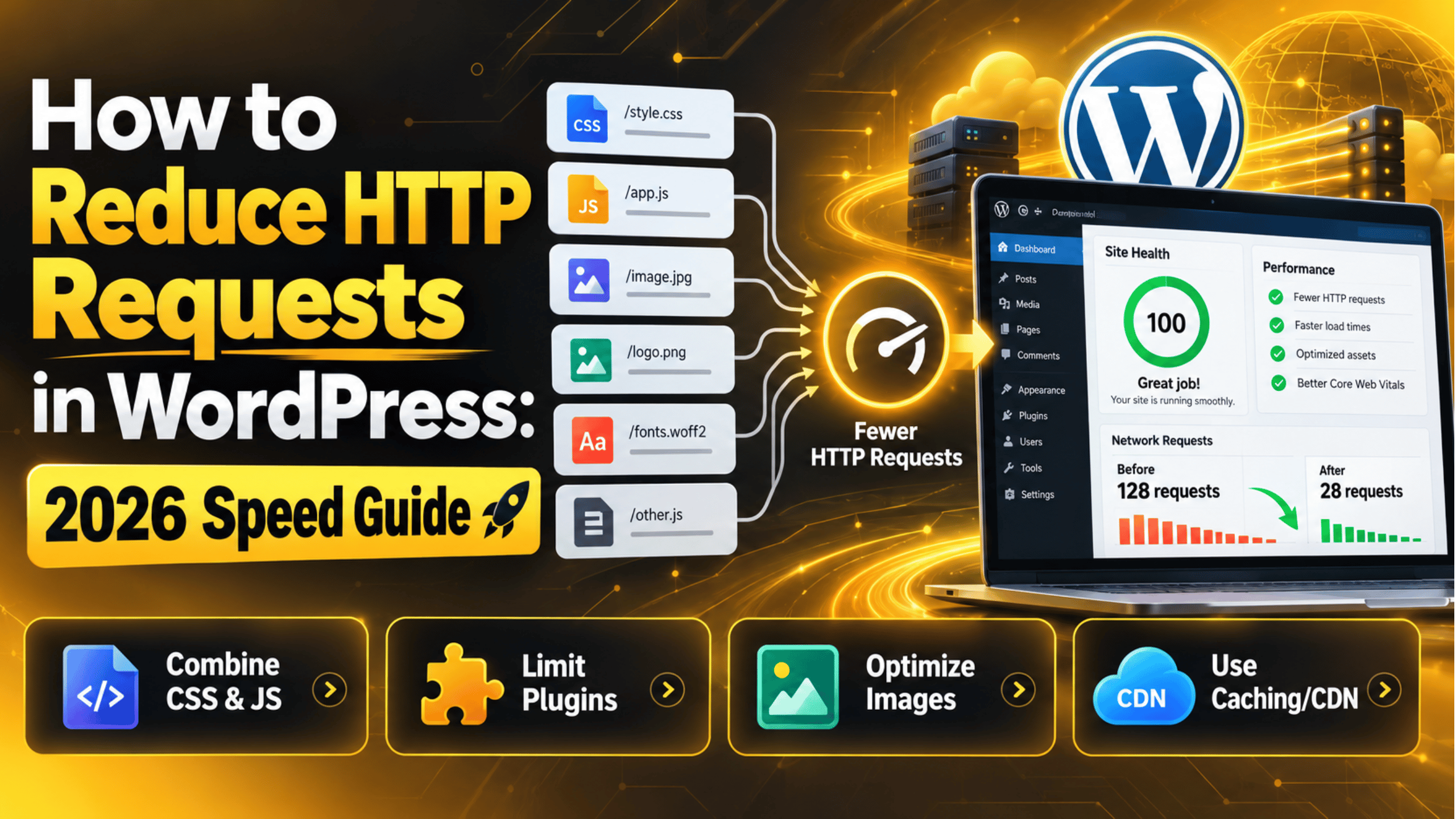
How to Reduce HTTP Requests in WordPress: 2026 Speed Guide
Every WordPress page is built from many small files. The visitor’s browser asks your server for each one, and each ask is an HTTP request. A typical WordPress page makes 50 to 100 of them. This guide shows you how to count the requests on your site, find the ones you do not need, and remove them safely. You will also see which old advice still helps in 2026.
What an HTTP Request Actually Is
An HTTP request is one message from a browser to a server. The browser says, “send me this file,” and the server sends it back. Your page needs one request for the HTML, then more for every stylesheet, script, image, font and icon on the page.
Here is a simple example. A blog post loads the HTML, two stylesheets, four scripts, nine images, two font files and a tracking script. That is 19 requests. Add a slider, a contact form and a chat widget, and the count can double.
Requests are not all equal. A small file still needs a round trip to the server. A file hosted on another domain also needs a DNS lookup and a new secure connection. That setup work costs time even when the file is tiny.
This matters most on phones. Mobile networks have higher latency, which means each round trip takes longer. Cutting the number of files is often the cheapest speed win you can make on a WordPress site, because you do not need new hosting or new code to do it.
Why Fewer Requests Still Matter in 2026
Older speed guides said every extra file blocked the next one. That was true on HTTP/1.1, where a browser could only open a few connections at a time. Most hosts now run HTTP/2 or HTTP/3, which send many files over one connection at the same time. So the penalty for an extra file is smaller than it used to be.
It is smaller, not gone. Each request still uses server work, browser work and bandwidth. CSS in the page head blocks the first paint until it arrives. Scripts must be parsed and run, which costs CPU time on cheap phones. A page with 120 requests usually feels slower than the same page with 45.
Request count also drives your Core Web Vitals scores. Largest Contentful Paint suffers when the browser is busy fetching files it does not need yet. Interaction to Next Paint suffers when heavy scripts keep the main thread busy.
So treat the number as a health signal, not a target. A lean page with 40 requests suggests your plugins, theme and media are under control. A page with 150 suggests something is loading that nobody asked for.
How to Count the Requests on Your Site
Do not guess. Measure first, then change one thing at a time. Your browser’s built-in developer tools give you the exact number in under a minute, and they are free.
Open your site in a normal browser tab. Press F12 on Windows, or Command, Option and I on a Mac. Click the Network tab. Tick Disable cache so you see a first-time visit. Now reload the page.
Look at the status bar at the bottom of the panel. It shows something like “87 requests, 2.4 MB transferred”. That first number is your baseline. Write it down with the date.
Next, find out what those files are. The filter buttons at the top let you show only CSS, JS, Img, Font or Doc. Click each one and note the count. Most sites find that images and scripts are the two biggest groups.
Then add the Domain column. Right-click any column heading and tick Domain. Sort by it. Every domain that is not yours is a third-party script, and those are often the easiest requests to remove.
Repeat this on your home page, a blog post and your main landing page. They often load very different things. Test again after each change, so you know what worked.
Cut Plugins That Load Files on Every Page
Plugins are the most common source of surprise requests. Many add their own stylesheet and script to every page on your site, even pages that never use the feature. A form plugin may load on your home page. A gallery plugin may load on your contact page.
Start with an honest audit. Go to Plugins → Installed Plugins and read the list slowly. Deactivate anything you do not actively use, then delete it. Deactivating alone leaves the files on your server, and an old plugin left in place is also a security risk.
Watch for the usual heavy types: sliders, image galleries, social sharing bars, review widgets, chat boxes, pop-up builders and page analytics add-ons. Each one can add two to six requests on its own.
Be careful with changes on a live site. Before you deactivate anything, take a full backup of your site and database, or work on a staging copy. Deactivate one plugin at a time and check the pages that used it.
If a page breaks after a change, you have learned something useful. That is the same method used to find WordPress plugin conflicts. Re-run your Network count after the audit. Removing four unused plugins often removes 10 to 20 requests.
Trim What Your Theme and Builder Load
Your theme ships with its own files. A typical theme loads a main stylesheet, a few scripts, an icon font and sometimes a slider library. Heavier themes load far more, because they are built to support every layout a buyer might want.
Builder-made pages add another layer. Each block, widget or module can load its own small CSS and JS file. A long landing page with twenty modules can easily carry twenty extra files. Building the same page with native WordPress blocks usually loads less.
You can also stop single files from loading where they are not needed. WordPress uses wp_dequeue_style() and wp_dequeue_script() for this. Put the code in a child theme or a small site plugin, never in the parent theme, or your next theme update will wipe it out.
This is a code change, so back up first and test on staging. Here is the shape of it:
add_action( 'wp_enqueue_scripts', function () {
    if ( ! is_page( 'contact' ) ) {
        wp_dequeue_style( 'example-form-styles' );
        wp_dequeue_script( 'example-form-script' );
    }
}, 100 );
You need the handle, which is the name the file was registered under. The Network tab gives you the file name, and the theme file that loaded it is usually easy to trace from there. If this step feels risky, leave it to a developer.


Reduce Image Requests Without Hurting Design
Images are usually the largest group in the Network tab. Every image file is one request, so a gallery of 24 photos is 24 requests on its own. The fastest fix is design, not code: show fewer images above the fold and move big galleries to their own page.
Replace decorative images with CSS where you can. Background gradients, borders, shadows and coloured blocks all cost zero extra requests. A hero image with text baked into it can often become a plain background colour plus real text, which also helps SEO.
Use the right file format for the images you keep. Modern formats such as WebP images cut file size sharply with no visible quality loss. That does not lower the request count, but it lowers the weight each request carries.
Check your thumbnail settings too. Go to Settings → Media and keep only the sizes your theme uses. Extra sizes bloat your uploads folder and slow backups.
Finally, let the browser skip images nobody has scrolled to yet. WordPress adds loading="lazy" to most images by default, and you can review the behaviour in our guide to WordPress lazy loading. Lazy loading defers requests rather than deleting them, so your total stays the same while your first paint gets faster.
Fonts and Icon Libraries Add Up Fast
Web fonts are a quiet drain. Each family and each weight is a separate file. Two families with four weights each is eight font requests before a single word appears on screen.
Pick two families at most, and only the weights you use, which is usually regular and bold. Everything else can go. For the fastest result, use a system font stack, which loads no font files at all.
Self-hosting helps as well. A font served from your own domain reuses the connection the page already opened. A font from another domain needs a fresh DNS lookup and a fresh secure handshake. Our guide on adding custom fonts in WordPress walks through the upload route.
Icon libraries deserve the same scrutiny. Many themes load a full icon font so the page can show three arrows. Inline SVG icons cost zero extra requests because they live inside the HTML. Swapping an icon font for a handful of inline SVGs is one of the easiest wins available.
WordPress also loads its own icon font, Dashicons, on some front-end pages. If your theme does not use it, you can follow our steps to remove the Dashicons CSS and drop another file from every page load.
Control Third-Party Scripts
Third-party scripts are files loaded from someone else’s domain. Chat widgets, analytics tags, ad tags, map embeds, video embeds, review badges and font services all fall into this group. They are the requests you control least and benefit from most carefully.
One tag rarely stays one request. A single snippet often pulls in two or three more files, and those may pull in more again. That is why the Network tab can show a dozen domains you never added by hand.
Sort by the Domain column and list every outside domain you see. For each one, ask a blunt question: did this earn its place in the last 90 days? Marketing tags from an old campaign are very common and very easy to delete.
For video and map embeds, use a click-to-load approach. Show a static preview image, and only load the real embed when a visitor clicks it. Most visitors never click, so most visits never pay the cost.
Keep the tags you do need in one place. One tag container is easier to audit than six snippets pasted into your header over the years. Fewer snippets also means fewer causes to chase when you hit a slow dashboard.
Combine, Minify and Defer Safely, Then Keep It That Way
Optimisation settings are the last step, not the first. Clean up the files you do not need before you start merging the ones you do. Otherwise you are simply packaging junk more neatly.
Minification strips spaces and comments from CSS and JS. It is low risk and usually trims 10 to 30 percent of file size. Turn it on, clear your cache, and check a few pages.
Combining files merges many stylesheets or scripts into one. On HTTP/1.1 this helped a lot. On HTTP/2 and HTTP/3 the gain is smaller, and aggressive combining can break scripts by changing the order they run in. Test it, and switch it off if forms, sliders or checkout misbehave.
Deferring and delaying scripts is often the bigger win now. Deferred scripts run after the HTML is parsed. Delayed scripts wait until the visitor scrolls or taps. Both leave the request count the same while making the page usable sooner.
After every change, clear your cache so you test the new version. Our guide on how to clear the WordPress cache covers the layers people forget. Then re-run the Network tab count and compare it to your baseline.
To hold the gains, make this a habit. Re-check the count once a quarter, and after each new plugin, theme update or marketing tag. Keep a short note of what you removed and why.
If the numbers are not moving, or you would rather not touch theme code on a live site, our team can take a look. 24×7 WP Support works on WordPress performance, plugin clean-ups and ongoing maintenance.

Brian is a WordPress support specialist and content contributor at 24×7 WP Support. He writes practical, easy-to-follow guides on WordPress troubleshooting, WooCommerce issues, plugin and theme errors, website security, migrations, performance optimization, and integrations. With a focus on solving real website problems, Brian helps business owners, bloggers, and online store managers keep their WordPress sites running smoothly.
