
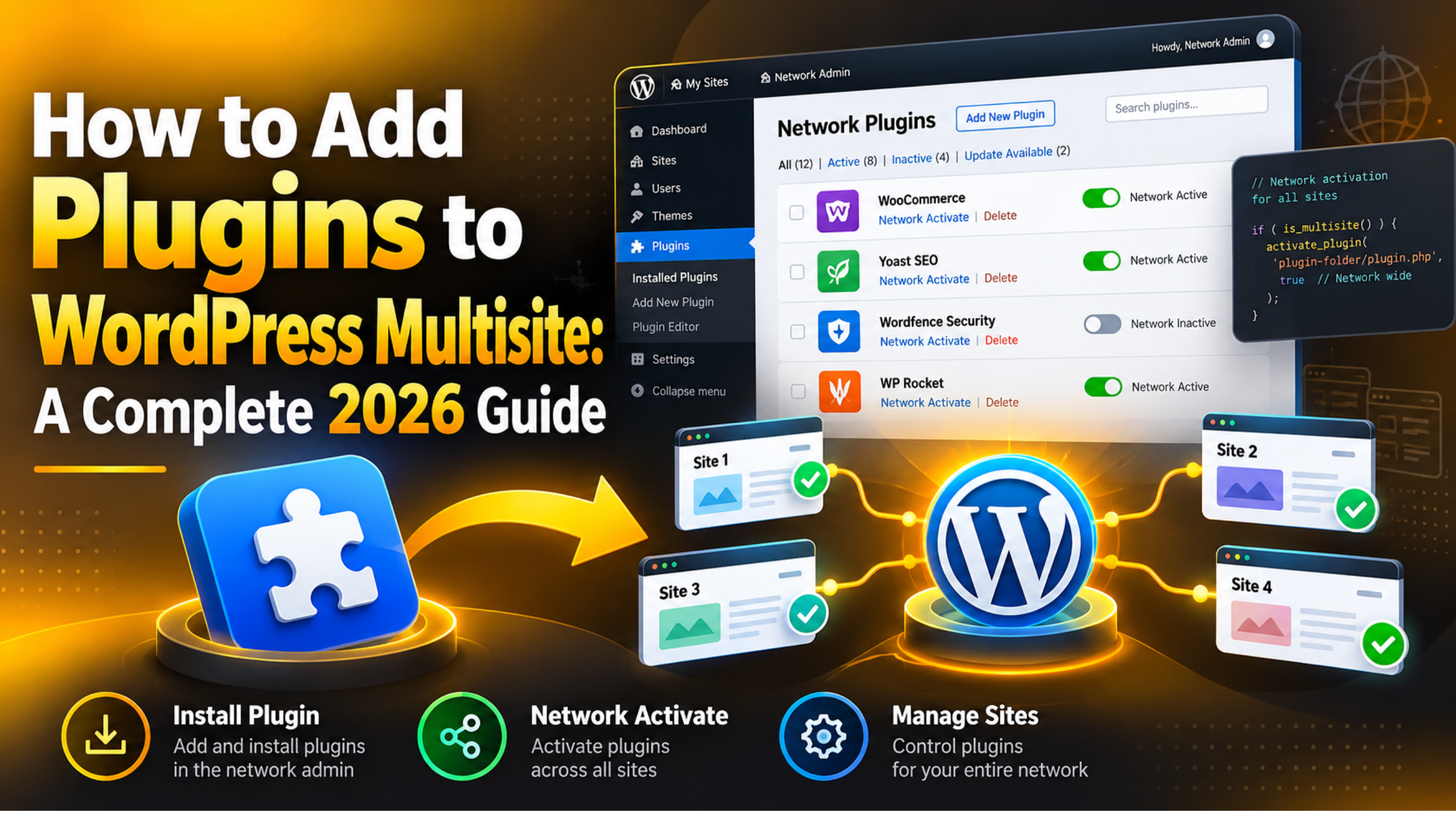
How to Add Plugins to WordPress Multisite: A Complete 2026 Guide
A WordPress Multisite network runs many websites from one install. One set of core files. One database. One plugin folder. That last part is what trips people up. On a normal site, any admin can add a plugin. On a network, that is no longer true. This guide covers every way to add a plugin to a Multisite network in 2026, who is allowed to do it, and what to check when it does not work.
Why Plugin Management Is Different on a Network
On a single WordPress site, plugins live in the wp-content/plugins folder. The owner installs one, switches it on, and the job is done. A network uses that same folder. The difference is that every site in the network reads from it.
That shared folder is the reason the rules change. If each site owner could upload files, they would be adding code to every site at once. One broken file could take the whole network down. WordPress removes that risk by locking installation behind a single role.
So the job splits in two. Installing puts the files on the server. Activating decides which sites actually run them. A plugin can sit in the folder for months without a single site using it. Nothing happens until you switch it on somewhere.
Only a Super Admin can install a plugin on a network. That is the top role, and it exists only on Multisite. Site administrators sit one level down. On a normal site an administrator can do almost anything. On a network, that role is cut back. A site admin cannot install a plugin, upload a ZIP file, or delete one. Those links are simply not there.
This is worth explaining to clients early. People who have run a single site before expect the Add New button and get confused when it is missing. It helps to walk them through user roles and what each one can do, then show them the Super Admin role and where it fits. Knowing how a Multisite network is built makes the rest of this much easier to follow.
How to Install a Plugin From the Network Admin
This is the normal route, and it is quick. Everything happens in the Network Admin area, which is a separate dashboard from any single site.
Start by hovering over My Sites in the toolbar at the top of the screen. Click Network Admin, then Dashboard. The sidebar changes. You will see Sites, Users, Themes, Plugins and Settings. These menus control the whole network.
Now go to Plugins → Add New Plugin. Search for what you need, then click Install Now. WordPress downloads the files and unpacks them into the shared plugins folder. The button then changes to Network Activate.
Stop and think before you click it. Network Activate turns the plugin on for every site you own, right away. If you only want it on one site, skip that button. The plugin is already installed. You can leave it off and switch it on for single sites later.
You can check the result at any time under Network Admin → Plugins. That screen lists every plugin on the server. It shows which ones are network active and which are simply sitting there, ready to be used.
Network Activate or Activate Per Site?
This is the real decision, and it shapes how much work your network creates for you later. Both options have a clear use.
Network Activate switches the plugin on everywhere at once. It also locks it. Site admins cannot turn it off, and they will not see a Deactivate link. The plugin shows as Network Active in their list. Use this for things every site needs and nobody should be able to break: security tools, backups, SEO, and anything that handles login or caching.
Per-site activation loads the plugin only on the sites you pick. The code is skipped everywhere else, so those sites stay lighter. Use this for anything specialised, such as a booking tool, a shop, or a forum. Most sites in a network do not need those.
To activate on one site, go to Network Admin → Sites. Hover over the site you want and click Dashboard. You are now inside that single site as a Super Admin. Open Plugins, find the one you want, and click Activate. Only that site now runs it.
If you are unsure, start with per-site. It is easy to promote a plugin to network active later. Going the other way is messier, because turning off a network-active plugin can change settings on dozens of sites in one go.
How to Let Site Admins Manage Their Own Plugins
By default, site admins see no Plugins menu at all. Many network owners prefer it that way. If you want to give each site some control, there is one checkbox that does it.
Go to Network Admin → Settings → Network Settings. Scroll down to the Menu Settings section near the bottom. Tick the box marked Plugins, then click Save Changes.
Each site admin now gets a Plugins menu in their own dashboard. They can activate and deactivate anything you have installed, for their site only. They still cannot install, upload or delete. The Add New button stays hidden from them.
Think about who your site owners are before you turn this on. Giving control to an in-house team usually works well. Giving it to clients who have never used WordPress often leads to support tickets, because a plugin switched off by mistake looks exactly like a site that has broken. If you do turn it on, send a short note explaining what the switch does.
How to Upload a Plugin ZIP File Manually
Not every plugin comes from the WordPress directory. Paid plugins and custom-built ones usually arrive as a ZIP file. The upload route handles those.
Before you upload anything you have not run before, take a full backup of the network, or test it on a staging site first. On a network a bad plugin does not affect one site. It can affect all of them. Ten minutes of testing is cheaper than an hour of recovery.
When you are ready, go to Network Admin → Plugins → Add New Plugin and click Upload Plugin at the top. Choose your ZIP file and click Install Now. WordPress unpacks it into the shared folder, exactly as it would for a directory plugin.


Uploads sometimes fail on a large file. If you see a size error, the limit is set by your server, not by WordPress. Your host can raise the upload limit for you. The other option is to drop the unzipped folder straight into wp-content/plugins over SFTP. WordPress will find it and list it on the next page load.
Must-Use Plugins: The Option Most Networks Forget
There is a third way to add a plugin, and hardly anyone uses it. Must-use plugins load on every site automatically. They cannot be switched off from any dashboard, including the Network Admin. There is no Deactivate link anywhere.
They live in wp-content/mu-plugins. That folder does not exist in a fresh install, so you create it yourself. Drop a PHP file in, and WordPress runs it on every page load across the whole network.
This is the right tool for code that must never be turned off. A security rule. A piece of custom glue between two systems. A setting that would break billing if someone disabled it. Because the code cannot be switched off by accident, it stays reliable.
One catch is worth knowing. WordPress only loads PHP files sitting directly in mu-plugins. It does not look inside sub-folders. If your plugin is a folder, you need a small loader file in the top level that includes the main file.
Editing files on a live network carries real risk, so work on a copy first and keep a backup you can restore. A mistake here shows up on every site at once, and there is no admin screen to undo it from.
What to Do When a Plugin Will Not Activate
Most plugin problems on a network come from the same handful of causes. Work through them in order, cheapest first.
The site admin cannot see the Plugins menu. This is not a fault. The menu is off by default. Turn it on under Settings → Network Settings, as described above.
The plugin is installed but missing from a site. Check whether it was network activated. If it was, it will not appear in that site’s own list as something to switch on, because it is already running.
Activation triggers an error. This is usually a clash with another plugin or with the theme. Our guide to plugin conflicts shows how to narrow it down, and we also cover the fatal plugin error that can lock you out.
The plugin was never built for Multisite. Some plugins assume one site and one set of options. They store settings in the wrong place, or fail on a sub-site URL. The plugin page usually says whether Multisite is supported. If it does not, test on staging.
You need to see the real error. Turn on WP_DEBUG and read wp-content/debug.log. Back up first, because this means editing the wp-config.php file. The log often names the exact file and line.
The server is out of room. A large plugin can hit the PHP memory limit, especially on a busy network. Site Health flags low memory and an old PHP version, and both are common causes.
Good Habits for Plugin Management on a Network
A network rewards tidy habits. Every plugin you install is shared, so clutter spreads further than it would on a single site.
Install less. Every plugin in the folder is code you must keep updated, even when no site has it switched on. If nothing has used it in six months, remove it. Deleting a plugin from the Network Admin removes it from every site, so check first that none are relying on it.
Test updates before they go live. One update on a network touches every site that runs that plugin. A staging copy catches the problem before your clients do. It also tells you whether the update changes any settings.
Keep PHP and WordPress current. Many activation failures on older networks come down to a version gap, not a bad plugin. Automatic updates help with the small releases, but major upgrades still deserve a proper test.
Back up the database as well as the files. Plugin settings on a network live across many option tables, one per site. A file-only backup will not bring them back. Make sure your routine backs up the database too.
Getting Help With Your Multisite Network
Adding a plugin to Multisite is simple once the layout makes sense. Install from the Network Admin. Network activate what every site needs. Activate per site for everything else. Use must-use plugins for code that must never be switched off. Turn on the Plugins menu only if your site owners can be trusted with it.
Write down what each plugin is for while the reasons are fresh. Networks outlive the people who set them up, and a short list of what is installed, why, and which sites need it will save the next person hours of guesswork.
Networks do get harder to manage as they grow. Twenty sites on shared plugins behave very differently from three. If a plugin will not activate, if an update has gone wrong across several sites, or if you would rather someone else handled the testing, our team works on Multisite networks every day. Tell us what is happening at 24×7 WP Support and we will take a look.
Related posts:

Do People Still Use WordPress for Blogging in 2026? The Complete Answer

Essential Technical Optimisation Best Practices for WordPress Business Sites
How Much Does Elementor Pro Cost? Pricing Breakdown 2026
How to Limit Login Attempts in WordPress: Complete 2026 Guide
How to Fix ‘Style.css Missing’ Error in Divi Theme Installation

Brian is a WordPress support specialist and content contributor at 24×7 WP Support. He writes practical, easy-to-follow guides on WordPress troubleshooting, WooCommerce issues, plugin and theme errors, website security, migrations, performance optimization, and integrations. With a focus on solving real website problems, Brian helps business owners, bloggers, and online store managers keep their WordPress sites running smoothly.
