
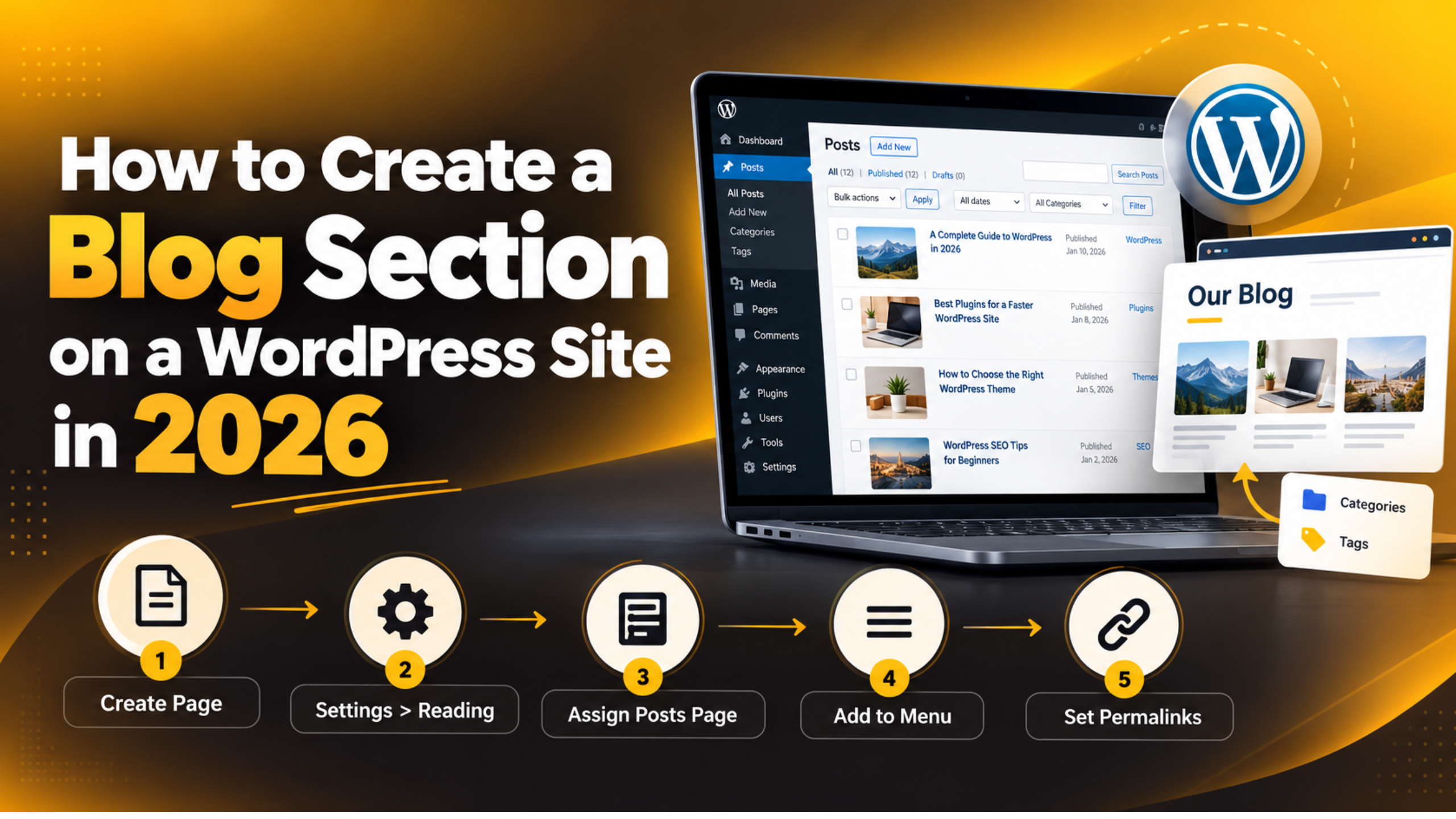
How to Create a Blog Section on a WordPress Site in 2026
Introduction
Plenty of WordPress sites start life as a brochure. A home page, a services page and a contact form. Then the owner decides to publish articles, and the question arrives. Where does the blog actually go?
WordPress has a built in answer, and it takes about ten minutes. You do not need a new theme or a page builder. You need one page, two settings screens and a menu link. This guide walks through the whole job in order.
What a Blog Section Means in WordPress
WordPress splits your content into two main types. Pages are the fixed parts of a site, such as About and Contact. Posts are dated entries that stack up over time. A blog section is simply the place where your posts are listed.
Here is the part that confuses people. You do not build that list yourself. WordPress builds it in date order as soon as you tell it which page to use. The page you pick stays empty in the editor. Its content is replaced by the post list when a visitor loads it.
That page has a proper name in WordPress. It is called the posts page, and you will see that exact label on the settings screen later. Some themes call it the blog archive, which is the same thing seen from the front end.
So a blog section is three small decisions. Which page holds the list, what the post URLs look like, and how visitors reach it from your menu. Get those three right and everything else follows. If you have never published a post yet, our guide on writing and publishing a WordPress post is a good warm up.
Decide Where the Blog Will Live
Before you touch a setting, pick one of two layouts. The choice shapes your home page, so it is worth a minute of thought.
Option one: posts on the home page. Your newest articles appear the moment someone lands on your domain. This suits news sites, personal blogs and anyone publishing several times a week. It is also the WordPress default on a fresh install.
Option two: a static home page plus a separate blog page. Your home page stays a designed sales page. Articles live at an address such as yoursite.com/blog. This is the right choice for almost every business site, because the home page still has to sell.
Most readers want option two. You already have a home page you like, and you want a blog without disturbing it. That is the path this article follows. Our post on setting a static home page in WordPress covers the home page half.
One more thing worth settling now. Pick the word you will use in the URL and stick to it. Blog, news, insights and articles all work. Changing it later means changing links, so choose once.
Create the Blog Page and Point WordPress at It
This is the core of the job. Two steps create the section, and nothing else is required for it to work. Take a backup of your site first if you are working on a live, busy site.
Step 1: Create an empty page. In the dashboard go to Pages → Add New Page. Give it the title Blog. Do not type anything into the body. Click Publish. If you need help reaching the dashboard, see our guide on how to access the WordPress admin.
Step 2: Tell WordPress to use it. Go to Settings → Reading. Under Your homepage displays, choose A static page. Set Homepage to your real home page. Set Posts page to the new Blog page. Click Save Changes.
That is it. Visit yoursite.com/blog and your posts should be listed, newest first. If you have no posts yet, the page will say nothing was found. Publish one and refresh.
Why the page must stay empty. Any text you type into the Blog page is ignored on the front end. WordPress replaces the content area with the post list. People often add an intro paragraph, then report that it vanished. Nothing is broken. That is how the posts page works.
If you want an intro above the list, most themes offer a page header or hero area for it. That area sits outside the content block, so it survives.
Set a Clean Permalink Structure for Your Posts
Permalinks are the permanent web addresses of your posts. They matter for readers and for search engines. A clear address is easier to share and easier to rank.
Read this warning first. The permalink screen carries its own warning, and it is a fair one. Changing permalinks on a live site can seriously affect your search visibility. Old links stop working unless redirects are in place. Take a full backup and test on a staging copy first.
Where to look. Go to Settings → Permalinks. The choices are Plain, Day and name, Month and name, Numeric, Post name and Custom Structure. Each shows a live example built from your own domain.
What to choose. On a brand new site, Post name is the usual pick. It gives short, readable addresses. Date based structures suit news sites where the date is part of the story. Plain and Numeric are hard to read and are rarely a good choice.
If the site is already live. Leave the structure alone unless there is a real problem. The gain from a tidier URL is small. The cost of breaking existing links is not.
After saving. Open two or three posts and check they load. If you get a not found error, return to Settings → Permalinks and click Save Changes once more. That action rewrites the rules and clears most of these errors.
Add the Blog to Your Site Menu
A blog nobody can find is not much use. Your new page needs a link in the main navigation, and the menu is where that is set.
Where the menu lives. In a classic theme, go to Appearance → Menus. In a block theme, open Appearance → Editor and edit the navigation block in the header. Both routes end at the same result.
Add the page. Find your Blog page in the list of pages, tick it, and add it to the menu. Drag it into the position you want. Top level is usually right, because a blog buried in a submenu gets very little traffic.
Rename the label if you want. The menu label does not have to match the page title. You can show News or Insights while the page itself stays Blog. Keep the label short so it does not wrap on a phone.


Save and test on a phone. Check the menu on a narrow screen as well as a desktop. Most traffic arrives on mobile, and a long menu collapses differently there. Our guide on adding a drop down menu in WordPress helps if you need sub items.
Add a footer link too. Readers who scroll to the bottom are looking for something. A second link in the footer costs nothing and catches them.
Organise Posts with Categories and Tags
A blog with five posts needs no structure. A blog with fifty does. Setting it up early saves a painful clean up later.
Categories are the big buckets. Think of them as the sections of a magazine. Most sites need between three and eight. Every post belongs to one, or at most two.
Tags are the fine detail. They describe specific topics that cut across categories. Use them sparingly. A tag used on only one post adds a thin archive page and very little value.
Set them up before you publish. Go to Posts → Categories and add yours. Our guide on adding categories in WordPress covers the screen in detail.
Rename the default. WordPress ships with a category called Uncategorised. Rename it to something useful, or set a better default under Settings → Writing. A post filed under Uncategorised looks unfinished to a reader.
Each category gets its own page. WordPress builds an archive for every category automatically. These pages can rank on their own, so give categories real names that people search for.
Control How the Blog Page Looks and Behaves
Once the section exists, a few settings decide how it feels to read. All of them sit in places you have already visited.
How many posts per page. On Settings → Reading you will find the number of recent posts shown on archive pages. Ten is the default. Somewhere between six and twelve works well. A very high number makes the page slow to load.
Full posts or excerpts. Most themes show a short summary on the blog page with a read more link. If yours shows whole articles, check your theme settings in the Customizer. Summaries keep the page scannable.
Featured images matter here. The blog page is mostly a grid of images and titles. A missing image leaves a hole. Our post on adding featured images and post thumbnails explains how to set them properly.
Write real excerpts. If you leave the excerpt field empty, WordPress cuts the first few lines of the post. That often reads badly. A written summary of one or two sentences is far more inviting.
Check the page in both views. Open the blog page as a visitor, not just in the editor. Our explainer on front end and back end editing in WordPress explains why the two can look different.
Fix the Problems That Show Up Afterwards
A handful of issues come up again and again after a blog section is created. All of them have short fixes.
The blog page shows a single empty page. This usually means the Posts page dropdown was never set. Return to Settings → Reading and check that your Blog page is selected under Posts page, not under Homepage.
Content you typed has disappeared. Nothing is lost. The posts page always ignores its own body text. Move that text to a different page, or use a theme header area.
Posts return a not found error. Go to Settings → Permalinks and click Save Changes without altering anything. That rebuilds the rewrite rules and fixes most of these cases.
The home page and blog page are the same. You cannot use one page for both roles. Create a second page and assign one role to each.
New posts are not appearing. Check the post status first. A draft or a scheduled post will not show. Also clear any caching layer, since a cached blog page can stay stale for hours.
The page is hidden from search engines. Look at Settings → Reading and confirm the discourage search engines box is unticked. Also check the page is not set to private. Our guide on making a page private or hidden covers that setting.
Final Thoughts on Adding a Blog in 2026
Creating a blog section in WordPress is one of the few jobs that is genuinely simple. One empty page, one dropdown on Settings → Reading, and a menu link. The post list builds itself from that point on, and it keeps building every time you publish.
The care goes into the choices around it. Pick a URL word you will keep. Leave permalinks alone on a live site unless there is a real reason to change them. Set up a small number of meaningful categories before the posts pile up. Those three decisions are the ones you cannot easily undo later. If you are planning the whole project, our guide on how to start a blog on WordPress fills in the rest.
If your blog page is not behaving, or you would rather someone else set it up cleanly, we can help. The team at 24×7 WP Support works on WordPress site structure, permalinks and theme layout every day. Tell us what you are seeing and we will take a look.

Brian is a WordPress support specialist and content contributor at 24×7 WP Support. He writes practical, easy-to-follow guides on WordPress troubleshooting, WooCommerce issues, plugin and theme errors, website security, migrations, performance optimization, and integrations. With a focus on solving real website problems, Brian helps business owners, bloggers, and online store managers keep their WordPress sites running smoothly.
