
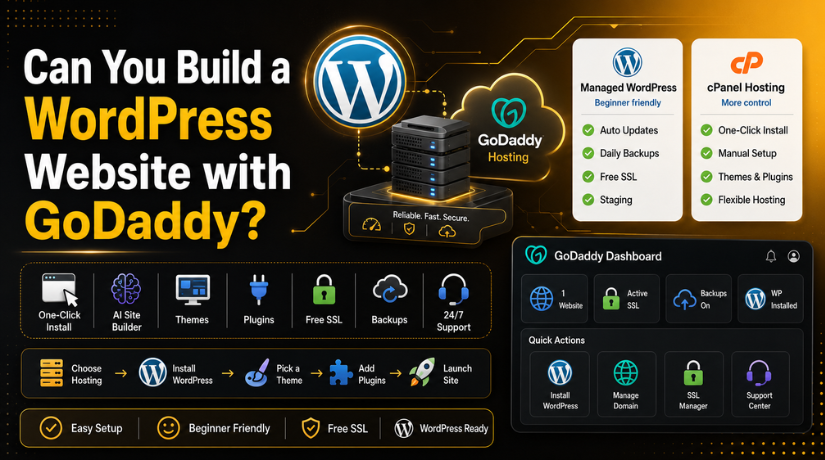
Can You Build a WordPress Website with GoDaddy?
Last updated on June 22nd, 2026 at 06:40 am
Introduction
If you’ve been wondering whether GoDaddy and WordPress can work together, the short answer is: absolutely. GoDaddy is one of the world’s largest domain registrars and hosting providers, and WordPress is the CMS powering over 43% of all websites online. Together, they make a powerful combination — especially for beginners looking to get a professional site live without a steep learning curve.
But “building a WordPress website with GoDaddy” means slightly different things depending on who you ask. In 2026, GoDaddy offers several paths — from traditional WordPress hosting to fully managed plans with AI-powered site building. This guide breaks down exactly how it works, what your options are, and whether GoDaddy is the right fit for your WordPress project.
Understanding the Difference: GoDaddy as Host vs. GoDaddy Website Builder
Before diving in, it’s important to understand the distinction between two separate things GoDaddy offers:
GoDaddy as a WordPress host means you sign up for one of their hosting plans, install WordPress (the open-source CMS from WordPress.org) on your account, and use the full WordPress dashboard to build and manage your site. You get all the power of WordPress — its 59,000+ plugins, 12,000+ themes, and unlimited customization options — while GoDaddy handles the server infrastructure.
GoDaddy Website Builder is an entirely separate, proprietary drag-and-drop tool that does not use WordPress at all. It’s simpler to use but far more limited in what you can do with it. If someone tells you GoDaddy’s website builder is “like WordPress,” that’s not accurate — it’s a different platform entirely.
This article focuses on using WordPress on GoDaddy hosting, which is what most people actually want when they ask this question.
GoDaddy WordPress Hosting Plans in 2026
GoDaddy offers several tiers of WordPress hosting. The most relevant options in 2026 are:
Managed Hosting for WordPress
This is GoDaddy’s flagship WordPress offering. It’s designed for users who want the power of WordPress without managing the technical side. With Managed Hosting for WordPress, GoDaddy handles server-level caching, security patches, daily backups, and core WordPress updates automatically. Plans include:
- Basic: Suitable for personal blogs or portfolio sites. Includes 1 website, 20GB of NVMe storage, and a free SSL certificate.
- Deluxe: Better for small businesses. Offers 40GB storage, free SSL, and one-click staging environments so you can safely test changes before pushing them live.
Web Hosting with WordPress
GoDaddy also offers standard cPanel-based web hosting where you can install WordPress manually or via their one-click installer. This gives you more control over your server environment but requires a bit more technical knowledge to manage.
How to Install WordPress on GoDaddy: Two Methods
Installing WordPress on GoDaddy is fast — both methods take under 15 minutes.
Method 1: One-Click Installer (Recommended for Beginners)
When you purchase a Managed Hosting for WordPress plan, GoDaddy walks you through a setup wizard immediately. You’ll be prompted to either build a new site or migrate an existing one. If building fresh, you can use WordPress from scratch with your own theme or let GoDaddy’s Airo AI tool generate a site for you. The whole process is guided — you don’t need to touch any code.
Method 2: Manual Installation via cPanel
On standard hosting plans, you can use the Softaculous installer inside cPanel to install WordPress with a few clicks. You’ll set your database name, site URL, and admin credentials, and the installer does the rest. This method gives you a bit more control over the setup parameters.
Once WordPress is installed, you log into your site at yourdomain.com/wp-admin. If you’re new to this step, our guide on how to log into WordPress through GoDaddy walks you through the exact process.
GoDaddy’s Airo AI Site Builder for WordPress
One of the standout features GoDaddy introduced is Airo — an AI-powered site designer built directly into their WordPress hosting experience. In 2026, Airo can generate a complete, multi-page WordPress website in under a minute based on a plain-text description of your business.
You describe what your business does, and Airo produces a fully laid-out site with copy, images, and structure that’s designed to be publish-ready. You can then edit everything inside the regular WordPress editor — so you’re not locked into Airo’s output. It’s a genuine time-saver for getting an initial version of your site up quickly.
That said, Airo is best treated as a starting point. You’ll still want to refine the content, add your own images and branding, and configure plugins for SEO and performance.


Setting Up Your WordPress Site on GoDaddy: Step by Step
Once WordPress is installed, here’s the typical workflow for getting your site built and live:
Step 1: Choose and Install a Theme
Your WordPress theme controls the visual design of your site. You can browse thousands of free themes from the WordPress.org repository directly inside your dashboard under Appearance → Themes, or purchase a premium theme from marketplaces like ThemeForest. For a detailed walkthrough, see our guide on how to install a WordPress theme on GoDaddy.
Step 2: Install Essential Plugins
Plugins extend what WordPress can do. At a minimum, you’ll want an SEO plugin (Yoast or Rank Math), a security plugin, a caching/performance plugin, and a contact form plugin. Go to Plugins → Add New and search for what you need. Note that GoDaddy’s Managed Hosting plans restrict certain plugins — particularly those that duplicate built-in functionality or cause performance issues — so always check compatibility before installing.
Step 3: Connect Your Domain
If you registered your domain with GoDaddy, it typically connects automatically. If you’re using a domain registered elsewhere, you’ll need to update your DNS records to point to GoDaddy’s nameservers. Our full guide on how to connect a GoDaddy domain to WordPress covers both scenarios in detail.
Step 4: Build Your Pages
Create your core pages — Home, About, Services, Contact — using the WordPress Block Editor (Gutenberg) or a page builder plugin like Elementor or Beaver Builder. Add your content, images, and calls to action. GoDaddy’s Managed Hosting plans include a staging environment on the Deluxe plan and above, which lets you build in a private environment before publishing.
Step 5: Configure SEO and Launch
Set up your Yoast or Rank Math plugin, configure your site title and tagline, set your permalink structure, and make sure your SSL certificate is active (GoDaddy includes this free on all plans). Then launch — remove the “Coming Soon” mode and make your site publicly accessible.
Pros of Building a WordPress Website with GoDaddy
GoDaddy has genuine strengths as a WordPress host, particularly for users who are new to building websites:
- All-in-one convenience: Domain, hosting, SSL, and backups are bundled together. You deal with one provider and one bill.
- 24/7 customer support: GoDaddy offers phone and live chat support on all plans, which is valuable when something breaks and you need answers quickly.
- Fast setup: Between the setup wizard and Airo, you can realistically have a WordPress site online in under 30 minutes.
- Free SSL: Every plan includes a free SSL certificate, which is essential for search rankings and user trust in 2026.
- Automatic updates and backups: Managed hosting plans handle WordPress core updates and daily backups automatically, reducing maintenance burden.
Cons and Limitations to Know Before You Sign Up
GoDaddy isn’t the right choice for every WordPress project. There are some real limitations worth knowing:
- Plugin restrictions: Managed Hosting for WordPress bans a curated list of plugins — including some popular ones — due to performance, security, or duplication concerns. If a specific plugin is critical to your workflow, verify it’s allowed before committing.
- Performance at scale: GoDaddy’s servers are well-reviewed for small to medium sites, but users running high-traffic sites or complex applications sometimes report performance issues. For serious WordPress performance, providers like WP Engine are more specialized.
- Limited advanced control: GoDaddy’s support team focuses on their own platform. For advanced customizations, third-party integrations, or custom server configurations, you may hit a wall.
- No WordPress multisite: GoDaddy’s Managed Hosting for WordPress does not support WordPress multisite networks.
Is GoDaddy Good for Beginners Building Their First WordPress Site?
Yes — and that’s genuinely where GoDaddy shines. If you’re building your first WordPress site, you don’t have experience with server management, and you want a simple, guided setup experience with reliable support available when things go wrong, GoDaddy is a solid choice in 2026. The all-in-one approach removes a lot of the friction that comes with piecing together hosting, domains, and SSL separately.
If you already have technical experience with WordPress, you’re running a high-traffic site, or you need specific plugins that GoDaddy restricts, you might be better served by a more specialized managed WordPress host like WP Engine, Kinsta, or Flywheel — all of which offer deeper WordPress-specific features at similar price points.
What About Migrating an Existing WordPress Site to GoDaddy?
If you already have a WordPress site hosted elsewhere and want to move it to GoDaddy, the process is more straightforward than most people expect. GoDaddy’s setup wizard for Managed Hosting includes a guided migration option that can move your site automatically. If you prefer to do it manually, check out our guide on how to import a WordPress site into GoDaddy for a step-by-step walkthrough.
Before migrating, make sure any plugins you rely on are supported on GoDaddy’s platform, and always take a full backup of your existing site before starting the process.
The Bottom Line
Can you build a WordPress website with GoDaddy? Absolutely. In 2026, GoDaddy offers a genuinely capable, beginner-friendly WordPress hosting experience — with one-click installation, AI-assisted site building, managed hosting features, and 24/7 support. It’s a particularly strong choice for small businesses, bloggers, and portfolio sites that want to get online quickly without dealing with server complexity.
The key is going in with clear expectations. GoDaddy is optimized for simplicity and convenience, not maximum customization or raw performance. If those trade-offs work for your project, GoDaddy and WordPress are a capable team.
Need help with your WordPress site — whether it’s on GoDaddy or any other host? The team at 24×7 WP Support is available around the clock to help you set up, troubleshoot, customize, and optimize your WordPress website. Get in touch with us today and let’s build something great together.
Related posts:

Brian is a WordPress support specialist and content contributor at 24×7 WP Support. He writes practical, easy-to-follow guides on WordPress troubleshooting, WooCommerce issues, plugin and theme errors, website security, migrations, performance optimization, and integrations. With a focus on solving real website problems, Brian helps business owners, bloggers, and online store managers keep their WordPress sites running smoothly.
