
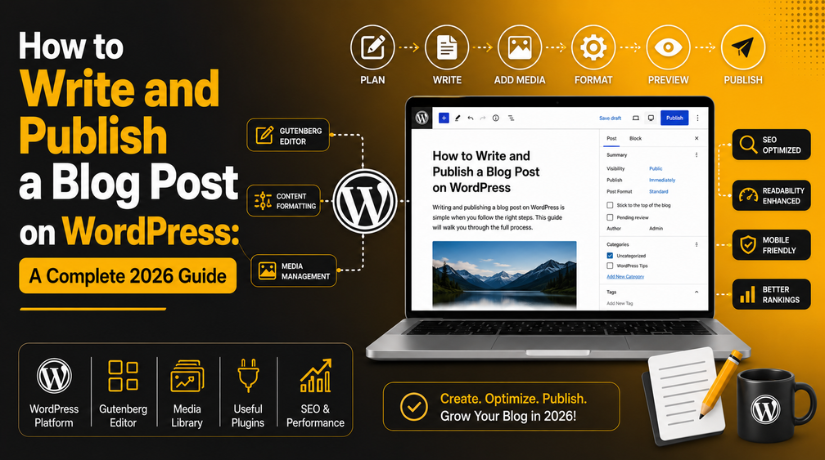
How to Write and Publish a Blog Post on WordPress: A Complete 2026 Guide
So you’ve set up your WordPress site and now you’re staring at a blank screen wondering exactly how to get your first blog post live. You’re not alone. Every WordPress blogger has been there — the dashboard is open, the ideas are swirling, but the process feels unclear. The good news? Writing and publishing a blog post on WordPress is far simpler than it looks, and once you’ve done it a couple of times, it becomes second nature.
This guide walks you through every step — from opening the editor to hitting publish — with practical tips that will help your content look professional and rank better in search engines in 2026.
Why WordPress Remains the Best Platform for Bloggers in 2026
WordPress powers over 43% of all websites on the internet, and it’s not slowing down. For bloggers specifically, it offers a level of flexibility and control that hosted platforms like Wix or Squarespace simply can’t match. You own your content, you control your SEO, and you have access to thousands of plugins that extend functionality without writing a single line of code.
Whether you’re running a personal journal, a niche hobby site, or a full-scale content marketing operation, WordPress gives you the tools to publish the way you want. Understanding how to use those tools properly — especially the post editor — is where this guide begins.
Posts vs Pages: Knowing the Difference Before You Start
Before you write your first post, it helps to understand that WordPress has two main content types: posts and pages. Pages are static — think About, Contact, or Services. Posts are dynamic, time-stamped entries that appear on your blog feed and can be organized by categories and tags.
If you’re writing blog content, you always want to use Posts, not Pages. It’s a common mistake beginners make, and it affects how your content is indexed and displayed. For a deeper dive into this distinction, check out this guide on the difference between posts and pages in WordPress before you proceed.
Accessing the WordPress Post Editor
To create a new blog post, log in to your WordPress admin dashboard at yoursite.com/wp-admin. From the left sidebar, hover over Posts and click Add New. This opens the WordPress Block Editor — also known as Gutenberg — which has been the default editor since WordPress 5.0 and continues to be refined with each major update in 2026.
If you’re working on a site that still uses WPBakery or Classic Editor, the interface will look different. This guide focuses on the Block Editor since it’s the standard for most installations today.
Writing Your Post Using the Block Editor
The Block Editor treats every element of your post — paragraphs, headings, images, lists, quotes — as an individual “block.” This gives you granular control over layout and formatting without touching any code.
Start by clicking the “Add title” field at the top and typing your post title. This automatically becomes the H1 of your page, so make it clear, compelling, and keyword-aware. You only get one H1, so use it well.
Below the title, click the “+” icon or simply start typing to add a paragraph block. From there, you can press Enter to start new blocks, use the “/” shortcut to insert block types (e.g., type /heading to insert a heading block), or drag and drop blocks to rearrange sections.
Using Headings the Right Way
Proper heading structure isn’t just for aesthetics — it signals to Google what your content is about and helps readers scan your post quickly. Use H2 for your main sections and H3 for subsections within those. Never skip heading levels just for visual styling — use CSS or block settings instead.
Writing for Readability
Break your content into short, digestible paragraphs. Aim for 2–4 sentences per paragraph. Long walls of text push readers away. Use bullet points and numbered lists when you’re presenting multiple related ideas. Bold key phrases for emphasis, but don’t overdo it — bold should mean “this matters,” not “I like this word.”
Adding and Optimizing Images
Visual content significantly increases time-on-page and makes your posts more shareable. To add an image, click the “+” icon and select the Image block, then either upload a new file or choose from your Media Library. WordPress supports JPG, PNG, WebP, and GIF formats.
Before uploading any image, follow these best practices:
- Resize it first. You don’t need a 4MB full-resolution photo in a blog post. Aim for images under 200KB wherever possible.
- Use descriptive file names. Rename
IMG_4821.jpgto something likewordpress-block-editor-screenshot.jpgbefore uploading. - Fill in the alt text. Alt text helps visually impaired readers and tells search engines what the image shows. Keep it concise and descriptive.
For videos, don’t upload them directly to WordPress — this will slow down your site. Instead, upload to YouTube or Vimeo and use the Video or Embed block to pull the video in by URL.
Setting Categories, Tags, and Permalink
Organizing your content properly helps both readers and search engines navigate your site. You’ll find these settings in the right-hand sidebar panel when the post is open.
Categories
Categories are the broad topics your blog covers — things like “WordPress Tutorials,” “Web Design,” or “SEO Tips.” Every post should have at least one category. Avoid creating a new category for every post; stick to a consistent taxonomy that reflects your site’s main themes.


Tags
Tags are more specific descriptors. While categories are like chapters, tags are like the index at the back of a book. A post filed under “WordPress Tutorials” might be tagged with “Gutenberg,” “Block Editor,” and “Beginners.” Understanding the difference between tags and keywords in WordPress will help you use both more strategically for SEO.
Permalink (Slug)
The permalink is the URL of your post. WordPress auto-generates one from your title, but you should clean it up before publishing. Click Edit next to the URL preview in the sidebar and make it short, lowercase, hyphenated, and keyword-focused. For example: /how-to-write-blog-post-wordpress-2026. Remove filler words like “a,” “the,” and “and.”
Choosing a Featured Image
The featured image is the visual thumbnail that represents your post across your site — on the blog archive page, in social media previews, and sometimes in Google’s rich results. It’s one of the most overlooked details for new bloggers, but it makes a significant difference in click-through rates.
To set a featured image, scroll to the bottom of the right sidebar and click Set featured image. Upload a high-quality, relevant image sized to your theme’s recommended dimensions (typically 1200×628 pixels works well for most themes and social sharing). Always add alt text here too.
Optimizing Your Post for SEO Before Publishing
Publishing a great post with no SEO optimization is like setting up a beautiful store on a road with no signs. In 2026, on-page SEO is non-negotiable if you want organic traffic. The Yoast SEO plugin (or Rank Math) makes this straightforward even for beginners.
Once the plugin is installed, you’ll see a Yoast SEO panel at the bottom of the post editor. Here’s what to fill in:
- Focus Keyphrase: The main keyword you want this post to rank for. Choose something specific and realistic — “how to write a blog post on WordPress” is better than just “blogging.”
- SEO Title: Keep it under 60 characters. Include your focus keyword near the beginning.
- Meta Description: A 145–160 character summary of your post that appears in search results. Write it for humans, not robots — it should entice clicks.
Yoast will analyze your post and give you a color-coded score (green = good, orange = needs work, red = significant issues). Aim for green before publishing. For a full walkthrough of the plugin’s features, our complete Yoast SEO plugin tutorial covers everything from setup to advanced configuration.
Don’t forget internal linking either. Link to at least 2–3 other relevant posts on your site within the body of the article. Internal links help search engines crawl your site and keep readers engaged longer.
Previewing and Publishing Your Post
Before you publish, always preview your post. Click the Preview button in the top-right corner and select Preview in new tab. This shows you exactly what readers will see once the post goes live — without publishing it yet.
Check for the following during your preview:
- Does the featured image display correctly at the top?
- Are all headings rendering at the right size?
- Do all internal and external links open properly?
- Does the post read well on mobile? (Use browser dev tools or resize your window to check.)
Once you’re satisfied with the preview, go back to the editor. If you’re ready to go live immediately, click Publish. If you want to schedule it, click the date shown next to “Publish” in the sidebar and set a future date and time. WordPress will automatically publish the post at the scheduled time.
If you’re not quite ready, save it as a draft by clicking Save draft (or it saves automatically). Drafts are accessible under Posts → All Posts with a “Draft” label.
Common Mistakes New WordPress Bloggers Make in 2026
After you’ve mastered the mechanics, here are a few pitfalls worth avoiding as you build your blogging habit:
- Publishing without proofreading. Run your draft through a grammar tool before going live. Typos undermine credibility.
- Ignoring mobile layout. Over 60% of web traffic comes from mobile devices. If your post looks broken on a phone, it will hurt your bounce rate.
- Using the same category for everything. Vague category structures make your site harder to navigate and hurt SEO.
- Forgetting to add a meta description. Without one, Google will pull random text from your post — and it won’t always be the most compelling snippet.
- Never updating old posts. Search engines favor fresh content. Revisit high-performing posts every 6–12 months to update stats, links, and examples.
Ready to Publish Your First Post?
Writing and publishing blog posts on WordPress is a skill that improves with every article you put out. The first one takes the longest — getting familiar with the Block Editor, figuring out your category structure, remembering all the SEO steps. But by your fifth or tenth post, the whole process becomes routine.
The most important thing is to start. A well-structured post published today beats a perfect post you’re still editing next month.
If you run into technical issues along the way — slow loading times, plugin conflicts, editor bugs, or anything else that’s keeping your site from performing at its best — the team at 24×7 WP Support is here to help. We provide round-the-clock WordPress support for bloggers, small businesses, and agencies who need reliable, expert help without the agency price tag. Get in touch today and let us handle the technical side so you can focus on what you do best — writing.
Related posts:

Brian is a WordPress support specialist and content contributor at 24×7 WP Support. He writes practical, easy-to-follow guides on WordPress troubleshooting, WooCommerce issues, plugin and theme errors, website security, migrations, performance optimization, and integrations. With a focus on solving real website problems, Brian helps business owners, bloggers, and online store managers keep their WordPress sites running smoothly.
