
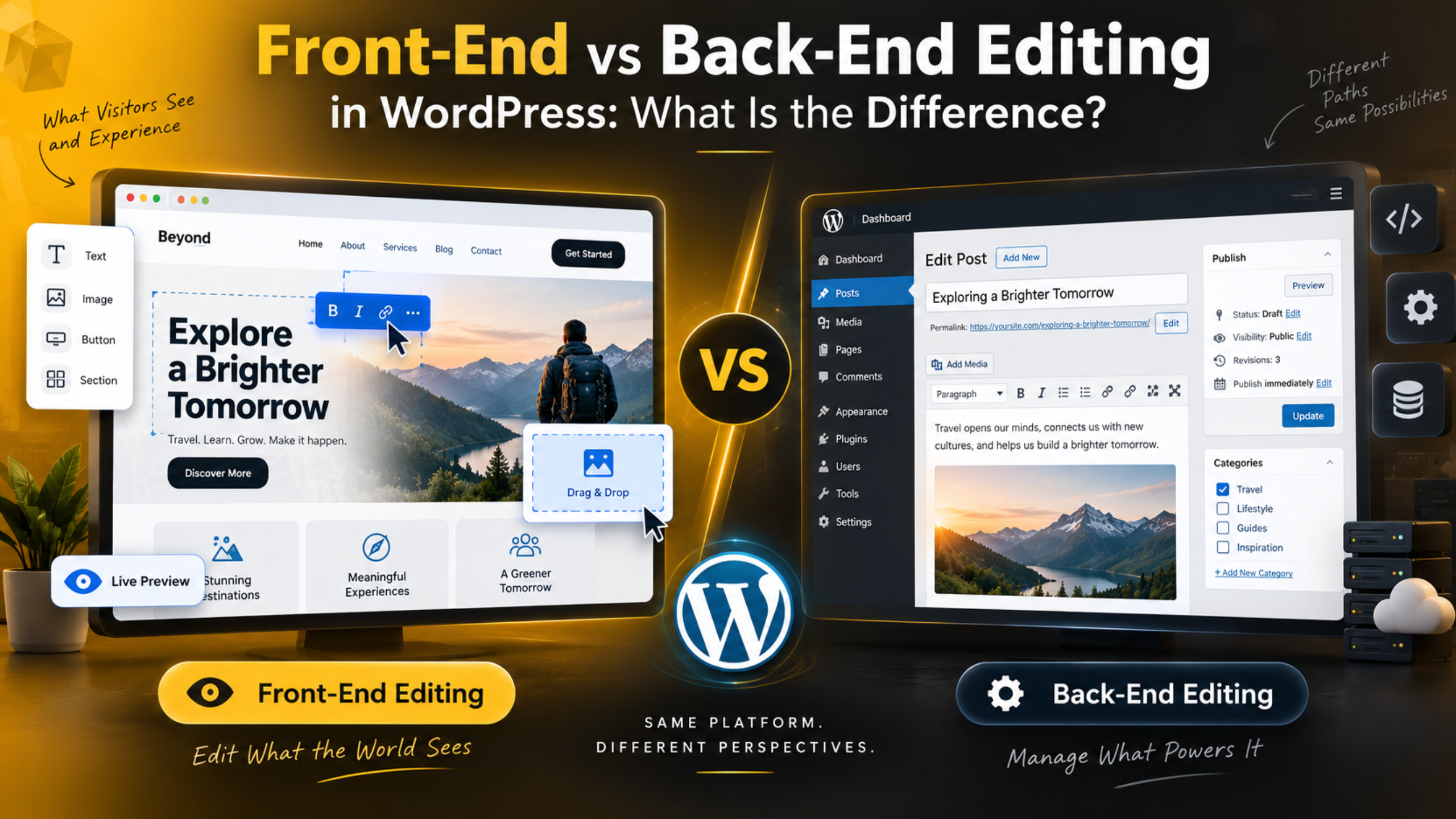
Front-End vs Back-End Editing in WordPress: What Is the Difference?
Introduction
Every WordPress site has two sides. One side is the page your visitors see. The other side is the private control panel where you build that page. People call these two sides the front end and the back end.
The words sound technical. The idea behind them is simple. Once you know which side you are working on, WordPress becomes much easier to use. This guide explains both sides in plain language. You will learn what each editor does, where to find it, and which one fits your work in 2026.
What the Front End and the Back End Actually Mean
The front end is your public website. It is what a visitor loads when they type your web address. It holds your header, your text, your images, your menus and your footer. Search engines read this side of your site too.
The back end is your private admin area. You reach it at yoursite.com/wp-admin. You have to log in to see it. This is where you write posts, install plugins, add users and change settings.
Think of a shop. The front end is the shop floor. Customers walk in, look around and buy things. The back end is the stock room and the office behind it. Staff work there. Customers never see it.
Editing follows the same split. Back-end editing means you make changes inside the admin area. Front-end editing means you make changes while looking at the live page layout. Both routes save to the same database. Only your view of the work changes.
What Is the WordPress Back-End Editor?
The back-end editor is the writing screen inside your dashboard. You open it from Posts → Add New or Pages → Add New. On a modern install this screen is the block editor. Some older sites still run the classic editor instead.
The block editor treats every element as a block. A paragraph is a block. So is an image, a heading, a button, a list and a table. You stack blocks to build the page. You can drag them up or down to reorder them. Our guide on how to use the WordPress block editor walks through the basics.
This screen shows a close preview of your content, not your whole theme. You see your fonts, your colours and your spacing. You usually do not see your header, footer or sidebar. That gap is the main limit of back-end editing.
The right-hand sidebar holds the post settings. There you pick the category, add tags, set the featured image and choose the publish date. The Preview button opens the real page in a new tab so you can check the finished look. The block settings panel also controls colour and spacing, which we cover in our post on where the Style tab lives in WordPress.
Some writers still prefer the classic editor for long articles. It feels closer to a word processor and has fewer moving parts. You can keep it on your site if it suits the way your team writes. Here is how to keep the classic editor in WordPress.
What Is a WordPress Front-End Editor?
A front-end editor lets you change a page while you stand on that page. You load the live layout, click a heading, and type straight over it. The header, footer and sidebar stay on screen the whole time. What you see is very close to what your visitors will get.
WordPress core does not ship a full front-end post editor. It never has. Core gives you two tools that come close, and plugins fill the rest of the gap.
The first core tool is the Customizer at Appearance → Customize. It shows a live preview of your site on the right and the controls on the left. Change a colour and the preview updates straight away. It mainly handles site-wide design on classic themes. Our post explains what the WordPress Customizer is and how to open it.
The second is the Site Editor at Appearance → Editor. This menu item only appears when your active theme is a block theme. It lets you edit headers, footers and whole templates using blocks. The preview is accurate because it renders your real template, not an approximation. On a classic theme you will not see this option at all.
Page builder plugins offer the closest thing to true front-end editing. You click any element on the live page and edit it in place. That comfort has a cost. Builders load extra scripts and styles, which can slow your pages down and lock your layout into one plugin. We compare the two approaches in Gutenberg vs page builders in WordPress.
Is WordPress a Front-End or a Back-End System?
This question comes up often, and the honest answer is both. WordPress is a full content management system. It handles the public pages and the private admin screens in one package.
On the back end, WordPress runs on PHP. It stores your content in a MySQL or MariaDB database. It manages users, roles, media files and settings. All of this work happens on the server. Visitors never touch it.
On the front end, WordPress takes that stored content and builds an HTML page. Your theme decides the layout. CSS handles the styling. JavaScript adds any moving parts. This is what the browser downloads and paints on screen.
So WordPress is not a front-end framework, and it is not only a back-end storage tool. It is the bridge between the two. One install gives you the database, the admin screens and the public site.
Some developers split the two sides on purpose. They use WordPress only as the back end and build the front end separately with a JavaScript framework. The site then pulls content through the REST API at /wp-json/. People call this headless WordPress. It suits large custom projects with a dedicated development team. It is overkill for most small business sites.


Front-End vs Back-End Editing: The Key Differences
Both methods reach the same result by different routes. The table below sums up the gaps you will actually notice day to day.
| Point | Back-end editing | Front-end editing |
|---|---|---|
| Where you work | Inside wp-admin | On the live page layout |
| What you see | Your content only | Header, footer and content together |
| Best for | Writing and content management | Design and layout work |
| Ships with WordPress | Yes | Partly, through the Customizer and Site Editor |
| Speed on long posts | Fast and stable | Slower, because the theme loads too |
| Learning curve | Low for writers | Low for visual thinkers |
| Plugin lock-in risk | Low | Higher with builder plugins |
The biggest practical difference is feedback speed. Back-end editing asks you to click Preview to check your work. Front-end editing shows the result as you type. For a plain blog post that gap hardly matters. For a landing page with columns and buttons, it matters a lot.
The second difference is weight. The back-end editor loads only the editor. A front-end builder loads your full theme plus its own code on top. On a large page that can mean a noticeable wait before you can start typing.
When Back-End Editing Is the Better Choice
Back-end editing suits anyone whose main job is words. If you write articles, news posts or product descriptions, the dashboard is the faster home. You get a clean screen with no theme clutter pulling your eye away.
It also wins on bulk work. The Posts list lets you filter by category, sort by date and edit many items at once with Quick Edit. You cannot do that from a live page. Managing fifty posts from the front end would be painful.
Structure is easier here as well. Categories, tags, excerpts, featured images and scheduling all sit in one sidebar. You set them once and move on. This keeps your archive tidy, which helps both readers and search engines.
The back end is also the safer place for team workflows. You can give each person a role that matches their job, so a writer cannot change your theme by mistake. Our guides on admin vs editor vs moderator roles and how to limit dashboard access explain how to set that up.
When Front-End Editing Wins
Front-end editing suits design work. If you are building a sales page, a homepage or a landing page, seeing the whole layout saves real time. You spot a broken column or a clashing colour the moment it happens.
It also helps clients and non-technical staff. Many people freeze when they open wp-admin for the first time. Asking them to click the text they want to change is far less scary. Fewer support questions reach you as a result.
Spacing and alignment are much easier to judge in context. A heading that looks fine in the block editor can sit too close to your header on the live page. Front-end editing removes that guesswork because the real template is already on screen.
It is the natural choice for template work too. If your theme is a block theme, the Site Editor is the only place to change your header and footer with blocks. There is no back-end equivalent for that job. Note that heavy front-end tools can also introduce errors, and our post on common block editor problems and fixes covers the usual culprits.
How to Choose the Right Setup for Your Site
Start with the work you do most. If you publish articles every week, build your process around the back-end editor. Add a front-end tool only for the handful of design-led pages that really need it. Most sites need far less visual tooling than they think.
Next, look at your theme. A block theme gives you the Site Editor for free, so you may already have all the front-end power you need. A classic theme gives you the Customizer instead, which covers colours, menus and widgets but not full templates.
Then think about your team. Writers do better in the dashboard. Designers and clients do better on the page. You can support both at once, and you do not have to pick a single answer for everyone.
Finally, test any change before it touches your live site. Switching editors, installing a builder or moving to a block theme can all shift your layout in ways you did not expect. Always take a full backup first, or make the change on a staging copy. Our guides on setting up a staging site and backing up and restoring a WordPress website show you how. Never edit theme files or swap editors on a live site without a tested backup in hand.
Final Thoughts on Front-End and Back-End Editing
The front end is what your visitors see. The back end is where you run the site. WordPress gives you both in one install, and it lets you edit from either side.
Back-end editing is the steady, everyday option. It is fast, it is built in, and it keeps your content organised. Front-end editing is the visual option. It shows you the finished page as you build it, which is a real advantage on design-heavy work.
Neither one is better in every case. The right answer depends on your theme, your team and the type of page in front of you. Many healthy sites use the dashboard for posts and a front-end tool for a few key pages.
If your editor is behaving oddly, your layout has shifted, or you are not sure which setup suits your site, our WordPress engineers can take a look. 24×7 WP Support offers round-the-clock help with editors, themes, performance and maintenance, so you can get back to publishing instead of troubleshooting.
Related posts:

Brian is a WordPress support specialist and content contributor at 24×7 WP Support. He writes practical, easy-to-follow guides on WordPress troubleshooting, WooCommerce issues, plugin and theme errors, website security, migrations, performance optimization, and integrations. With a focus on solving real website problems, Brian helps business owners, bloggers, and online store managers keep their WordPress sites running smoothly.
