
What Is Padding in WordPress and How Does It Work in 2026?
What Is Padding in WordPress and How Does It Work in 2026?
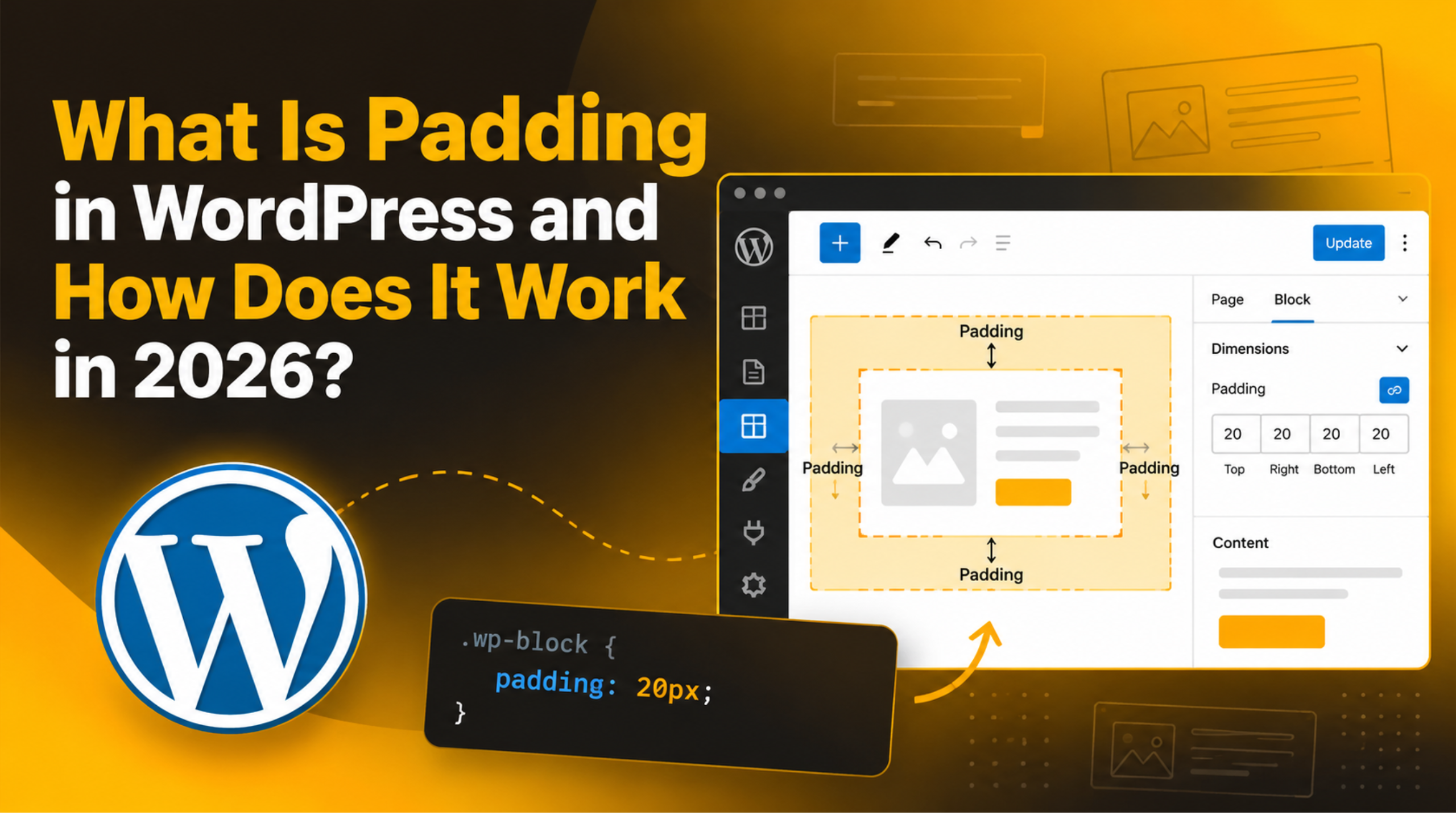
Padding is the breathing room inside a box. It is the gap between the edge of a block and the text or image sitting inside it. Add padding and a cramped button suddenly looks finished. Remove it and your heading presses against the edge of the screen.
Most WordPress users meet padding by accident. They nudge a slider in the editor, something shifts, and they are not sure what changed. This guide explains what padding really is, where to set it in WordPress 7.1, which unit to pick, and how to fix the spacing problems that keep coming up.
What Padding Actually Means
Every element on a web page is drawn as a box. That box has four layers, and padding is one of them. Designers call this the box model, and it is worth knowing because it explains almost every spacing question you will ever have.
The innermost layer is the content: your words, your image, your button label. Around that sits padding, which is space inside the box. Around the padding sits the border. Outside the border sits the margin, which is space between this box and the next one.
Because padding lives inside the box, it takes the box’s background with it. If a group block has a dark background and you add 40 pixels of padding, you get 40 more pixels of dark colour. The box gets visually bigger.
Padding is set on four sides: top, right, bottom and left. In the WordPress editor these appear as four small input fields, usually linked so one number applies to all four. Click the link icon to unlink them and control each side on its own.
One more useful fact. Padding cannot be negative. If you need two elements to overlap, you need a negative margin or custom CSS instead.
Padding vs Margin: The Difference That Trips People Up
These two get confused constantly, and the confusion causes real layout bugs. The short version: padding pushes content away from the inside edge of a box, while margin pushes the whole box away from its neighbours.
Background colour is the giveaway. If your block has a coloured background, padding grows the coloured area. Margin adds space outside it, so the colour stays the same size and the gap is transparent.
Clickable area is another. On a button, padding is part of the button. A visitor can tap it. Margin is not, so a padded button is easier to hit on a phone.
Margins collapse, padding does not. When two stacked elements each have a 30 pixel margin, the browser often shows 30 pixels of gap, not 60. It collapses them into one. Padding never behaves this way, so two padded boxes always add up. This is why a stubborn gap you cannot shrink is almost always a margin.
A simple rule. Use padding when you want space inside a coloured or bordered area. Use margin when you want space between two separate things. If you are unsure, ask whether the background should stretch. If yes, use padding.
Where to Set Padding in the Block Editor
The block editor is where most people set padding today, and it needs no code at all. The controls live in the right-hand sidebar whenever a block is selected.
Click the block you want to change. In the sidebar, open the Styles tab, which is the half-filled circle icon next to the Settings tab. Scroll to the Dimensions panel. Padding sits there, usually as a single slider with a toggle for the four-sided view.
Not every block shows padding by default. If you cannot see it, click the three-dot or plus icon in the Dimensions panel header and tick Padding from the list. WordPress hides the less-used controls to keep the panel short, and this is the switch that brings them back.
Group, Cover, Columns, Buttons and Media & Text blocks all support padding. Plain Paragraph and Heading blocks usually do not, because padding on a line of text rarely does what people expect. If you need space around a heading, wrap it in a Group block and pad the group. Our guide to using the WordPress block editor covers block nesting in more detail.
The slider offers your theme’s spacing presets, labelled with names or numbers rather than raw pixels. Click the small toggle at the top right of the padding control to switch to a custom value and type an exact number instead.
Setting Padding Site-Wide with Global Styles
Changing one block is fine. Changing every button on the site one at a time is not. Global Styles solves that by setting a default once.
If you use a block theme, go to Appearance → Editor, then click the Styles icon in the top right. Choose Blocks, pick the block type you want to change, and open its Dimensions panel. The padding you set there applies to every instance of that block across the site.
Global Styles is layered. A value set on an individual block always beats the global default. So if one button refuses to follow your new setting, it has its own padding set locally. Select it and clear the value to let it inherit again.
Behind the scenes these defaults come from a file called theme.json in the theme folder. It defines the spacing presets you see in the editor. Editing it directly is a developer job, and changes in a parent theme are lost on the next update, so work in a child theme, and take a backup or use a staging copy first.
One warning worth repeating: changes in the Site Editor save globally and affect live pages at once. There is no separate preview step, so make them when the site is quiet.
Padding in Classic Themes and Custom CSS
Plenty of sites still run classic themes, where there is no Styles panel and no Site Editor. Padding there is set with CSS, and the safest place to put it is the Customizer.
Go to Appearance → Customise → Additional CSS. Anything you add there survives theme updates and can be removed in seconds, which makes it far safer than editing stylesheet files. Our post on the WordPress Customizer explains how to reach it on different themes.
A padding rule looks like this. The first value is the top and bottom, the second is the left and right:
.site-content {
    padding: 40px 20px;
}
You can also give all four sides in clockwise order, starting at the top. Or set one side only with a padding-top rule.


The hard part is naming the right element. Right-click the area you want to change, choose Inspect, and look at the highlighted element’s class in the panel that opens. Use that class in your rule. If your rule has no effect, the theme’s own rule is probably more specific, so target a more precise selector instead. Our guide to WordPress theme files explains where a theme’s stylesheet lives.
Choosing the Right Unit: px, rem, em and percent
The editor lets you switch units with a small dropdown next to the padding value. The choice matters more than it looks, especially on phones.
Pixels are fixed. Twenty pixels is twenty pixels on every screen. They are predictable and fine for small, decorative gaps, but they ignore a visitor’s font-size settings.
Rem is relative to the browser’s base font size, which is 16 pixels by default. So 2rem is normally 32 pixels. If a visitor increases their default text size for readability, rem padding grows with it. This is the best default for most spacing, and it pairs well with relative font sizes.
Em is relative to the font size of the element itself. Padding of 0.5em on a large heading is bigger than the same value on body text. That makes em useful for buttons, where the padding should scale with the label.
Percent is relative to the width of the parent container, not its height. A surprising detail: percentage padding on the top is also based on width. That catches people out, so avoid percentages for vertical padding.
A practical answer: use your theme’s spacing presets first, since they keep the whole site consistent. When you need a custom value, reach for rem.
Why Padding Looks Wrong on Phones
A layout that looks generous on a laptop can look cramped or absurd on a phone. Padding is usually the reason, and the fix is to think about it as a proportion of the screen rather than a fixed number.
The classic mistake is large side padding in pixels. Sixty pixels on each side of a 1,400 pixel screen is comfortable. The same sixty pixels on a 375 pixel phone eats a third of the width, and your text ends up in a narrow column.
Block themes handle a lot of this automatically through the theme’s content width, so your text stops before the screen edge without you doing anything. Check whether your theme already does this before you add side padding of your own, because the two stack.
Always preview properly. In the editor, use the device icons at the top to switch between Desktop, Tablet and Mobile. That preview is a guide, not proof, so open the real page on a phone before you call it done. Front-end editing makes this judgement easier because you see the real template.
If you need different padding at different screen sizes on a classic theme, you need a media query. Our post on responsive media queries walks through the syntax.
Common Padding Problems and How to Fix Them
Spacing issues follow a short list of patterns. Work through these in order and you will usually find the cause in a couple of minutes.
The gap will not shrink. You set padding to zero and the space is still there. It is a margin, or a block gap set on the parent container. Inspect the element and check which property is really producing the space.
The change does not show on the live site. This is almost always caching. Clear your page cache and any CDN, then hard refresh. Our guide on clearing the WordPress cache covers every layer.
The Dimensions panel has no padding option. Either the block does not support it, or the control is hidden. Click the options icon in the panel header and enable Padding. If it is not listed, wrap the block in a Group and pad that.
Padding is making the box too wide. Most modern themes handle this for you, but older markup can add padding on top of a fixed width. Setting the box-sizing rule to border-box makes the width include the padding.
One block ignores the global setting. It has a local override. Select it, open Dimensions, and clear the custom value so it inherits again.
Everything shifted after a theme update. Spacing presets changed. Check Appearance → Editor → Styles for the new defaults before re-padding every block by hand. For wider editor oddities, see our post on common block editor problems.
Final Thoughts
Padding is a small idea that explains a large share of layout questions. It is space inside the box, it carries the background with it, and it never collapses. Margin is space outside the box, and it does. Keep those two straight and most spacing problems become obvious.
For day-to-day work, set padding from the Dimensions panel on the block, and use your theme’s presets so the site stays consistent. When you need a site-wide change, do it once in Global Styles rather than block by block. On a classic theme, Additional CSS in the Customizer is the safe place for the same job.
Whatever route you take, check the result on a real phone before you move on, and take a backup before editing theme files. Our guide to backing up and restoring a WordPress site covers the safe way to do that.
If your spacing still will not behave, or you would rather hand the CSS to someone else, we can help. 24×7 WP Support works on WordPress layout, theme and maintenance issues every day.





Brian is a WordPress support specialist and content contributor at 24×7 WP Support. He writes practical, easy-to-follow guides on WordPress troubleshooting, WooCommerce issues, plugin and theme errors, website security, migrations, performance optimization, and integrations. With a focus on solving real website problems, Brian helps business owners, bloggers, and online store managers keep their WordPress sites running smoothly.
