
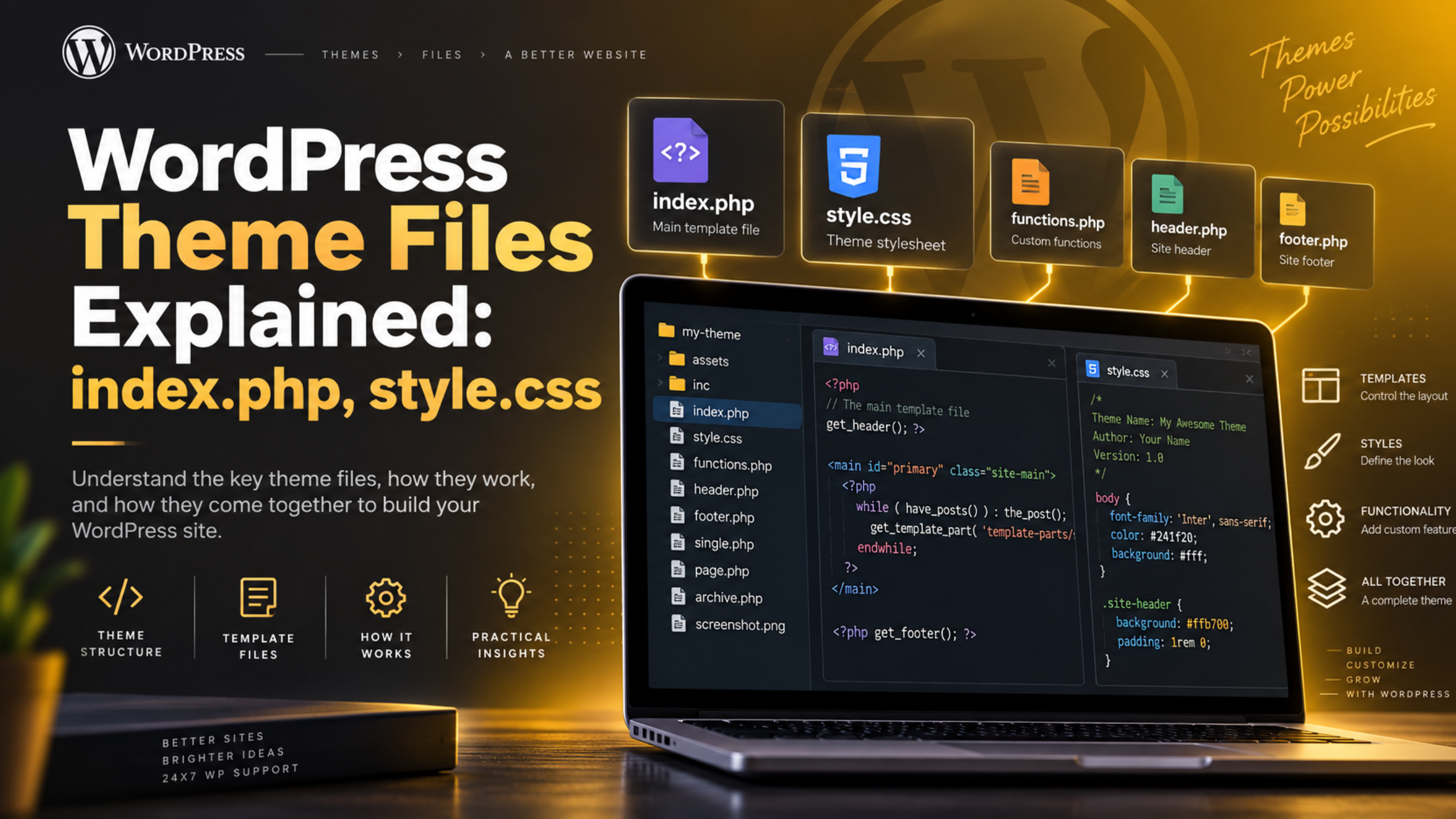
WordPress Theme Files Explained: index.php, style.css and More
Every WordPress theme is just a folder of files. Each file has one job. Some draw the header. Some draw a single blog post. One file even names the theme.
Once you know what each file does, WordPress stops feeling like magic. You can find the right file in seconds. You can fix a layout problem without guessing. You can also tell when a problem is not the theme’s fault at all.
This guide walks through the main files inside a WordPress theme in 2026. It covers index.php, style.css, functions.php, the template files and the newer block theme files. It also shows how WordPress decides which file to use.
What a WordPress Theme Actually Is
A theme controls how your site looks. It does not hold your content. Your posts, pages, users and settings all live in the database. The theme only decides how that content is shown on screen.
WordPress keeps every theme in its own folder, under wp-content/themes/. Open it and you will see one sub-folder per installed theme. The theme files sit inside.
A theme needs very little to work. Two files are enough: style.css and index.php. Real themes ship with far more. A typical theme holds twenty to sixty files, covering headers, footers, post layouts, archives, search results and error pages.
Themes come in two families today. Classic themes use PHP template files. Block themes use HTML template files plus a settings file called theme.json. The difference is how the layout is built and edited.
If you plan to change a theme, use a WordPress child theme. A child theme keeps your edits safe when the parent theme updates.
index.php: The File That Holds a Theme Together
index.php is the fallback file. WordPress uses it when no better template exists. That makes it the safety net for the whole theme.
Say a visitor opens a category page. WordPress looks for category.php first. If that file is missing, it tries archive.php. If that is missing too, it drops to index.php. The same chain runs for posts, pages, search results and the 404 screen.
Because of this, index.php is required in a classic theme. A theme without it will not activate at all.
What goes inside the file? Usually three things. It calls the header. It runs The Loop, which is the code that prints your posts. Then it calls the footer. The Loop is simply a repeat: fetch the next post, print its title and content, then go again.
In a very simple theme, index.php does all the work alone. In a full theme it is rarely seen, because more specific files take over. It still matters. When a page renders with the wrong layout, index.php is often the file that stepped in.
style.css: The File That Names Your Theme
style.css does two jobs. Most people know the first. It holds the theme’s CSS rules, so colours, fonts, spacing and layout live here.
The second job is less obvious and far more important. The top of style.css carries the theme header. This comment block names and describes the theme. WordPress reads it to fill in the Appearance → Themes screen.
A theme header looks like this:
/*
Theme Name: My Theme
Theme URI: https://example.com/my-theme
Author: Your Name
Description: A short description of the theme.
Version: 1.0.0
Requires at least: 6.0
Requires PHP: 7.4
License: GPLv2 or later
Text Domain: my-theme
*/
Theme Name is the only required line. Without it, WordPress will not list the theme at all. That one missing line is behind a lot of “my theme vanished” reports.
Child themes need one extra line: Template. It names the parent theme’s folder. Get that folder name wrong and the child theme will not load.
One warning saves a lot of wasted time. Many modern themes load their real styles from another file, such as /assets/css/main.css. In those themes, editing style.css changes nothing on the front end. Check where the theme actually loads its CSS first.
functions.php: Where a Theme Gets Its Features
functions.php is the theme’s feature file. It is plain PHP, and WordPress loads it on every request. That includes the front end and the admin area.
Themes use it to switch capabilities on. Common jobs include:
- Registering menu locations, so they appear under Appearance → Menus
- Registering widget areas and sidebars
- Loading CSS and JavaScript files the correct way
- Declaring support for featured images, title tags and block styles
- Setting the content width and custom image sizes
It behaves like a plugin that only runs while that theme is active. Switch themes and everything in functions.php stops at once. Site features usually belong in a plugin. Display features belong in the theme. Our guide on functions.php versus a custom plugin covers where to draw that line.
functions.php is also the riskiest file in a theme. One missing semicolon can take the whole site down with a fatal error or a blank screen. Always take a full backup, or work on a staging copy of your site, before you edit it. If a site does go blank, our white screen of death guide walks through recovery.
The Template Files That Build Each Page Type
Template files draw each type of page. Each one handles a different view of your content. WordPress combines them to build the finished page a visitor sees.
Most classic themes split the layout into small parts. That keeps the code tidy and stops the same markup being repeated. Change the header once, and every page updates.
header.php and footer.php
header.php holds everything at the top of the page. That means the opening HTML tags, the <head> section, the site logo and the main menu. It ends with a wp_head() call, which is how WordPress and plugins add their styles and scripts.
footer.php holds the bottom of the page. Copyright text, footer widgets and closing tags live here. It ends with wp_footer(), which loads scripts that belong at the end.
Other templates pull these in with get_header() and get_footer(). If your logo or menu looks wrong on every single page, header.php is the first file to open.
single.php, page.php and sidebar.php
single.php draws one blog post. It controls the title, the date, the author line, the body content and often the comments area. If you want a different layout for your posts, start here. Our walkthrough on building a custom single post template goes step by step.
page.php draws a static page, such as About or Contact. Pages carry no date or category, so this file is simpler.


sidebar.php holds the widget column. Block themes drop it entirely. If you want that column gone, the theme’s own setting beats deleting the file. Here is how to remove a sidebar in WordPress the clean way.
archive.php, search.php and 404.php
archive.php draws any list of posts. Category pages, tag pages, author pages and date archives all use it. Themes can get more specific with category.php, tag.php or taxonomy.php. Those files matter once you start building your own custom taxonomies in WordPress.
search.php draws the search results page. It runs The Loop over whatever the search query matched.
404.php draws the “page not found” screen. It is worth customising. A 404 page with a search box and a few popular links keeps visitors on your site instead of sending them back to the search engine.
How WordPress Picks Which File to Use
WordPress does not guess. It follows a fixed list called the template hierarchy. For every request it works down that list, and it uses the first file that exists.
Here is the chain for a single blog post:
- single-post-{slug}.php
- single-post.php
- single.php
- singular.php
- index.php
WordPress stops at the first match. Everything below it is ignored. A category archive follows its own chain: category-{slug}.php, then category-{ID}.php, then category.php, then archive.php, then index.php.
This explains a common headache. You edit single.php, reload the post, and nothing changes. The usual cause is a more specific file higher in the chain. Look for single-post.php, or a file named after a custom post type.
The hierarchy also explains why you rarely need to copy a whole theme. To change one view, add one file with the right name. WordPress picks it up on the next page load.
Your URL settings decide which chain runs. If archives behave oddly after a URL change, refresh your WordPress permalinks first.
Block Themes: templates, parts and theme.json
Block themes work differently. They swap PHP templates for HTML templates, so the block editor can change the layout with no code at all. Three parts do most of the work.
The templates folder. Files here end in .html, not .php. You will see index.html, single.html, page.html, archive.html and 404.html. The names follow the same hierarchy rules as a classic theme.
The parts folder. This holds reusable pieces, mainly header.html and footer.html. It is the block theme version of header.php and footer.php.
theme.json. This is the settings file, and the biggest change of all. It sets the colour palette, font sizes, spacing scale, content width and which controls appear in the editor. One file now handles what used to take hundreds of CSS lines plus extra code in functions.php.
Block themes still ship a style.css, because WordPress still needs that theme header to name the theme.
You edit a block theme under Appearance → Editor. Those changes save to the database, not to the files. Your edits survive a theme update, but you will not find them in the theme folder. If the editor is new to you, start with our guide to the WordPress block editor.
How to Look Inside Your Own Theme Safely
You do not need to guess which theme you are running. Go to Appearance → Themes. The active theme sits first, with its name and version number shown. To read its files, you have three routes.
The file manager in your hosting panel. Open wp-content/themes/ and then your theme’s folder. This is easy to browse and hard to break, as long as you only look.
SFTP. Download the theme folder and read it in a code editor. This is the safest way to study a theme, because nothing on the server changes.
The built-in theme file editor. It sits at Appearance → Theme File Editor. It writes straight to the live site, and there is no undo button. Many hosts disable it for that reason.
Before you change any theme file, take a full backup or copy the site to staging. A broken PHP file can take a site offline in seconds. Our guide to editing WordPress source code covers the safe order of work.
If something breaks, switch on debugging so you see the real error instead of a blank page. Here is how WP_DEBUG works. Also check that your WordPress PHP version matches what the theme asks for.
Which Files You Should and Should Not Edit
One rule covers most cases. Never edit a theme you did not write yourself.
When that theme updates, every change you made is wiped. There is no warning and no recovery. This is the most common way sites lose custom work.
Use a child theme instead. It is a small folder with its own style.css and functions.php, and it loads on top of the parent. Copy across only the template files you need to change. Everything else keeps coming from the parent, updates included.
Plenty of changes need no theme file at all:
- Colours, fonts and spacing — use the Customizer, or theme.json
- Site features such as forms or tracking code — use a plugin
- Small CSS tweaks — use Appearance → Customize → Additional CSS
- Block theme layouts — use Appearance → Editor
Save real template edits for real template problems. Our comparison of a custom theme versus a template makes that choice clearer.
Theme files are far easier to work with once you have the map. If you would rather not open them at all, we can. The team at 24×7 WP Support handles theme edits, child theme setup and emergency fixes every day of the year. Get in touch and let us take the file work off your plate.
Related posts:
Is WordPress a Framework or a CMS? Clear Explanation
How To Fix WordPress “Briefly Unavailable For Scheduled Maintenance Error”
What Is a WordPress Child Theme and When Should You Use One in 2026?
How to Edit a Footer in WordPress - Learn The Best Methods
How to Create an eCommerce Store in WordPress in 2026

Brian is a WordPress support specialist and content contributor at 24×7 WP Support. He writes practical, easy-to-follow guides on WordPress troubleshooting, WooCommerce issues, plugin and theme errors, website security, migrations, performance optimization, and integrations. With a focus on solving real website problems, Brian helps business owners, bloggers, and online store managers keep their WordPress sites running smoothly.
