
How to Hide the WordPress Admin Toolbar in 2026 (Every Method)
Introduction
The admin toolbar is the dark bar across the top of your screen when you are logged in to WordPress. Most site owners never think about it until it gets in the way. It covers a sticky header, shifts the page down a few pixels, or confuses a customer who has just logged in to your store.
You can turn it off. Hide it for yourself in about ten seconds with no code. Hide it for everyone who logs in. Or hide it for some people and keep it for others. This guide walks through each method in the order you should try them, using current WordPress 7.1 practice in 2026.
What the WordPress Admin Toolbar Actually Is
The admin toolbar is the horizontal strip WordPress shows at the very top of the browser window. It only appears when you are signed in. Logged-out visitors never see it.
WordPress calls it the Toolbar in the interface. Older guides and the code itself still call it the “admin bar”. Both names mean the same thing. The function that controls it is named show_admin_bar, which is why you will see that phrase in every example below.
The bar holds a mix of links. On the left you get the WordPress logo menu, your site name, a comments bubble, and a “+ New” menu. On the right sits the “Howdy, name” account menu. Plugins add their own items too, so SEO, cache and security tools often park a button up there.
The toolbar shows in two places: the front end of your site, and the admin area at /wp-admin/. That split matters. Almost every method below removes it from the front end only. WordPress gives you no setting to remove it from the admin screens. If your real goal is to keep people out of the back end, limiting dashboard access is the right tool, not hiding a bar.
Why You Might Want to Hide the Toolbar
There is no single reason, and the right method depends on yours. Name your reason before you touch any code, because some of the methods below are per-user and others are site-wide.
It hides your design. The bar sits on top of the first 32 pixels of your page. If you have a sticky header, a full-screen hero, or a logo close to the top edge, you cannot see them properly while logged in.
It makes previews inaccurate. WordPress pushes the whole page down to make room for the bar. The page you see as an admin is never quite the page a visitor sees. On narrow screens the bar grows to 46 pixels and the gap gets worse. It also lands in every client screenshot and screen recording.
Customers find it confusing. On a store or a membership site, every customer with an account is a logged-in user. They get the toolbar too. It looks like staff software, and it invites clicks on things that are not meant for them.
One thing hiding the bar does not do is make your site safer. It is a convenience menu, not a permission. A subscriber who cannot edit posts still cannot edit posts, with or without the bar.
Method 1: Hide the Toolbar for Your Own Account
This is the fastest method and it needs no code. It only changes what you see, so it is the safest place to start. Nobody else on the site is affected.
Log in and go to Users → Profile in the left-hand admin menu. If you manage other people, Users → All Users and a click on your own name opens the same screen.
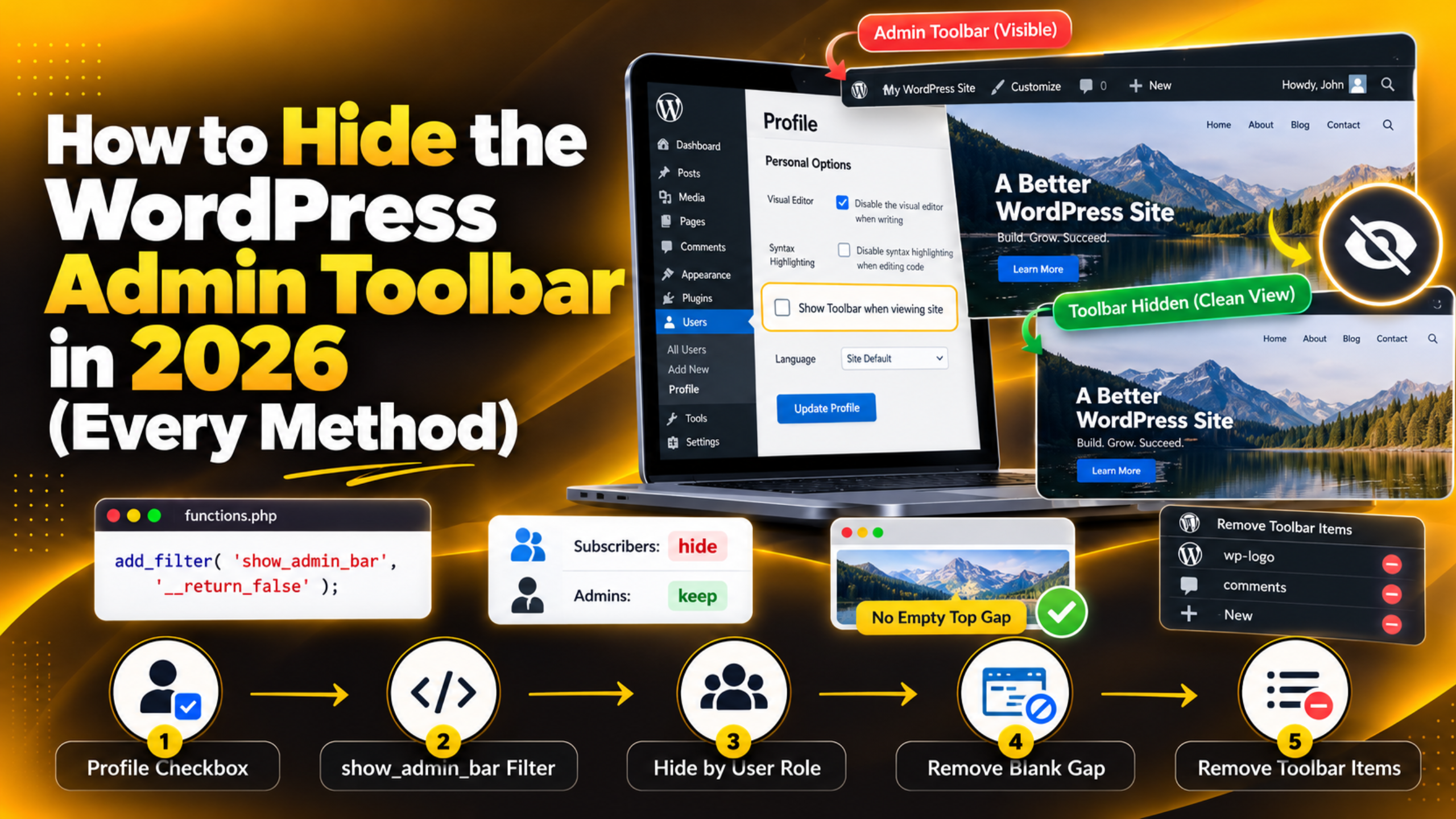
Near the top you will see a row labelled Toolbar. Next to it is a single checkbox: Show Toolbar when viewing site. It is ticked by default on every new account. Untick it.
Scroll to the bottom of the page and click Update Profile. WordPress reloads the screen and shows a “Profile updated” notice. Open your home page in the same browser. The bar should be gone.
Two details matter. The setting is stored against your user account, not the site, so it follows you to any browser you log in from. And it only controls the front end. You will still see the toolbar on every /wp-admin/ screen, which is normal.
If you manage a small team, repeat this on each person’s profile. That is often enough. Reach for code only when the rule must apply automatically to everyone, including people who sign up later.
Method 2: Hide the Toolbar for Everyone on the Front End
This method applies one rule to the whole site. It overrides the per-user checkbox, so new accounts are covered the moment they are created. It does involve a small amount of code.
Before you edit any site file, take a full backup or work on a copy. Our guides on backing up and restoring a WordPress site and setting up a staging site cover both. One typo in a theme file can take a site offline, and a backup turns that into a two-minute fix.
Put the snippet in one of two places. The tidy option is a small site-specific plugin. The common option is the functions.php file of a child theme, and we compare the two in our post on functions.php versus a custom plugin. Never edit the parent theme’s functions.php. The next theme update will wipe it.
Here is the whole snippet:
add_filter( 'show_admin_bar', '__return_false' );That line tells WordPress to answer “no” every time it asks whether the toolbar should show. The __return_false part is a tiny helper that ships with WordPress, so there is nothing else to write.
Save the file and load your home page while logged in. The bar should be gone, and the page should sit flush against the top of the window. If nothing changed, clear your cache and read the troubleshooting section below.
Method 3: Hide the Toolbar for Some Roles Only
This is what most store owners and membership sites actually want. Customers and subscribers lose the bar. Editors, authors and administrators keep it, because they use it every day.
WordPress decides what a person can do using capabilities, which are grouped into roles. A subscriber has very few capabilities. An editor has many. Our guide to WordPress user roles and permissions explains the full list.


Checking a capability is more reliable than checking a role name, because custom roles vary from site to site. This version hides the bar from anyone who cannot write posts:
add_action( 'after_setup_theme', function () {
    if ( ! current_user_can( 'edit_posts' ) ) {
        add_filter( 'show_admin_bar', '__return_false' );
    }
} );
Subscribers and customers cannot edit posts, so they lose the bar. Contributors and above keep it. If you want to be stricter and leave it only for administrators, swap edit_posts for manage_options.
Test it properly before you call it done. Open a private browsing window and sign in with a real subscriber or customer account. Testing as an administrator proves nothing here, because your own account is the one the rule deliberately skips. If you do not have a test account, create one at Users → Add New and give it the Subscriber role.
Method 4: Remove the Gap the Toolbar Leaves Behind
Plenty of guides tell you to hide the bar with a line of CSS. That approach causes a problem, and it is worth understanding why.
WordPress does not just print the bar. It also adds a small style rule that pushes the whole html element down by 32 pixels, so the bar does not sit on top of your content. On screens under 783 pixels wide, that gap becomes 46 pixels. The rule comes from a function called _admin_bar_bump_cb.
If you hide the bar with display: none, the bar disappears but the gap stays. You get a strip of blank space at the top of every page. Worse, the bar is still loaded, so the extra queries and markup still run. Hiding something visually is not the same as not building it.
The filter in Method 2 avoids this completely. When show_admin_bar returns false, WordPress skips the bar and the spacing rule together. That is why the filter is the correct tool.
If you have inherited a site where someone used CSS, remove their CSS rule first. If the gap still shows, drop the spacing callback as well:
add_action( 'get_header', function () {
    remove_action( 'wp_head', '_admin_bar_bump_cb' );
} );
Method 5: Hide Single Toolbar Items Instead of the Whole Bar
Sometimes the bar is useful but noisy. A site with several plugins can end up with eight or nine items crowding the top of the screen. You can remove individual entries and keep the rest.
WordPress builds the bar through a hook called admin_bar_menu. Every item in the bar has an ID, and you can drop an item by passing its ID to remove_node. This example removes the WordPress logo menu, the comments bubble and the “+ New” menu:
add_action( 'admin_bar_menu', function ( $wp_admin_bar ) {
    $wp_admin_bar->remove_node( 'wp-logo' );
    $wp_admin_bar->remove_node( 'comments' );
    $wp_admin_bar->remove_node( 'new-content' );
}, 999 );
The 999 at the end is the priority. A high number makes your code run late, after plugins have added their own items. Use a low number and you may try to remove something that does not exist yet.
To find any item’s ID, right-click it and choose Inspect. The list item wrapping it will have an ID like wp-admin-bar-comments. Strip the wp-admin-bar- prefix and you have the name to pass to remove_node. A quick note on performance: a crowded toolbar is often a symptom of too many plugins, which is also a common cause of a slow admin dashboard.
What to Check When the Toolbar Will Not Go Away
You made the change, reloaded the page, and the bar is still there. That is normal. The cause is usually one of a short list, so work through these in order.
A cached copy is being served. This is the most common reason by far. Page caching, a CDN, or your browser can all hand you an old version of the page. Clear every cache layer, then hard refresh. Our guide on clearing the WordPress cache covers each one.
You are testing with the wrong account. If you used the role-based snippet, your administrator account is meant to keep the bar. Sign in as a subscriber in a private window instead.
You are looking at an admin screen. None of these methods remove the bar from /wp-admin/. Check the URL. If it contains /wp-admin/, the bar staying is expected.
The code is in a theme that is not active. If you built a child theme but never activated it, its functions.php is never loaded. Go to Appearance → Themes and confirm which theme is active.
A plugin is adding the bar back. Some plugins set their own show_admin_bar rule. If yours runs first, theirs wins. Raise your priority so your rule runs last, as in add_filter( 'show_admin_bar', '__return_false', 999 );.
Another user still has the box ticked. The Method 1 checkbox is per account. If a colleague still sees the bar, check their profile, or switch to the site-wide filter.
Final Thoughts
Hiding the WordPress admin toolbar is a small change with several answers, and the right one depends on who you are hiding it from. If it is just you, the checkbox at Users → Profile takes seconds. If it is everyone, one line of code in a child theme or a site-specific plugin does the job.
If it is your customers, use the capability check in Method 3, because it keeps the bar for the people who rely on it. Whichever route you pick, take a backup, test on a staging copy rather than the live site, and check the result while signed in as a real user of that role.
Remember what the bar is and is not. It is a shortcut menu, not a permission, and hiding it is not a security step. To control what people can reach, change their role or restrict the dashboard. Our WordPress admin login guide is a good next read if access is the real question.
If a snippet has not worked, or you would rather not edit theme files at all, our team is happy to look. 24×7 WP Support works on WordPress maintenance, fixes and customisation every day.
Related posts:
Can You Build a WordPress Website with GoDaddy?
Is Shared Hosting Good for WordPress? Pros, Cons & Alternatives
How to Add AJAX Load More and Infinite Scroll in WordPress (2026)
WordPress Divi Theme Installation Failed: Could Not Create Directory Fix
Bricks Builder vs Elementor Pro: Which Is Better for WordPress?

Brian is a WordPress support specialist and content contributor at 24×7 WP Support. He writes practical, easy-to-follow guides on WordPress troubleshooting, WooCommerce issues, plugin and theme errors, website security, migrations, performance optimization, and integrations. With a focus on solving real website problems, Brian helps business owners, bloggers, and online store managers keep their WordPress sites running smoothly.
