
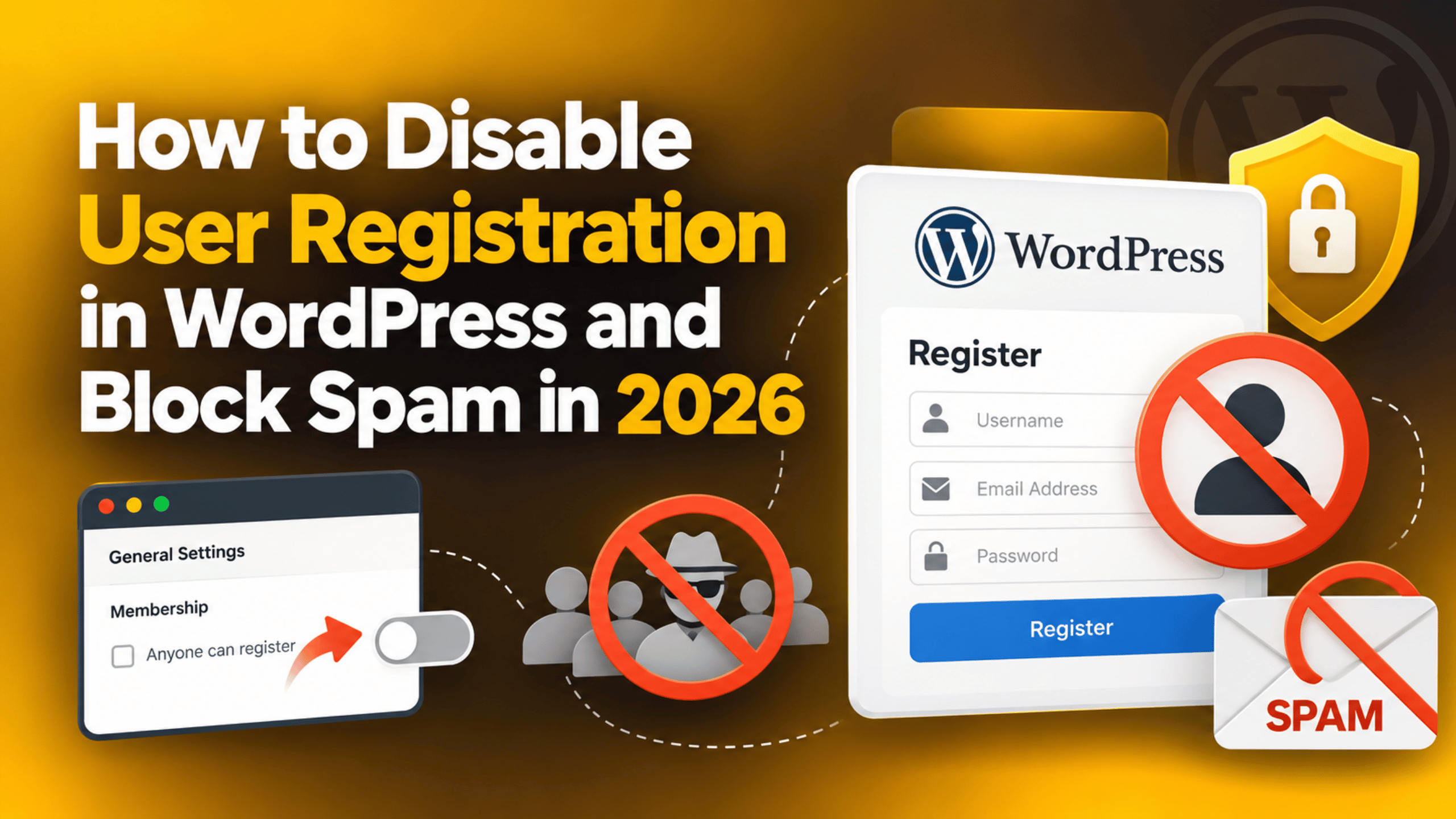
How to Disable User Registration in WordPress and Block Spam in 2026
Open your Users screen and you may find accounts you never approved. Names made of random letters. Email addresses on domains you do not recognise. Dozens of them, sometimes hundreds. This happens because WordPress has a setting that lets anyone create an account, and bots find it quickly.
The good news is that turning it off takes one click. The better news is that you can keep registration on and still stop almost all of the junk. This guide shows you both routes. You will learn where the setting lives, what the default role does, how to clean up the accounts you already have, and how to protect a signup form you genuinely need.
What User Registration Actually Does in WordPress
WordPress ships with a membership setting that controls who can create an account on your site. You will find it under Settings → General. The option is labelled Membership: Anyone can register, and it sits just above a second option called New User Default Role.
When the box is ticked, your site exposes a public signup form at /wp-login.php?action=register. Anyone who finds that address can create an account without your approval. No email confirmation step is required by default, and no human check stands in the way.
When the box is unticked, that form returns a message saying registration is not allowed. The address still exists, but it no longer creates accounts. Existing users can still log in as normal, so unticking the box never locks out your real team.
The second setting matters just as much. New User Default Role decides what a newly created account is allowed to do. Subscriber is the safe default and gives almost no power. Author, Editor and Administrator give progressively more. If that dropdown is set to anything above Subscriber while registration is open, a bot can hand itself real control of your site. Our guide to WordPress user roles and permissions explains what each level can touch.
One more thing is worth knowing. Some plugins create their own signup forms. Turning off the core setting does not always close those. We cover that below.
Why Spam Signups Happen and What They Cost You
Automated scripts crawl the web looking for the registration address. It is the same on every standard WordPress site, so finding it takes no skill. Once a script finds an open form, it can create accounts in bulk within minutes.
The motives vary, and none of them help you. Some scripts are farming accounts to post spam links in comments or profile fields. Some are testing whether the default role gives them a way in. Some are simply harvesting valid site addresses to sell on. A few are checking whether your site will send email on demand, which turns your domain into a spam relay.
The costs are real even when nothing is openly broken. Your database grows. Every fake account adds rows to the users table and the user metadata table. Thousands of them slow down admin screens and make backups larger.
Your email reputation suffers. WordPress sends a notification for each new user. If those messages bounce or get marked as spam, your domain’s sending reputation drops. Real emails to real customers then start landing in junk folders. Our article on a WordPress website sending spam emails covers what that looks like.
Your view of the site gets cloudy. User counts, analytics and customer records all become harder to trust. You cannot tell a real signup from a bot one at a glance.
Your attack surface grows. Every account is a login that can be guessed. A dormant Subscriber account may become dangerous the day a plugin bug lets Subscribers do more than they should.
How to Turn Off User Registration in WordPress
This is the quickest fix and it takes under a minute. It is also fully reversible, so you can switch it back on whenever you want.
Log in to your dashboard and go to Settings → General. Scroll to the Membership line. Untick Anyone can register. While you are there, set New User Default Role to Subscriber, even though registration is now closed. That way, if the box is ever ticked again by accident or by a plugin, the damage is limited. Scroll to the bottom and click Save Changes.
Now test it. Open a private browser window and visit yoursite.com/wp-login.php?action=register. You should see a message saying user registration is currently not allowed. If you still see a signup form, something else is serving it, and the next paragraph explains what to look for.
A plugin can register its own signup page. Membership tools, learning tools, forum tools and store tools often do. Check Plugins → Installed Plugins for anything that manages accounts, then open its settings and turn its registration option off there as well. If a store is involved, look for an account creation option on the checkout and My Account screens too.
Finally, check that no page on your site still links to the signup form. A leftover “Register” link in a menu or widget confuses visitors once the form is closed. Remove it under Appearance → Menus or in the widget area where it sits.
Clean Up the Fake Accounts You Already Have
Turning the tap off does not empty the bucket. If spam accounts built up before you noticed, deal with them next. Take a full backup before you delete anything in bulk, because user deletion cannot be undone from the dashboard. Our guide to backing up and restoring a WordPress website walks through it.
Go to Users → All Users. Click the Subscriber filter at the top, because that is where bulk signups almost always land. Then sort the list and look for the patterns. Random letter strings in the username. Email addresses from the same unfamiliar domain. A cluster of accounts created on the same day.
Before deleting, scan for anything real. A genuine customer may be sitting in that list. Check whether an account has orders, comments or posts attached to it. WordPress asks what to do with a deleted user’s content, and choosing to delete it removes their posts as well.
Select the accounts you are confident about, choose Delete from the Bulk actions dropdown, and apply. Work in batches of a few hundred rather than thousands, because a very large batch can time out and leave the job half done. If you need a record first, export the list using the method in our tutorial on importing and exporting WordPress users.
If the list runs to many thousands and the screen struggles, do the cleanup on a staging copy first. That lets you confirm nothing important disappears before you repeat it on the live site.
What to Do If You Actually Need Registration
Plenty of sites need open signup. Membership sites, course sites, forums and stores all depend on it. Closing registration is not an option there, so the job becomes filtering instead of blocking.


Add a human check to the form. A challenge on the signup form stops most automated scripts on its own. Many registration and form tools include one, so check whether yours already offers it before adding anything new. Our roundup of easy WordPress registration plugins covers tools that do.
Require email confirmation. Make a new account inactive until the person clicks a link sent to their address. Bots using fake addresses never complete that step, so the account never becomes usable.
Approve accounts by hand where volume allows. If you get a handful of signups a week, manual approval is the strongest filter there is. Many membership tools offer a pending state for exactly this.
Keep the default role at Subscriber. Never let public signup create an Author or higher. If a new user needs more, raise their role yourself afterwards under Users → All Users.
Block disposable email domains. Most registration tools let you refuse a list of throwaway providers. That alone removes a large share of junk signups.
Rate limit the form. Restrict how many accounts can be created from one address in a given period. Bulk signups come in bursts from a small number of addresses, so a simple limit catches them.
Extra Steps That Harden the Login Area
Registration is one door. The login form beside it is the other, and the same scripts usually hit both. A few extra habits make the whole area much quieter.
Limit failed login attempts. Blocking an address after a handful of wrong passwords stops guessing attacks cheaply. Our guide to limiting login attempts in WordPress explains how to set a sensible threshold.
Turn on two-factor authentication for staff. A second code makes a stolen password far less useful. Start with every Administrator and Editor account. See our walkthrough on adding two-factor authentication to WordPress admin login.
Move the login address. Changing the default path cuts the volume of automated traffic sharply. It is not a security measure on its own, but it reduces noise. Our guide to creating a custom login URL shows the method.
Watch who changes what. WordPress keeps some history of its own, and knowing where to look helps you spot an unexpected role change quickly. Our article on the built-in WordPress activity log explains what is recorded.
Protect your other forms too. Contact and comment forms attract the same bots. Our guide on blocking contact form spam in WordPress covers that side.
Keep Registration Locked Down Over Time
Settings drift. A plugin update, a theme change or a restored backup can quietly tick the membership box again. A short routine keeps that from catching you out.
Check the setting once a month. Open Settings → General and confirm the membership box and the default role still read the way you left them. It takes ten seconds.
Watch your user count. Note the number on Users → All Users each month. A jump you cannot explain is the earliest warning you will get.
Review new plugins before installing. Anything that handles accounts, memberships, courses or forums may add its own signup form. Check its settings on the day you install it, not months later.
Run Site Health. It flags configuration problems that make other issues easier to miss. Our guide to Site Health in WordPress explains the report.
Keep backups automatic. If a cleanup goes wrong, a recent backup is what saves the day. Test a restore occasionally so you know it works.
Get Help Locking Down Your WordPress Site
Disabling registration is a one-click change, and most site owners can do it in a minute. The rest of the work is where it gets slower. Cleaning up thousands of fake accounts takes care, because real customers are often mixed in with the junk. Untangling a plugin that keeps reopening the signup form means reading its settings properly. Recovering a domain whose email reputation has already dropped can take weeks of good sending behaviour.
Each of those jobs wants the same things first: a current backup, a staging copy to test on, and a clear record of what the site looked like before you started. Rushing a bulk delete on a live site is how a store loses customer accounts along with the spam ones. If you are not sure which accounts are safe to remove, stop and get a second pair of eyes on the list.
If your Users screen is full of accounts you did not create, or you need registration open without the flood of junk that usually comes with it, we can help. 24×7 WP Support works on WordPress and WooCommerce sites every day, including user cleanup, login hardening and spam filtering. Tell us what you are seeing on your Users screen and we will take it from there.
Related posts:

Brian is a WordPress support specialist and content contributor at 24×7 WP Support. He writes practical, easy-to-follow guides on WordPress troubleshooting, WooCommerce issues, plugin and theme errors, website security, migrations, performance optimization, and integrations. With a focus on solving real website problems, Brian helps business owners, bloggers, and online store managers keep their WordPress sites running smoothly.
