
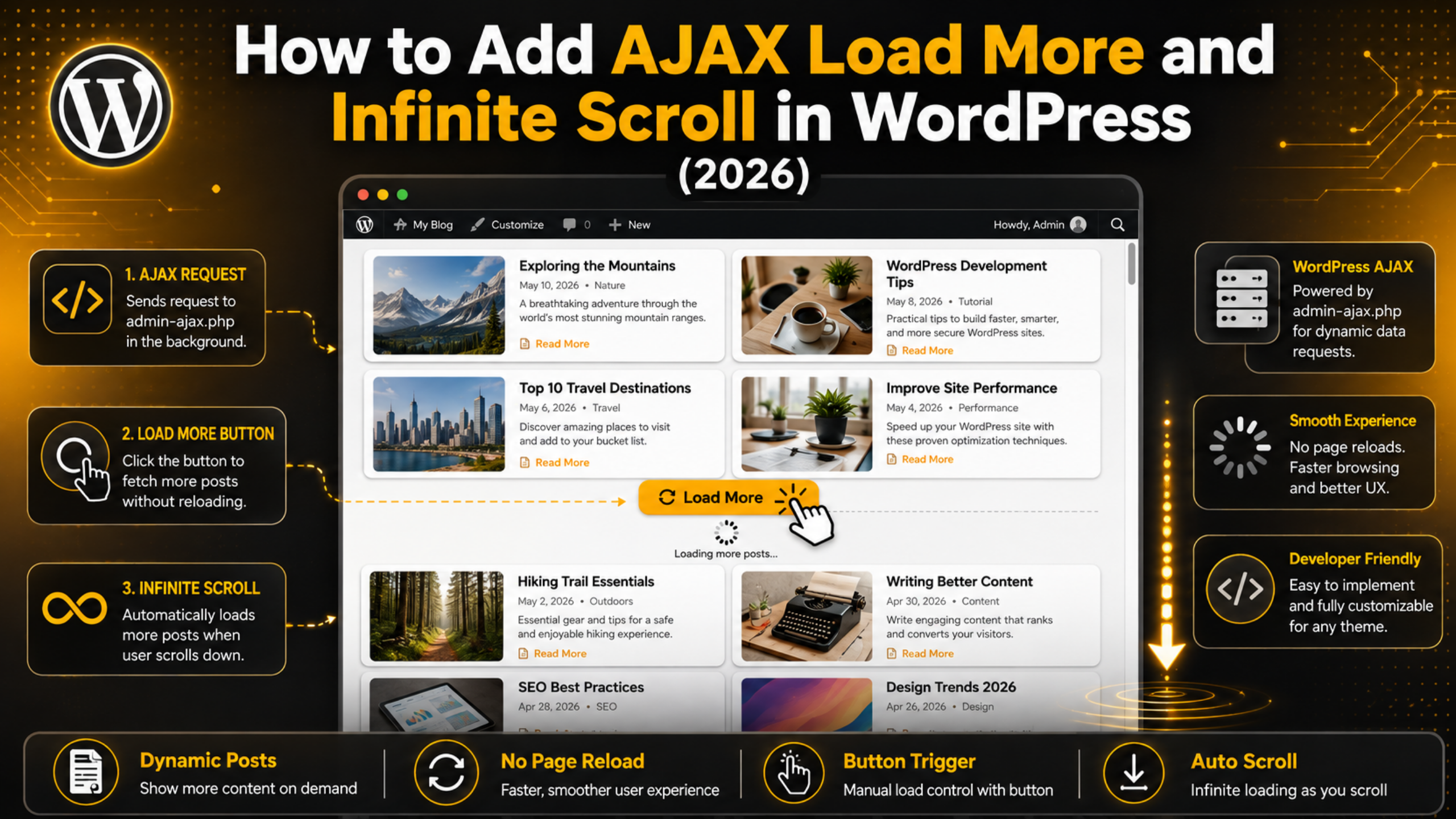
How to Add AJAX Load More and Infinite Scroll in WordPress (2026)
Numbered pagination sends a reader to a new page. That means a fresh request, a fresh render, and a wait. Many of them never click page two at all.
AJAX load more fixes that. Posts arrive underneath the ones already on screen. Nothing reloads and the reader stays where they were. Infinite scroll does the same thing, but it fires on its own as the reader nears the bottom.
This guide shows you how to build both from scratch. You get the PHP, the JavaScript, and the exact files each part belongs in. Everything here works on current WordPress releases in 2026.
How AJAX Load More Actually Works in WordPress
The idea is simple once you see the shape of it. Your page loads the first batch of posts as normal. A button sits below them. When it is clicked, the browser asks the server for the next batch and drops the HTML into the page.
WordPress gives you a built-in endpoint for this. It lives at wp-admin/admin-ajax.php. Every AJAX request you make goes there, and WordPress routes it based on an action name you send along.
There are three moving parts. First, a PHP handler that runs a query and returns markup. Second, a JavaScript file that calls the handler. Third, the data that connects them, such as the endpoint URL, the current page number, and a security token.
You also need to know how many pages exist. WordPress stores this on the main query object as max_num_pages. Without it, your button keeps asking for posts that are not there.
The whole flow takes about sixty lines of code. Once it works for posts, the same pattern works for any custom post type.
Step 1: Register Your Script and Pass Data to It
Your JavaScript cannot guess the AJAX URL or the nonce. You have to hand those over from PHP. WordPress does this with wp_localize_script.
Add this to your child theme functions.php file. It loads a script and attaches a small data object to it.
add_action( 'wp_enqueue_scripts', 'wps_load_more_assets' );
function wps_load_more_assets() {
    global $wp_query;

    wp_enqueue_script(
        'wps-load-more',
        get_stylesheet_directory_uri() . '/js/load-more.js',
        array( 'jquery' ),
        '1.0',
        true
    );

    wp_localize_script( 'wps-load-more', 'wpLoadMore', array(
        'ajaxurl'   => admin_url( 'admin-ajax.php' ),
        'nonce'     => wp_create_nonce( 'wps_load_more' ),
        'startPage' => 1,
        'maxPages'  => $wp_query->max_num_pages,
    ) );
}
The dependency array names jquery, so WordPress loads jQuery first. The true at the end puts your script in the footer, which stops it blocking the initial render.
Look at what goes into the data object. The ajaxurl value comes from admin_url and points at admin-ajax.php. The nonce is a one-time token that proves the request came from your site. The startPage begins at one because page one is already on screen. The maxPages value comes from the global query.
Two mistakes are common here. Calling wp_localize_script before wp_enqueue_script does nothing, because there is no handle to attach data to yet. And running this outside the wp_enqueue_scripts hook means it never fires. Get both right and your JavaScript will find a global object named wpLoadMore.
If jQuery is missing on your site, the console will show an error. Our guide to fixing the WordPress jQuery is not defined error covers that case.
Step 2: Write the PHP Handler That Returns Posts
The handler is the piece that does the real work. It reads the requested page number, runs a query, and prints the post markup.
WordPress needs two hooks for this. The wp_ajax_ hook covers logged-in users. The wp_ajax_nopriv_ hook covers everyone else. Register the same callback on both or your button will silently fail for visitors.
add_action( 'wp_ajax_wps_load_more', 'wps_load_more_handler' );
add_action( 'wp_ajax_nopriv_wps_load_more', 'wps_load_more_handler' );

function wps_load_more_handler() {
    check_ajax_referer( 'wps_load_more', 'nonce' );

    $paged = isset( $_POST['page'] ) ? intval( $_POST['page'] ) : 1;

    $q = new WP_Query( array(
        'post_type'      => 'post',
        'post_status'    => 'publish',
        'posts_per_page' => 10,
        'paged'          => $paged,
    ) );

    if ( $q->have_posts() ) {
        while ( $q->have_posts() ) {
            $q->the_post();
            get_template_part( 'template-parts/content', 'excerpt' );
        }
    }

    wp_reset_postdata();
    wp_die();
}
Every line here matters. The check_ajax_referer call validates the nonce and stops the request if it fails. The intval on the page value blocks anyone from injecting something odd. The wp_reset_postdata call restores the main query so the rest of the page still behaves.
Notice the wp_die at the end. Without it, WordPress appends a zero to your response and your markup arrives with a stray character on the end.
Keep posts_per_page the same as your Settings → Reading value. If the two disagree, your pages will overlap or skip posts. Ten is a sensible default and keeps each response small.
Step 3: Add the JavaScript That Fetches the Next Batch
Now connect the button to the handler. The script tracks which page it is on, asks for the next one, and appends what comes back.
jQuery(function ($) {
    var page = wpLoadMore.startPage;
    var loading = false;

    $('#wps-load-more').on('click', function () {
        if (loading || page >= wpLoadMore.maxPages) { return; }
        loading = true;
        page++;

        $.post(wpLoadMore.ajaxurl, {
            action: 'wps_load_more',
            nonce: wpLoadMore.nonce,
            page: page
        }, function (html) {
            $('#wps-posts').append(html);
            loading = false;
            if (page >= wpLoadMore.maxPages) {
                $('#wps-load-more').hide();
            }
        });
    });
});
Walk through the logic. The loading flag stops a double click from firing two requests. The page counter goes up before the request so the server knows what to send. The action value must match the string in your PHP hook name exactly, or WordPress will not know which function to run.
The append call adds the new HTML after the existing posts. Using html instead would wipe out what is already there.
The last block hides the button once the final page arrives. Readers should never click a button that does nothing. If you skip this, the button stays forever and returns empty responses.
The container selector needs to match your theme. Open the page, right click a post, and choose Inspect. Find the element that wraps all the posts and use its class or ID.
Step 4: Turn the Button Into True Infinite Scroll
Infinite scroll is the same request with a different trigger. Instead of waiting for a click, you watch the reader position and fire when they get close to the end.
The old way was to listen to the scroll event and measure offsets. That runs hundreds of times a second and makes the page feel heavy. Modern browsers give you a better tool called IntersectionObserver.
Put an empty div below your posts and let the browser tell you when it comes into view.
var sentinel = document.querySelector('#wps-sentinel');

var observer = new IntersectionObserver(function (entries) {
    if (entries[0].isIntersecting) {
        jQuery('#wps-load-more').trigger('click');
    }
}, { rootMargin: '400px' });

if (sentinel) { observer.observe(sentinel); }
The rootMargin value is the important part. Setting it to 400px means the request starts while the sentinel is still four hundred pixels below the viewport. Posts are usually ready by the time the reader arrives, so the page never appears to stall.
There is a real trade-off here. Infinite scroll hides your footer, which is where contact links and legal pages usually live. It also breaks the browser back button on many themes.


A hybrid works best for most sites. Auto-load the first two or three batches, then show a button. Readers get the smooth feel without losing the footer.
Where to Put Each Piece of Code Safely
Code placement decides whether your work survives the next update. There are three sensible homes and one common mistake.
The mistake is editing the functions.php file of a parent theme. The next theme update erases it and your load more button disappears. If you want to use a theme file, set up a child theme first. Our guide on what a WordPress child theme is walks through it in a few minutes.
For the PHP, a small plugin is the cleanest option. Create a folder at wp-content/plugins/ajax-load-more, add a PHP file inside it, and give it a plugin header comment. Activate it from the Plugins screen. Now the feature is independent of your theme entirely.
For the JavaScript, create a js folder inside your child theme and save the file as load-more.js. That path has to match the one in your enqueue call exactly, or the browser will request a file that does not exist.
Never paste PHP into a widget or the post editor. It will not run and it may print raw code to your visitors. Edit these files over SFTP rather than the built-in editor, because a single typo there can lock you out of the admin area.
Testing, Debugging and Common Failures
Test in a private window first. Logged-in behaviour and visitor behaviour go through different hooks, and a button that works for you may fail for everyone else.
Open your browser tools and go to the Network tab. Click load more and watch for a request to admin-ajax.php. What you see there tells you exactly what is wrong.
A 400 response almost always means the nonce failed or the action name does not match. Check the spelling on both sides. A 403 usually means a security plugin is blocking the endpoint for visitors. If you hit a 400, we have a full walkthrough of the admin-ajax.php 400 bad request error.
A response of 0 means WordPress found no handler for your action. You either forgot the nopriv hook or misspelled the action string.
A 200 response with empty content usually means the query ran out of posts. Log the page number and compare it with max_num_pages.
Caching causes the strangest bugs. A full page cache can serve an old version of your page with stale nonce data, which makes the first click fail and later clicks work. Exclude admin-ajax.php from caching and clear everything before you test again.
Keeping It Fast and Search Friendly
Loading more posts is only a win if the page stays quick. A few habits keep it that way.
Send only the fields you need. If your query does not use taxonomy terms or custom fields, set update_post_term_cache and update_post_meta_cache to false. On a large site this removes several database queries per request.
Watch your images. Twenty extra posts means twenty extra images, and browsers will fetch them all at once without help. Native lazy loading solves this, and our guide on enabling or disabling WordPress lazy loading covers the settings.
Search engines need a path to every post. Crawlers do not scroll and they do not click buttons. Keep real paginated URLs such as /page/2/ working underneath your AJAX layer, and make sure your sitemap lists every post.
If you would rather skip admin-ajax.php altogether, the REST API is a faster route for read requests. It skips much of the admin bootstrap, so responses come back sooner. Our guide to the WordPress REST API explains the endpoints.
Finally, add a visible loading state. A spinner or a simple word tells the reader something is happening. Without it, a slow connection just looks broken.
Understanding the Query Behind It All
Everything above depends on one thing: getting the right posts for the right page. That is the job of WP_Query and the paged argument.
The paged value tells WordPress which slice of results you want. Pass 2 with ten posts per page and you get posts eleven through twenty. Pass nothing and you always get the first ten, which is why a broken counter shows the same posts over and over.
You can filter this query as tightly as you like. Add a category, a tag, a post type, or a meta comparison. The load more logic does not change at all, because it only ever increments a number.
Use max_num_pages rather than counting posts yourself. WordPress calculates it from the total found rows and your per page setting, so it stays correct even as you publish more.
If the loop syntax is unfamiliar, our explainer on how to create and use the WordPress loop covers the structure your handler depends on.
Get Expert Help With Your WordPress Build
Load more looks small until it meets a real site. A caching layer, a security plugin, or a theme that renders posts in an unexpected place can each break it, and the failure is usually silent.
Our team builds this kind of feature every week. We wire up AJAX and REST endpoints, tune the queries behind them, keep the paginated URLs crawlable, and make sure the whole thing survives your next theme update. You get a faster archive page and a setup you do not have to maintain yourself.
Visit 24×7 WP Support to talk to a WordPress expert. We are available around the clock, and the first conversation costs you nothing.
Related posts:




Brian is a WordPress support specialist and content contributor at 24×7 WP Support. He writes practical, easy-to-follow guides on WordPress troubleshooting, WooCommerce issues, plugin and theme errors, website security, migrations, performance optimization, and integrations. With a focus on solving real website problems, Brian helps business owners, bloggers, and online store managers keep their WordPress sites running smoothly.
