
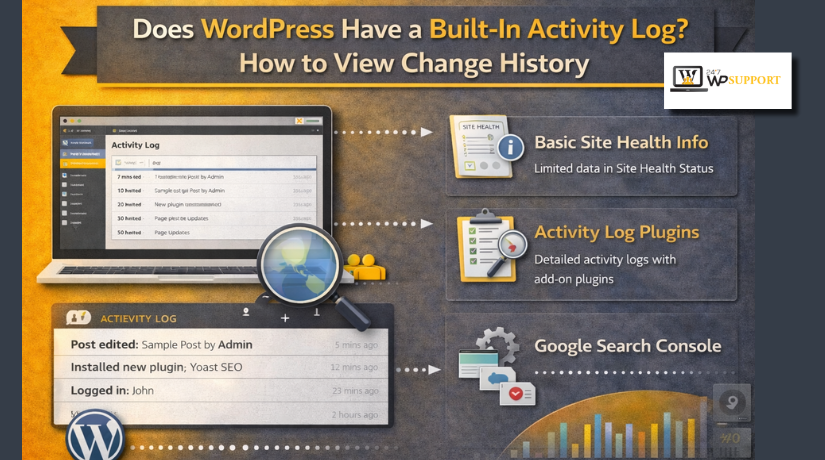
Does WordPress Have a Built-In Activity Log? How to View Change History
Introduction
Many site owners ask, Does WordPress have a built-in activity log for daily changes. The short answer is partly yes, but not in a complete way. WordPress does include tools that help track changes in WordPress content. It saves revisions, drafts, and autosaves for posts and pages. This means WordPress can keep a record of content edits over time. So, if you ask, Does WordPress keep a history of changes, the answer is yes for content changes.
However, this built-in system is not a full WordPress activity log. It does not work like a complete WordPress audit log for the whole website. It mainly helps you review and restore content edits. That is why many users get confused by this topic. They expect WordPress to track every action by default. In reality, WordPress only stores selected editing history inside core features.
This guide will help you understand what WordPress already includes. It will also prepare you for how to view WordPress activity log options later in the article.
What WordPress Includes by Default for Change History
WordPress comes with a built-in revision system for posts and pages. Every time you save a draft or update content, WordPress may store a version. This gives editors a simple way to go back and check earlier text.
The built-in history mainly covers:
- Saved drafts
- Published updates
- Content revisions
- Autosaved versions
These tools are useful when a page changes by mistake. They also help when multiple users edit the same post.
How Native WordPress Change Tracking Works
The native system is simple and focused on content only. It does not try to monitor the full website. Instead, it helps site owners recover writing changes inside the editor.
Here is a quick view of what WordPress includes by default:
| Built-in Feature | What It Helps With |
| Revisions | Compare older and newer content versions |
| Drafts | Save unfinished work before publishing |
| Autosaves | Protect recent edits during sudden issues |
| Restore option | Bring back an earlier content version |
So, WordPress does offer a basic way to track changes in WordPress. Still, this is not the same as a full WordPress activity log or full WordPress audit log. It is best described as built-in content revision history.
What WordPress Does Not Track Natively
After learning the basics, many users ask a bigger question. Does WordPress have a built-in activity log for the full website? The answer is no, not in the complete sense. WordPress can save content revisions, but it does not create a full WordPress activity log for every site action.
This is where many website owners feel confused. They see saved revisions and think everything is recorded. That is not how the core system works. The built-in feature mainly helps you track changes in WordPress content. It does not watch the whole site like a full WordPress audit log tool.
By default, WordPress does not normally track actions like these:
- User login and logout activity
- Plugin activation or deactivation
- Theme switching
- Settings changes inside the dashboard
- User role updates
- Failed login attempts
- Many admin-level actions across the website
So, does WordPress keep a history of changes? Yes, but mostly for post and page edits. It does not keep a complete record of all website activity. That is a major difference readers should understand early.
A simple way to explain it is this: WordPress saves content history, not full site behavior history. If you only need to recover text changes, the built-in system may help. If you need to see who changed a setting or activated a plugin, the native feature will not be enough
How to View Change History for Posts and Pages
Now let us look at the built-in option WordPress does provide. If your goal is how to view WordPress activity log, the closest built-in option is the Revisions feature for posts and pages. It is not a full log, but it does help you review content edits.
You can view change history by following these steps:
- Open the post or page from your WordPress dashboard
- Go to the editor screen for that content
- Look for the Revisions option in the settings area
- Click it to open the comparison screen
- Review older and newer content versions
- Restore the version you want if needed
This screen helps you compare changes between saved versions. You can see what text was added, removed, or changed. This is very useful when content gets edited by mistake. It also helps when several users work on one article.
| Feature | What You Can See |
| Revisions | Earlier saved versions of content |
| Compare view | Text changes between versions |
| Restore option | Bring back an older version |
| Autosave | Recent unsaved or temporary content state |
So, when people ask how to view WordPress activity log, the real answer depends on what they mean. For content edits, use revisions. For a full WordPress activity log or WordPress audit log, WordPress core alone is not enough.
Site Editor Change History for Block Themes
WordPress has changed a lot with block theme support. Today, change tracking is not limited to posts only. Newer WordPress versions also support revisions inside the Site Editor. This helps users who build pages with modern block themes.
If you ask, does WordPress keep a history of changes, the answer also applies here. WordPress can now save revision history for some design-related changes. This includes templates, template parts, and global styles in many block theme setups.
That matters because these areas control the website design. A small edit here can affect headers, footers, layouts, and style settings. If someone changes a template by mistake, revision history can help restore an earlier version.


This is useful for:
- Block theme websites
- Editors working in the Site Editor
- Teams managing layout changes
- Users testing design updates safely
So, WordPress does offer more built-in history than before. Still, this does not become a full WordPress activity log. It remains focused on saved content and design revisions inside supported areas.
When a Plugin Is Needed Instead of Native History
At this point, many users start asking a practical question. Does WordPress have a built-in activity log that tracks everything important? The answer is still no. Native revisions help with content and some design changes. They do not replace a full WordPress audit log system.
A plugin becomes important when your website has many users. It also helps when actions happen outside normal content editing. This is common on business websites, WooCommerce stores, and membership platforms.
You may need a plugin if you want to see:
- Who logged into the website
- Who changed plugin or theme settings
- Who updated user roles or permissions
- Who edited menus, widgets, or site settings
- Who activated or removed a plugin
This is where a real WordPress activity log becomes useful. It gives a wider view of website actions. It also helps admins solve mistakes faster and manage teams better.
Here is a simple difference:
| Type | What It Covers |
| Native WordPress history | Posts, pages, and some Site Editor revisions |
| Activity log plugin | User actions, settings changes, plugin activity, and more |
So, if your goal is only to track changes in WordPress content, built-in history may be enough. But if you need to monitor broader site actions, you will need more than native tools. That is the point where users move from simple revisions to a full WordPress audit log solution.
What to Check Before Installing an Activity Log Plugin
Once users outgrow revisions, they start comparing plugin options. At that stage, the goal becomes simple. They want a clear WordPress activity log that is easy to read and use. A good plugin should help admins understand site actions quickly.
Before choosing one, check for these useful features:
- Clear logs with date, time, and user details
- Login and logout tracking
- Plugin and theme change records
- Settings and role change history
- Search and filter options for fast review
These features matter because they improve daily site management. They also make problem checking much easier during team work. If you want to track changes in WordPress beyond content edits, a plugin should cover more than post revisions.
Here is a simple plugin checklist:
| Feature to Check | Why It Matters |
| User action tracking | Shows who changed something |
| Login history | Helps review access activity |
| Settings change log | Helps catch dashboard changes |
| Search filters | Saves time during review |
| Easy interface | Makes the log simple to understand |
Common Confusion to Clear Up
Many readers still mix revisions with full site logging. That confusion is very common on WordPress websites. So let us clear it up in a direct way.
A revision history is not a full WordPress audit log. It only stores certain saved content versions. An autosave is also not the same thing. It protects recent writing, but it does not record all website activity.
This means does WordPress keep a history of changes? Yes, but only in limited areas by default. It keeps a record of many content edits. It does not fully record every action across the website. So, does WordPress have a built-in activity log? Not in the complete sense most users expect.
If someone asks how to view WordPress activity log, the answer depends on what they need. For post and page edits, use revisions inside the editor. For user actions, settings edits, and plugin changes, use a plugin.
Conclusion
WordPress does include built-in change history for content revisions. This helps site owners review older versions and restore saved content when needed. It is useful for posts, pages, and some Site Editor changes. However, it is not a full WordPress activity log for the whole website. If you only want to track changes in WordPress content, the native revision feature may be enough. If you need login records, settings history, plugin changes, or user activity, you will need a proper WordPress audit log plugin. The best choice depends on how your website is managed. For a small blog, built-in revisions may work well. For business sites, WooCommerce stores, and multi-user websites, deeper tracking is usually better. If you need expert help setting up change tracking, revision recovery, or the right logging solution for your site, 24x7WPSupport can help you manage it in the right way.
FAQs
1. Does WordPress have a built-in activity log?
WordPress has built-in revision history for posts and pages. It does not include a full sitewide activity log by default. That means it can save content changes, but it does not track every action across the website.
2. Does WordPress keep a history of changes?
Yes, WordPress keeps a history of many content changes. It stores revisions, drafts, and autosaves for posts and pages. This helps users compare versions and restore older content when needed.
3. How to view WordPress activity log in the dashboard?
If you want to see content changes, open a post or page and check the Revisions area. That is the built-in option. If you want a full WordPress activity log, you need an activity log plugin.
4. What is the difference between a WordPress activity log and revisions?
Revisions only show saved content changes inside posts or pages. A WordPress activity log records wider site actions. This may include logins, plugin updates, settings changes, and user role edits.
5. When should I use a WordPress audit log plugin?
You should use a WordPress audit log plugin when your site has many users or important admin activity. It is especially useful for WooCommerce stores, membership sites, client websites, and teams managing the same dashboard.





Brian is a WordPress support specialist and content contributor at 24×7 WP Support. He writes practical, easy-to-follow guides on WordPress troubleshooting, WooCommerce issues, plugin and theme errors, website security, migrations, performance optimization, and integrations. With a focus on solving real website problems, Brian helps business owners, bloggers, and online store managers keep their WordPress sites running smoothly.
