
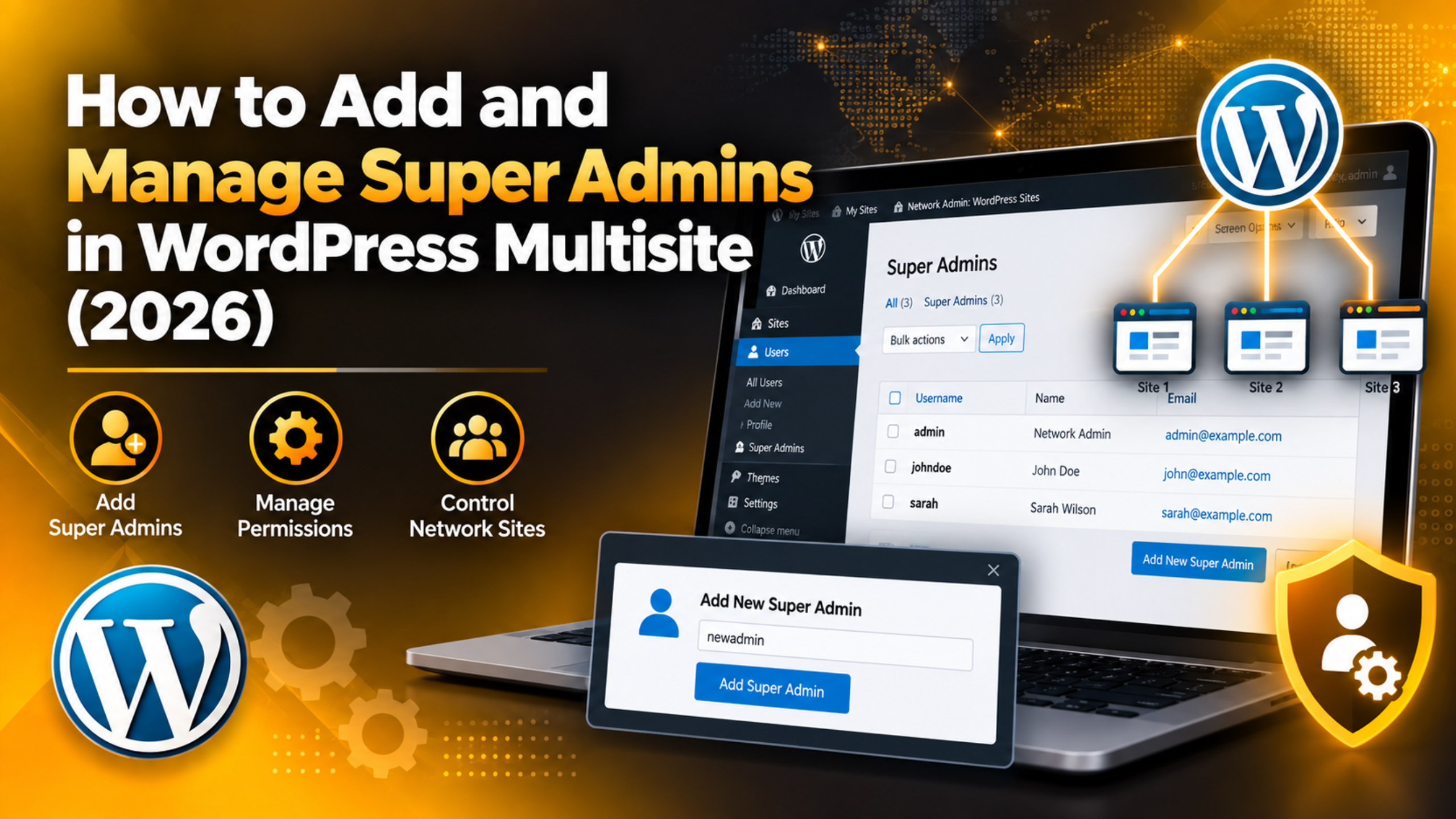
How to Add and Manage Super Admins in WordPress Multisite (2026)
A WordPress Multisite network runs many websites from one WordPress install. One account type sits above every site in that network. It is called the Super Admin. If you run a network, you need to know who holds that access and how to hand it out safely.
This guide covers what a Super Admin controls, how to create one, how to promote an existing user, and how to take the access away. Every screen path is included, so you can follow along in your own Network Admin dashboard.
What a Super Admin Is in WordPress Multisite
A Super Admin is the top-level account on a WordPress Multisite network. The role does not exist on a normal single-site install. It appears only after you turn multisite on and the Network Admin menu shows up in your toolbar.
On a single site, an Administrator is the highest role. On a network, that changes. A site Administrator now controls one site only. The Super Admin controls the network itself, plus every site inside it.
Where WordPress stores the setting matters. Normal roles live in each site’s user table as capabilities. Super Admin status does not. It lives in a network-wide option called site_admins, stored in the wp_sitemeta table. That is why a Super Admin needs no invitation to a site before managing it.
It also means the role travels. Add a new site tomorrow, and every Super Admin can already administer it. If networks are new to you, our guide on what WordPress Multisite is and how to create it covers the setup side first.
One point is often missed. Super Admin is not a role you pick from a dropdown. It is a flag layered on top of a normal account. The same person can still be an Editor on one site while holding network-wide power.
What Super Admins Can Do That Site Admins Cannot
The gap between the two is wider than most owners expect. WordPress deliberately locks several jobs away from site Administrators on a network. Only a Super Admin can do them.
Install plugins and themes. On multisite, site Administrators lose the ability to upload or install anything. Only a Super Admin can install through Network Admin → Plugins → Add New, then network activate it or leave it available per site.
Create and delete sites. Adding a site at Network Admin → Sites → Add New is Super Admin work, and so is deleting one. A site Administrator cannot remove their own site from the network.
Change network settings. Everything under Network Admin → Settings is off limits to site Administrators. That includes registration rules, allowed upload file types, and the per-site upload space limit.
Manage all network users. Network Admin → Users lists every account across every site, and a Super Admin can edit, delete or promote any of them. A site Administrator sees only users attached to their own site.
Run core updates. WordPress core, plus the network database upgrade at Network Admin → Updates, is Super Admin only. One person updates once and the whole network follows.
Post unfiltered HTML. WordPress strips risky HTML from posts written by site Administrators on multisite. Super Admins keep the unfiltered_html capability. Our breakdown of WordPress user roles and permissions goes deeper on the standard roles.
How to Add a New Super Admin From the Network Dashboard
Adding a brand new Super Admin takes two steps, not one. This catches people out. Creating the user does not make them a Super Admin. You create the account first, then grant the flag.
Before you start, back up. A single Super Admin account can delete every site on the network, so make sure you can roll back. Back up files and the database using our guide to backing up and restoring a WordPress website. If you are reworking access across a live network, try it on a staging site first.
Step 1: create the account. Hover over My Sites in the toolbar and click Network Admin. Go to Users → Add New. Enter a username and an email address, then click Add User. WordPress creates the account and emails a link to set the password. The account starts with no site membership at all.
Step 2: grant the flag. Still in Network Admin, go to Users. Click the new username to open its profile. Scroll to the Super Admin section and tick Grant this user super admin privileges for the Network. Click Update User.
Back on Network Admin → Users, the account now shows a tick in the Super Admin column. That column is the fastest way to audit your network later.
If you prefer the command line. WP-CLI does it in one move. Run wp super-admin add username to grant the flag, and wp super-admin list to see everyone who holds it. Only run commands against a live network with a backup already in place.
Ask the new Super Admin to log in and confirm the Network Admin menu appears. If it does not, the flag did not save.
How to Promote an Existing User to Super Admin
Promoting someone who already has an account is simpler. You skip the creation step and go straight to the flag.
Open Network Admin → Users. The search box at the top right searches every site on the network, so use it if the list is long. Click the username you want to promote.
On the profile screen, find the Super Admin heading. Tick Grant this user super admin privileges for the Network, then click Update User. The change applies at once. The person does not need to log out, though a refresh helps their toolbar update.
Why the checkbox might be missing. There are three normal reasons and none is a bug. First, you are looking at your own profile, and WordPress hides the box there so you cannot lock yourself out. Second, the account owns the network admin email set in Network Admin → Settings. Third, your network defines Super Admins in code instead, which the next section covers.
Check it worked. Return to Network Admin → Users and look at the Super Admin column for that row. No tick usually means a caching layer served you an old page, so clear the cache and reload.
Defining Super Admins in wp-config.php
WordPress also lets you set Super Admins in code. You do this with a $super_admins array in wp-config.php. It is a useful option with one trade-off worth understanding first.


When that array exists, it overrides the site_admins database option completely. WordPress then hides the Super Admin checkbox on every profile screen. Nobody can grant or remove the flag from the dashboard any more. The file becomes the only source of truth.
That is exactly why some agencies prefer it. A client with dashboard access cannot quietly promote themselves. It also survives a database restore, because the list sits in a file rather than a table.
Do not edit this file on a live site unprepared. A typo in wp-config.php takes the whole network offline, not just one site. Save a copy of the current file, take a full backup, and make the change on staging first if you can. Our explainer on what the wp-config.php file does covers the file’s structure.
The line goes above the /* That's all, stop editing! */ comment, and the values are usernames, not email addresses:
$super_admins = array( 'jane', 'mmk', 'devteam' );Save and reload your dashboard. If the Network Admin menu disappears, your username is missing or misspelled. Restore your saved copy of the file and try again.
How to Remove Super Admin Access Safely
Removing access matters as much as granting it. Former staff, finished contractors and old test accounts should not keep network-wide control.
Go to Network Admin → Users and click the username. Untick Grant this user super admin privileges for the Network, then click Update User. The person keeps their account and their per-site roles. They simply lose the Network Admin menu.
Two accounts WordPress protects. You cannot remove the flag from your own account through the dashboard, and you cannot remove it from the account whose email matches the network admin email in Network Admin → Settings. This is deliberate. It stops a network ending up with nobody in charge.
If you must remove one of those. Change the network admin email first, or ask a second Super Admin to make the change. Keeping at least two Super Admin accounts makes this far easier.
Deleting versus demoting. Untick the box when the person still needs a site-level account. Delete the account at Network Admin → Users only when they should have no access at all. Deleting reassigns or removes their content, so read the confirmation screen carefully.
Rotate the password afterwards. If the login was ever shared, change that password rather than relying on removal alone. A reset through phpMyAdmin is a last resort, and only with a database backup in hand.
How to Keep Super Admin Access Secure
A Super Admin account is the most valuable target on your network. If one is taken over, every site is exposed at once. A few habits cut that risk sharply.
Keep the number low. Two or three is usually right. One is risky, because you have no backup if that person is unreachable. Ten is far too many.
Turn on two-factor authentication. A password alone is not enough for an account with this reach. Our guide on adding 2FA or MFA to WordPress admin login covers the setup.
Harden the login screen. Rate limiting and failed-login monitoring stop most automated attacks early. See our steps for securing the WordPress login page, and consider a custom login URL to cut the noise.
Never share one login. Give each person their own account. Shared logins make it impossible to tell who changed what, or to revoke access for one person only.
Audit on a schedule. Open Network Admin → Users every quarter and sort by the Super Admin column. Ask one question about each name: does this person still need it today?
Watch the network’s health. Site Health flags outdated PHP and inactive plugins, which are the openings attackers look for. Our wider WordPress security guide has the full picture.
Common Super Admin Problems and How to Fix Them
Most Super Admin issues come down to three things: the flag not saving, the menu not showing, or a lockout. Each has a clear fix.
The Network Admin menu is missing after a promotion. Hard refresh first, because a page cache often serves the old toolbar. If it is still gone, re-open the profile in Network Admin → Users and confirm the box is ticked. If the box is not there, check whether $super_admins is set in wp-config.php.
The checkbox will not stay ticked. This is usually a plugin filtering user capabilities. Test by deactivating plugins one at a time from Network Admin → Plugins. Our guide to WordPress plugin conflicts explains the process.
You are locked out of every account. Do not start editing the database blindly. Take a database backup, then add your username to a $super_admins array in wp-config.php. That restores access without touching a single table.
A blank screen hides the real error. Turn on debugging so WordPress writes the reason to a log file. Our explainer on what WP_DEBUG is and how it works shows where the log lands.
A Super Admin cannot upload plugins. Check file and folder permissions on the server. Our fix for file and folder permission errors covers the correct values.
Managing Super Admin access well is mostly discipline: grant it rarely, record who has it, protect those logins, and review the list often. If your network has outgrown what you can track alone, 24×7 WP Support handles multisite management, user audits, security hardening and round-the-clock monitoring.






Brian is a WordPress support specialist and content contributor at 24×7 WP Support. He writes practical, easy-to-follow guides on WordPress troubleshooting, WooCommerce issues, plugin and theme errors, website security, migrations, performance optimization, and integrations. With a focus on solving real website problems, Brian helps business owners, bloggers, and online store managers keep their WordPress sites running smoothly.
