
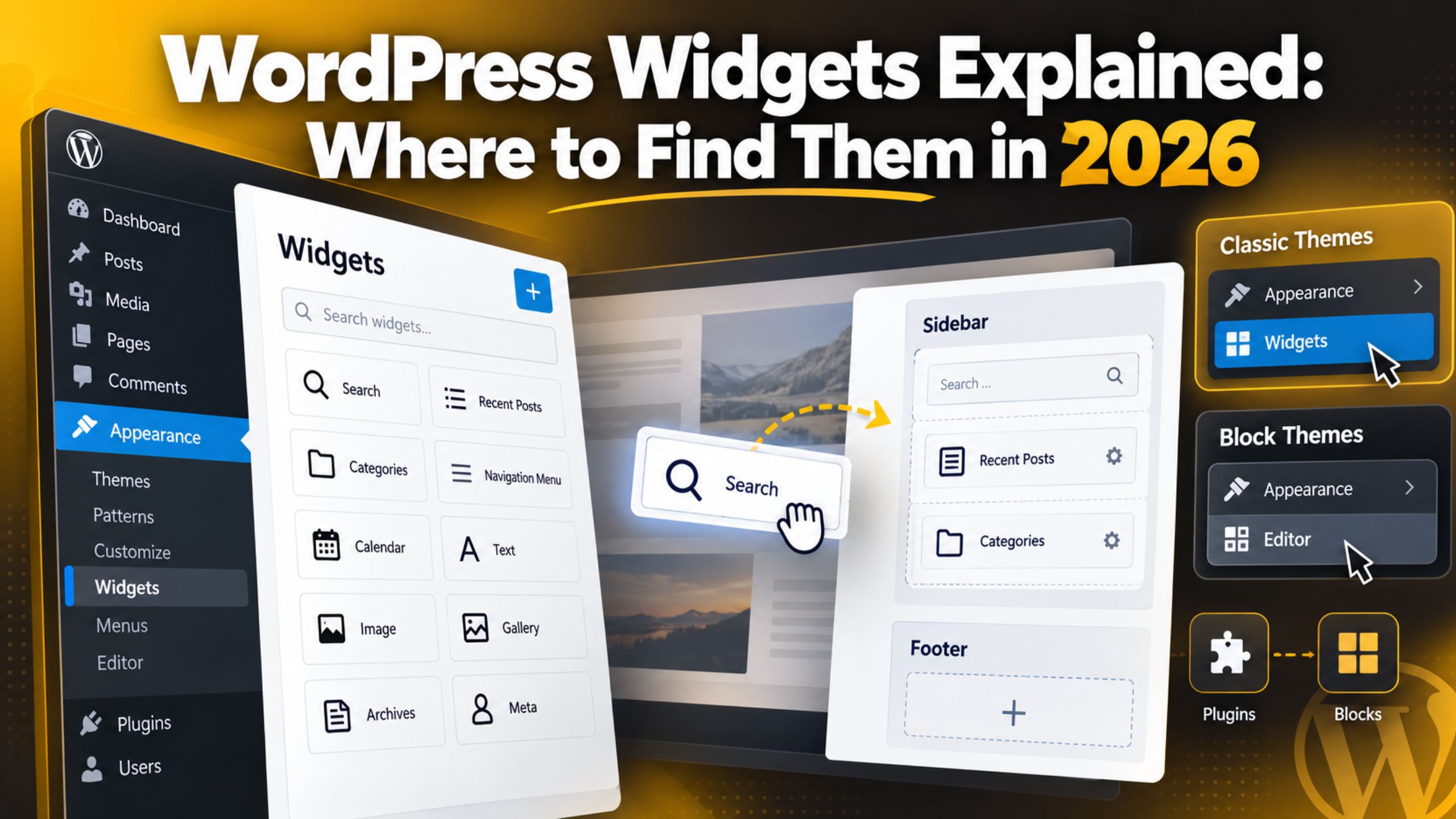
WordPress Widgets Explained: Where to Find Them in 2026
Introduction
Widgets are one of the oldest parts of WordPress, and one of the most confusing. Some sites have a Widgets screen. Others do not. Some people use the word to mean a small tool, others use it to mean a plugin.
This guide clears that up. You will learn what a widget really is, where the widget screen lives in 2026, how widgets differ from plugins, and what to do when your theme has no widget areas at all.
What a WordPress Widget Actually Is
A widget is a small block of content that sits outside the main body of a page. Think of a search box in a sidebar, a list of recent posts in a footer, or a short about-us paragraph beside your blog. The same widget shows on many pages at once.
That is the key difference from normal content. A paragraph you write inside a post belongs to that post only. A widget belongs to an area of your theme, so it appears everywhere that area is shown.
WordPress ships with a set of built-in widgets. You get a search box, recent posts, recent comments, categories, an archive list, a tag cloud, a navigation menu and a few others. Since WordPress 5.8, these are offered as blocks, so you can also drop in any normal block, such as an image or a heading.
Widgets save time because you set them once. Change the text in a footer widget and it updates on every page that uses the footer. That is why they still matter, even on a modern site.
Where to Find the Widgets Screen in WordPress
The route depends on which kind of theme your site runs. This is the single biggest reason people cannot find their widgets, so it is worth checking first.
Classic themes. Log in and go to Appearance → Widgets. You will see your theme’s widget areas on the right and a block inserter on the left. If you prefer to see the result as you work, go to Appearance → Customize → Widgets instead. That shows a live preview beside the controls. Our guide to the WordPress Customizer explains that screen in more detail.
Block themes. If your theme is a block theme, there is no Widgets menu at all. WordPress hides it on purpose. You edit the sidebar and footer directly in Appearance → Editor, which opens the Site Editor. Pick a template or template part, then add blocks where you want them.
How to tell which you have. Open the Appearance menu. If you see Widgets and Customize, you are on a classic theme. If you only see Editor, you are on a block theme. It takes two seconds and saves a lot of searching.
If Widgets is missing on a classic theme. Some themes register no widget areas, so WordPress hides the menu. Switching to a default theme for a moment confirms it. If the menu appears on the default theme, your original theme simply has no widget areas.
What Widget Areas Are and Why Themes Differ
A widget area is a slot that your theme defines. WordPress itself does not decide where widgets appear. The theme does, in its code, and then WordPress shows you whatever slots that theme registered.
This is why two sites can look so different on the same screen. One theme may offer a single sidebar. Another may offer a sidebar, three footer columns, a header strip and an area above the comments. Neither is wrong. They are just built differently.
Widget areas are also called sidebars in the WordPress code, even when they sit in the footer. Do not let the name confuse you. A footer column is still a sidebar as far as the code is concerned.
If you want to know where these slots are defined, they are registered in the theme’s functions.php file. Our breakdown of WordPress theme files explains what each file does. Never edit a theme file on a live site without taking a backup or working on a staging copy first.
How to Add, Move and Remove a Widget
Adding a widget takes less than a minute on a classic theme. The steps below use the standard Widgets screen.
Step 1: Open the screen. Go to Appearance → Widgets. Each widget area appears as a panel on the right. Click a panel heading to expand it.
Step 2: Add the block. Click the + icon at the top left, or inside the widget area itself. Search for what you want, such as “Search” or “Latest Posts”, then click it. It drops into the area you had selected.
Step 3: Set the options. Click the new widget and open the settings panel on the right. Most widgets let you set a title and a count. Leaving the title empty is fine if the purpose is obvious.
Step 4: Reorder it. Drag the widget up or down inside its area. You can also use the arrow buttons in the block toolbar, which is easier than dragging on a long list.
Step 5: Remove it. Click the widget, open the three-dot block menu and choose Delete. If you only want it gone for now, drag it to the Inactive Widgets box at the bottom. That keeps the settings for later.
Step 6: Save and check. Click Update at the top right, then open your live site. Check a post page as well as the home page, because some themes show different areas on each.
Moving a whole set-up to another site is possible too. See our guide on importing and exporting widget settings.
Widget vs Plugin: What Is the Difference?
This is the question that trips up most new site owners. The short answer is that a plugin adds features to your whole site, while a widget places content into a slot in your theme.
Scope. A plugin can do anything: add a contact form, change how orders work, speed up images, or add admin screens. A widget only displays something inside a widget area. It is a presentation tool, not a feature set.


Where they live. Plugins are managed under Plugins → Installed Plugins. Widgets are managed under Appearance → Widgets, because they belong to the theme layer, not the plugin layer.
How they relate. They are not rivals. Many plugins add their own widgets. You install the plugin once, and a new widget then appears in your list, ready to place. That is why a widget can disappear without warning if the plugin that supplied it is deactivated.
Weight. A widget on its own adds almost nothing to your page weight. A plugin can add scripts and styles across the site. If speed matters, count your plugins, not your widgets.
Dashboard widgets are different again. The boxes on your admin home screen are called dashboard widgets, and visitors never see them. Our guide to custom dashboard widgets covers those.
Widgets and Blocks: How They Fit Together Now
WordPress 5.8 changed the Widgets screen so it uses blocks. This caused a lot of confusion, and it is worth understanding what actually changed.
Before that release, each widget was a small form with its own fields. Now the widget area is a block canvas. The old widgets still exist as blocks, and any block you can use in a post can also be placed in a widget area.
That is a real gain. You can put an image, a button, a group with a background colour, or a cover block into your footer. Before, you had to use a text widget and write raw HTML. If blocks are new to you, our walkthrough of the WordPress block editor is a good starting point.
Legacy widgets from plugins still work. WordPress wraps them in a Legacy Widget block, so the old settings form appears inside the block. It is a compatibility layer, and plugin authors are expected to move to blocks over time.
Which Widgets Are Worth Using
Just because a widget exists does not mean it earns its space. A cluttered sidebar pushes your main content down and slows the reader. Pick a small number and make each one do a job.
Search. Useful on any site with more than about thirty pages. Visitors look for it in the sidebar or header first.
Navigation menu. Good in a footer, where it gives a second route to key pages without crowding the header.
Latest posts or categories. Worth it on a blog, because it keeps a reader moving to the next article. Set the count to five or six, not twenty.
A short call to action. A paragraph and a button beat a long list of links. This is often the highest-value widget on a business site.
Shortcode or custom HTML. Handy for embedding something a plugin provides. Our guide on using shortcodes in WordPress shows how these work in widget areas.
Niche widgets. Some sites genuinely benefit from something specific, such as a weather widget on a local or seasonal site. Add those only when they serve the visitor.
Common Widget Problems and Quick Checks
Most widget trouble comes from a handful of causes. Work through these before assuming something is broken.
The widget does not show on the live site. Check you saved, then check which template the page uses. Many themes hide the sidebar on the home page or on full-width page templates.
All widgets vanished after a theme change. This is normal. Widget areas belong to the theme, so a new theme has new slots. Your old widgets are usually waiting in Inactive Widgets at the bottom of the Widgets screen.
The sidebar appears below the content. That is a layout issue, not a widget issue, and it usually comes from a stray HTML tag in one widget. Our guide to the sidebar below content error covers the fixes.
You want the sidebar gone entirely. Removing the widgets does not always remove the empty column. Our post on how to remove the sidebar explains the proper way.
Footer widgets look wrong on mobile. Footer columns usually stack on small screens. Check the order after they stack, because the right-hand column often ends up last. Our guide on editing a WordPress footer goes further.
Get Help With Your WordPress Widgets
Widgets are simple until a theme or a plugin gets in the way. An area that will not display, a plugin widget that vanished after an update, or a sidebar that refuses to sit beside the content can eat an afternoon. Those problems are usually small once someone looks at the actual site.
Our team works on this kind of thing every day. We restore missing widget areas, rebuild sidebars and footers after a theme change, move widget set-ups between sites, and sort out layouts that broke on mobile. Where a change carries any risk, we take a backup and work on a staging copy first.
If your widgets are not behaving the way you expect in 2026, visit 24×7 WP Support and tell us what you are seeing. We will look at it and explain what we find in plain language, so you can decide what to do next.
Related posts:

Brian is a WordPress support specialist and content contributor at 24×7 WP Support. He writes practical, easy-to-follow guides on WordPress troubleshooting, WooCommerce issues, plugin and theme errors, website security, migrations, performance optimization, and integrations. With a focus on solving real website problems, Brian helps business owners, bloggers, and online store managers keep their WordPress sites running smoothly.
