
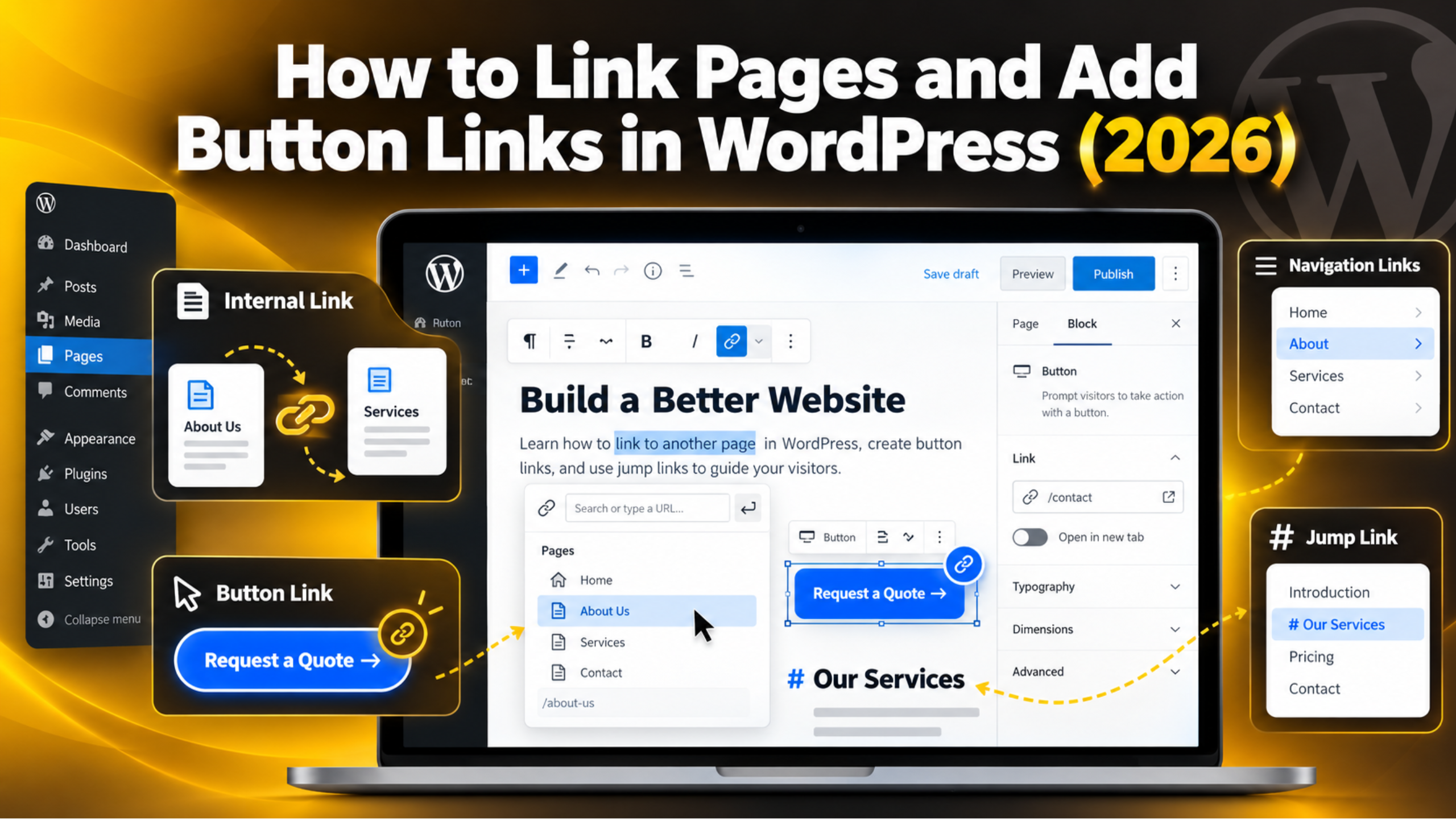
How to Link Pages and Add Button Links in WordPress (2026)
Introduction
Links are how visitors move through your website. A good link takes a reader from a question to an answer in one click. A missing link sends them back to search.
This guide shows you how to link one WordPress page to another, how to turn a link into a button, how to jump to a section inside a long page, and how to add page links to your menu. Every step uses the standard editor, so no code is needed.
What Internal Linking Means in WordPress
An internal link points from one page on your site to another page on the same site. A link to a news story on another website is an external link. The two look the same to a reader, but they do different jobs.
Internal links do three things. They help a visitor find the next useful page. They tell search engines which pages matter most. And they pass ranking value between your own pages.
WordPress stores each page at its own web address, called a permalink. When you link to a page, you are really linking to that address. If the address changes later, the link breaks. That is why your permalink settings matter so much. Our guide to WordPress permalinks explains how to set them once and leave them alone.
One more thing before you start. WordPress treats posts and pages the same way when you link to them, and the editor searches both. So the steps below work for a blog post, a service page or a product page.
How to Link One Page to Another in the Block Editor
This is the most common task on any website. You have a sentence in one page, and you want a few words in it to open another page. It takes about ten seconds once you know the shortcut.
Open the page you want to edit. Go to Pages → All Pages, then click the page title. The block editor opens. If the editor looks new to you, our walkthrough of the WordPress block editor covers the basics.
Step 1: Select the words you want to link. Click and drag across two to five words. Short, clear phrases work best. “Our pricing page” is good anchor text. “Click here” is not.
Step 2: Press Ctrl+K on Windows, or Cmd+K on a Mac. A small link box opens above your text. You can also click the chain icon in the toolbar that floats over the block.
Step 3: Type the name of the page you want. WordPress searches your own content as you type, and matching pages appear in a short list. Click the right one. WordPress fills in the address, so you cannot mistype it.
Step 4: Press Enter to apply the link. The text turns into a link right away. Click it once to reopen the settings.
Step 5: Save and test. Click Update in the top right. Then open the live page and click the link yourself. A link that was never tested is only a guess.
How to Add a Page Link to a Button
A button is simply a link that is styled to look clickable. Use one when the link is the main action on the page. Think “Get a Quote”, “Book a Call” or “See Our Plans”. A button usually pulls more clicks than the same words buried in a paragraph.
WordPress has a Buttons block built in, so you do not need an extra tool.
Step 1: Add the block. Click the blue + icon, search for Buttons and press Enter. An empty button appears on the page.
Step 2: Type the button text. Keep it to two or four words, and start with a verb. “Request a Quote” beats “More Information” because it says what happens next.
Step 3: Link the button. With the button still selected, press Ctrl+K or click the chain icon. Search for your page by name, then click it. The button is now live.
Step 4: Choose the style. Open the block settings panel on the right. You can switch between Fill and Outline, change the colours, and set the corner radius. Fill buttons stand out more on a busy page.
Step 5: Set the width. Under Width settings, pick 25%, 50%, 75% or 100%. On phones, a wider button is easier to tap. Aim for at least 44 pixels of height.
If you want more control over button design, our post on how to create a button in WordPress goes deeper. For buttons that appear over the page, see our guide to pop-up buttons and banners.
How to Link to a Section Inside a Long Page
Long pages need jump links. A jump link sends the reader to a heading further down the same page, or to a heading on another page. Pricing tables, FAQs and long guides all benefit from them. They use an HTML anchor, which is a short label you attach to a block. The browser then scrolls straight to that label.
Step 1: Give the target block an anchor. Click the heading you want to jump to. In the right-hand settings panel, open Advanced. Type a name in the HTML anchor field, such as pricing. Use lowercase letters and hyphens only. No spaces.
Step 2: Build the link. Select the words that will act as the jump link. Press Ctrl+K. Instead of a page name, type #pricing and press Enter. The hash symbol is what tells the browser to scroll rather than load a new page.
Step 3: Link to a section on a different page. Use the full address, then the hash and the anchor, such as https://yoursite.com/services/#pricing. The visitor lands on the services page, already scrolled to the pricing block.


Test jump links on a phone as well as a desktop. A sticky header can hide the top of the target section. If that happens, link to the block just before the heading instead.
How to Add Page Links to Your Menu and Sidebar
Links inside your text help one reader at a time. Menu links help every reader on every page. Your main menu is the most valuable set of links on the whole site, so treat it with care.
The screen you use depends on your theme. Classic themes use Appearance → Menus. Tick the pages you want on the left, click Add to Menu, then drag them into order. Drag an item slightly right to make it a submenu item, then click Save Menu.
Block themes use Appearance → Editor instead. Open a template, click the Navigation block, then use the + icon inside it to add a page. The changes save when you click Save at the top.
Keep the main menu to seven items or fewer. Visitors scan menus quickly, and a long list slows them down. Our menu and submenu guide walks through the drag-and-drop part in detail, and our step-by-step WordPress menu guide covers menu locations.
Sidebars and footers work the same way. Go to Appearance → Widgets, add a Navigation block or a Page List block, and pick the pages you want. Also consider breadcrumb navigation links, which show the reader where they are in your site structure.
Link Settings You Should Check Every Time
Every link has a few settings behind it, and most people never open them. Getting them right takes seconds and avoids real problems later.
Open in new tab. This toggle sits in the link box. Leave it off for your own pages. Sending a reader to a new tab for internal links clutters their browser and breaks the back button. Turn it on only for links that leave your site, such as a payment page or a partner profile.
Anchor text. The words you link are a signal to readers and to search engines. Describe the destination in plain words, and vary the wording a little between pages.
Relationship attributes. Links you were paid for should carry rel="sponsored". Links in user comments should carry rel="ugc". You can add these by switching the block to Edit as HTML from the block options menu, or by using the link settings your SEO plugin adds.
Secure addresses. Always link with https://, never http://, because a mixed link can trigger a browser warning. The search box in the link tool always inserts the correct address.
Draft pages. A link to an unpublished page will not work for visitors. Check the status in Pages → All Pages first.
Common Linking Mistakes and How to Fix Them
Most broken links on a WordPress site come from a small number of habits. Once you know them, they are easy to avoid.
Changing a slug after publishing. The slug is the last part of the address. Edit it and every old link to that page stops working. If you must change it, set up a redirect from the old address to the new one. Our guide to 301 redirects shows both the file method and the plugin method. Back up your site before editing any server file, or make the change on a staging copy first.
Deleting a page that other pages link to. The visitor then sees a 404 error. Either redirect the old address, or update the pages that pointed at it. Our post on fixing the 404 page not found error explains the options.
Never checking. Links rot quietly. Run a link check once a month, or after any big site change. Our guide on how to check for broken links covers the quickest ways to scan a whole site.
A Simple Internal Linking Plan You Can Repeat
Random links do little. A small, repeatable plan does a lot, and it takes a few minutes per page.
Pick your key pages first. These are the pages that earn money or enquiries. Most sites have three to eight of them. Write the list down.
Link to them from your best content. Find the pages that already get traffic, and add one natural link from each to a key page. Place it where the reader would want it, not at the bottom.
Add two to four links per new page. When you publish something new, link out to related pages you already have. Then go back and add a link from one older page to the new one. New content with no incoming links is hard for search engines to find.
Keep the chain short. A visitor should reach any important page in three clicks or fewer from the home page. If a page takes five clicks, it needs a link from somewhere higher up.
Review every quarter. Check the links on your key pages still work, and update anchor text that no longer matches. Fifteen minutes is enough for most small sites.
Get Help With Your WordPress Links
Linking pages is simple on a healthy site. It gets harder when a theme overrides your button styles, when an old migration left hundreds of wrong addresses, or when redirects loop. Those jobs need someone to look at the actual site rather than guess from a checklist.
That is the kind of work our team does every day. We audit internal links, repair broken ones, set up clean redirects, and fix navigation that stopped working after an update. We also tidy up menus after a theme change, and rebuild button styles that a template has overridden. Where a change carries any risk, we take a backup and work on a staging copy first.
If your links, menus or buttons are not behaving the way you expect in 2026, visit 24×7 WP Support and tell us what is happening. We will take a look and explain what we find in plain language, so you can decide what to do next.
Related posts:
How Long Does WordPress Take to Publish Changes in 2026?

Taking Over an Older WordPress Site: Where to Begin
How to Indent Text in WordPress: 4 Simple Methods (2026)
How to Write and Publish a Blog Post on WordPress: A Complete 2026 Guide

WordPress iFrame and How to embed Video and content in WordPress?

Brian is a WordPress support specialist and content contributor at 24×7 WP Support. He writes practical, easy-to-follow guides on WordPress troubleshooting, WooCommerce issues, plugin and theme errors, website security, migrations, performance optimization, and integrations. With a focus on solving real website problems, Brian helps business owners, bloggers, and online store managers keep their WordPress sites running smoothly.
