
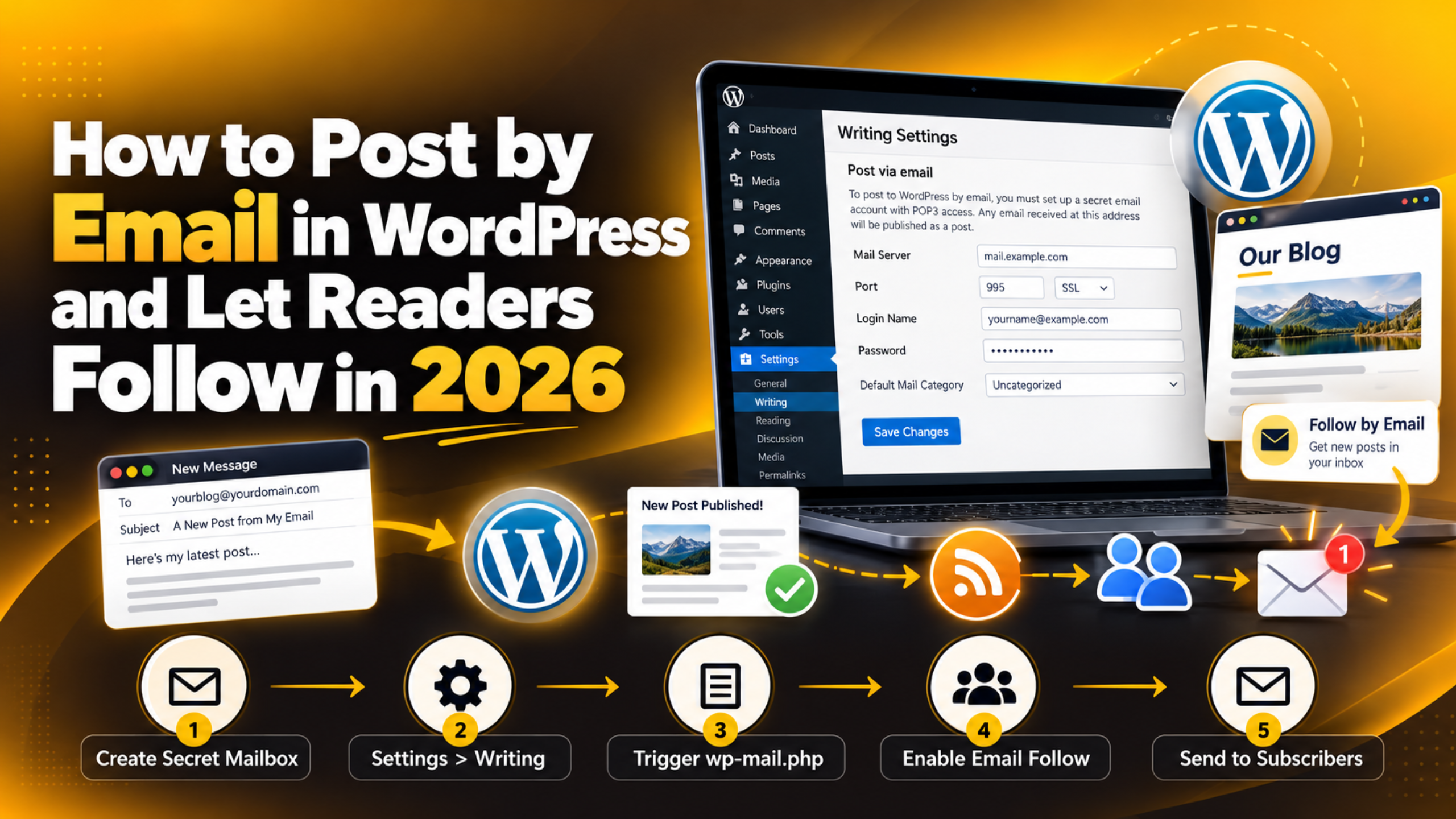
How to Post by Email in WordPress and Let Readers Follow in 2026
Introduction
Email touches a WordPress site in two very different ways. The first is publishing. You write a post in your email app, send it, and WordPress turns it into a live article. The second is reading. A visitor hands over an email address, and each new post lands in their inbox.
People bundle both ideas together as “WordPress and email”. They are not the same job. They sit in different screens and fail for different reasons. This guide covers both, in plain words, using WordPress as it ships in 2026.
Post by Email and Follow by Email Are Two Separate Jobs
It helps to split the topic before you touch a single setting. Posting by email is about you, the author. Following by email is about your audience. Mixing them up is the most common reason site owners end up on the wrong settings screen.
Posting by email is a core WordPress feature. It lives at Settings → Writing and it has shipped with WordPress for many years. You point WordPress at a private mailbox. WordPress checks that mailbox, reads any message it finds, and publishes the message as a post.
Following by email is not a core feature. WordPress does not send your readers a copy of each new post out of the box. It only sends system notices, such as new user alerts and comment moderation requests. If you want a real subscriber list, you add that layer yourself.
Knowing which half you need saves time. If you want to publish from a phone while travelling, you want the first. If you want repeat traffic, you want the second. Many sites use both.
How Post via Email Works Inside WordPress
Post via Email uses an old and very simple idea. You create a secret mailbox that nobody else knows about. WordPress logs into that mailbox using POP3, which is a basic protocol for pulling mail off a server. Anything it finds there becomes a post.
The WordPress screen says this plainly. It warns that any mail received at the address will be posted, so the address must stay secret. WordPress even offers three random strings on the page to help you build a name nobody can guess.
The subject line of your email becomes the post title. The message body becomes the post content. The post is then filed under the category you pick in the Default Mail Category dropdown on the same screen. Everything else, such as tags and a featured image, has to be added later by hand.
The check itself is triggered by a file called wp-mail.php in your WordPress root folder. WordPress does not sit and watch the mailbox all day. Something has to ask it to look. That detail matters later, and it explains most of the problems people hit.
How to Set Up Post via Email, Step by Step
The setup is short, but every field has to be right. Take a full backup of your site first, and try the steps on a staging copy if you have one. These are settings rather than file edits, so the risk is low. A backup still costs you nothing.
Step 1: Create a secret mailbox. Use your hosting control panel or your mail provider to create a brand new address. Do not reuse a mailbox that already receives mail. A single stray newsletter in that inbox will become a published post.
Step 2: Confirm POP3 is switched on. Note the mail server name, the port, the login name and the password. Port 110 is the plain POP3 port. Port 995 is the secure one.
Step 3: Open the settings screen. In the dashboard, go to Settings → Writing and scroll to the Post via email block. If you are not sure how to reach the dashboard, our guide on how to access the WordPress admin covers every route.
Step 4: Fill in the four fields. Enter the mail server, the port, the login name and the password. Pick a category in Default Mail Category. A quiet category such as a drafts or inbox category is safer than your main one.
Step 5: Save and test. Click Save Changes. Send a short test email to the secret address. Then visit https://yoursite.com/wp-mail.php in a browser. WordPress will report what it found. A new post should appear under Posts → All Posts.
What Post via Email Can and Cannot Do
This feature is deliberately basic. It was built long before the block editor, and it has not grown much since. Knowing the limits up front stops a lot of frustration.
It publishes straight away. There is no draft step. The moment WordPress reads the message, the post is live on your site. If you want a review stage, you will need a plugin or a different workflow.
Formatting is plain. Rich formatting from your email app often arrives as messy markup or is stripped out. Simple paragraphs survive. Complex layouts rarely do.
Attachments are unreliable. Images sent as attachments may or may not reach your media library. If images matter to the post, add them afterwards in the editor.
There is no author choice. The post is credited to the user account whose email address matches the sender. If no account matches, WordPress falls back to the default. Our guide to WordPress user roles and permissions explains who can publish what.
It is a legacy feature. WordPress has flagged Post via Email as outdated for some time, and it may be removed in a future release. It still works in current WordPress, but do not build a critical workflow on it alone.
Why an Emailed Post May Never Appear
Most support tickets about this feature come down to one thing. Nothing asked WordPress to check the mailbox. The settings can be perfect and still nothing happens.
Nothing is calling wp-mail.php. WordPress only reads the mailbox when that file runs. Visiting the file by hand works for a test. For regular use, you need a scheduled job that loads the URL every few minutes. Most hosting control panels can set one up.
The login details are wrong. A single wrong character in the server name or password stops the whole check. Open wp-mail.php in your browser and read the message on screen. It usually names the problem.
The port is blocked. Many hosts now block plain port 110 for security. Switch to the secure port your provider lists and save again.


The mailbox was already emptied. If another email app is also connected to that mailbox, it may download and remove the message first. Use the secret mailbox for WordPress and nothing else.
Mail is being filtered. Spam filters on the mail server can quarantine your test message before WordPress sees it. Check the spam folder on the secret account. If your site has wider mail trouble, our post on fixing WordPress not sending email is a good next read.
How Readers Follow a WordPress Blog by Email
Now for the other half. A reader who liked one post wants the next one without hunting for it. Email is still the most reliable way to deliver that, because you own the list.
WordPress alone will not do it. Core WordPress has no subscriber list and no newsletter engine. It sends admin notices only. Our explainer on why WordPress emails you notifications shows what core does send.
Every site has an RSS feed. Visit https://yoursite.com/feed/ and you will see it. An RSS feed is a machine readable list of your recent posts. It updates on its own every time you publish.
RSS can be turned into email. A feed to email service reads that address on a schedule and mails out anything new. This is the simplest path, because you do not have to touch your theme or your posts.
A subscription plugin gives more control. A newsletter or subscription plugin stores the list inside your own database. You get signup forms, confirmation emails and an unsubscribe link. You also get to decide when the mail goes out.
Confirmation matters. Always use double opt in, where the reader clicks a link in a confirmation email. It protects you from fake signups and it keeps your sending reputation healthy.
How to Set Up Email Follow on Your Own Site
The order of work matters. Deliverability comes first, then the signup form, then the schedule. Doing it the other way round means your first campaign lands in spam.
Step 1: Fix how your site sends mail. By default WordPress hands mail to the web server, and many servers are poor at it. Connect your site to a proper mail service over SMTP instead. Our article on WordPress email and SMTP support explains the difference.
Step 2: Set a real sending address. Use an address on your own domain, not a free webmail one. Ask your mail provider to add SPF, DKIM and DMARC records. These are small DNS entries that prove the mail is from you.
Step 3: Add the signup form. Put it where people finish reading. The end of a post, the sidebar and the footer all work well. Ask for the email address only. Every extra field lowers signups.
Step 4: Decide the rhythm. Instant alerts suit a news site. A weekly digest suits most blogs, because it arrives when people have time to read. Pick one and stay consistent.
Step 5: Send yourself a test. Subscribe with your own address and publish a test post. Check how the email looks on a phone. If you are still building out your blog, our guide on writing and publishing a WordPress post pairs well with this step.
Keeping Both Email Features Safe and Working
Email features touch accounts, passwords and personal data. A little routine care keeps them out of trouble. None of this takes long once it is set up.
Treat the secret mailbox as a password. Anyone who learns the address can publish on your site. Never print it, never put it in a contact form, and change it if you suspect a leak.
Turn the feature off when you stop using it. Clear the four fields at Settings → Writing and save. An unused mailbox that is still connected is a quiet risk.
Watch for a sudden flood of posts. If strange posts appear, disconnect the mailbox first and investigate second. Our post on a WordPress site sending spam emails covers the wider warning signs.
Keep your subscriber list clean. Remove addresses that bounce, and honour every unsubscribe at once. Bounces and complaints are what push a domain onto a blocklist.
Back up before bigger changes. Switching mail plugins, editing wp-config.php or changing DNS all deserve a backup and a staging test first. Never try any of them directly on a busy live site.
Final Thoughts on WordPress and Email in 2026
Post via Email is still there in current WordPress, sitting quietly at Settings → Writing. It is simple, it is old, and it publishes without asking twice. Used carefully, with a secret mailbox and a scheduled job to trigger wp-mail.php, it is a neat way to publish from anywhere. Treat it as a legacy convenience rather than a core part of your workflow.
Letting readers follow by email is the half that grows a site. It needs reliable sending, a clear signup form and a steady schedule. Get those three right and your best posts stop depending on search results alone. If you are planning the wider picture, our guide on how to start a blog on WordPress is a useful companion.
If either side of this is giving you trouble, we are happy to look at it with you. The team at 24×7 WP Support works on WordPress email setup, deliverability and publishing workflows every day. Get in touch and tell us what is not working.



Brian is a WordPress support specialist and content contributor at 24×7 WP Support. He writes practical, easy-to-follow guides on WordPress troubleshooting, WooCommerce issues, plugin and theme errors, website security, migrations, performance optimization, and integrations. With a focus on solving real website problems, Brian helps business owners, bloggers, and online store managers keep their WordPress sites running smoothly.
