
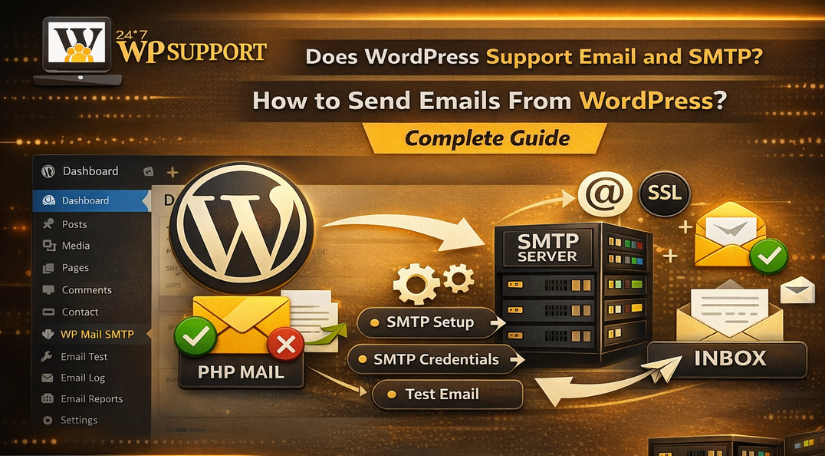
Does WordPress Support Email and SMTP? How to Send Emails From WordPress? Complete Guide
Last updated on April 15th, 2026 at 06:21 am
Introduction
Email is critical for every WordPress website. Your site sends password reset links to users. It sends order confirmations to customers. It sends contact form inquiries to you.
If these emails never arrive, your business suffers. Customers get frustrated. Sales get lost. Trust gets broken.
WordPress has a built-in email system. But that system has serious flaws. Many WordPress sites fail to send emails reliably.
The good news is that a solution exists. It is called SMTP. This guide will explain everything you need to know.
You will learn what SMTP is and how it works. You will discover why WordPress emails fail so often. You will get step-by-step instructions to fix your email delivery.
By the end, your WordPress site will send emails that actually reach inboxes.
What is SMTP?
SMTP stands for Simple Mail Transfer Protocol. It is the standard method for sending emails across the internet.
Every email service uses SMTP behind the scenes. Gmail uses it. Outlook uses it. Yahoo Mail uses it too.
SMTP is like a postal service for digital messages. It takes your email and delivers it to the recipient’s mail server.
How Does SMTP Differ from Regular Web Traffic?
- Your website uses HTTP or HTTPS to load pages. This protocol is for browsing, not for sending emails.
- SMTP is a completely different protocol. It uses different ports and different rules.
- When you send an email through Gmail, your computer connects to Gmail’s SMTP server. That server then delivers your message.
Why does SMTP Require Authentication?
- Regular web traffic is anonymous. You do not need a password to visit a website.
- Email is different. SMTP requires a username and password. This proves you are the real sender.
- Without authentication, anyone could pretend to be you. Spammers could send millions of fake emails from your address.
- Authentication stops this abuse. It also helps receiving servers trust your emails.
SMTP vs. PHP Mail Function
- WordPress has two ways to send emails. The default method uses the PHP mail() function. The better method uses SMTP.
- The PHP mail() function is simple but flawed. It sends emails directly from your web server. It does not use any authentication.
- Receiving servers see an email coming from a random IP address. They cannot verify who sent it. So they mark it as spam or block it entirely.
- SMTP solves this problem completely. Your email goes through a trusted provider’s server. That provider has a good reputation. Your email gets delivered.
What are the Key Features of SMTP?
SMTP offers several important features. These features make it superior to the default WordPress email system.
1. Authentication and Identity Verification
- The most important feature is authentication. You must provide a valid username and password. This proves you are the real sender.
- Receiving servers check this authentication. They see that a trusted provider vouches for you. So they accept your email.
- Without authentication, your email looks suspicious. It gets filtered into spam or rejected entirely.
2. Encryption for Security
- SMTP supports encryption protocols like SSL and TLS. These protocols scramble your email content during transmission.
- No one can read your email while it travels across the internet. This protects sensitive information like password reset links.
- Encryption also proves that the email has not been tampered with. The content you sent is exactly what arrives.
3. Dedicated Email Ports
- SMTP uses specific network ports. These ports are reserved for email traffic only.
- Port 25 is the original SMTP port. But many internet providers block it now. They do this to reduce spam.
- Port 587 is the modern standard for authenticated SMTP. It works with TLS encryption.
- Port 465 was used for SSL encryption. Some providers still support it. But 587 is more common today.
4. Delivery Status Notifications
- Advanced SMTP services tell you what happened to your email. You can see if it was delivered or rejected.
- Some plugins show you a log of every email your site sent. You can see the date, time, recipient, and status.
- This helps you troubleshoot problems quickly. You know exactly when an email failed.
5. Rate Limiting and Queue Management
- Email providers have limits on how many messages you can send. This prevents spammers from flooding the system.
- SMTP services handle these limits for you. They queue your emails and send them at the right pace.
- You never have to worry about hitting a limit and breaking your site.
6. SPF, DKIM, and DMARC Support
- These are special DNS records that verify your email’s authenticity. SMTP services help you set them up correctly.
- SPF tells receiving servers which IP addresses can send email for your domain. DKIM adds a digital signature to your emails.
- DMARC tells servers what to do if an email fails these checks. Together, these records dramatically improve deliverability.
Does WordPress Support Email, SMTP, and Sending Emails?
WordPress does support sending emails. But the support is not good enough for modern standards.
The Default wp_mail() Function
- WordPress has a built-in function called wp_mail(). This function is called whenever your site needs to send an email.
- Contact form submissions trigger wp_mail(). Password reset requests trigger wp_mail(). Order confirmations trigger wp_mail().
- The wp_mail() function uses your web server’s mail system. This is usually the PHP mail() function.
- The PHP mail() function sends emails directly from your server. It does not use any authentication or encryption.
Why Default WordPress Emails Fail
Many WordPress users complain about missing emails. They test their contact forms and never receive the message.
The problem is almost always the default mail system. Here is why it fails so often:
- Shared Hosting IP Reputation:
- Most WordPress sites use shared hosting. Your site shares an IP address with hundreds of other sites.
- If any of those sites sends spam, the entire IP address gets blacklisted. Your legitimate emails get blocked too.
- No Authentication:
- Receiving servers cannot verify who sent the email. The email appears to come from your web server, not your domain.
- This looks suspicious to spam filters. Your email gets marked as spam or rejected entirely.
- Missing DNS Records:
- Professional email senders use SPF and DKIM records. These records prove the email is really from you.
- The default wp_mail() system does not use these records. Your emails look like forgeries to receiving servers.
- Hosting Providers Disable the Function:
- Some hosting companies disable the PHP mail() function entirely. They do this to prevent spam abuse.
- If your host has disabled it, your WordPress site cannot send any emails at all. You will not even know why.
The Good News: WordPress Can Use SMTP
- WordPress is flexible. You can override the default email system with a plugin.
- These plugins replace the wp_mail() function. They send all your site’s emails through an SMTP server instead.
- The SMTP server handles authentication, encryption, and delivery. Your emails suddenly become trustworthy.
What WordPress Needs to Send Emails Properly?
To send emails reliably, your WordPress site needs three things:
- An SMTP plugin installed and activated
- An account with an SMTP service provider
- Correct SMTP settings entered into the plugin
That is all it takes. The plugin does the rest automatically.
How to Send Emails From WordPress?
Follow this step-by-step guide to set up SMTP on your WordPress site.
Step 1: Choose an SMTP Plugin
Several excellent SMTP plugins are available. Each has different strengths-
Gmail / Google Workspace – Best for personal sites and small businesses
SendGrid – Best for growing sites and marketing emails
Mailgun – Best for developers and high-volume sending
Amazon SES – Best for large-volume and cost-conscious sending
SMTP2GO – Best for reliability and support
Postmark – Best for transactional emails only
Step 2: Install the WP Mail SMTP Plugin


● Log in to your WordPress dashboard. Go to Plugins in the left menu. Click Add New.
● Search for “WP Mail SMTP” in the search box. Look for the plugin by WPForms. It has a purple icon.
● Click Install Now, then wait a few seconds. Click Activate when the button changes.
Step 3: Launch the Setup Wizard
● After activation, a notification appears. Click “Launch Setup Wizard” to begin.
● The wizard will guide you through five simple steps. You do not need any technical knowledge.
Step 4: Choose Your Mailer
● The wizard asks which mailer you want to use. A mailer is your SMTP service provider.
● If you have a Gmail account, choose “Google / Gmail”. This is the easiest option for beginners.
● If you have another email provider, choose “Other SMTP”. You will need your provider’s server settings.
● Popular options include SendGrid, Mailgun, SMTP2GO, and your own web host’s SMTP server.
Step 5: Enter Your SMTP Credentials
The wizard now asks for your SMTP details. These vary by provider.
For Gmail users:
● Click the “Sign in with Google” button.
● Select your Google account.
● Allow WP Mail SMTP to access your email.
● The plugin will automatically fill in the settings.
For Other SMTP users:
● Enter the SMTP Host address (e.g., smtp.sendgrid.net).
● Enter the SMTP Port (usually 465 for SSL or 587 for TLS).
● Choose Encryption (SSL or TLS).
● Turn Authentication ON.
● Enter your full email address as the Username.
● Enter your email password or an API key.
Step 6: Configure Additional Settings
● The wizard asks about additional features. You can enable or skip each one.
● Force From Email: This ensures all emails appear to come from your domain. Enable this option.
● Force From Name: This sets the sender name (like “Your Website Name”). Enable this option.
● Email Logging: This saves a record of every email your site sends. Enable it for troubleshooting.
● Weekly Email Summary: This sends you a report of your email activity. Enable it if you want.
Step 7: Save and Send a Test Email
● Click the “Save and Continue” button. The wizard will test your connection.
● If successful, you will see a green success message. You can now send a test email.
● Enter your own email address in the “Send To” field. Click “Send”.
● Check your inbox for the test message. Also check your spam folder just in case.
● If the test email arrives, your setup is complete. Your WordPress site now uses SMTP for all emails.
Step 8: Test Your Contact Form
● Go to your website’s contact form. Fill it out as a visitor would. Submit the form.
● Check if you receive the notification email. It should arrive quickly and go to your main inbox.
● Also test your password reset feature. Request a password reset for your own account.
● The reset email should arrive reliably. You can now trust your WordPress email system.
Step 9: Monitor Your Email Logs
● Go to WP Mail SMTP in your WordPress menu. Click on the Email Log tab.
● You will see a list of every email your site has sent. Each entry shows the date, recipient, subject, and status.
● If an email ever fails, you will see a red error message. You can click “View” to see why it failed.
● This log is invaluable for troubleshooting problems quickly.
Step 10: Set Up Backup SMTP (Optional)
● Some SMTP plugins offer a backup connection. This is a second SMTP server that activates if the first one fails.
● WP Mail SMTP Pro includes this feature. It adds an extra layer of reliability to your email system.
● Your primary SMTP server might go down temporarily. The backup server will send your emails instead.
● You never have to worry about missed emails again.
Conclusion
Does WordPress support email and SMTP? Yes, WordPress can send emails. But the default system is not reliable enough for modern websites.
The wp_mail() function sends emails without authentication or encryption. Receiving servers mark these emails as spam. Many never arrive at all.
The solution is simple. Install an SMTP plugin and connect it to a trusted email provider. This takes less than ten minutes.
SMTP adds authentication, encryption, and proper DNS records. Your emails become trustworthy to receiving servers. They land in inboxes, not spam folders.
Related posts:

Brian is a WordPress support specialist and content contributor at 24×7 WP Support. He writes practical, easy-to-follow guides on WordPress troubleshooting, WooCommerce issues, plugin and theme errors, website security, migrations, performance optimization, and integrations. With a focus on solving real website problems, Brian helps business owners, bloggers, and online store managers keep their WordPress sites running smoothly.
