
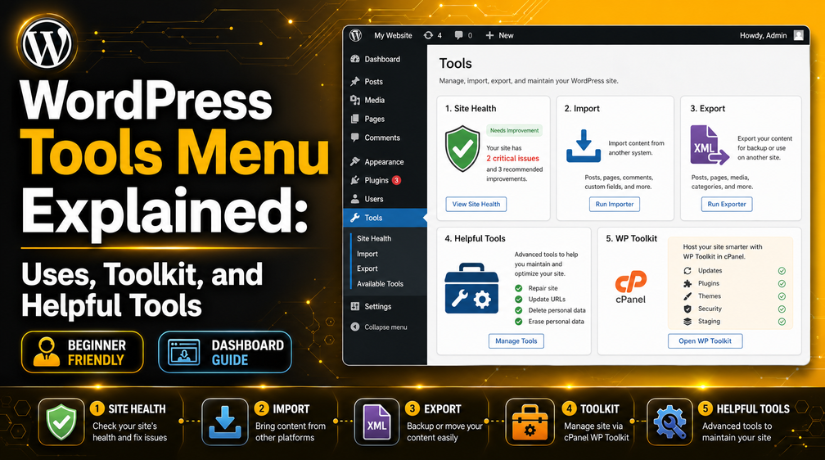
WordPress Tools Menu Explained: Uses, Toolkit, and Helpful Tools
Introduction
Most WordPress users work with posts, pages, plugins, and themes. These areas are important for daily website management. Still, the Tools section also plays a useful role. It helps you check site details, move content, and review important settings.
The WordPress Tools Menu is not only for advanced users. Beginners can also use it with simple guidance. It gives access to helpful options already included in WordPress. These options can support better website care and safer content handling.
For many website owners, this menu stays unnoticed for a long time. They may only open it during migration or troubleshooting. However, knowing this area can save time during website issues. It can also help you understand your website’s condition better.
This guide explains the Tools area in simple words. It focuses only on its real uses and helpful features. You will understand where it is, what it does, and why it matters.
What Is the Tools Area Inside WordPress Dashboard?
The Tools area is a built-in section inside WordPress. You can find it from your admin dashboard. After login, look at the left-side menu. There, you will see the “Tools” option.
This area includes helpful WordPress options for site management. These are different from theme or plugin settings. The Tools area focuses more on content movement and site information.
The default Tools section may include options like:
- Site Health
- Import
- Export
- Available Tools
- Plugin-added tools
Some websites may show extra options under this menu. This happens when installed plugins add their own tools. For example, a plugin may add a converter or cleanup tool.
These WordPress dashboard tools help users manage specific website tasks. They do not replace full maintenance or security tools. Still, they provide useful support for common website needs.
The Tools area is best used with care. Always understand each option before making changes. Some tools can affect content, settings, or website data. A backup is helpful before using import or export options.
In simple terms, the Tools area is a support section. It helps WordPress users handle important site tasks safely.
Main Uses of the WordPress Tools Area
The WordPress Tools area helps with important website management tasks. It gives users quick access to built-in support options. These options are useful during checks, updates, and content movement.
This section does not control your full website design. It also does not replace plugins or hosting tools. Instead, it supports specific tasks inside the WordPress dashboard.
The main uses of this area include:
- Checking the health of your WordPress website.
- Importing content from another website or platform.
- Exporting content for migration or safe reference.
- Accessing helpful tools added by installed plugins.
- Reviewing technical details before asking for support.
These tools used in WordPress help users manage common website needs. They are simple, but they still need careful use. Some actions may affect content or website data. So, users should understand each option before using it.
For beginners, this area gives a clear starting point. It helps them review website issues without complex steps. For site owners, it saves time during basic checks. For support teams, it gives useful technical details quickly.
Understanding the WordPress Site Health Option
The WordPress site health tool is one important dashboard feature. It helps users understand their website’s technical condition. You can find it under Tools inside WordPress.
This tool checks different parts of your website. It reviews performance, security, server setup, and plugin behavior. It also shows warnings that may need attention.
Site Health usually shows two main types of results:
- Critical issues: These need quick attention from the user.
- Recommended improvements: These help improve website performance and safety.
Critical issues may affect website speed, security, or stability. These should not be ignored for a long time. Recommended improvements may not break your website immediately. Still, they can improve your website experience.
The Site Health screen also includes an Info section. This section shows useful technical details about your website. It may include WordPress version, PHP version, themes, plugins, and server details.
This information is helpful when asking for expert support. A support team can review these details quickly. It helps them understand the website setup better. It also reduces guesswork during troubleshooting.
For USA business owners, this tool is very useful. It helps keep websites stable, fast, and safer. Regular checks can prevent small issues from becoming bigger problems.
How WordPress Import and Export Tools Help Users
The WordPress import export tools help users move website content safely. These tools are useful during website migration or content transfer. You can find them inside the WordPress Tools area. They help move content without copying everything manually.
These tools are helpful for bloggers, business owners, and developers. A user may move posts from an old website. A business may copy pages to a new WordPress setup. A support team may also use them during website changes.
Import and export tools are simple to access. Still, users should understand their purpose before using them. They mainly handle website content, not the full website. This point is very important for safe website management.
What the Export Tool Does
The Export tool helps you download website content into a file. WordPress usually creates an XML file for this content. You can save this file on your computer.
The Export tool may include different content types, such as:
- Posts
- Pages
- Comments
- Categories
- Tags
- Custom post types
This tool is useful when moving content between WordPress websites. It can also help keep a content copy for reference. However, it does not create a full website backup. It does not include all plugin files, theme files, or database settings.
What the Import Tool Does
The Import tool helps bring content into a WordPress website. You can upload an export file from another WordPress site. WordPress then reads the file and imports the content.


This tool is useful when shifting content to a new website. It can also help restore selected content from another source. During import, WordPress may ask you to assign authors. It may also offer to download attached media files.
Users should check imported content after the process finishes. Some images, links, or layouts may need review. This helps avoid broken pages or missing content.
What Users Should Know Before Using These Tools
Import and export tools are helpful, but they have limits. They are not a full backup solution. Always take a complete backup before major content movement.
Also, test imported content carefully after completion. Check page links, images, categories, and formatting. This small step helps protect your website quality. It also gives users more confidence during migration.
What Is a WordPress Toolkit?
A WordPress toolkit is a group of helpful website tools. It helps users manage WordPress tasks from one place. These tools are often available through hosting accounts or control panels.
A toolkit is different from the built-in Tools menu. The Tools menu works inside your WordPress dashboard. A toolkit usually works from your hosting account. Both can help with WordPress management, but in different ways.
A WordPress toolkit may help with common tasks like:
- Installing WordPress on a domain.
- Updating WordPress core files.
- Managing active plugins and themes.
- Checking basic website security settings.
- Viewing all WordPress sites in one place.
- Creating staging sites, if supported by hosting.
This toolkit is useful for business website owners. It saves time when managing more than one website. It also helps users complete basic tasks without manual setup.
For beginners, it gives a simple control area. For support teams, it provides quick access to site actions. However, users should still use these tools carefully. Wrong changes may affect website files, settings, or access.
WP Toolkit in cPanel and How It Helps WordPress Users
WP Toolkit cPanel is a hosting-side WordPress management feature. Many hosting companies provide it inside cPanel. It helps users manage WordPress without opening every dashboard separately.
This tool can show your installed WordPress websites. It may also show plugin, theme, and update details. Users can manage important actions from the hosting panel itself.
WP Toolkit in cPanel can help with tasks like:
- Installing WordPress on a selected domain.
- Checking available WordPress updates.
- Managing plugins and themes from cPanel.
- Enabling basic security options.
- Viewing website status from one screen.
This feature is helpful for USA business owners with multiple sites. It reduces repeated login steps and saves useful time. It also helps hosting users monitor WordPress more easily.
Still, WP Toolkit should be used with proper care. Users should review each action before applying changes. A backup is also important before updates or security changes.
In simple terms, WP Toolkit supports hosting-level management. The WordPress Tools menu supports dashboard-level tasks. Both are useful when used in the right place.
Difference Between WordPress Tools Menu and WP Toolkit
The WordPress Tools Menu and WP Toolkit are both useful. However, they are not the same feature. The Tools menu works inside your WordPress dashboard. WP Toolkit usually works inside your hosting control panel.
The Tools menu helps with dashboard-level tasks. You can check Site Health, import content, and export content. Some plugins may also add useful options there.
WP Toolkit helps with hosting-level WordPress management. It can show installed WordPress websites in one place. It may also help with updates, plugins, themes, and security options.
Here is the simple difference:
- WordPress Tools Menu: Used inside the WordPress admin dashboard.
- WP Toolkit: Used inside cPanel or hosting control panel.
- Tools menu: Best for site checks and content movement.
- WP Toolkit: Best for hosting-side WordPress management.
Both tools support better website care. You only need to use the right tool correctly.
When Should You Use These WordPress Tools?
Use these tools when you need specific WordPress support tasks. You can use Site Health when your site feels slow. You can also use it when errors appear often.
Use the Export tool when moving website content. Use the Import tool when adding content from another site. Use WP Toolkit when managing WordPress from your hosting account.
These tools are helpful during updates, migration, and troubleshooting. They also help support teams understand your website setup faster.
Common Mistakes Users Should Avoid
Many users use these tools without understanding their purpose. This can create content, settings, or access issues.
Avoid these common mistakes:
- Do not treat Export as a full website backup.
- Do not ignore critical Site Health warnings.
- Do not import content without checking the source file.
- Do not confuse dashboard tools with hosting tools.
- Do not update settings without taking a backup.
Careful use helps protect your website from avoidable problems.
Conclusion
The Tools area is a useful part of WordPress. It helps users check site health and move content safely. WP Toolkit also helps manage WordPress from hosting.
Before using any tool, understand its purpose clearly. This keeps your website safer and easier to manage. If you need help reviewing Site Health, import/export steps, or toolkit settings, 24×7 WP Support can guide you safely.
Related posts:

Brian is a WordPress support specialist and content contributor at 24×7 WP Support. He writes practical, easy-to-follow guides on WordPress troubleshooting, WooCommerce issues, plugin and theme errors, website security, migrations, performance optimization, and integrations. With a focus on solving real website problems, Brian helps business owners, bloggers, and online store managers keep their WordPress sites running smoothly.
